Overview
The AI Reply Agent handles the replies that come back from your SalesBlink sequences. It can:
- Auto-Tag Incoming Replies — read each reply, classify the intent, and tag the lead in your Inbox (for example, Interested, Not Interested, Meeting Request, Automatic Response, Out of Office).
- AutoReply to Leads — draft and send an AI-generated reply for the reply types you choose.
You stay in control: run the agent in Autopilot (replies send automatically) or Human-In-The-Loop (HITL) (replies are drafted for you to review and approve in the Outbox).
What the AI Reply Agent does
When a lead replies to an email in one of your sequences:
- The agent reads the reply and tags the lead with the detected intent.
- If the intent matches one you selected in the AI Reply Agent settings, and the sequence has AutoReply enabled, the agent generates a context-aware reply.
- The reply is written with the full conversation in mind so it sounds natural and relevant.
- Replies and AI follow-ups use the subject
Re: <original subject>, so they stay in the lead's existing email thread, including for Outlook senders. - In Autopilot mode, the reply is sent automatically after a short delay.
- In HITL mode, the reply waits in the Outbox for your approval before sending.
- If Handle follow-ups is enabled, the agent schedules one AI follow-up 24 hours later. That pending follow-up is cancelled if the lead replies again before it sends.
What it is good for
- Responding instantly to Interested or Meeting Request replies, even outside business hours.
- Keeping conversations warm with fast, thread-aware replies.
- Handling a high volume of replies without letting leads fall through the cracks.
- Automatically organizing your Inbox with reply tags so your team can prioritize high-intent leads.
- Maintaining a consistent tone across every reply.
Prerequisites
Before you can use the AI Reply Agent, make sure:
- Your SalesBlink plan includes AI Replies. If it does not, the UI shows Upgrade to Access and redirects you to Billing.
- You have available AI credits (or you have added your own OpenRouter API key in AI Settings).
- You have at least one sequence with reply tracking enabled.
How to configure the AI Reply Agent
Configuration happens in two places: your account settings and the sequence settings.
Set up your Business Profile
The AI uses your Business Profile to understand your company and offer. It is used for AI-generated templates, Write with AI in the Inbox, AI follow-ups and AI Reply Agent replies. Set it up before you turn on the agent.
- Click Account in the top navbar and select AI Settings.
- Find the About your Business / Project card.
- Fill in the fields:
| Field | Details |
|---|---|
| Company / Product Name (required) | Your company or product name. |
| Industry / Category | Select one or more, or type your own: B2B SaaS, Sales & Marketing, IT & Software Development, Agency & Consulting, Staffing & Recruiting, FinTech, Healthcare & Biotech, E-Commerce & Retail, Real Estate, Education & EdTech, Manufacturing & Logistics. |
| Core Offering & Value Proposition (required) | The problem you solve and the outcome you deliver. 50 words recommended. |
| Target Audience / ICP | Who you reach out to. 35 words recommended. |
| Primary Call-to-Action (CTA) | Defaults to "Book a 15-minute discovery call". Other options: "Schedule a quick demo walkthrough", "Reply to this email if interested", "Check out our 1-page case study / demo video", or Custom Call to Action... to type your own. |
| Meeting / Calendar Link (Optional) | Your booking link. Click Use connected calendar to fill it from your SalesBlink Meeting Scheduler. |
| Social Proof / Credibility (Optional) | For example, customer counts or ratings. 35 words recommended. |
| Rules of Engagement & What NOT to Say | Select presets or type your own rules. Presets: "Never quote pricing or offer discounts directly", "Avoid buzzwords, hype, and aggressive sales pressure", "Never promise specific delivery or implementation dates", "Do not mention competitors", "Keep emails strictly concise and under 60 words". |
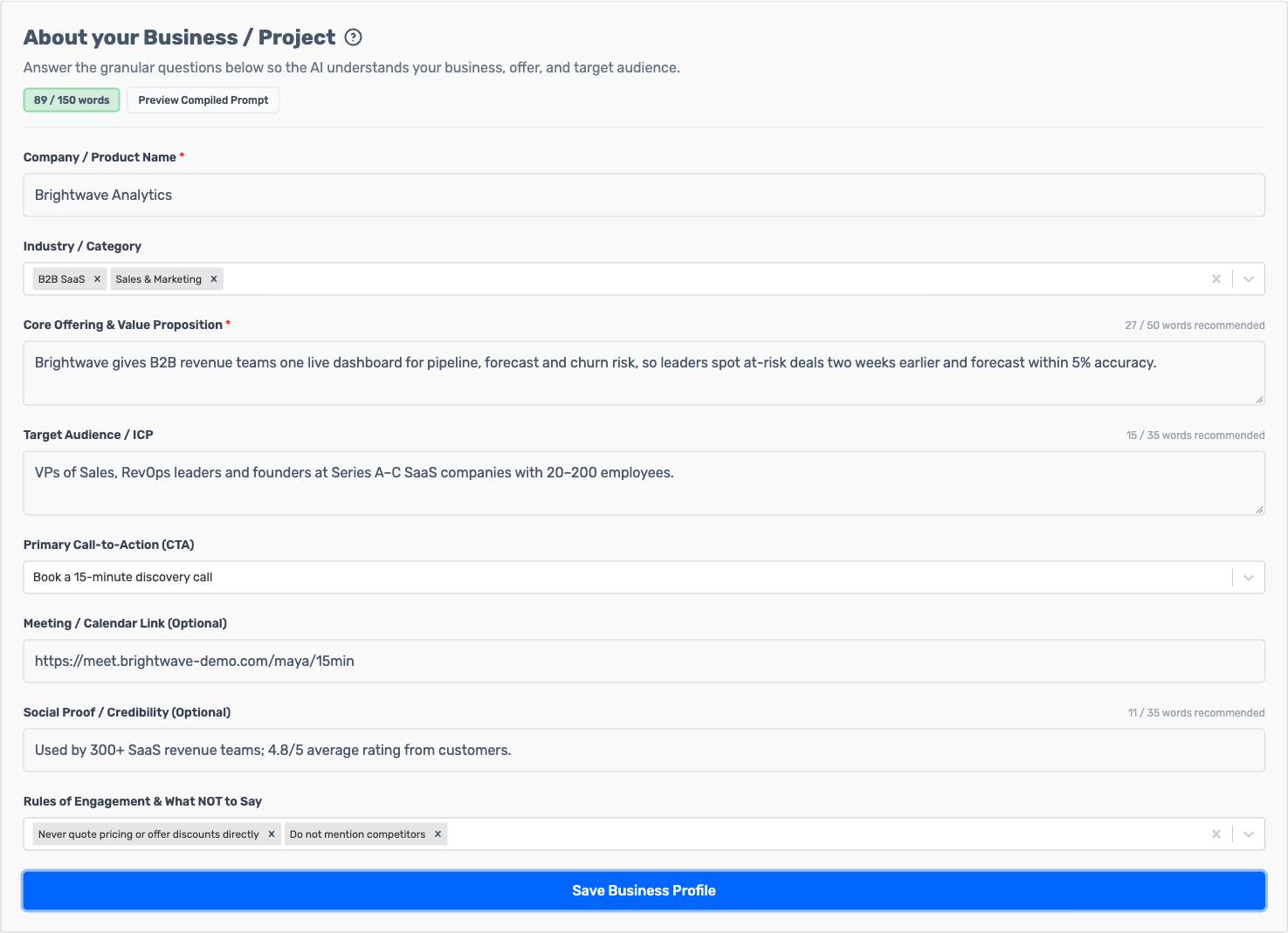
- Optionally, click Preview Compiled Prompt to see the text that is sent to the AI.

- Click Save Business Profile. You see "Business Profile saved successfully."
Note: The whole profile can be up to 150 words. A word counter at the top of the card shows your total. If you go over the limit, Save Business Profile is disabled until you shorten it. If you add your own OpenRouter API key, there is no word limit.
Step 1: Enable the AI Reply Agent account-wide
Log in to SalesBlink.
Click Account in the top navbar.
Select AI Settings from the dropdown.
In the AI Agents table, find the row labeled AI Reply Agent.
Toggle the switch on. The AI Reply Agent Settings modal opens automatically.
Choose the AI Agent Mode, then click Next:
- HITL (Human-In-The-Loop) — drafts replies for you to review and approve in the Outbox.
- Autopilot (Fully Autonomous) — sends replies automatically without manual review.
Set the agent's style, then click Next:
- Agent's Tone of Voice — Friendly, Neutral, Matter-of-fact, Professional, or Humorous.
- Agent's Response Length — Concise (under 20 words), Standard (under 50 words), or Thorough (70 to 100 words).
- Should the Agent follow up if lead stops replying? — Yes, auto-schedule follow-up or No, reply only once.
Under Reply Outcome Instructions, select which reply outcomes should trigger an AI reply. The agent can reply to three outcomes:
- Interested
- Not Interested
- Meeting Request
Each selected outcome has its own prompt that tells the AI how to handle that type of reply. Each prompt starts with a default you can edit, and Reset to default restores it. Each prompt can be up to 100 words, or unlimited if you have added your own OpenRouter API key.
The Meeting Request outcome also has a Calendar / Meeting Booking Link field. If you use the SalesBlink Meeting Scheduler, it is filled in from your connected calendar.
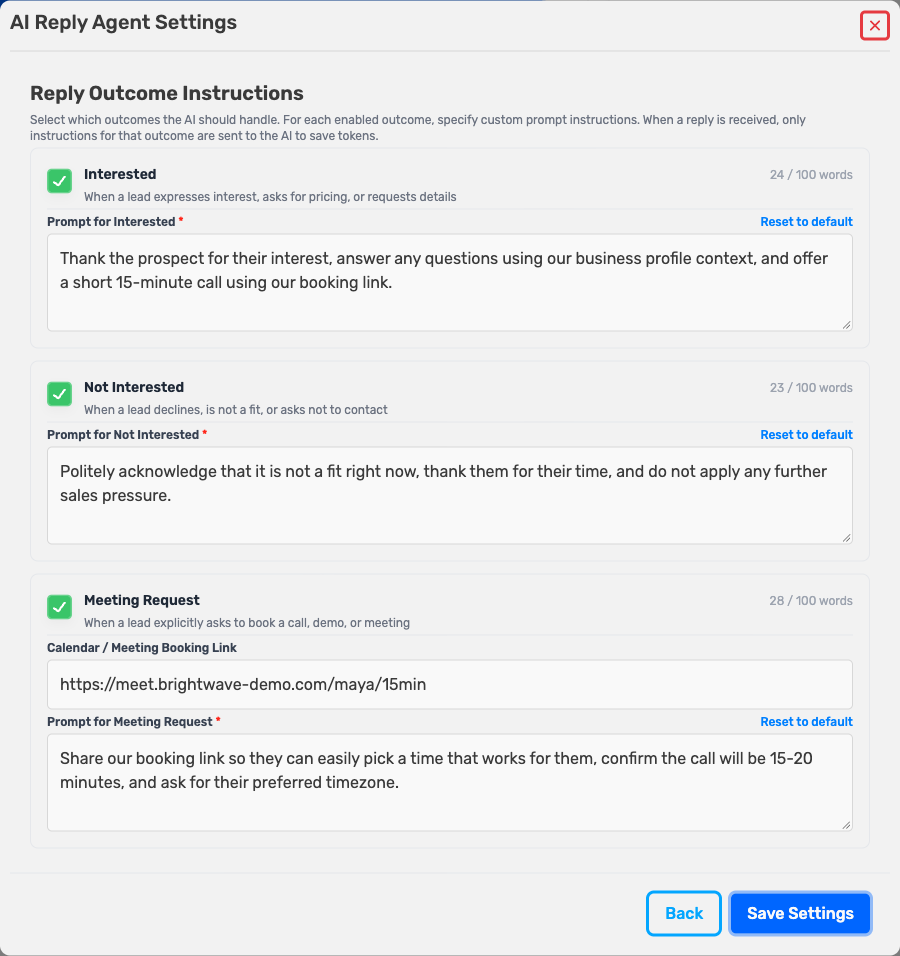
- Click Save Settings.
Tip: On the same page you can add your own OpenRouter API Key so AI features use your key instead of SalesBlink AI credits. If you do this, make sure your OpenRouter account has at least $5 in prepaid credits.
Note: After you add an OpenRouter API key, you can choose a preferred model in Select AI Model. SalesBlink tries your model first. If it fails, SalesBlink retries with its default models. If your model fails 3 times in AI Reply Agent tasks (counted across requests), it resets to None and you get an AI Model Error notification.
Step 2: Enable it on a sequence
- Go to Outreach → Sequences and open the sequence you want to use.
- Click Save & Schedule (or Edit Sequence if the sequence is running) to open the Sequence Settings dialog.
- Select the AI & More tab.
- Under Tracking, enable Track Email Replies.
- Enable Auto-Tag Incoming Replies. This is only available after reply tracking is turned on.
- Enable AutoReply to Leads with AI Reply Agent. This is only available after Auto-Tag is turned on.
- If you see the message Configure AI Reply Agent to use this feature, click the link and finish the global setup in Step 1 first.
- Save or schedule the sequence.
Note: If AutoReply is enabled but the account-level AI Reply Agent has no outcomes configured, saving is blocked with the message: "Please configure AI Reply settings first."
How replies are processed
| Mode | What happens |
|---|---|
| HITL | A reply task is created with Pending approval in Outbox. You must open the Outbox, review the draft, and approve it before it sends. |
| Autopilot | A reply task is created approved and sends automatically after roughly 90 seconds. |
You can switch modes at any time from Account → AI Settings → AI Reply Agent.
When to use the AI Reply Agent
Use the AI Reply Agent when:
- You receive enough replies that manual replies slow you down.
- You want immediate, consistent responses to Interested and Meeting Request replies.
- You want replies automatically tagged so your team can focus on high-intent leads.
- You are comfortable with AI-generated replies, or you want to review them first with HITL mode.
- You want 24/7 reply coverage without keeping someone online.
When not to use the AI Reply Agent
Avoid relying on the AI Reply Agent when:
- Your plan does not include AI Replies (the feature will be blocked or show Upgrade to Access).
- You have not enabled Track Email Replies and Auto-Tag Incoming Replies on the sequence.
- You have no AI credits left and no personal OpenRouter key configured.
- Every reply needs a highly specific human touch that the prompt cannot capture.
- You are not able to review the Outbox regularly and do not want to risk Autopilot sending incorrect replies.
- The conversation context is missing or the original thread cannot be read by the agent.
AI credit costs
Each action consumes AI credits from your account:
| Action | Credits |
|---|---|
| Auto-Tag one incoming reply | 0.5 |
| AutoReply generated and sent | 3 |
| AI follow-up (if enabled) | 3 |
You can check your remaining credits at Account → Billing → AI Credits. If you add your own OpenRouter API key in AI Settings, SalesBlink does not deduct plan or add-on credits for AI Reply Agent actions.
Limitations to keep in mind
- The agent only replies to the reply outcomes you explicitly select in AI Reply Agent Settings.
- Auto-Tag requires Track Email Replies; AutoReply requires both Track Email Replies and Auto-Tag Incoming Replies.
- Bounces and non-reply messages are ignored by the reply detector.
- If the sender, contact, or original thread data is missing, no reply task is created.
- AI output quality depends on the selected model; there is no guaranteed multi-language output.
- In HITL mode, replies do not send until you manually approve them.
Quick checklist
Before the AI Reply Agent can run:
- Your plan includes AI Replies.
- The global AI Reply Agent toggle is on and at least one reply outcome is selected.
- Each selected reply outcome has a prompt that matches your use case, and your Business Profile is saved.
- The sequence has Track Email Replies, Auto-Tag Incoming Replies, and AutoReply to Leads with AI Reply Agent enabled.
- You have AI credits available, or a personal OpenRouter key saved in AI Settings.
Frequently Asked Questions
Where do I review AI replies before they send?
In HITL mode, open Outreach → Outbox and approve or edit the pending AI reply tasks.
Can I stop the AI Reply Agent after enabling it?
Yes. Return to Account → AI Settings, find the AI Reply Agent row, and toggle it off. You can also disable AutoReply on individual sequences.
Will the agent reply to Out-of-Office emails?
No. Out-of-office and other automatic responses are tagged in your Inbox, but the agent only replies to the outcomes you select: Interested, Not Interested and Meeting Request.
Does it work with my own AI model?
Yes. First add your own OpenRouter API key in AI Settings, then choose a model in Select AI Model. SalesBlink tries your model first and retries with its default models if it fails. After 3 failures in AI Reply Agent tasks, your model resets to None and you get an AI Model Error notification.