Overview
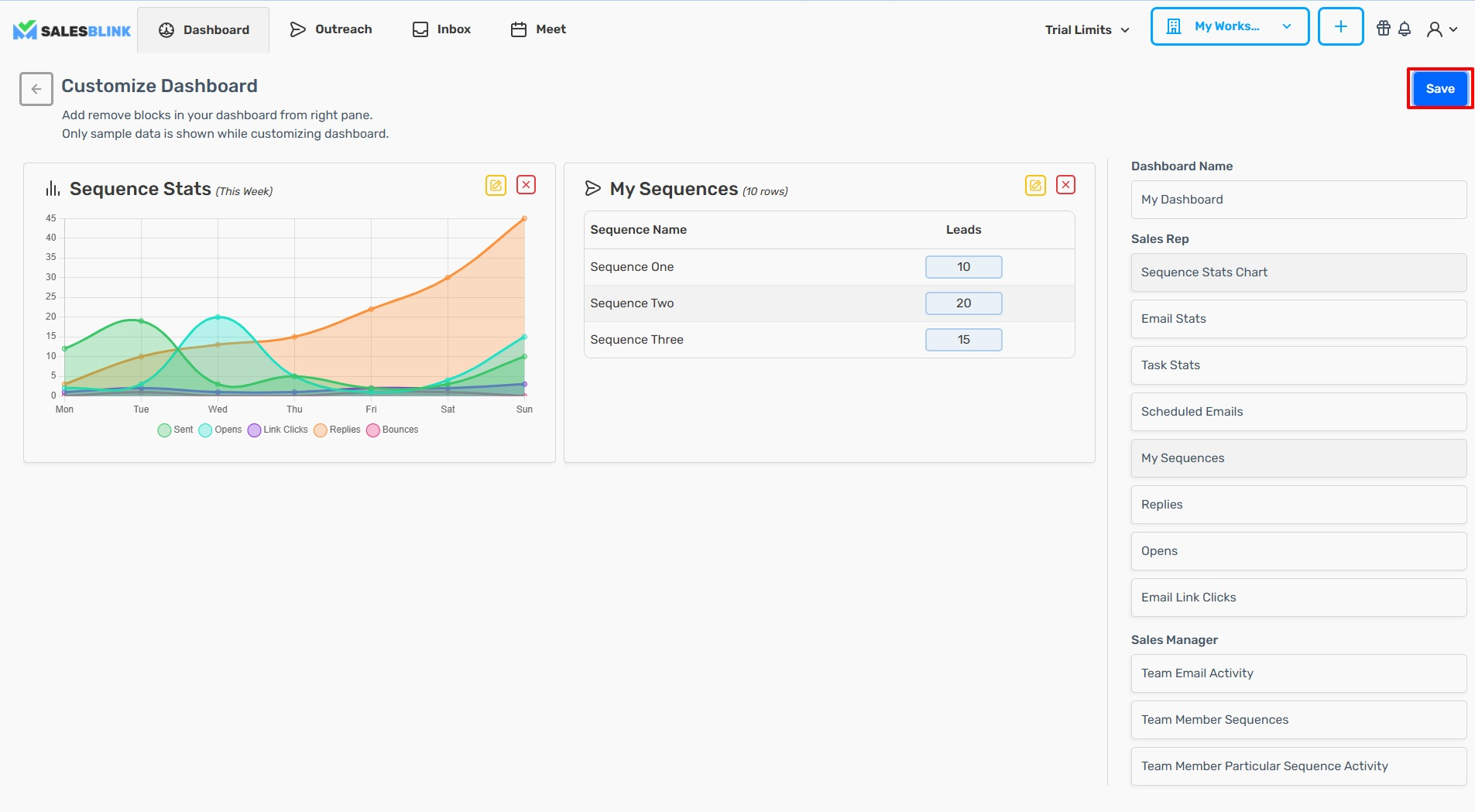
Add, remove, and configure dashboard cards to track sequences, email stats, and team activity.
Dashboard Layout
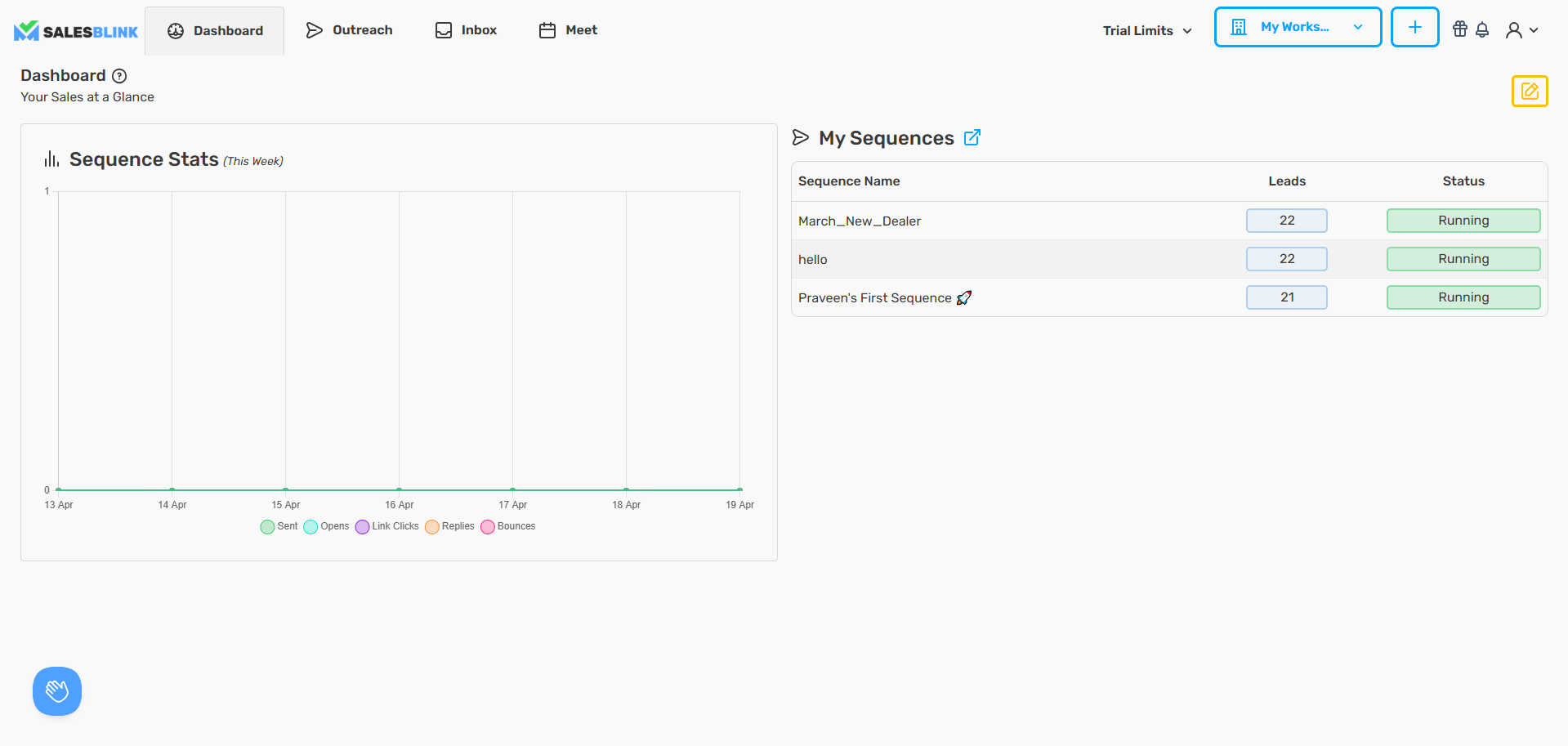
The Dashboard displays two main areas:
- Left side: Sequence stats with visual charts
- Right side: My Sequence List
Add or Edit Dashboard Cards
- Click the Edit icon (pencil) in the top-right corner of the Dashboard.

- Select a Card Type from the right panel.
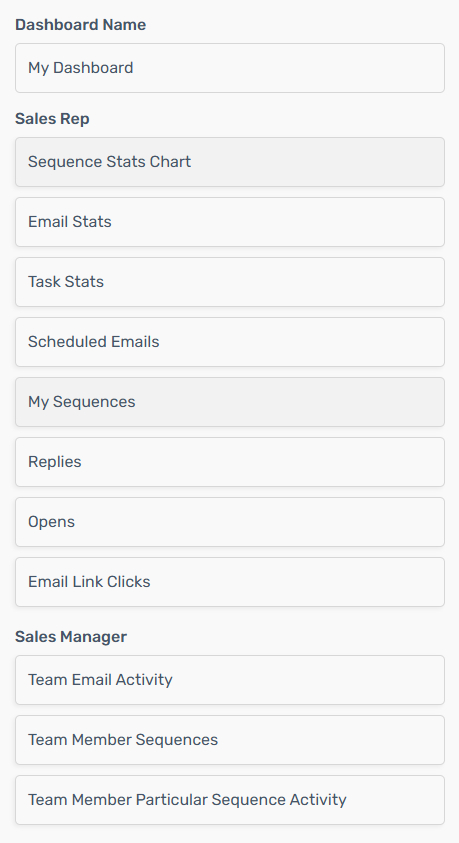
- Configure the card settings.
- Click Add to Dashboard.
Available Card Types
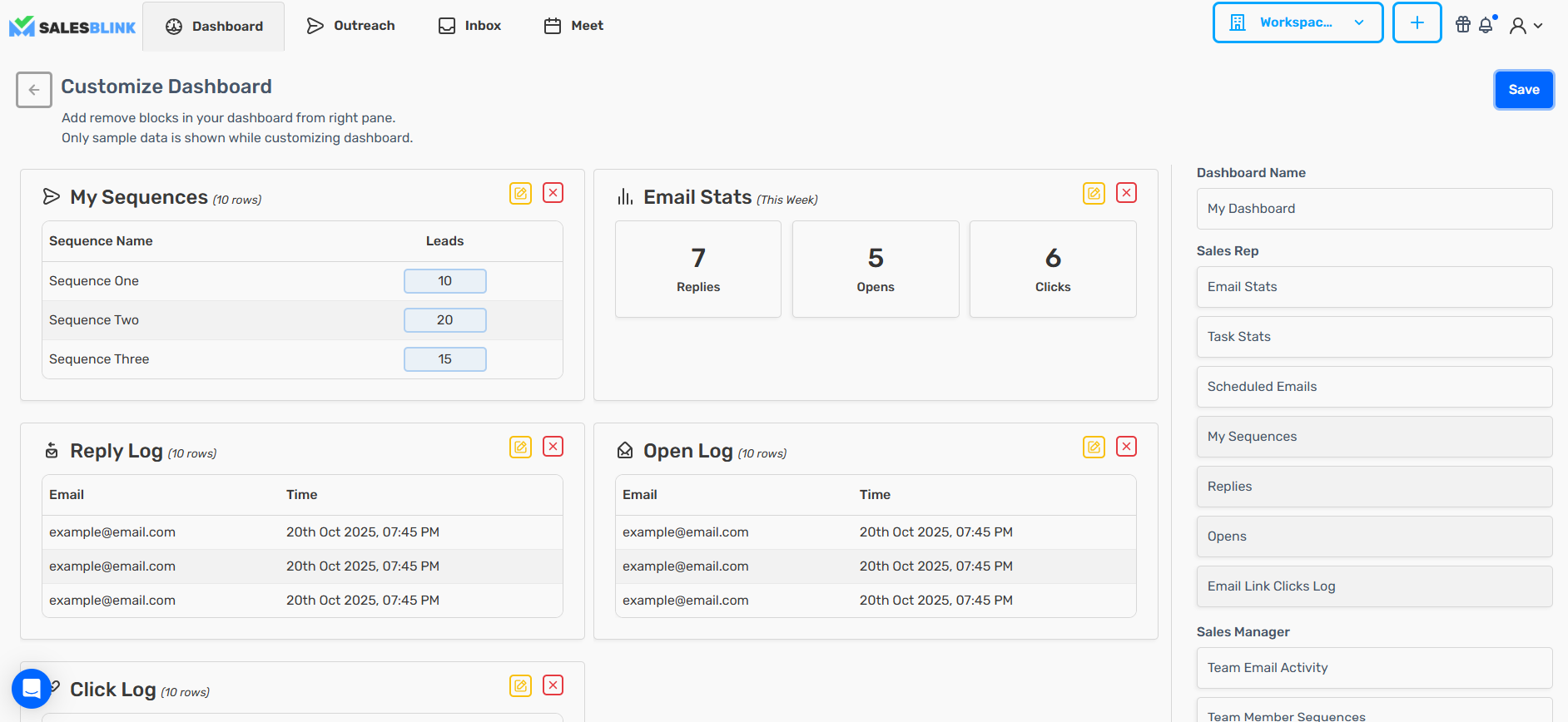
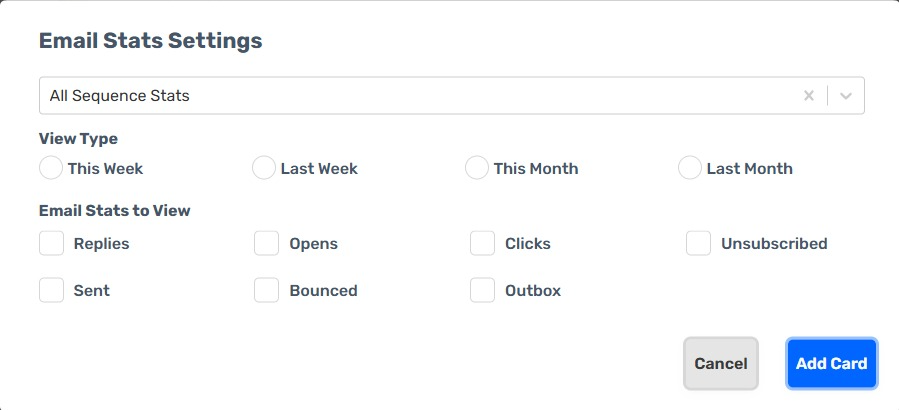
Email Stats
Track performance across all sequences or a specific one.
View Types: This Week, Last Week, This Month, Last Month
Metrics: Sent, Outbox, Opens, Clicks, Replies, Unsubscribed, Bounced
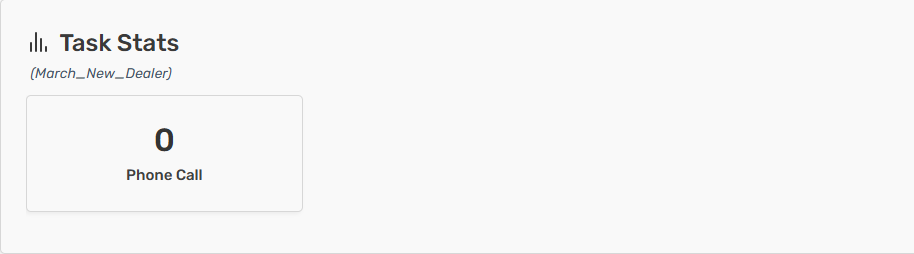
Task Stats
Display stats for your custom Task Types. Use this card to monitor pending and completed tasks across your team.
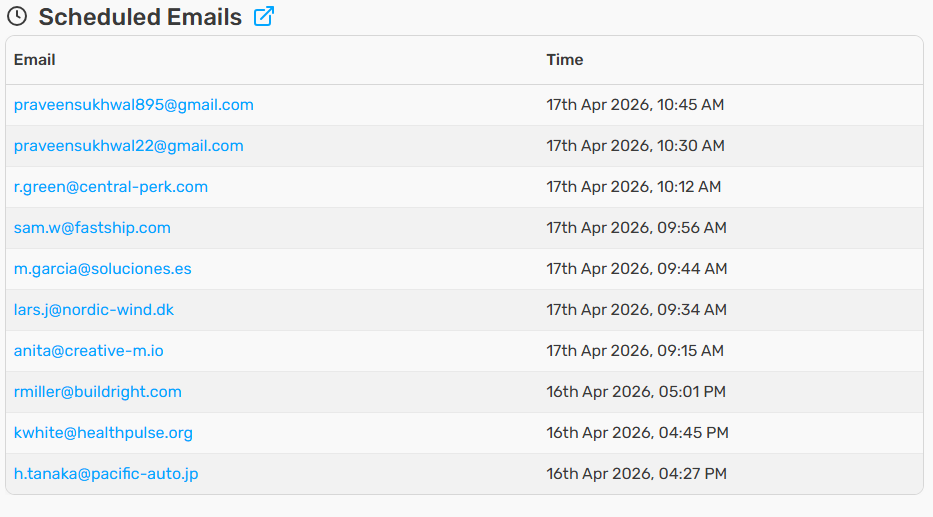
Schedule Emails
List of your recently scheduled cold emails. Review upcoming sends and adjust timing as needed.
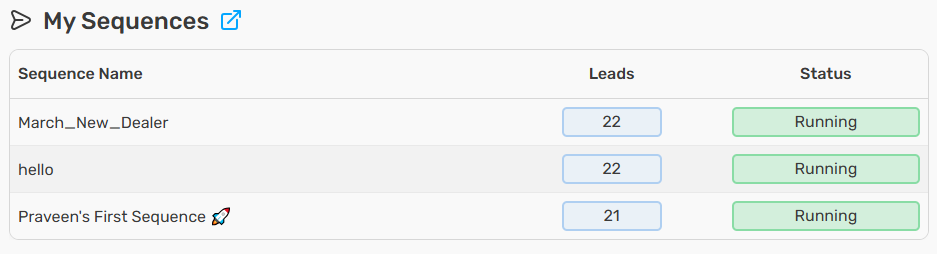
My Sequences
List of all your sequences with status indicators. Quickly see which sequences are active, paused, or completed.
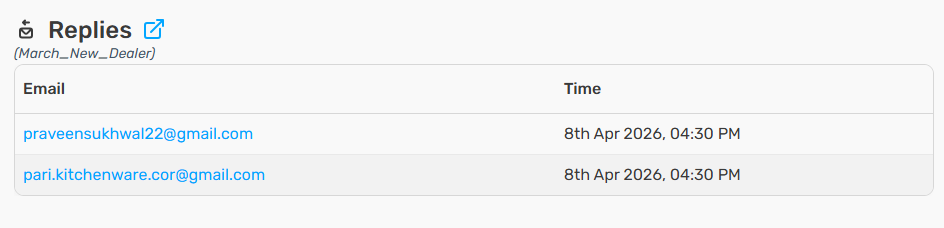
Replies
Recent email replies from leads. Stay on top of conversations that need follow-up.
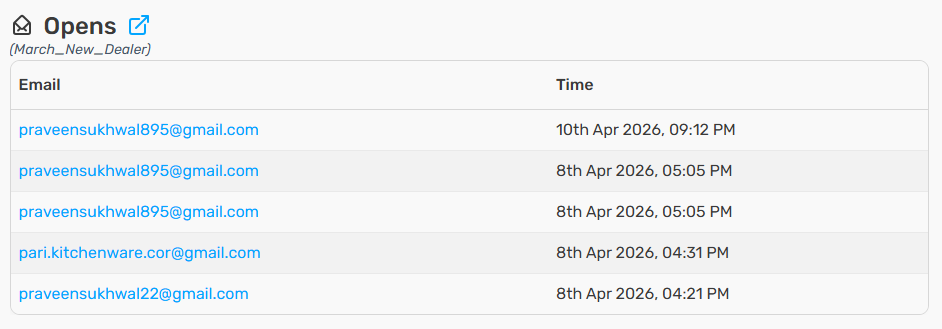
Opens
Recent email opens by leads. Gauge interest and prioritize engaged prospects.
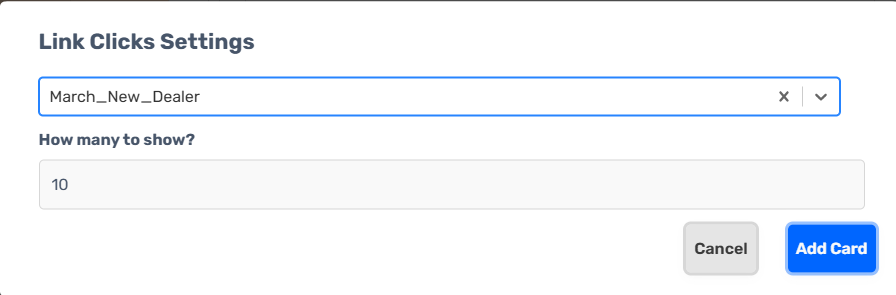
Email Link Clicks
Recent clicks on links in your emails. Identify leads showing high intent and follow up accordingly.
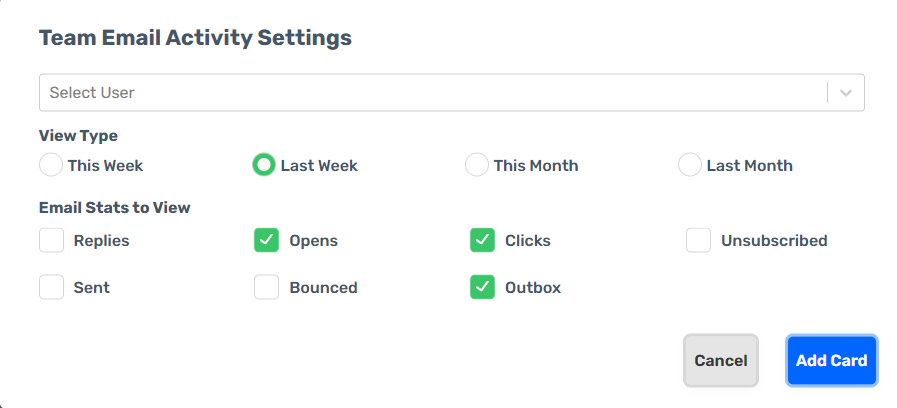
Team Email Activity
Track a team member's cold email performance.
Configuration:
- Select Team Member
- Select View Type (This Week, Last Week, This Month, Last Month)
- Select Metrics (Sent, Outbox, Opens, Clicks, Replies, Unsubscribed, Bounced)
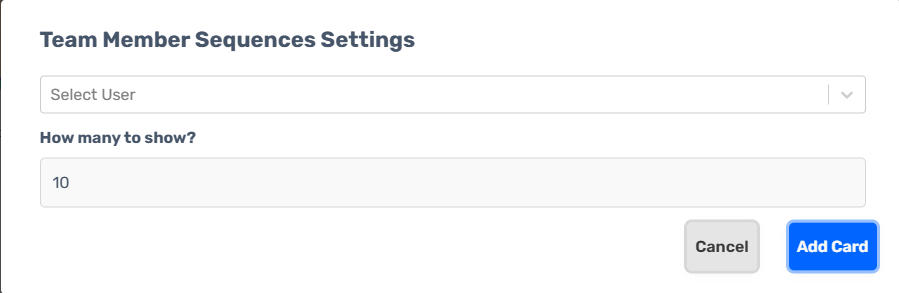
Team Member Sequence
View sequences owned by a specific team member.
- Select User from the dropdown.
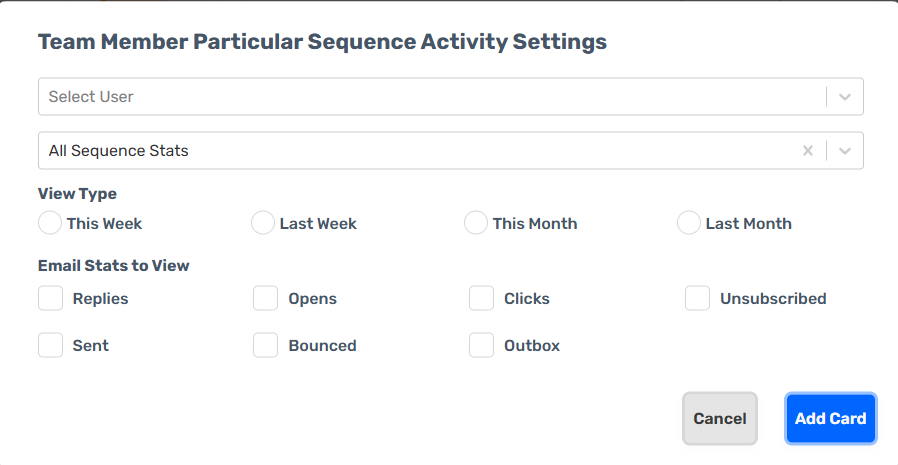
Team Member Particular Sequence Activity
Drill into a specific sequence's performance by team member.
Configuration:
- Select User
- Select Sequence
- Select View Type (This Week, Last Week, This Month, Last Month)
- Select Metrics (Sent, Outbox, Opens, Clicks, Replies, Unsubscribed, Bounced)
Remove or Rearrange Cards
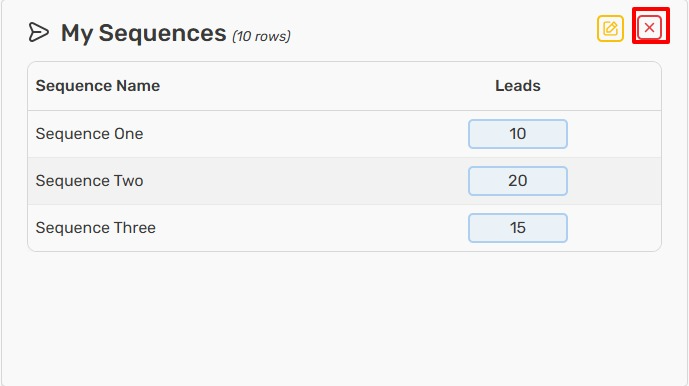
- Click the X on any card to remove it.
- Drag and drop cards to reorder.
Save Changes
Click Done to exit edit mode and save your dashboard layout.