Overview
Notifications help you stay on top of tasks in SalesBlink.
Default Notification Settings
Email notifications - Enabled
In-app notifications - Enabled
Push notifications - Prompted automatically
Slack (Chat) notifications - Optional opt-in
Disable Notifications
Click the Bell icon to access notifications.
Click the Settings icon (top right).
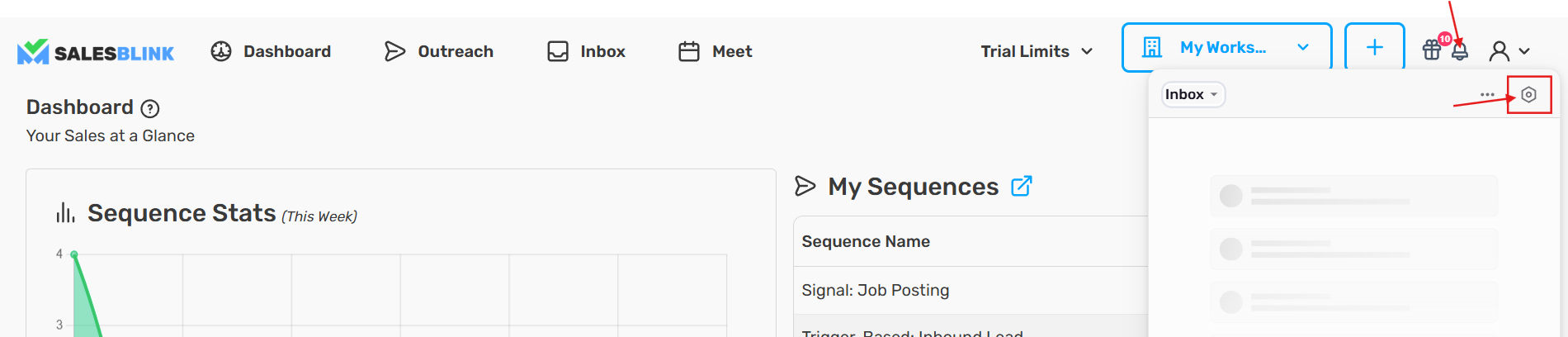
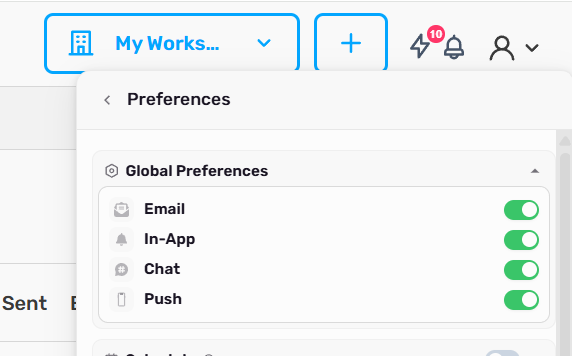
Select the notification type to manage.
Toggle the switch to OFF for Email, In-App, or Chat (Slack).
Notification types
You can turn each of these on or off per channel from Bell → Settings.
| Category | Notifications |
|---|---|
| Sequences | Scheduled Sequence is Started, Sequence Complete, Sequence Paused for Bounces, Sequence Scheduled – Emails Need Approval, Emails Unapproved for 5+ Days, Pending Tasks to Complete |
| Engagement | Email Opened, Link in Email Clicked, First Reply Received, Reply Received |
| AI | AI Reply Waiting for Approval, AI Model Error |
| Email senders | Email Sender Disconnected, Email Sender Error – Retry Scheduled, Email Sender Blocked for Bounces, Email WarmUp Enabled, Bulk Email Sender Upload Complete, Bulk Email Sender Re-Connect, Domain Disconnected, Domain Setup Warning |
| Other | Email List Verification is Complete, Deleting Empty List, Inbox Placement Test Complete, A new meeting has been scheduled, New Team Member Joins, MCP Connected, Subscription Payment Failed |
- First Reply Received is sent only for the very first reply your account gets. Every reply after that sends Reply Received.
- Sequence Complete stats count email steps only.
Emails you can't turn off
These account notices are always sent by email:
- Done-For-You (DFY) order and setup updates
- Plan updated
- Card updated
- Trial sending limit reached
Not Receiving Push Notifications?
Ensure SalesBlink is allowed to send notifications in your browser settings. Verify permissions in Google Chrome or Safari settings.
Tip: Once permissions are enabled, you will start receiving notifications.