Overview
Whitelabel allows you to customize the SalesBlink platform with your own branding. You can give your clients access to the app under your brand name, with your logo, and on your custom domain.
Prerequisites
Whitelabel access on your plan
Your own domain (for custom domain setup)
Access to your domain's DNS settings
What Can You Customize?
Company Name: Display your brand name throughout the platform
Logo: Upload your company logo for the dashboard and login page
Favicon: Add your brand icon for browser tabs
Custom Domain: Use your own domain instead of SalesBlink's URL
Access Whitelabel Settings
Step 1: Open Profile Menu
- Click on your Profile icon in the top right corner
Step 2: Go to Account
- Select My Profile from the dropdown menu
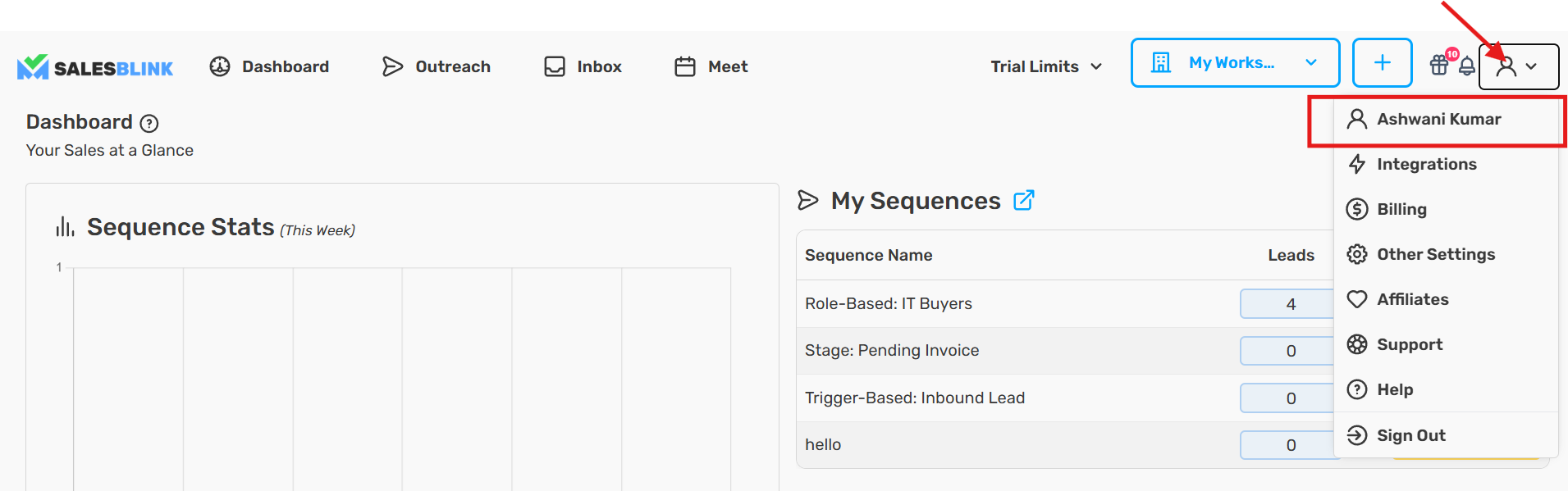
Step 3: Open Whitelabel Settings
- Navigate to Account → Whitelabel
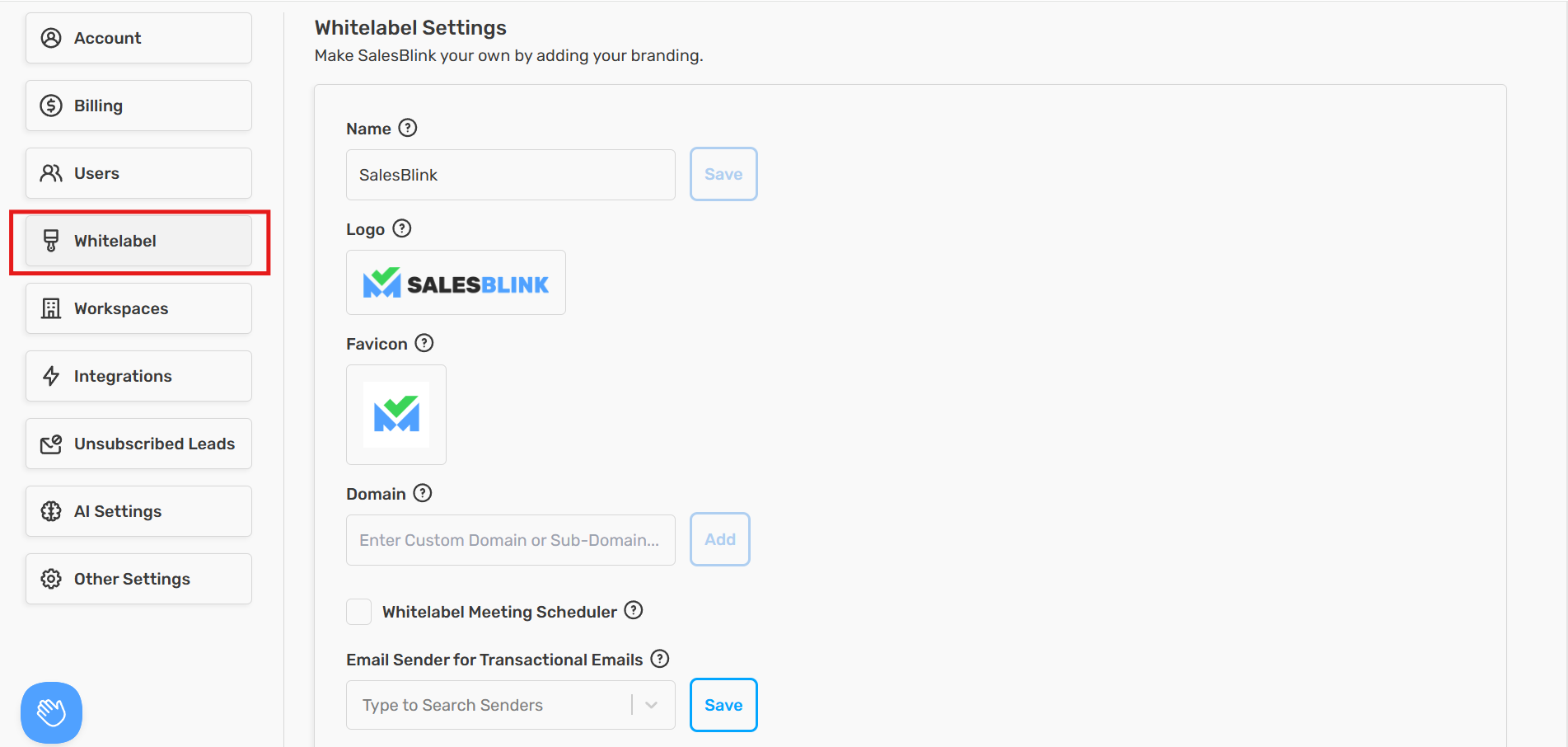
You're now on the Whitelabel Settings page where you can customize your branding.
Update Branding
1. Name
Enter your Company Name in the Name field
Click Save to apply changes
2. Logo
Click Upload Logo
Select your logo image file (recommended size: 150x30px)
Click Save to apply
3. Favicon
Click Upload Favicon
Select your favicon image file (recommended size: 150x150px)
Click Save to apply
How to Whitelabel Your Domain
Step 1: Add Your Domain
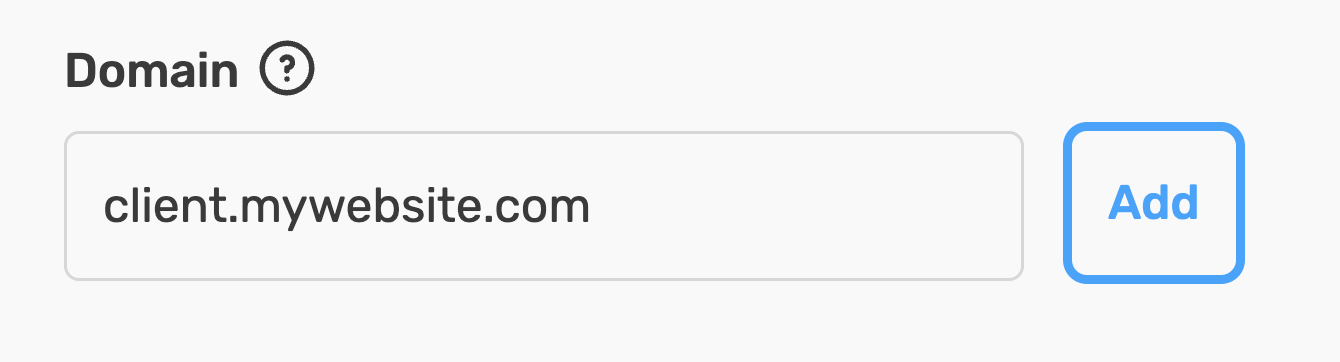
In the Whitelabel Settings, find the Domain section
Enter your custom domain (e.g., app.yourcompany.com )
Click Add Domain
Step 2: Configure DNS Records
After adding your domain, SalesBlink will provide DNS records that you need to add to your domain provider. The records depend on whether you're using a root domain or subdomain.
For Root Domains (e.g., yourcompany.com)
Add the following A record to your DNS settings:
| Type | Name/Host | Value/Points to |
|---|---|---|
| A Record | @ or yourdomain.com | 178.105.15.117 |
For Subdomains (Recommended) (e.g., app.yourcompany.com)
Add the following CNAME record to your DNS settings:
| Type | Name/Host | Value/Points to |
|---|---|---|
| CNAME | subdomain.yourdomain.com | run.salesblink.io |
Note: DNS changes can take up to 24-48 hours to propagate across the internet.
Step 3: Verify Domain
Return to SalesBlink Whitelabel Settings
Click Verify Record
Wait for verification to complete
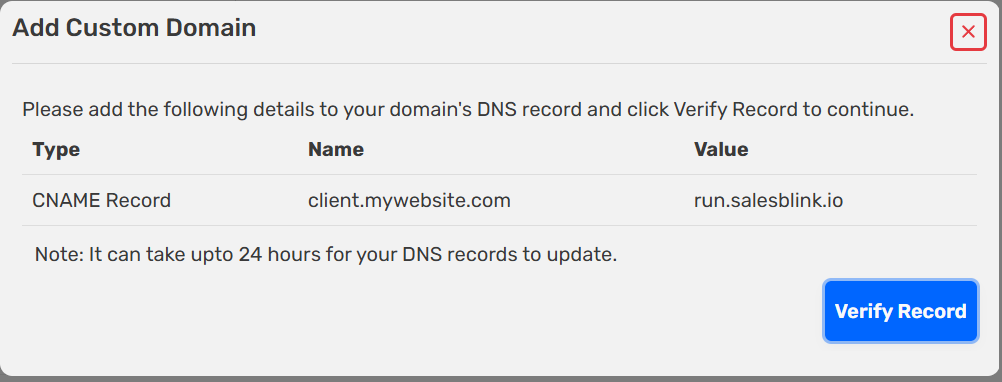
Once verified, your clients can access SalesBlink using your custom branded domain!
Now that you have whitelabeled SalesBlink, go ahead and add multiple workspaces and invite your clients.
Frequently Asked Questions
Q: How long does DNS propagation take?
DNS changes typically take 24-48 hours to fully propagate, though it can happen sooner in some cases.
Q: Can I use a subdomain instead of a root domain?
Yes, using a subdomain (like app.yourcompany.com) is actually recommended as it doesn't interfere with your main website.
Q: What image formats are supported for logos and favicons?
PNG, JPG, and SVG formats are supported. For best results, use a transparent PNG for the logo.
Q: Can I change my whitelabel settings after setup?
Yes, you can update your branding, logo, favicon, and domain settings at any time from the Whitelabel Settings page.