Overview
Follow these steps to connect your Gmail account to SalesBlink securely using IMAP and SMTP.
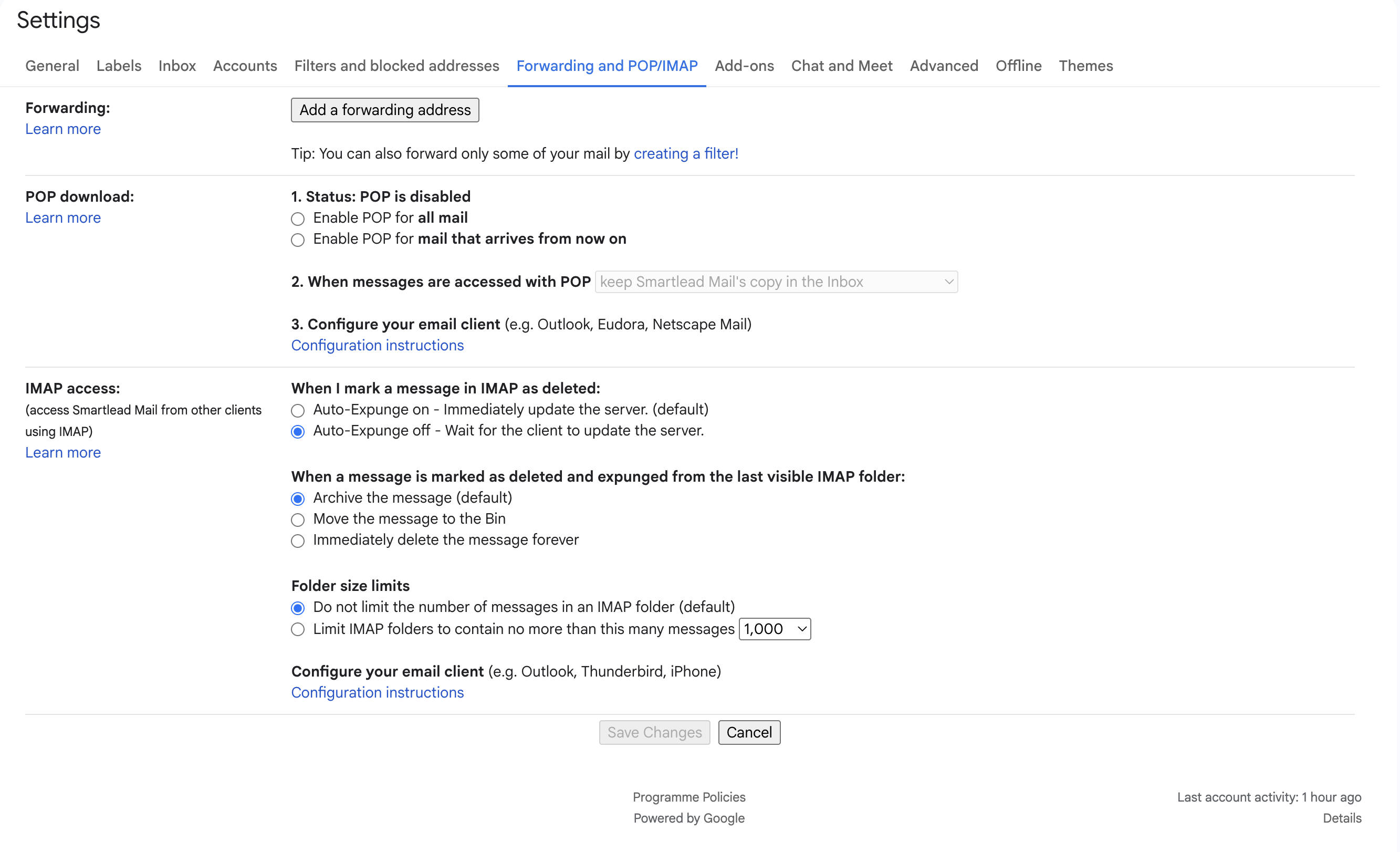
Step 1: Confirm IMAP is enabled in Gmail
Note: Gmail now enables IMAP by default for personal accounts. The traditional Enable/Disable IMAP buttons may no longer appear in the Gmail interface. Instead, you will see a message like "Access Gmail from other clients using IMAP". If you see this, IMAP is already active and no further action is needed.
If you are using a Google Workspace account, IMAP might be disabled by your admin. In that case:
- Ask your Google Workspace admin to go to admin.google.com.
- Navigate to Apps → Google Workspace → Gmail → End User Access.
- Ensure IMAP Access is enabled for your organizational unit.
Step 2: Enable 2-Step Verification
- Open your Google Account at myaccount.google.com.
- Click the Security tab in the left menu.
- Scroll to Signing in to Google and click 2-Step Verification.
- If it is not enabled, click Get Started.
- Enter your Google account password when prompted.
- Add your phone number and verify using the OTP sent to you.
- Click Turn On to complete the process.
Learn more about 2-Step Verification.
Step 3: Generate an app password
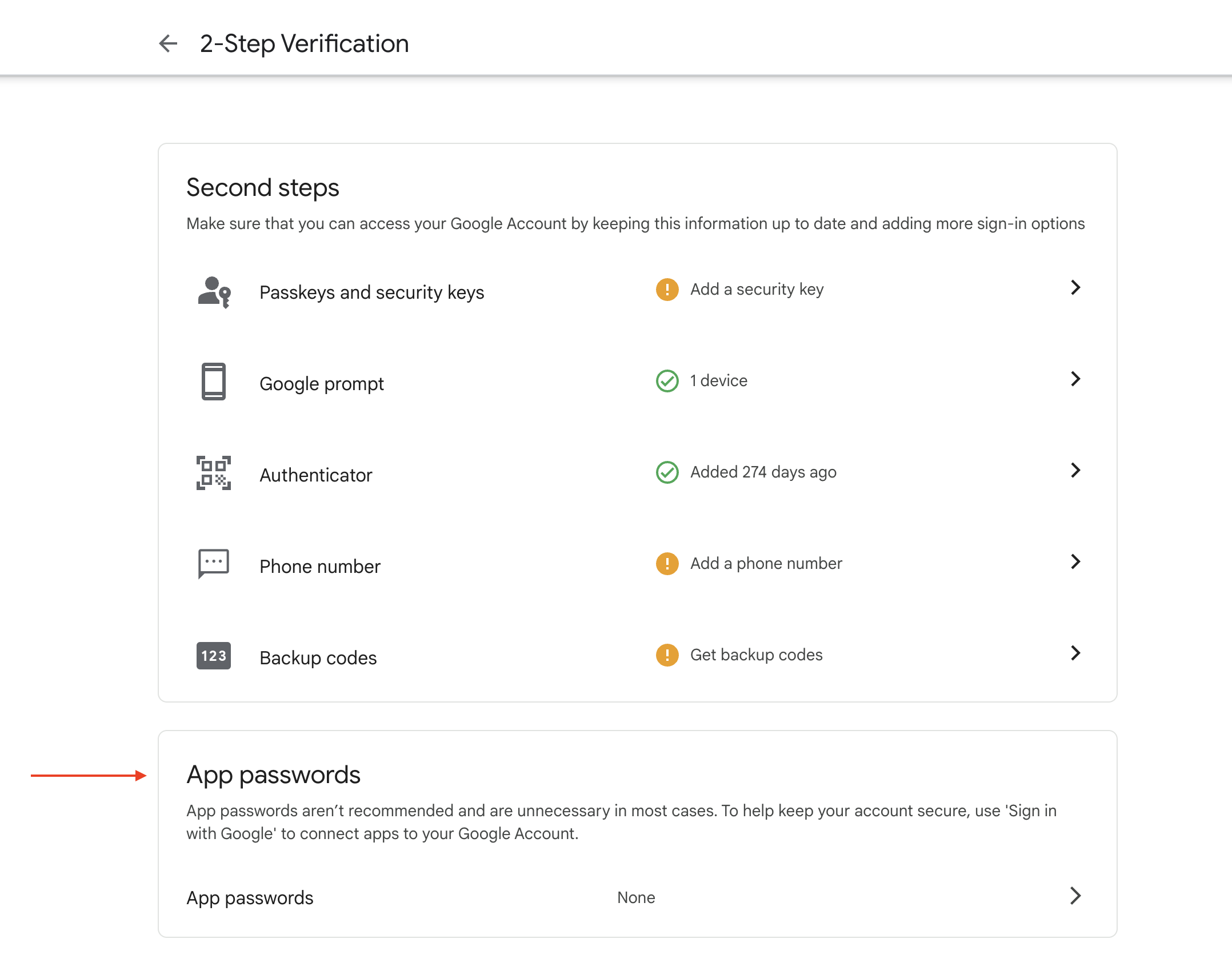
- In your Google Account's Security tab, go to 2-Step Verification.
- Scroll to the bottom and click App passwords.
- For the app, select Mail.
- For the device, choose Other (Custom name) and enter a label like SalesBlink.
- Click Generate.
- Copy the generated 16-character password.
Step 4: Add your Gmail account in SalesBlink
- Go to Outreach → Email Senders in SalesBlink.
- Click Add Sender.
- Enter your Gmail address and the app password you generated (not your regular Gmail password).
- Use the following server settings:
- SMTP Host:
smtp.gmail.com - SMTP Port:
465 - SSL:
True - IMAP Host:
imap.gmail.com - IMAP Port:
993 - SSL:
True
- SMTP Host:
- Click Test Connection.
- You will receive a test email on your Gmail account. If successful, you will see a confirmation message.
Tip: Google OAuth is the more secure and reliable method and reduces the risk of disconnection due to security policy changes. To connect Gmail with OAuth instead, see Connecting a Free Gmail Account or Gmail Alias or Connecting Google Workspace (G Suite).