Overview
If you keep seeing "This phone number has already been used too many times for verification", this guide is for you.
Note: This guide is for Google Workspace accounts where login is stuck in a phone number verification loop. If your account is fully suspended instead, your Workspace admin can reactivate it directly from the Admin Console under Directory → Users → select user → Reactivate.
These steps require Google Workspace admin access and will not work for free Gmail accounts.
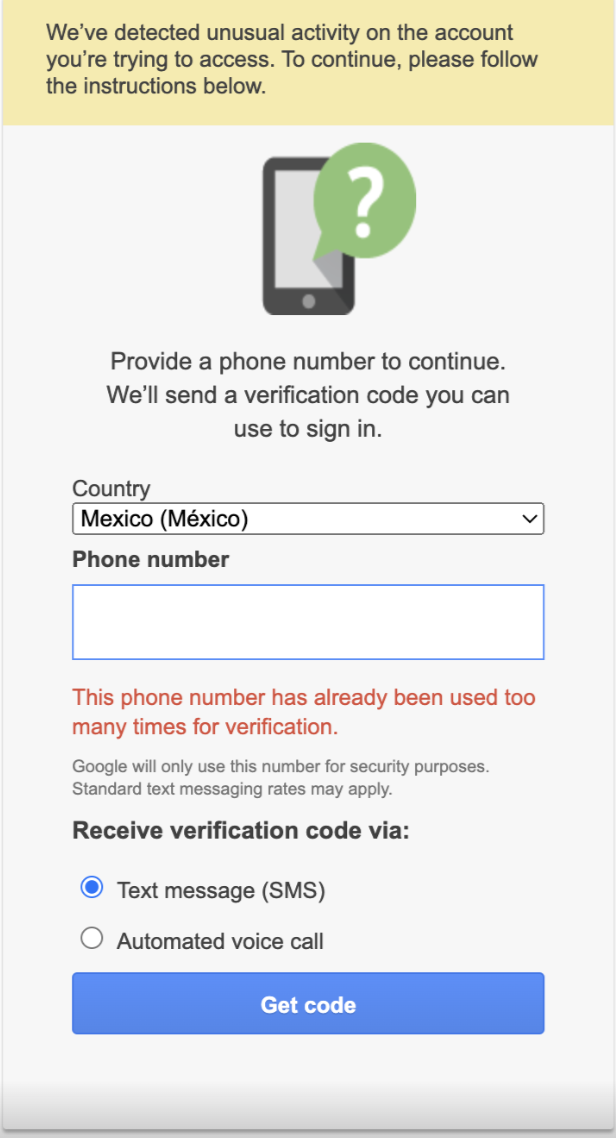
Step 1: Open the Admin Console
Go to the Admin Console of your Google Workspace account: https://admin.google.com/.
Step 2: Go to the Organizational Unit
Click Directory → Organizational Unit.
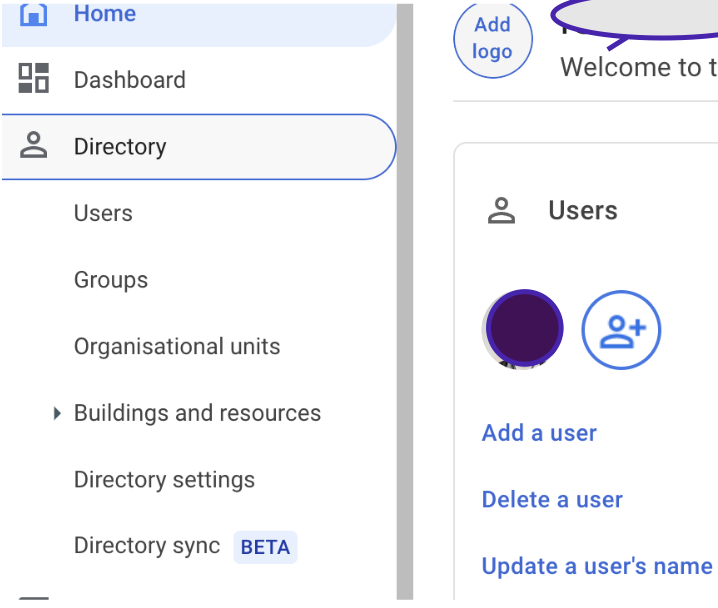
Step 3: Create a test organizational unit

Step 4: Select the suspended account
Go to Users and select the suspended account.

Step 5: Change the organizational unit
Change the organizational unit to the test one you created.
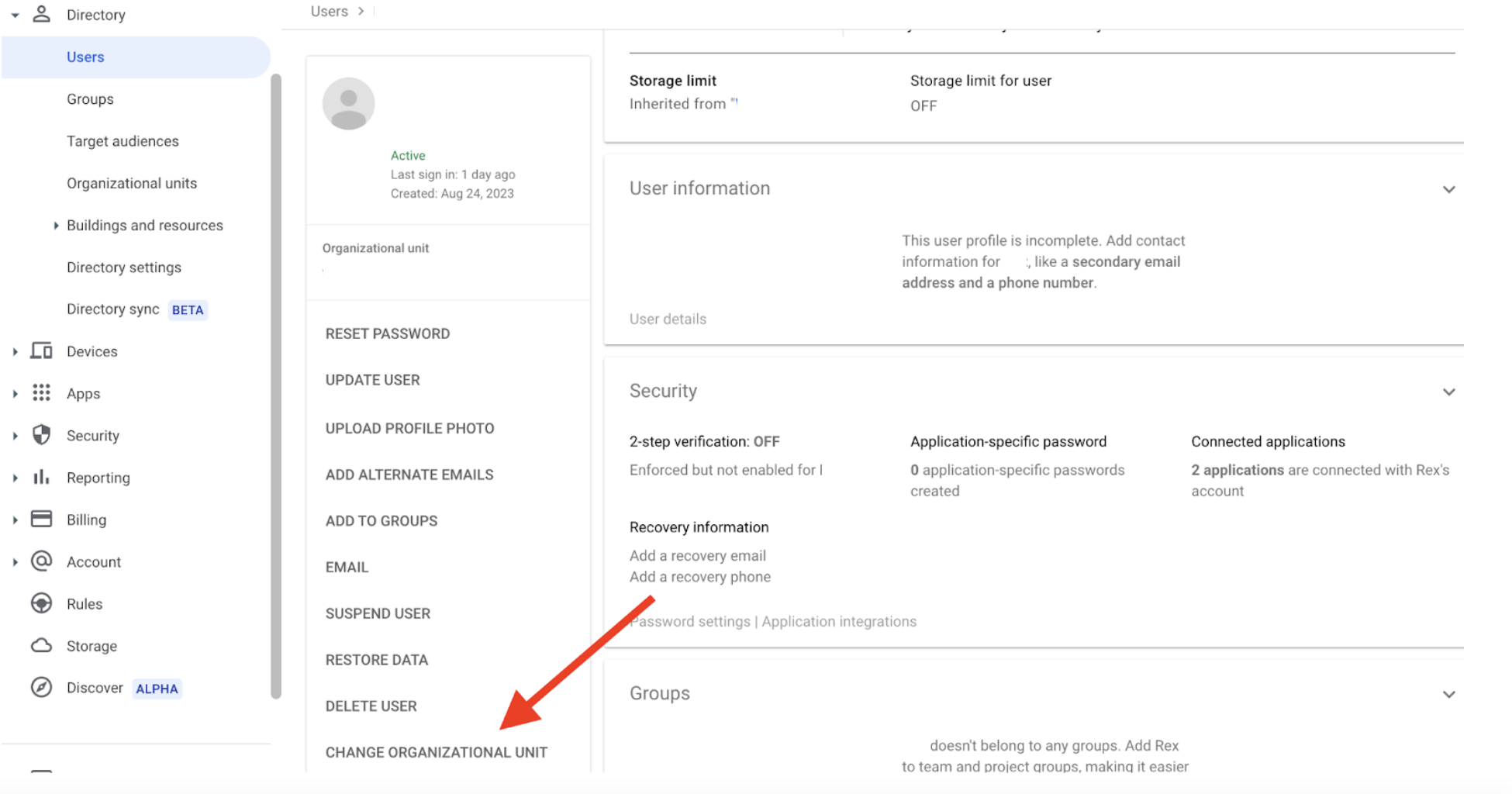
Step 6: Turn 2-Step Verification on
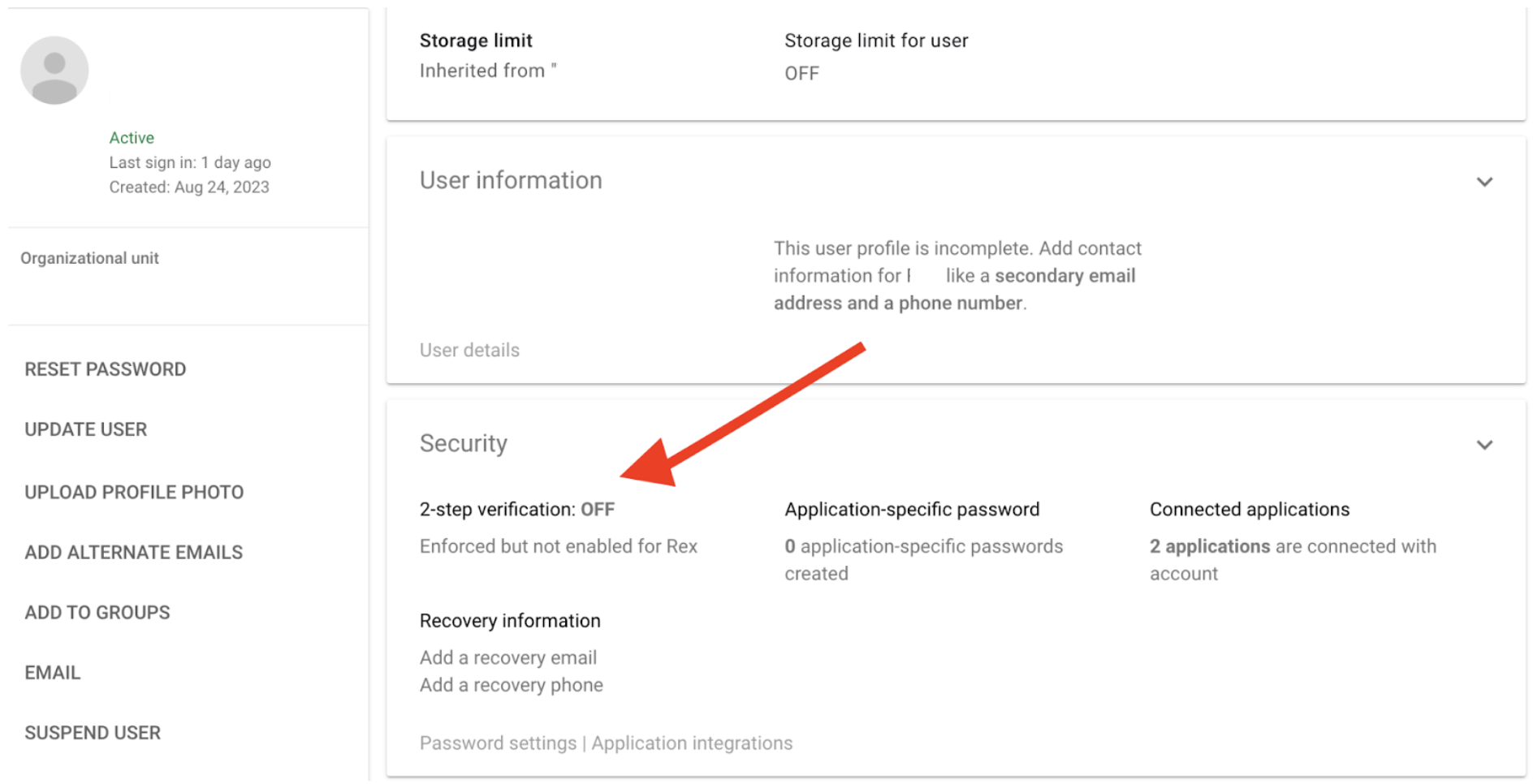
Step 7: Generate backup codes
Once 2-Step Verification is turned on, click Generate Backup Codes.
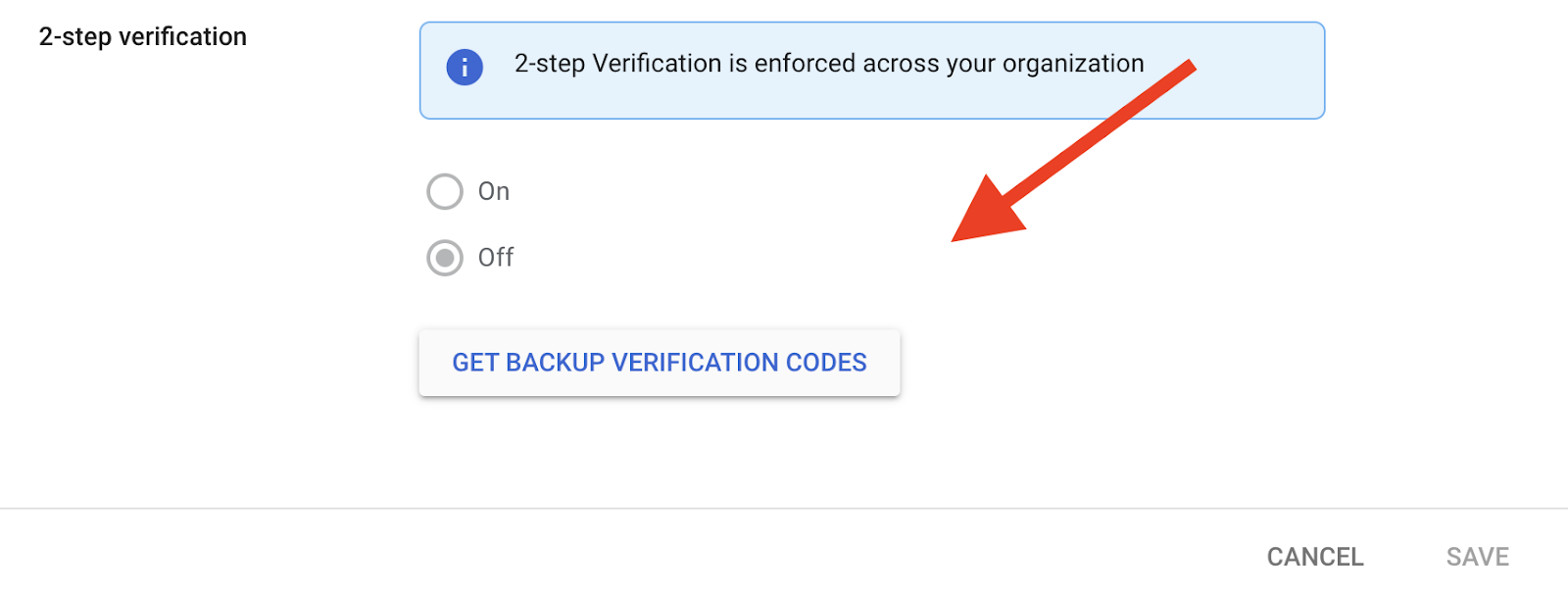
Step 8: Select a backup code
Select any one backup code.
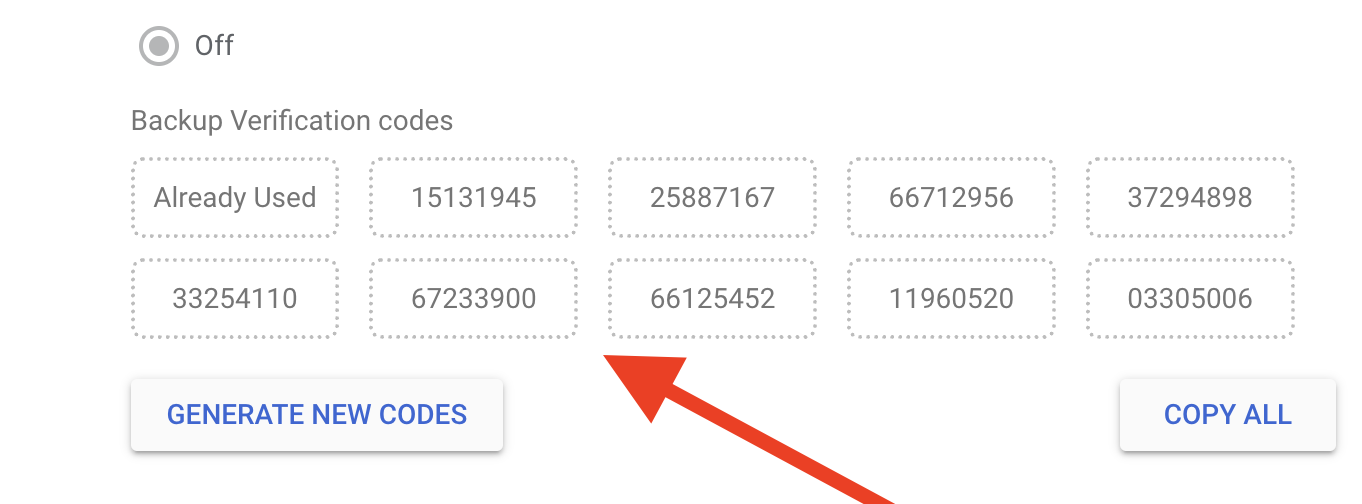
Step 9: Refresh and log in
- Refresh your Admin Console once this step is completed.
- Log in to the suspended account. This time it will not ask you for your phone number.
- When prompted, enter your password and then enter the backup code.
Once the backup code is entered, you are good to go.
Step 10: Move the account back
You can change your organizational unit back to default:
- Go to Directory → Users.
- Select the previously suspended user.
- Change the organizational unit from the test unit back to the default unit.