Overview
Generate cold email sequences with AI. Provide your business details and let AI automatically create email templates for replies.
Prerequisites
- Connected email sender
Launch Your Sequence
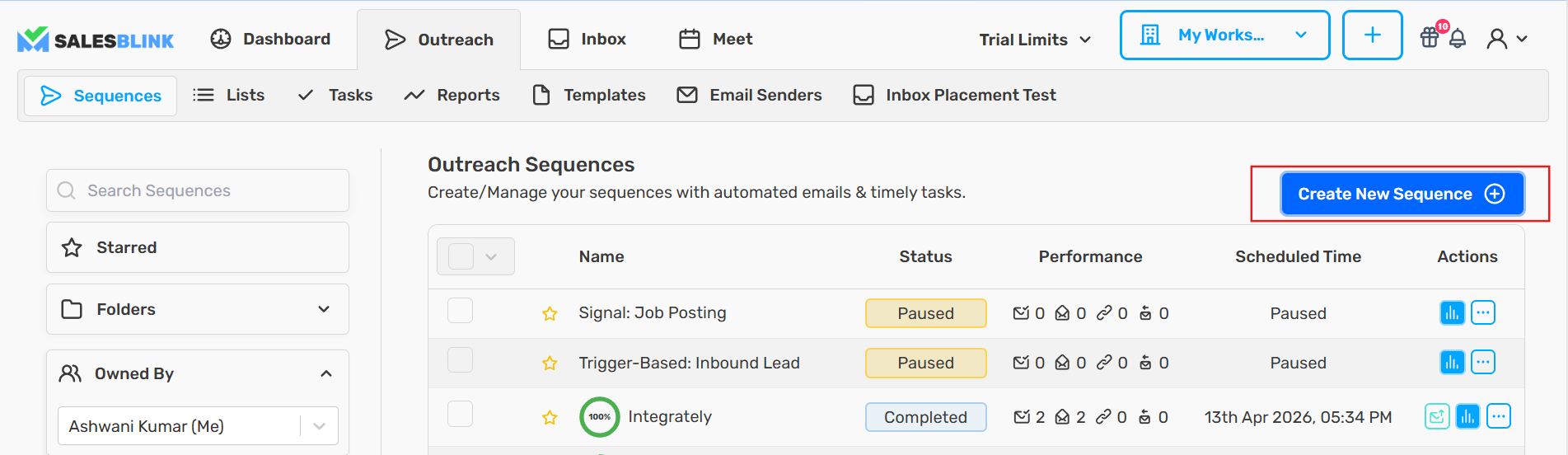
Click Outreach → Sequences
Click Create New Sequence
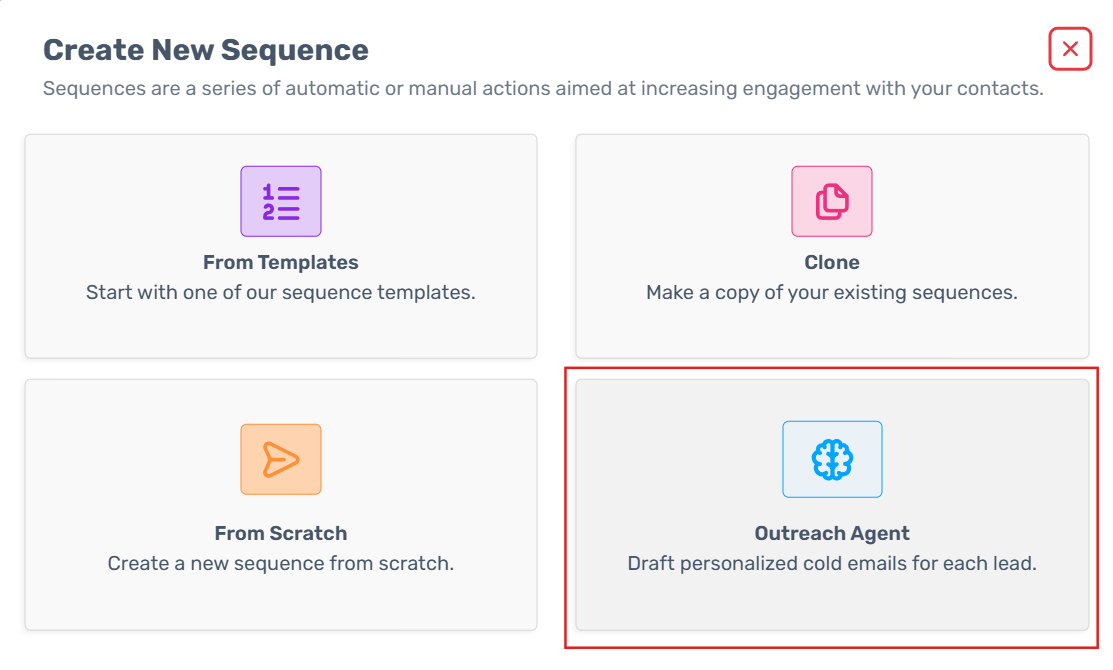
- Select Outreach Agent
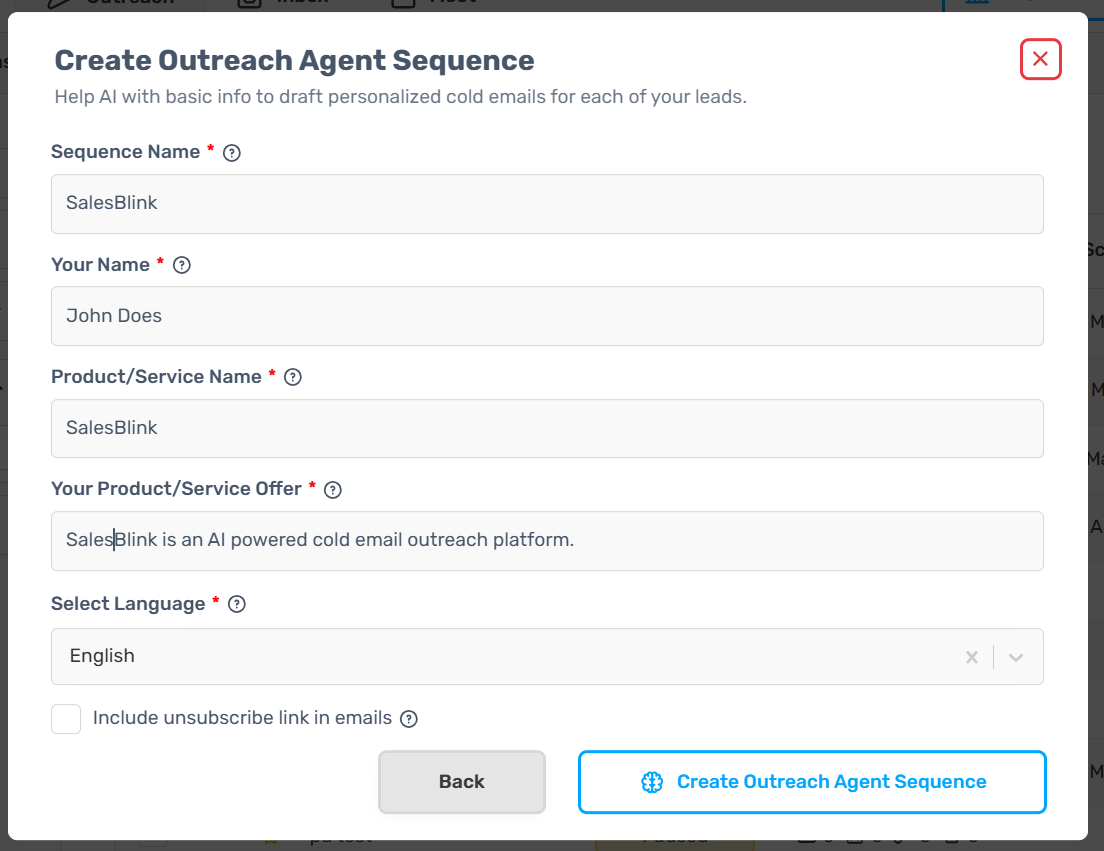
- Enter a name for your sequence
Drafting During Sequence Creation
In the new sequence flow, you no longer draft emails separately. Instead, you provide your business details during sequence creation, and AI automatically generates the email templates for you.
Provide Business Offer
While creating an AI Assisted sequence, you'll be asked to enter your business offer.
Example Inputs:
I want to sell digital marketing services
I sell CRM software for real estate agents
I sell lead generation services to SaaS companies
We sell a live chat solution for B2B companies across Europe
My business helps with logistics for companies across USA
My startup provides health insurance to businesses
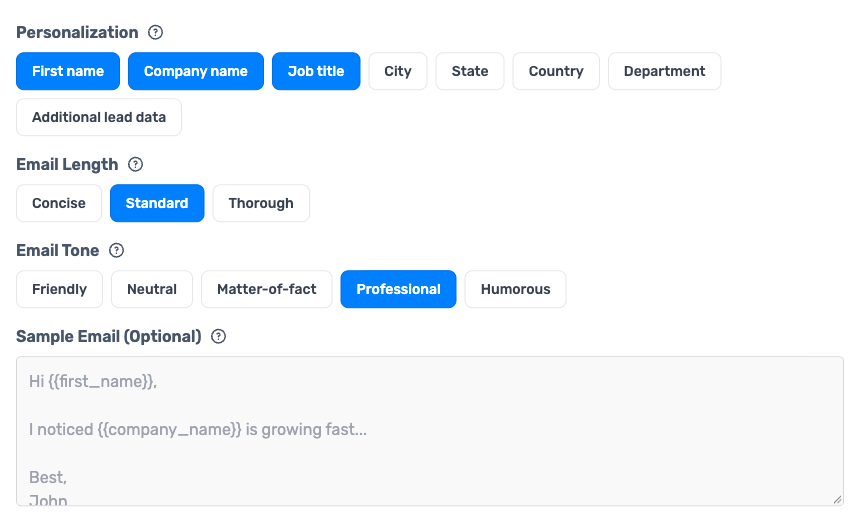
Personalization options
When you create an AI sequence, you can also control how the AI writes each email. You can change these options later in the sequence settings.
| Option | Choices |
|---|---|
| Personalization | Choose which lead details the AI should use: First name, Company name, Job title, City, State, Country, Department, Additional lead data. If a lead doesn't have a field, the AI skips it for that lead. |
| Email Length | Concise, Standard or Thorough |
| Email Tone | Friendly, Neutral, Matter-of-fact, Professional or Humorous |
| Sample Email (Optional) | Paste an example email of up to 2000 characters. The AI tries to match its style, tone and length. |
- Click Create Sequence
Automatic Email Generation
Once you provide your business offer:
- Click Create Sequence
AI will automatically generate:
A subject line
A complete email body
Follow-up emails (if applicable)
Regenerate (If Needed)
If you don't like the generated email:
- Update your business offer/context
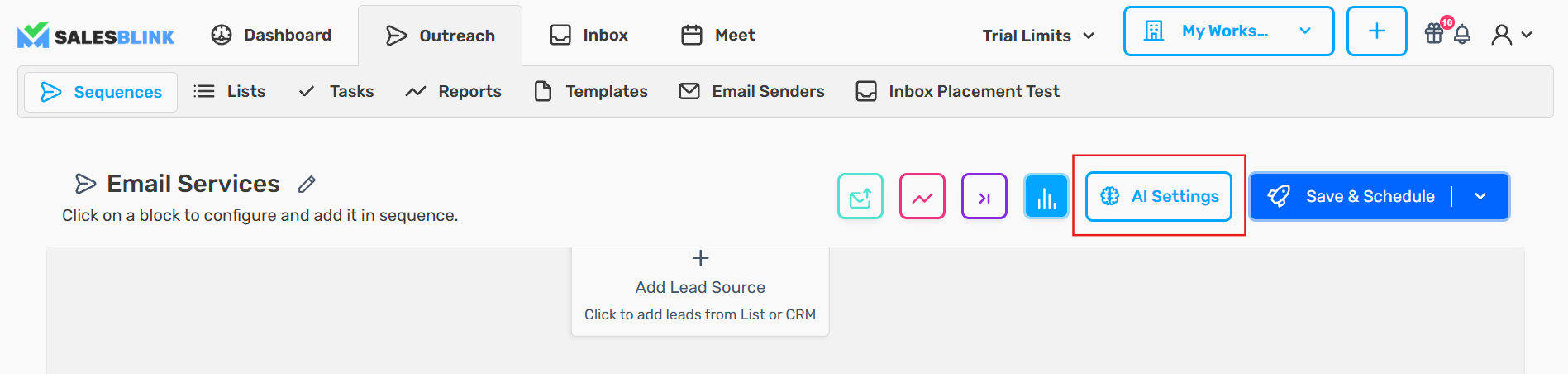
Customize Your Sequence
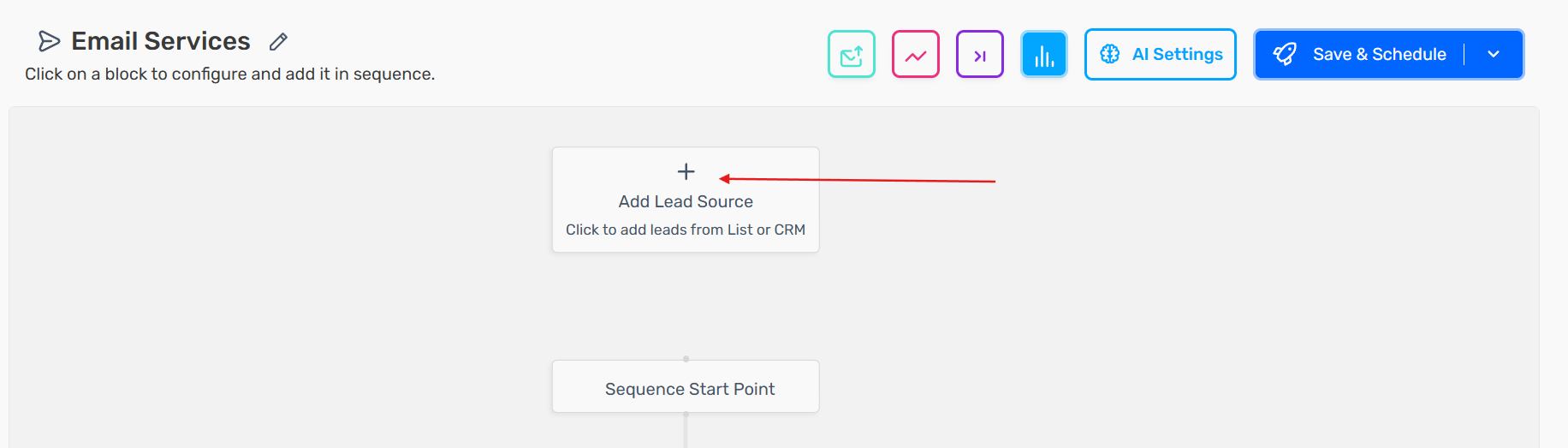
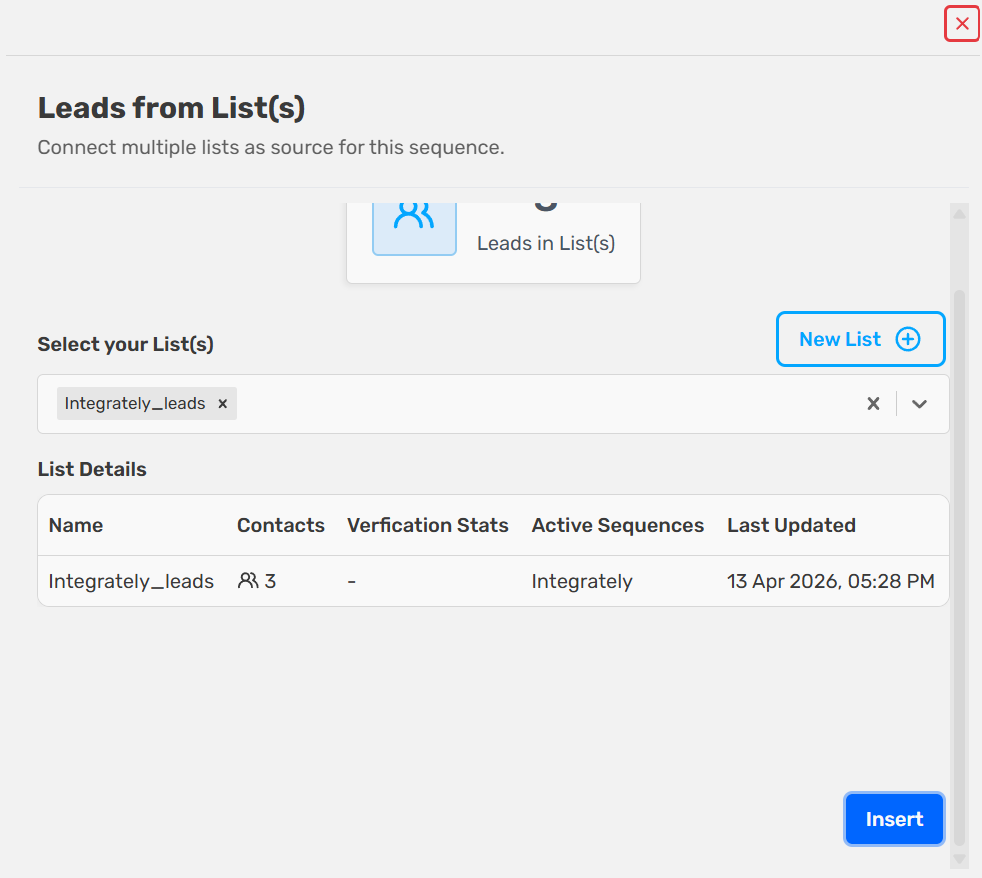
Add Leads
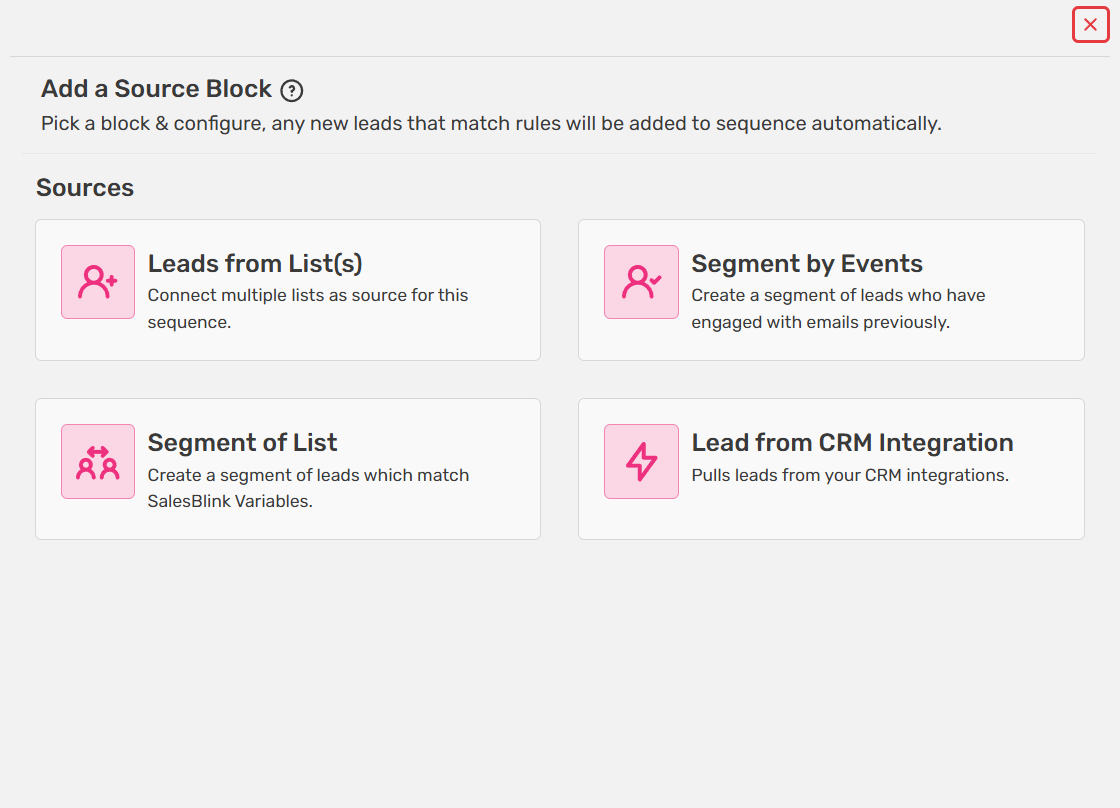
- Add leads using a source block
Or use:
Segments
CRM leads
Add More Steps
- Click the [+] icon
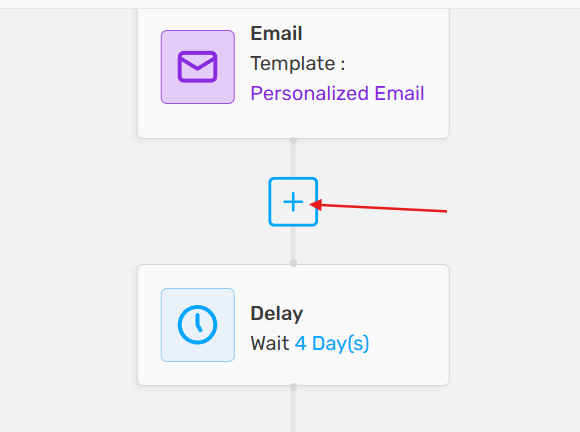
Add blocks between or at the end
Customize your sequence flow
Note: Task blocks aren't available in AI sequences. If an older AI sequence contains a task block, saving it shows "Please remove task blocks to save AI personalized Sequence." Remove the task block and save again.
Schedule Your Sequence
- Click Save & Schedule
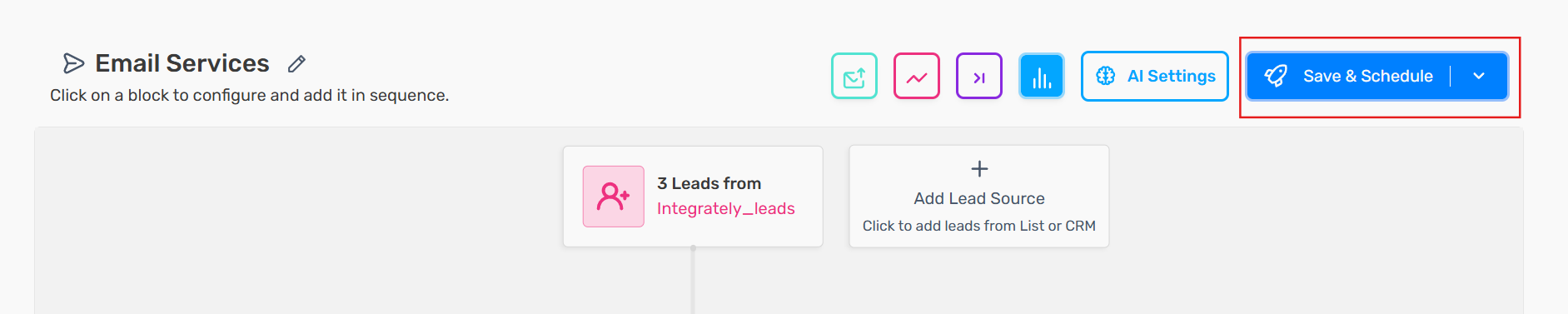
Required:
- Select Start Date & Time
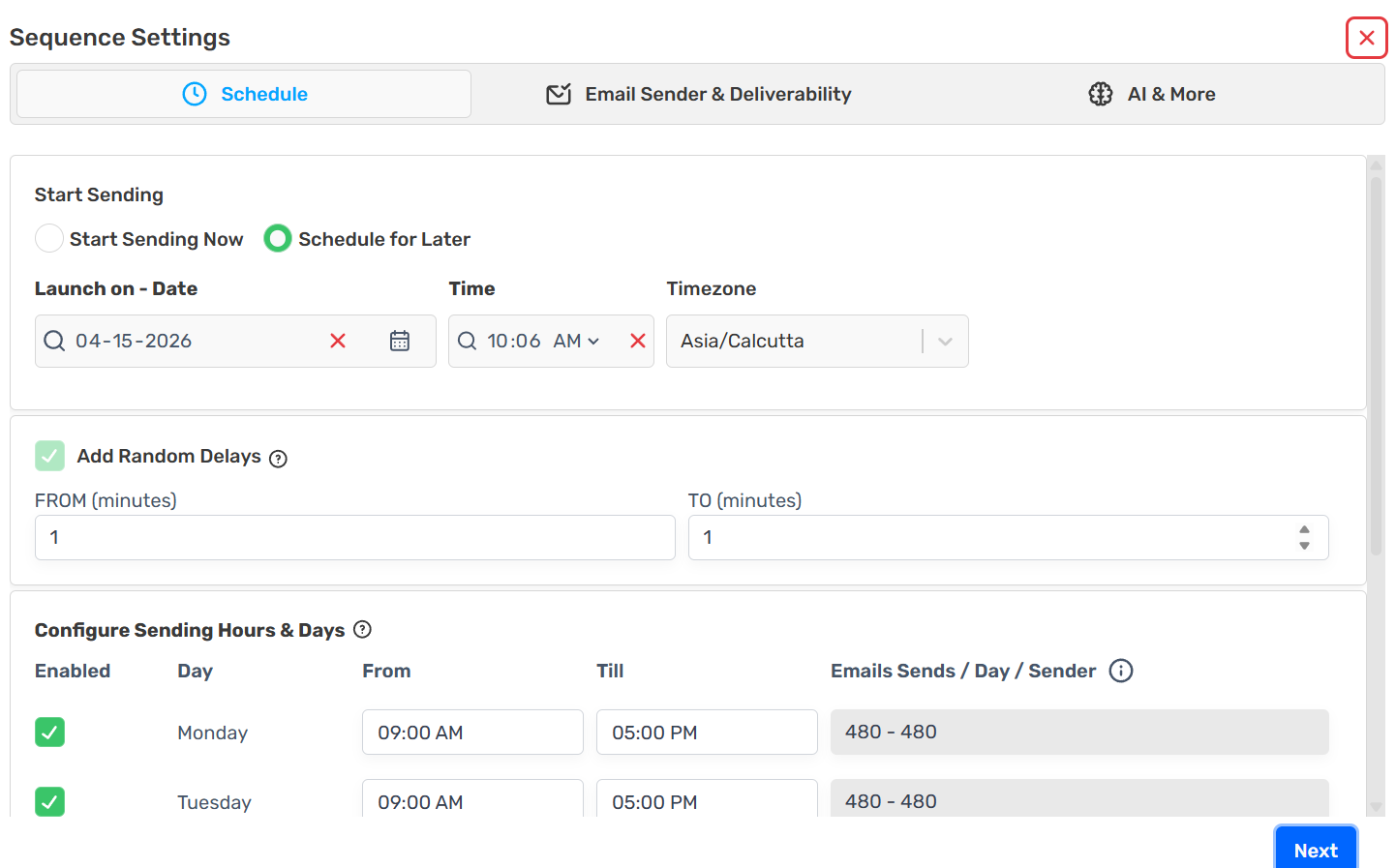
Optional Settings:
Random Delays: Time gap between emails to be sent from selected mail address
Sending Hours & Days
Configure Sequence Settings
Required:
- Select Email Sender(s)
Or add a new sender
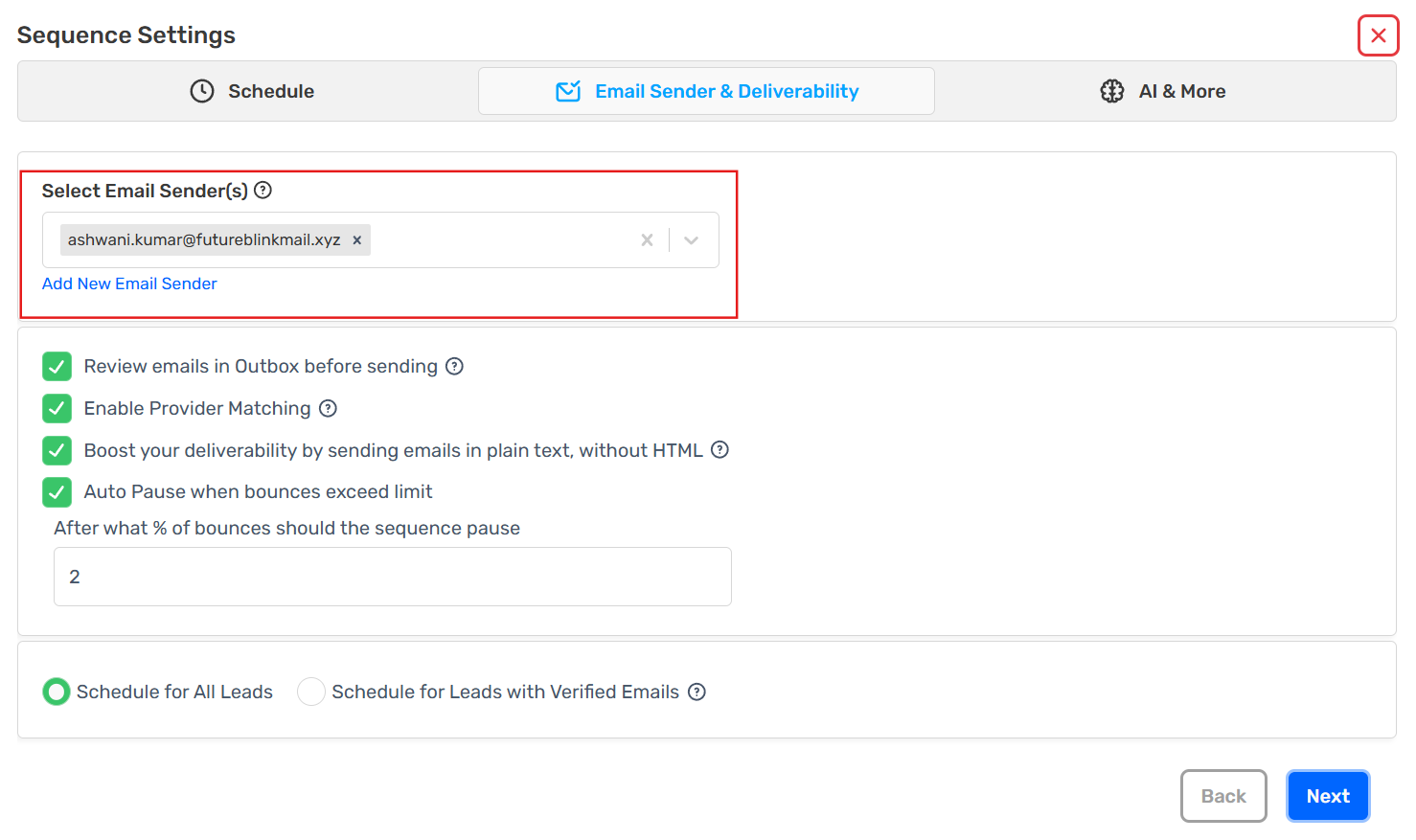
Optional Options:
Send emails as BCC to CRM (you can add multiple emails by comma-separating them)
Make it an Evergreen Sequence
Review emails in Outbox
Track: Email Opens, Link Clicks, Replies
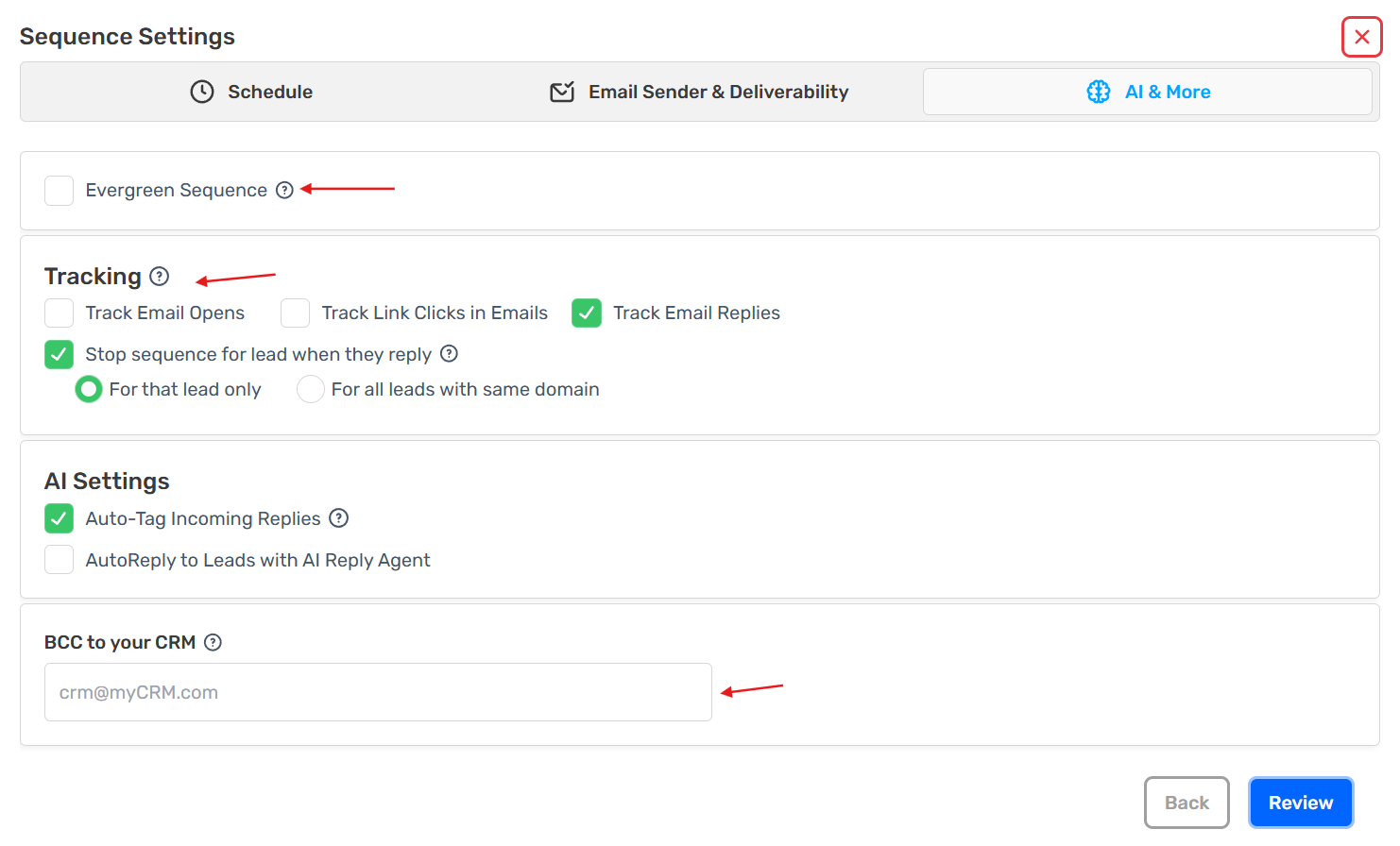
Recommended Options:
Stop sequence when lead replies
Enable Provider Matching
Send emails in plain text (no HTML) for better deliverability
Final Steps
Click Review
Check everything
Click Schedule for launch
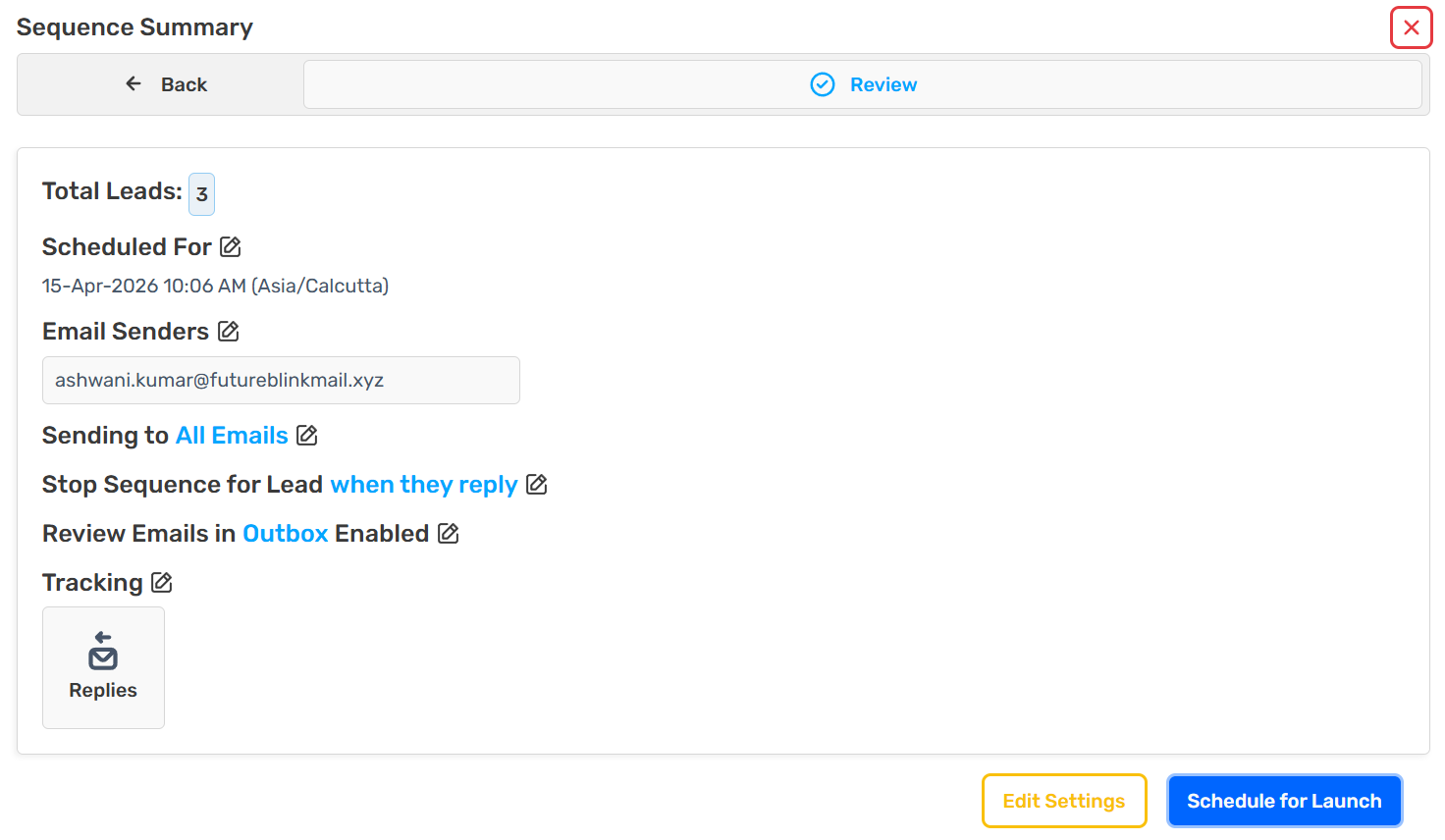
Your sequence is now scheduled!
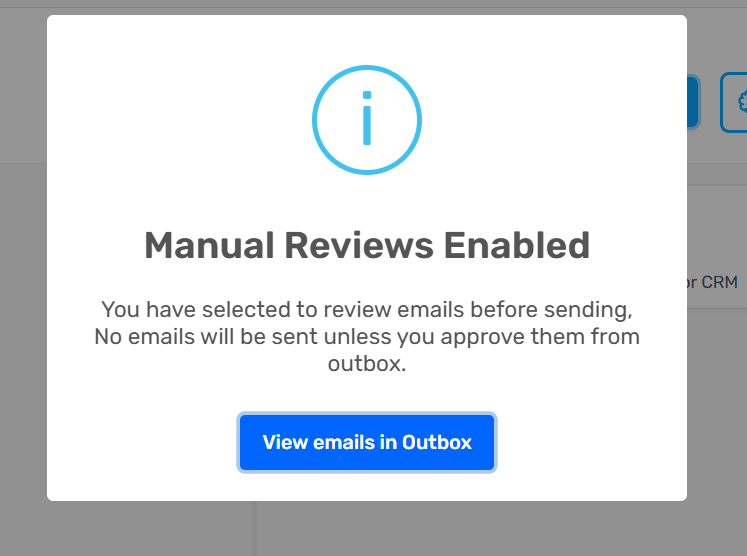
Review & Approve Emails in Outbox (Optional)
If Outbox review is enabled:
Go to Outbox
Select your sequence
Click on a lead
Review/edit email
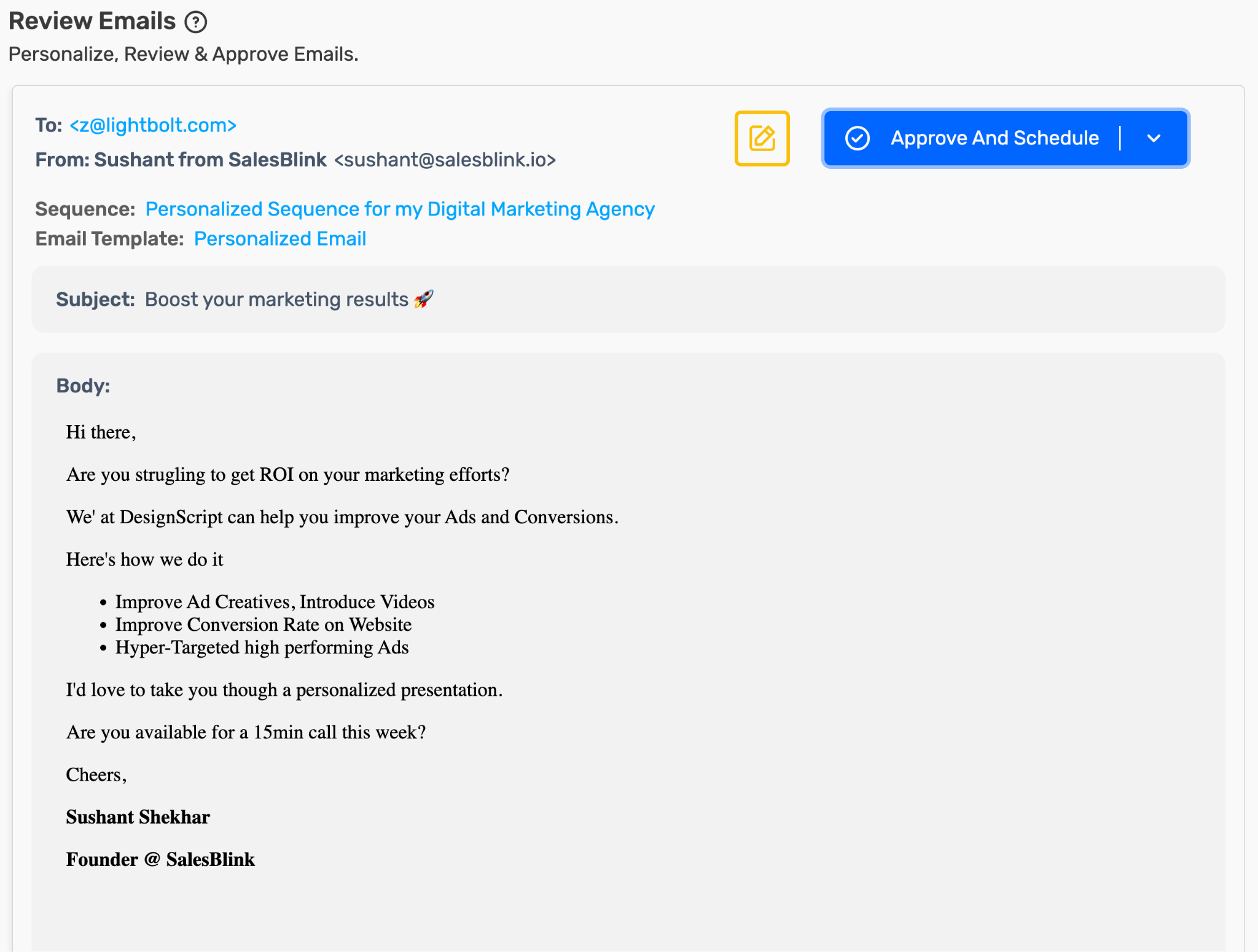
Choose:
Send Now
Or Send as Scheduled
Preview AI-written emails
You can preview AI-written emails in two places:
- Outbox: turn on Review emails in Outbox before sending in the sequence settings. Each AI-written email then waits in the Outbox. It is drafted when you open it there, and you can review, edit, and approve it.
- Lead activity page: if Outbox review is off, each email is drafted up to about 2 hours before it is due to send. Open a lead from the sequence to see the email drafted for them.
Note: Bulk approval is not available for AI-personalized sequences. Each AI-written email must be approved individually in the Outbox.
Add a meeting or Calendly link
If you have set up a SalesBlink meeting link, the AI adds it to its call to action automatically. Otherwise, put your meeting link in your business details when you create the sequence, or in the AI Reply Agent settings so the AI can share it when it replies to leads.
Tip: Avoid putting links in the first email. Links in a first cold email can hurt deliverability.
Results
AI helps you:
Save time
Generate high-quality email copy
Improve reply rates
Frequently Asked Questions
How can I see what the AI will send before it goes out?
Turn on Review emails in Outbox before sending and review each email in the Outbox, or open a lead's activity page. With review off, emails are drafted up to about 2 hours before they send.
Where should I add my Calendly or meeting link?
Add it to your business details or to the AI Reply Agent. Avoid links in the first email.
Can I turn off AI personalization on an existing sequence?
No. AI personalization can't be switched off once the sequence exists. Create a new sequence without AI personalization instead.
Can I approve all AI-written emails at once?
No. Bulk approval is unavailable for AI-personalized sequences. Each email must be approved individually.