Overview
Draft AI-powered email templates and personalize them with variables, images, and attachments.
Prerequisites
- Active subscription
- Lead list uploaded (for list variables) or CRM connected (for CRM variables)
Create a Template with AI
- Navigate to Templates → Create Email Template.
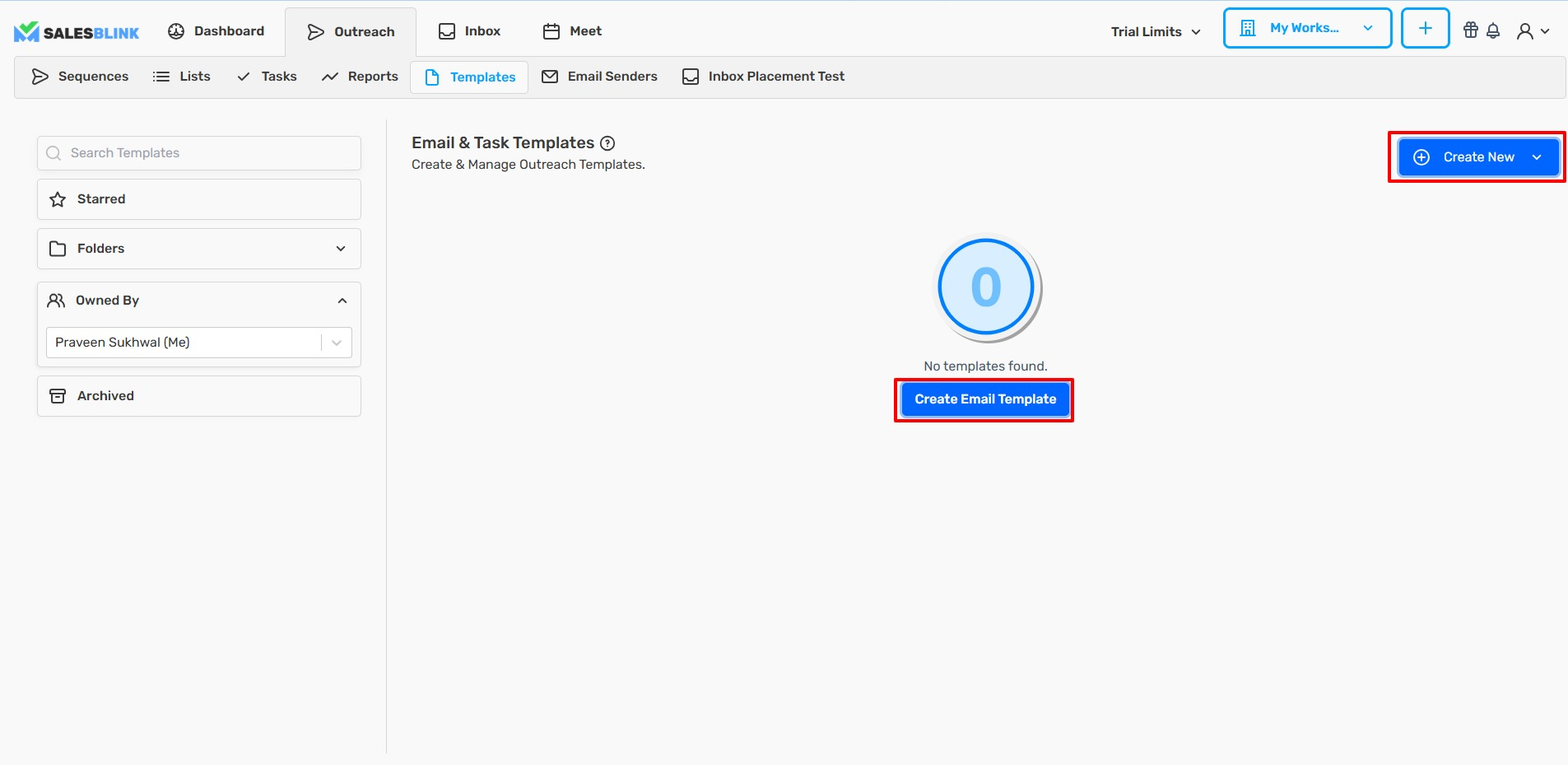
- Enter a Template Name (internal use only).
- Enter a Subject Line.
- Click Generate with AI in the toolbar.
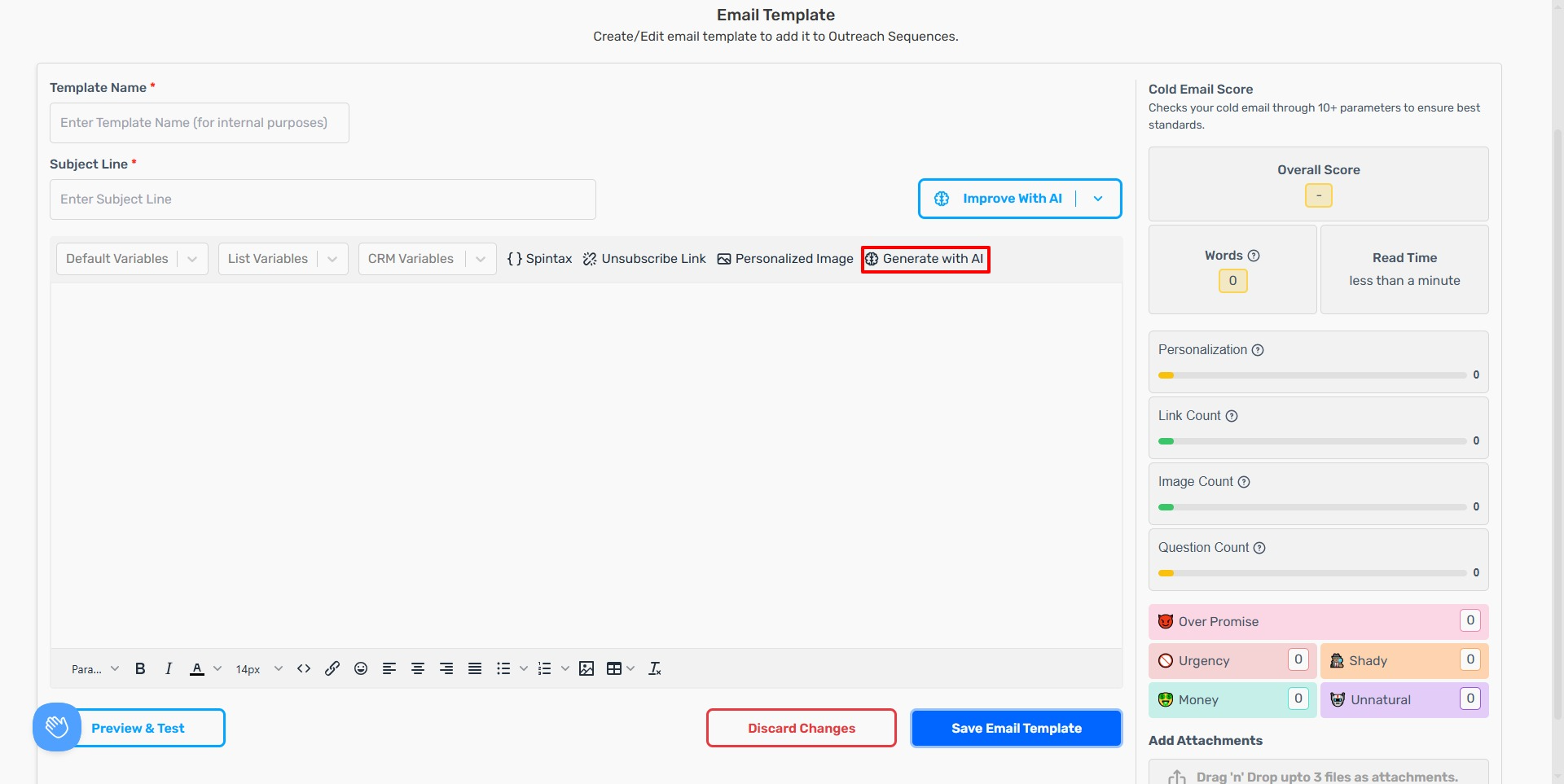
- Select your Language.
- Check the About your Business field. It is prefilled from your Business Profile in Account → AI Settings and shows a Synced with AI Settings badge. You can edit it before you draft the email.
- Enter your Offer/Value Proposition.
- Click Draft Email.
Refine with AI
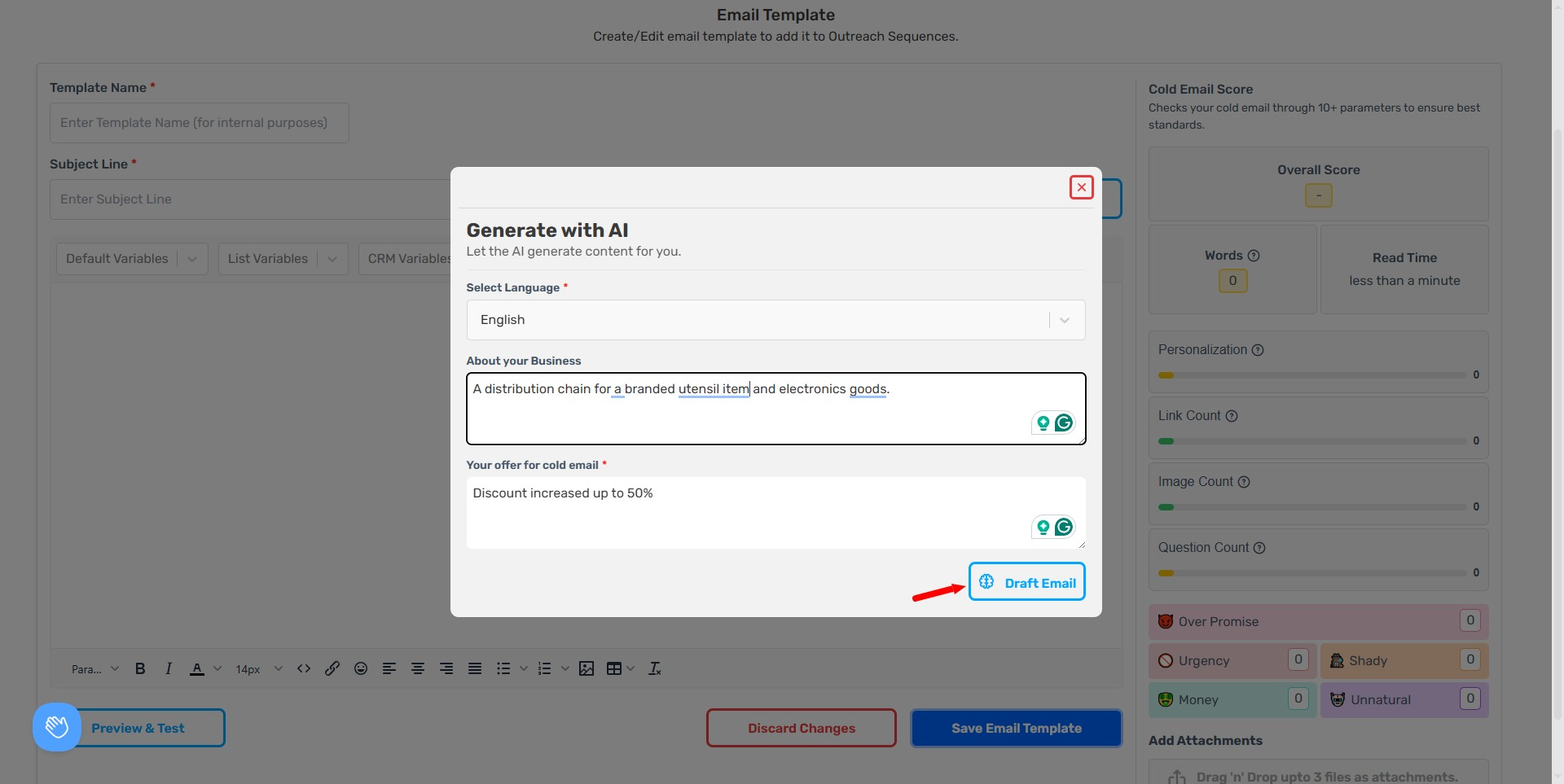
Select text in the email body, then choose an AI action:
- More Persuasive / Less Persuasive
- Expand / Shorten
- Rephrase
- Friendlier Tone / More Formal Tone
Add Personalization Variables
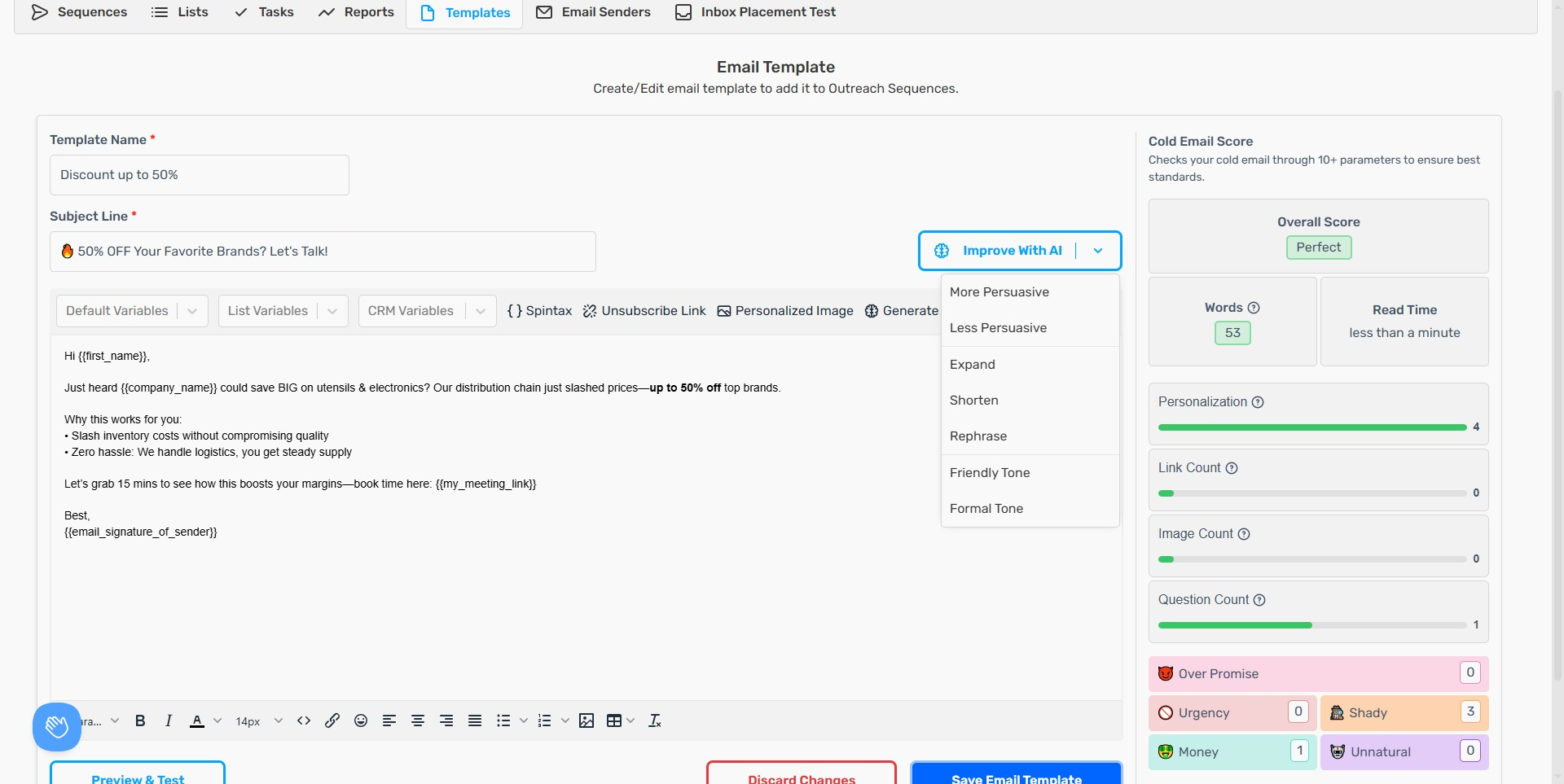
Variables (e.g., {{first_name}}) insert lead data automatically.
Insert List Variables
List variables come from the columns you mapped when creating your list, including any custom variables you created by typing a name into the mapping dropdown. See Lists & Leads — Map Columns to Lead Data to learn how to create them.
Note: The List Variables search box searches by list name, not by variable name. Type the name of the list you uploaded, select it, and then pick the variable from that list. Searching for a variable name such as
first_namereturns no results.
- Click the List Variables dropdown.
- Type the name of your list in the search box and select the list.
- Click any variable to insert it at your cursor position.
Sender variables vs lead variables
Lead variables (such as {{first_name}} or {{company_name}}) are filled with the lead's data. Sender variables are filled with the details of the email sender that sends the email. Use sender variables for your own name and signature, so that leads don't see their own name where yours should be.
| Variable | Filled with |
|---|---|
{{first_name}} |
The lead's first name |
{{email_sender_first_name}} |
The first name of the email sender sending the email |
{{email_signature_of_sender}} |
The signature assigned to the email sender. See Email signatures. |
Insert CRM Variables
- Click the CRM Variables dropdown (appears after CRM integration).
- Select your mapped property to insert it.
Add Fallbacks
Use a fallback when data might be missing:
{{first_name | friend}}
If first_name is empty, "friend" appears instead.
Chained fallbacks: List several variables separated by |. SalesBlink tries each one from left to right and uses the first that has a value. The last option is the fallback text:
{{company | first_name | friend}}
This shows the company name, or the first name if the company is empty, or "friend" if both are empty.
Keep these rules in mind:
- Only the last option is used as fallback text. For example,
{{first_name | there | friend}}gives "friend" when the first name is empty, not "there". {{company}}and{{company_name}}work interchangeably.- A variable with no value and no fallback is left blank.
- For a custom field that isn't in the lead's list, use a field name that contains an underscore (
_), such as{{job_level | there}}. Otherwise, SalesBlink treats the options as spintax and picks one at random.
Common Variable Mistakes
Mistake Why It Fails Correct Syntax {{ { first_name } | friend }}Inner braces turn it into spintax, so each email randomly gets the name or "friend" (and sometimes a blank) {{first_name | friend}}{first_name}on its ownSingle braces are only read inside {{ }}, so the text is sent as typed{{first_name}}Variable name that doesn't match a list column Nothing to replace, so the email shows a blank Use the name from the List Variables picker Missing fallback Empty field shows as blank {{first_name | there}}Spaces inside the braces or around the pipe don't matter, and built-in variables such as
first_nameare not case-sensitive. Custom field names should match the name you created at upload.Always use the exact variable name shown in your list or CRM mapping. If a variable is not replaced, check that the lead has data in that field.
Add Images
Static Images
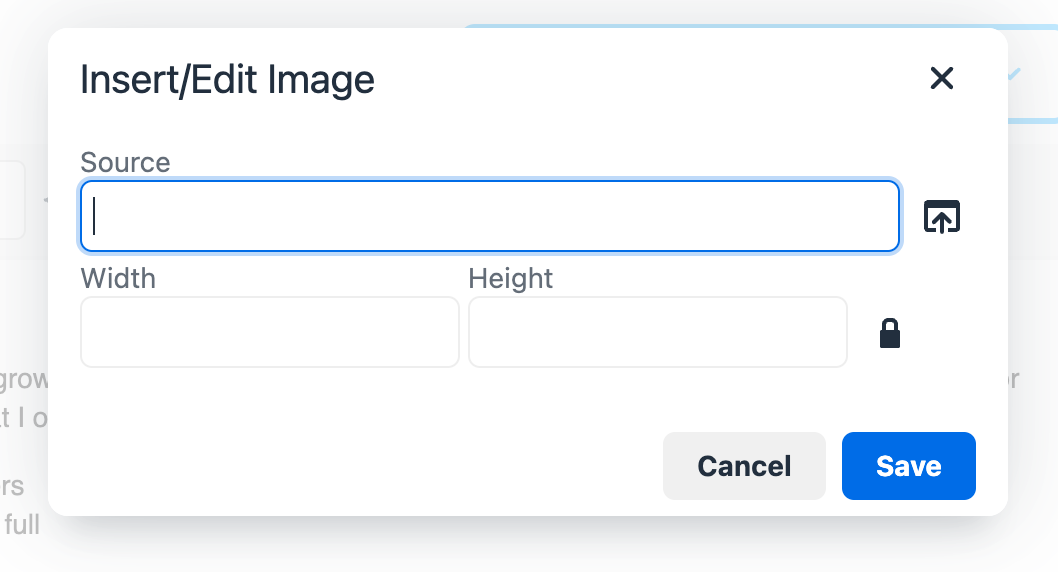
- Click the Add Image icon in the toolbar.
- Upload an image or paste a URL.
- Click Save.

Personalized Images
Personalized Images let you send custom-created images that include lead variables (such as the lead's name, company name, or other fields) directly inside the image itself. Each prospect receives an image that looks uniquely crafted for them, making your outreach feel more personal and one-to-one.
- Click the three dots in the toolbar to expand options.
- Click Personalized Image.
- Click Open Photo to upload or select a template.

- Click Text to add a text layer.
- Enter variables (e.g.,
{{first_name}}) and position the text. - Click Done.
Add Spintax (Email Variations)
Spintax creates multiple versions of sentences to improve deliverability. When a sequence sends emails, SalesBlink randomly picks one option from each spintax block so no two leads receive identical copy.
Note: Spintax and variables work in both the subject line and email body.
AI-Generated Spintax
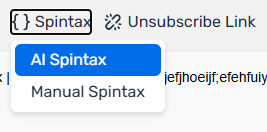
- Click Spintax in the toolbar → AI Spintax.
- The AI rewrites each sentence into 2–3 variations automatically.
- Review the output and click Insert.
Note: AI Spintax costs 0.5 AI credits and requires a plan that supports AI features.
Use variables inside spintax
Outside spintax, a variable uses double braces: {{first_name}} or, with a fallback, {{first_name | friend}}. Inside a spintax block, the block itself uses the double braces, so variables inside it use single braces:
{{ Hi {first_name | there} | Hello {first_name | there} }}
Each lead gets either "Hi" or "Hello", followed by their first name, or "there" if the first name is empty.
Note: If the spintax syntax is invalid (for example, a missing closing brace), the email shows every variant as written instead of picking one. Always preview the email before launching.
Manual Spintax
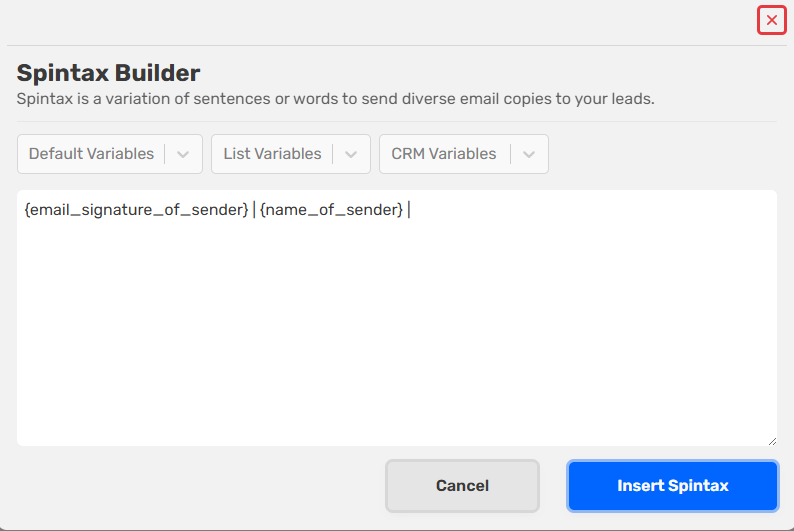
- Click Spintax → Manual Spintax.
- In the modal, type variations separated by a pipe
|:
Hey there! | Hello! | Good morning!
- Click Insert Spintax.
Common Spintax Examples
Greetings with fallback:
{{ Hi {first_name | there} | Hello {first_name | there} | Hey {first_name | there} }}
Opening lines:
{{ I came across {company_name} | I was checking out {company_name} | I noticed {company_name} }}
Value propositions:
{{ help you scale your outbound | cut your customer acquisition cost | book more qualified meetings }}
Polite check-ins with fallback:
{{ Do you have time now {first_name | sir}? | Is this a good time {first_name | sir}? }}
CTAs:
{{ Mind if I send over a quick loom? | Would you be open to a 3-minute video breakdown? }}
Sign-offs:
{{ Talk soon | Cheers | Best }}
Tip: Use the Preview & Test button and click the refresh icon next to the preview to cycle through different spintax combinations before launching your sequence.
Use Custom HTML
- Design your template in an HTML editor (e.g., BeeFree, Stripo).
- In SalesBlink, click the Source Code icon (<>) in the toolbar.
- Paste your HTML.
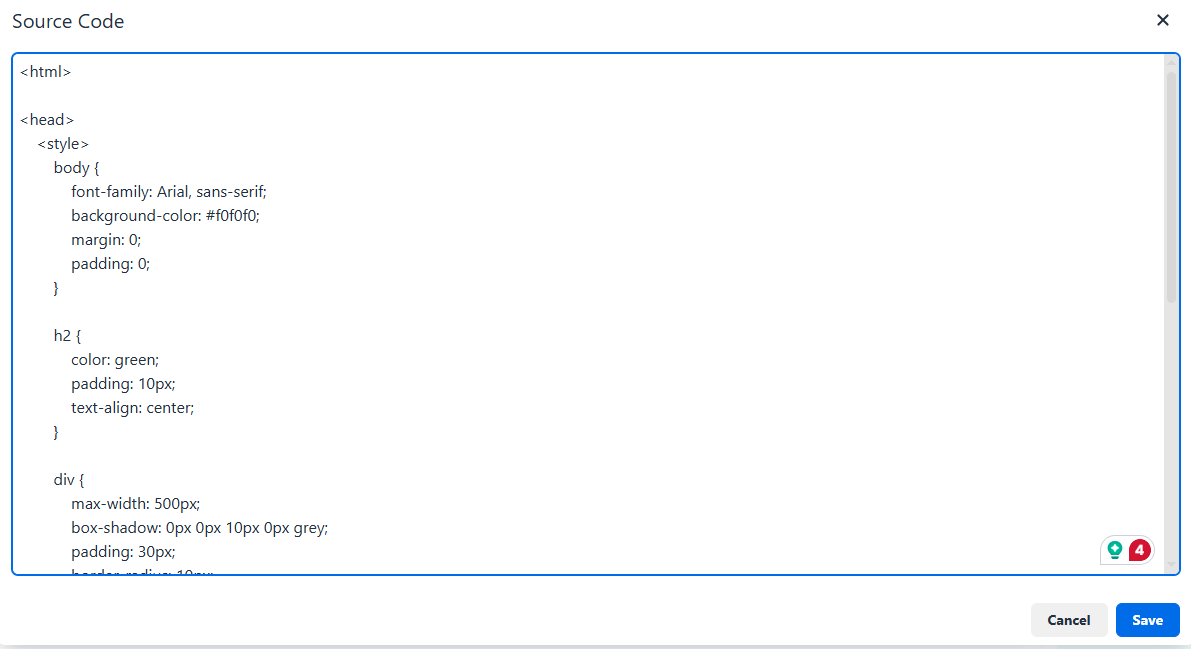
Note: Only inline CSS is supported. JavaScript and external frameworks are not supported.
While editing HTML, you can use personalization variables to include custom links, personalized information about the lead, and any other lead-specific data. Insert variables using the standard syntax, for example {{first_name}}, directly in the HTML source where you want the lead data to appear.
Use Personalization Variables as Links
You can use a personalization variable as the link URL so that each lead gets a unique hyperlink based on their data.
- Write your email template.
- In the email body, right-click on the keyword you want to turn into a link.
- Select Link from the context menu.
- Instead of entering a direct URL, add the personalization variable (e.g.,
{{custom_link}}) as the link.
Note: After a template has been created, you can right-click on any keyword inside your email template body and select Link to add or update the link.
Link tracking needs hyperlinked text
Link clicks are only tracked for links added as hyperlinked text (select the text, then add the link). A plain URL pasted into the body is not tracked. See How are opens, link clicks, and replies tracked.
Add Unsubscribe Link & Unsubscribe Header
- Position your cursor where the link should appear.
- Click on Unsubscribe Link.
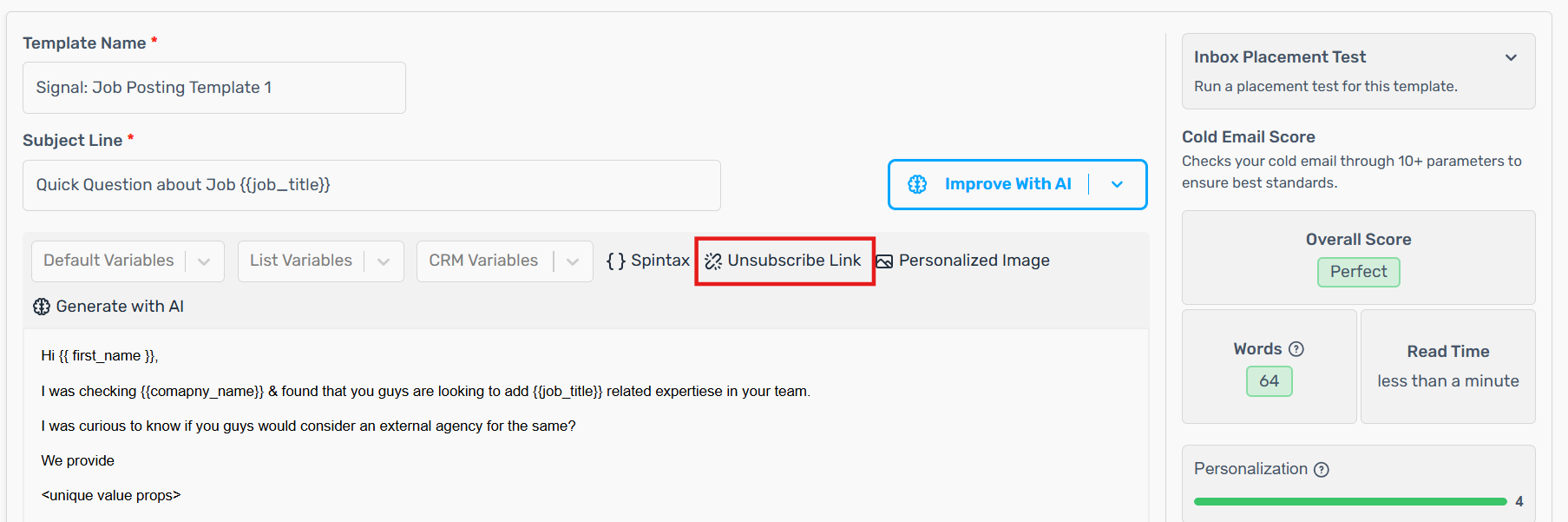
SalesBlink inserts this link into your template:
<a href="{{unsubscribe_link}}">Click Here to Unsubscribe</a>
When the email is sent, {{unsubscribe_link}} is replaced with a unique unsubscribe URL for each lead. The URL uses your custom tracking domain if you have set one up. You can change the link text "Click Here to Unsubscribe" to any wording you like, but leave {{unsubscribe_link}} unchanged.
Tip: You can also type
{{unsubscribe_link}}into any link URL yourself to turn that link into an unsubscribe link.
Note: When you add an unsubscribe link, SalesBlink automatically includes the
list-unsubscribeheader in your emails. This helps email providers display a native unsubscribe option to recipients and improves deliverability. Learn more about thelist-unsubscribeheader here.
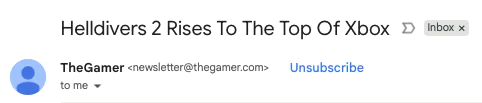
Note: If your sequence sends in plain text, the unsubscribe link is not clickable in the email. Plain text also removes signature styling such as formatting and images. See Why send email in plain text.
Check Spam Score
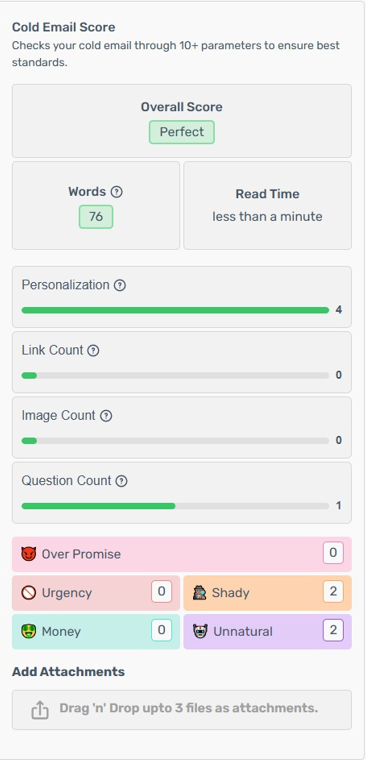
Review the Spam Checker score as you edit. Hover over flagged keywords to see why they're flagged (Urgency, Shady, Over Promise, Money, Unnatural).
Test Your Template
- Click Preview & Test.
- Select the Sender Email.
- Enter the Test Email Address.
- Select the List and Lead for variable testing.
- Click Send Test Email.
Note: A test email only checks how your content and variables render. It is not a deliverability test, so where it lands (inbox or spam) does not predict where sequence emails will land. Links in a test email may not work. To check inbox placement, use the Inbox placement test.

Organize Templates
Star Templates
Click the star icon next to a template. View starred templates by selecting Starred in the Left Sidebar.
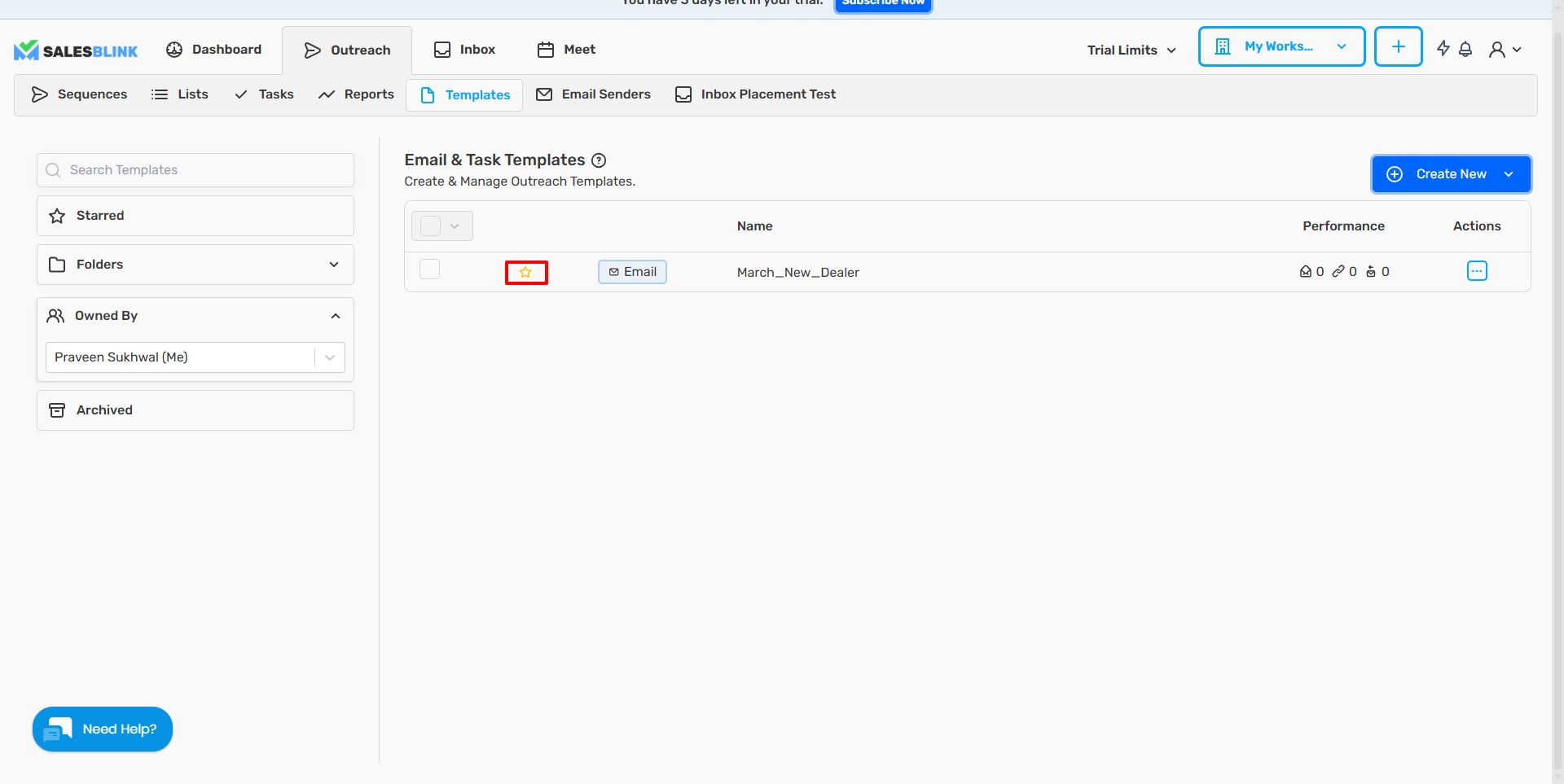
Find Templates with Filters
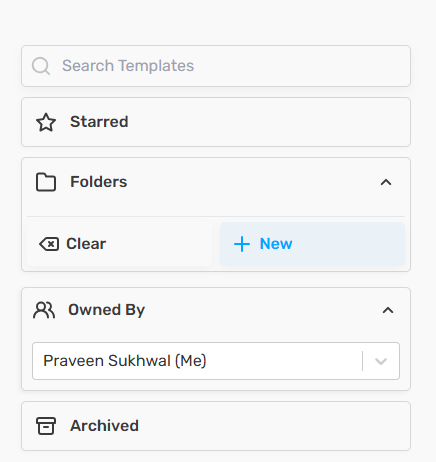
Use the search box, Starred, Folders, Owned By (account owners and admins only) and Archived in the Left Sidebar. The filters that are on show under the search box, in Active filters. Click × on a filter to remove it, or click Clear all.
Create Folders
- Click Folders → New.
- Enter a Folder Name.
- Click Create Folder.
Move Templates to Folders
- Check the boxes next to templates.
- Click Add to Folder in the bulk actions bar.
- Select the Folder.
- Click Move to Folder.
Find a template in a sequence
When you choose a template for a sequence step, the template dropdown shows only 10 templates by default. Type in the dropdown to search all your templates by name.
Frequently Asked Questions
Why aren't my variables replaced with lead data?
- Verify the lead has data in that field (check your list).
- Check that the variable name matches your list mapping exactly. Names are case-sensitive.
- Use fallbacks:
{{first_name | friend}}. Inside a spintax block, use single braces:{{ Hi {first_name | there} | Hello {first_name | there} }}.
Why can't I find my variable in the List Variables dropdown?
The search box searches by list name, not variable name. Search for your list, select it, then pick the variable.
Why do my leads see my name instead of theirs (or theirs instead of mine)?
Use {{first_name}} for the lead's name and {{email_sender_first_name}} for your own. Use {{email_signature_of_sender}} for your signature.
Why does my email show all the spintax options?
The spintax syntax is invalid, so SalesBlink can't pick a variant. Check that every block opens with {{, closes with }}, and separates options with |.
What happens if I edit a template in a running sequence?
Leads immediately receive the updated version.
How do I duplicate a template?
Click the Actions menu on any template → Clone.
Can I permanently delete templates?
Yes. Click the Actions menu on the template, then click Delete. You cannot undo this. If you want to keep the template for later, archive it instead. Archived templates are not deleted automatically.