Overview
Create a fully customized outreach sequence by adding and configuring your own blocks.
Prerequisites
- Email sender connected
- Lead list uploaded or CRM integrated
- Email templates created
Create a Blank Sequence
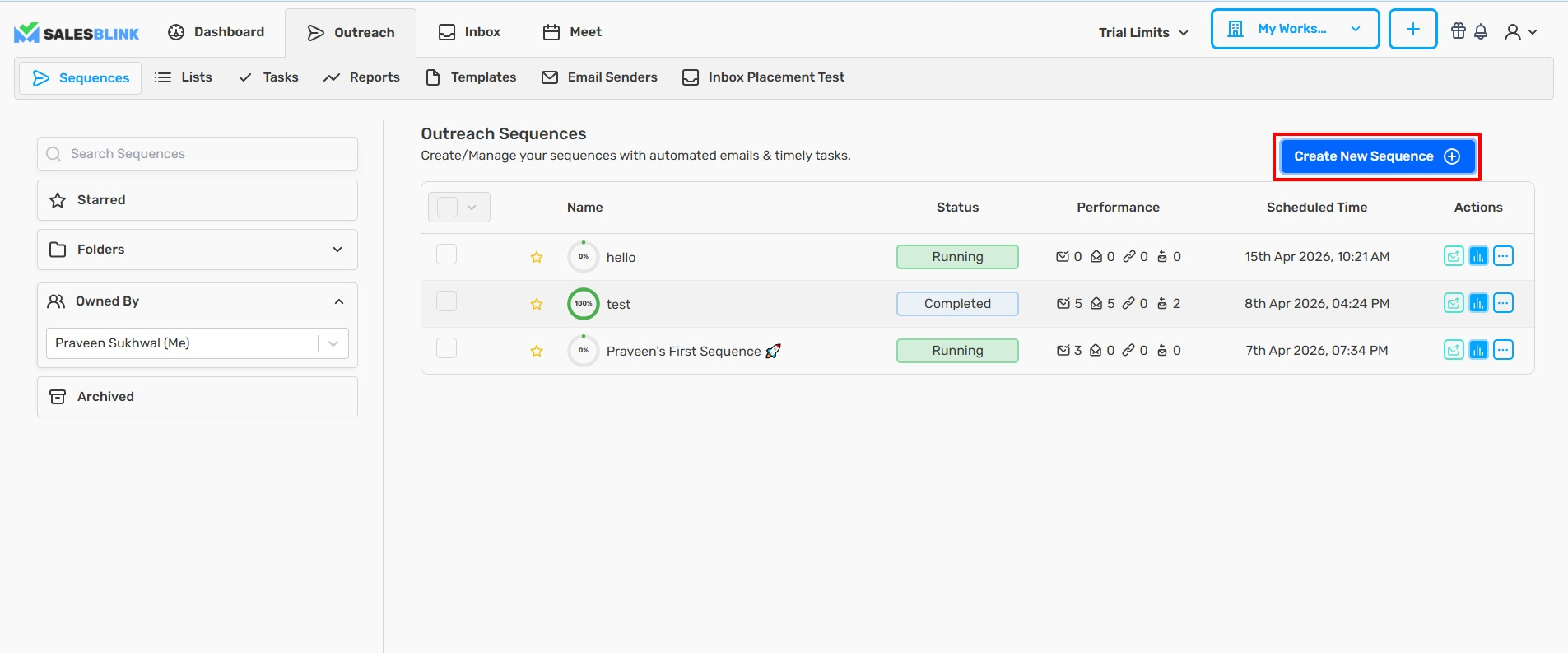
- Click Outreach → Sequences.

- Click Create New Sequence.
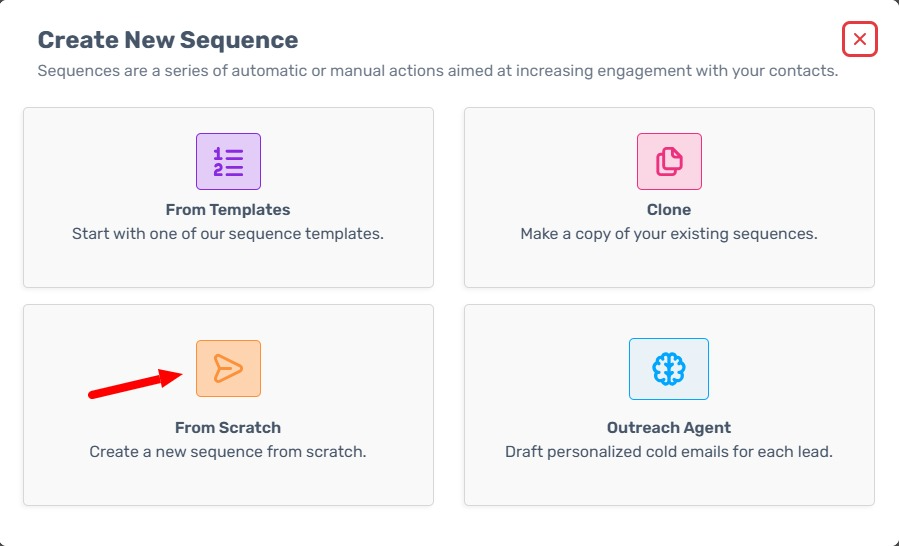
- Select From Scratch.
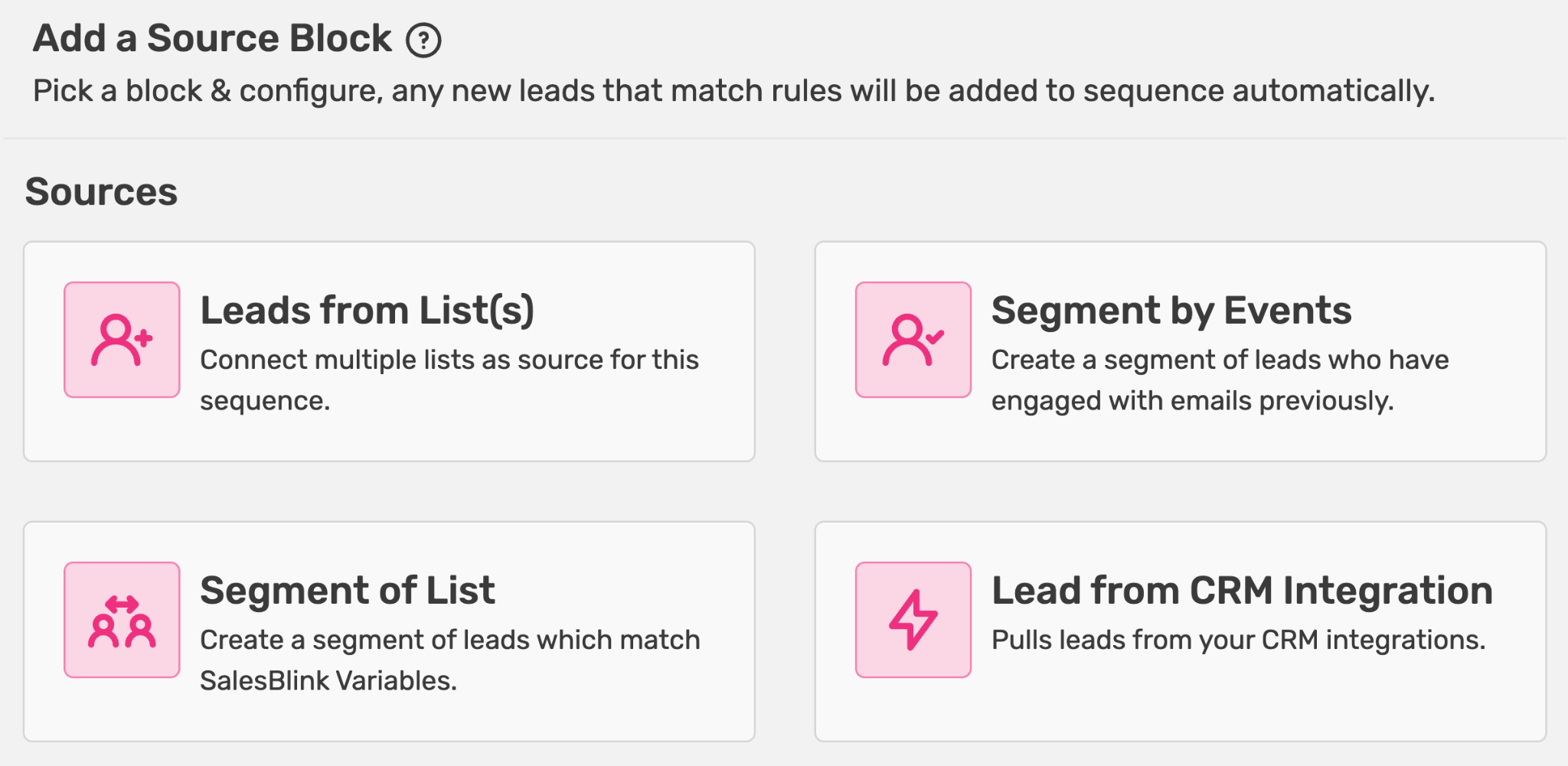
Add Source Block
- Select your Sources Block
- Select Block
Build Your Sequence
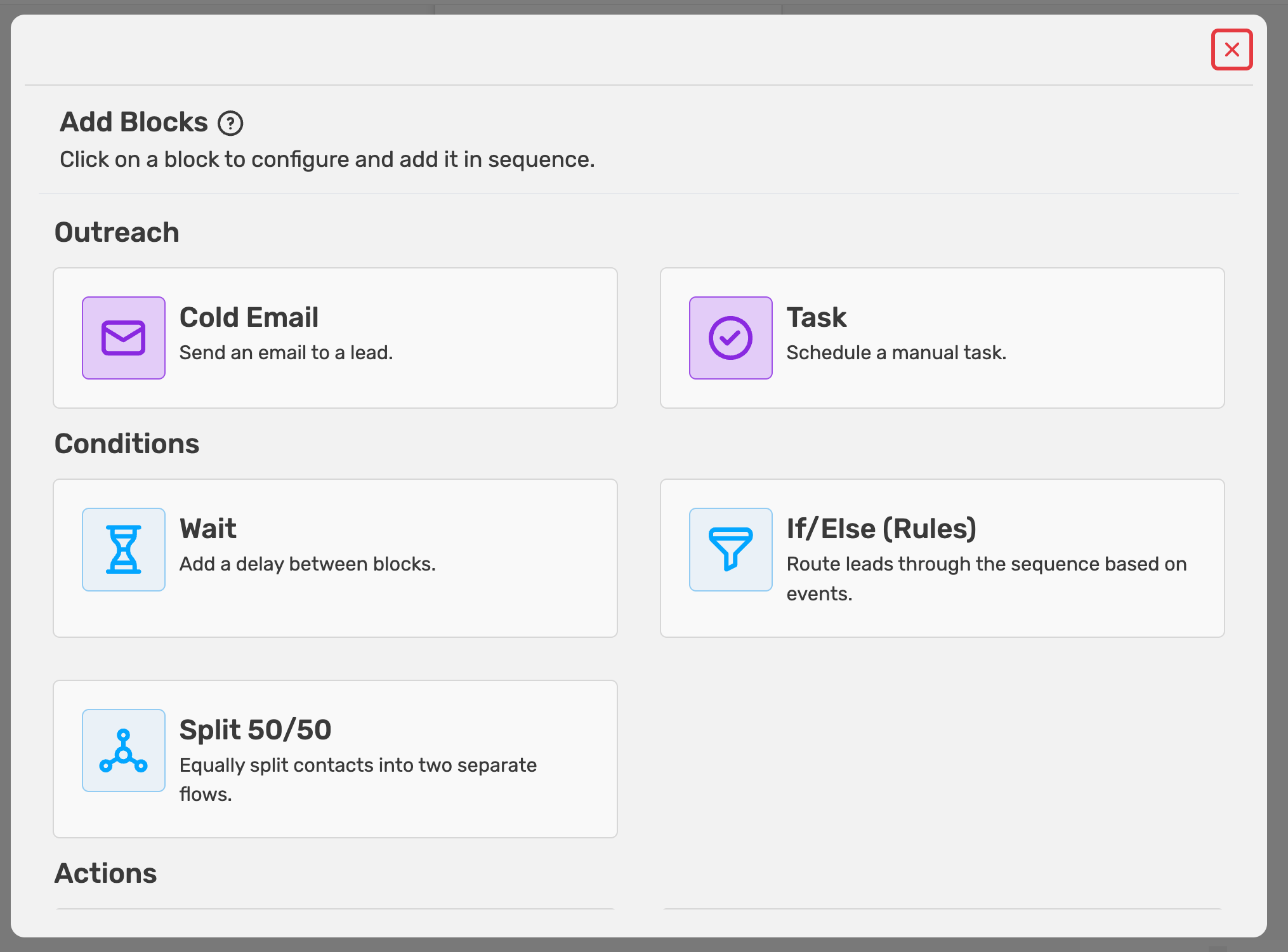
- Click the + icon to add blocks.
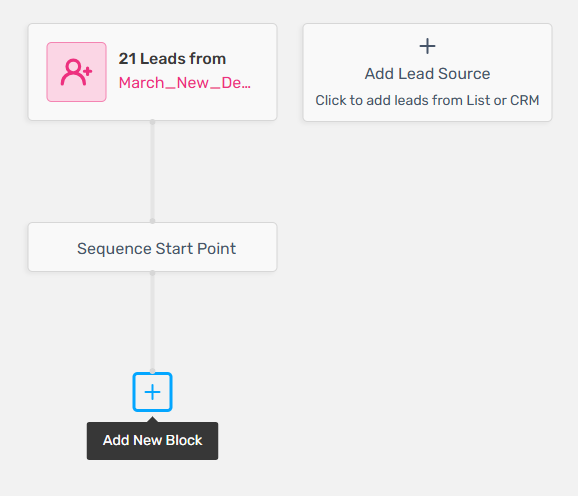
- Select block types:
| Block Type | Purpose |
|---|---|
| Cold Email | Send automated emails |
| Task | Schedule manual activities |
| Wait | Add delays between steps |
| If/Else | Branch based on lead actions |
| Split 50-50 | A/B test paths |
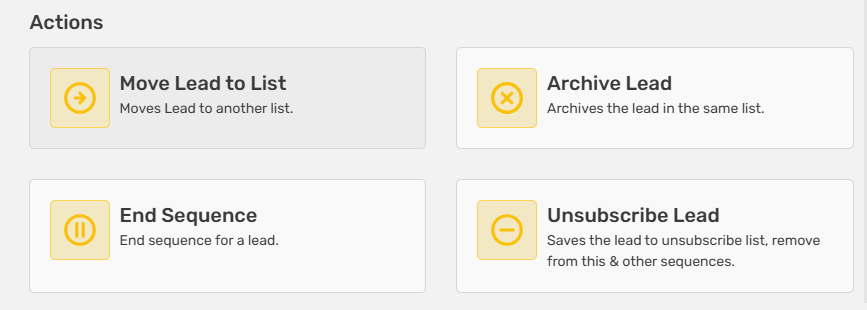
| Move Lead to List | Transfer leads between lists |
| Archive Lead | Archive leads |
| End Sequence | Stop sequence for lead |
| Unsubscribe Lead | Unsubscribe leads |
- Configure each block:
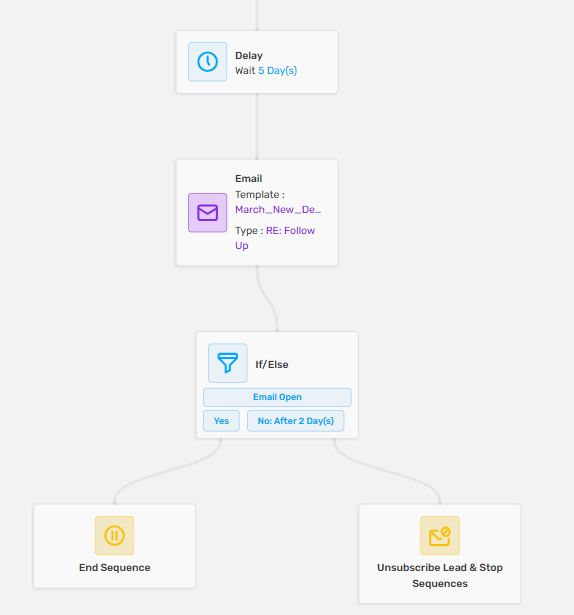
- Cold Email: Select template, set send as New Thread or Follow-up
- Task: Select type (Call, WhatsApp, LinkedIn), set due date
- Wait: Set duration (hours, days)
- If/Else: Set condition (Opened, Clicked, Replied)
- Split 50/50
- Connect blocks by dragging from output to input.
Schedule and Launch
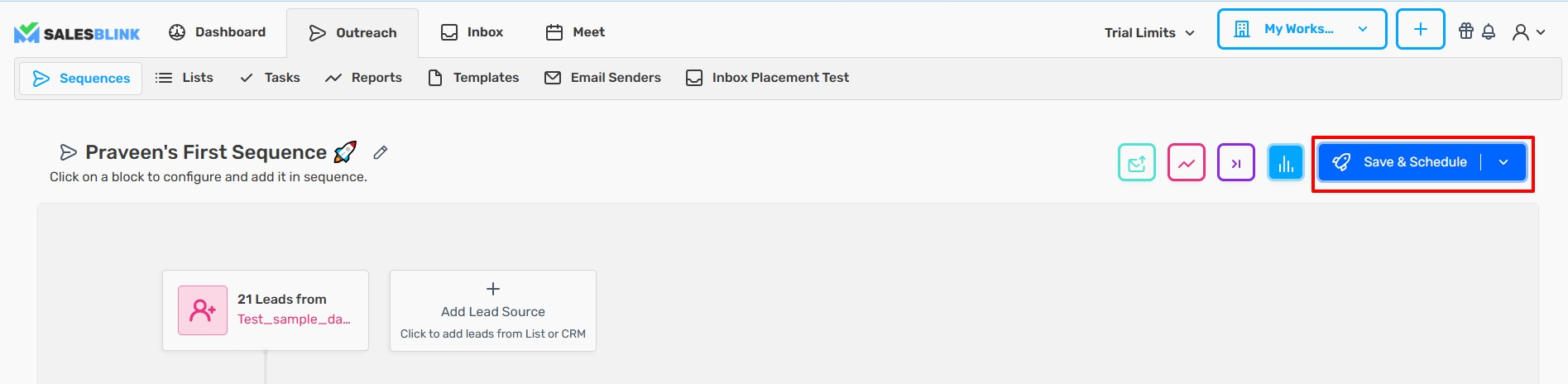
- Click Save & Schedule.
- Set Schedule:
- Start Date/Time (required)
- Random Delay between emails (optional)
- Sending Hours & Days (optional)
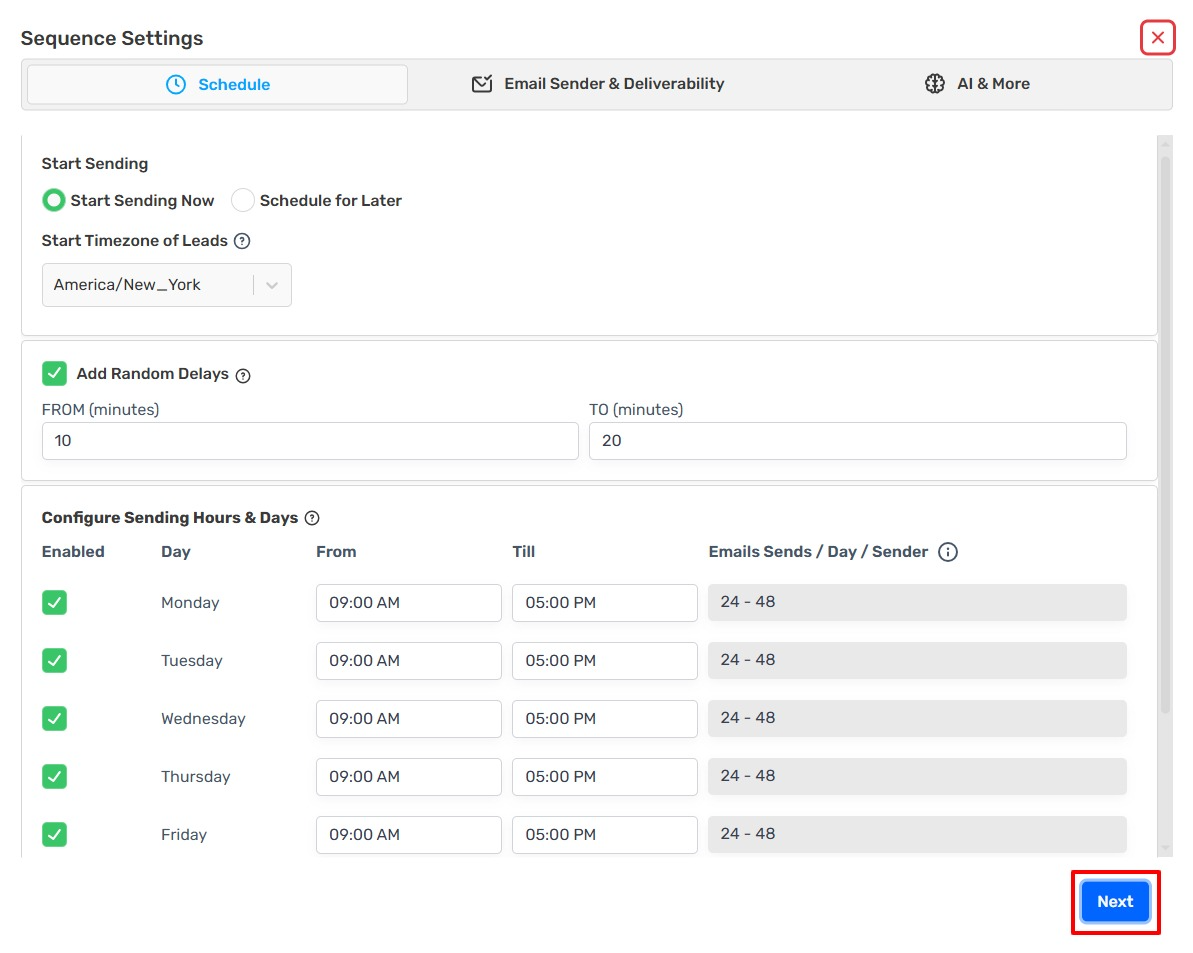
- Click Next.
- Configure Settings:
| Setting | Recommendation |
|---|---|
| Email Sender(s) | Required — Select sender(s) |
| BCC to CRM | Optional — Log emails externally (multiple emails can be comma-separated) |
| Evergreen Sequence | Optional — Auto-add new leads |
| Review in Outbox | Optional — Require approval |
| Stop on Reply | Recommended — End on reply |
| Provider Matching | Recommended — Match sender provider |
| Plain-Text Emails | Recommended — Better deliverability |
| Tracking | Optional — Opens, clicks, replies |
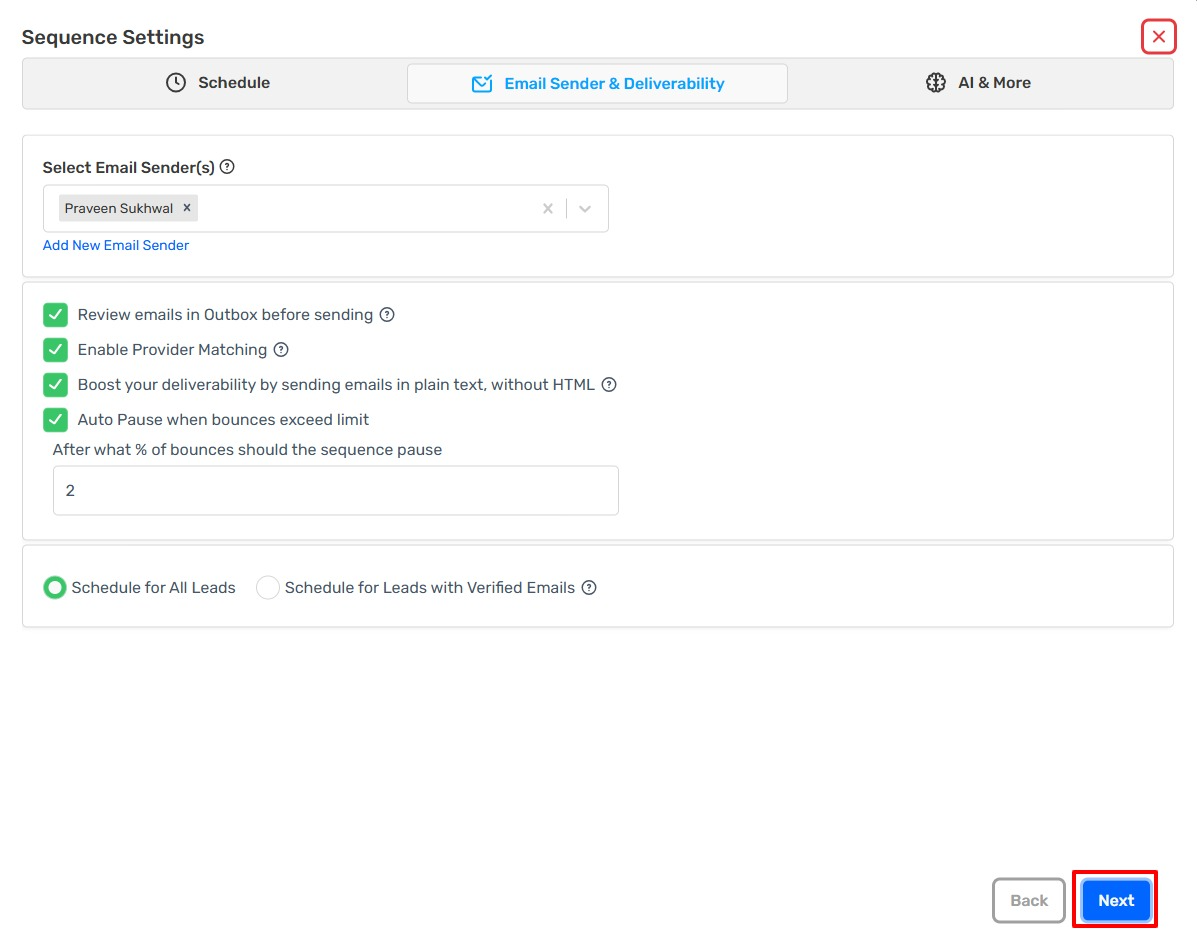
- Click Review.
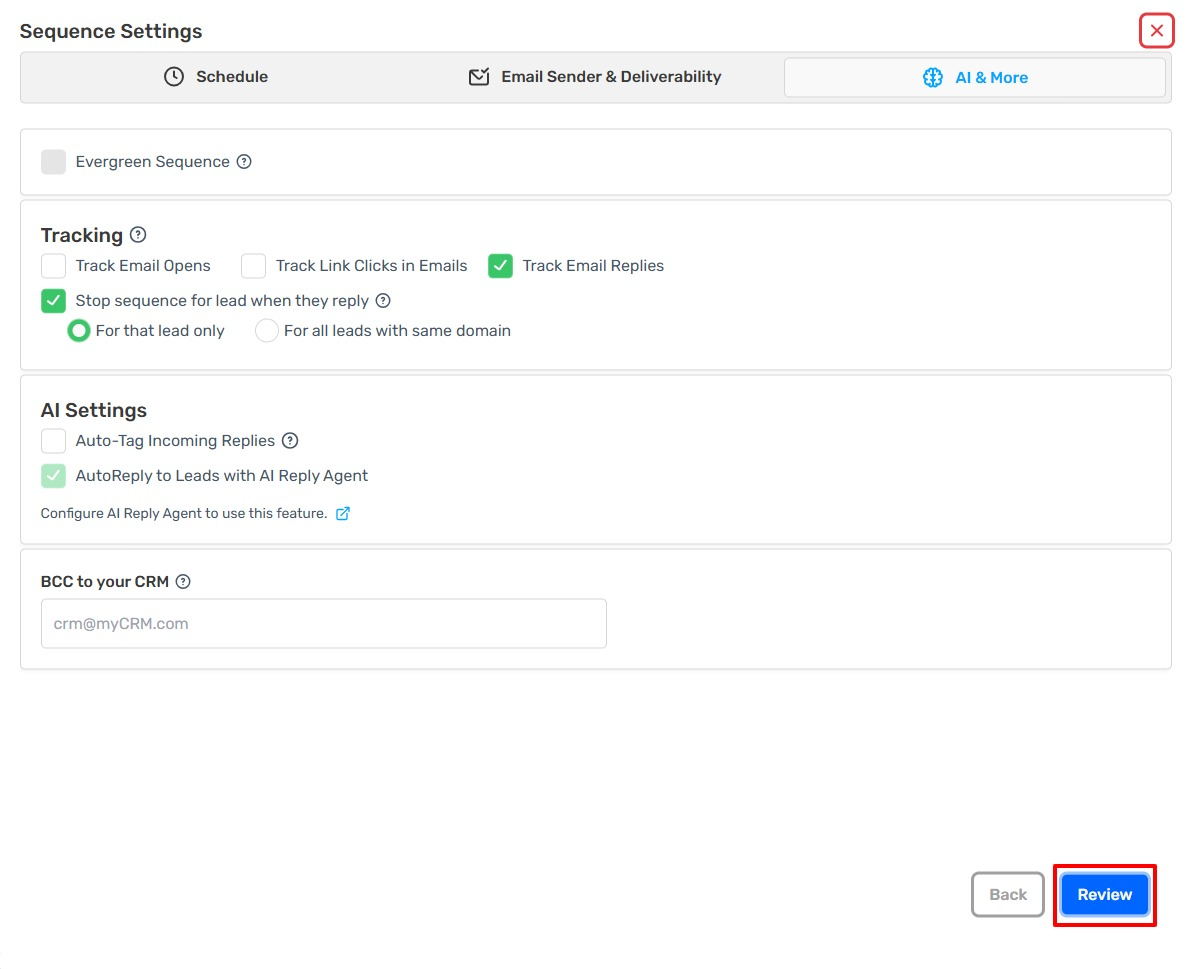
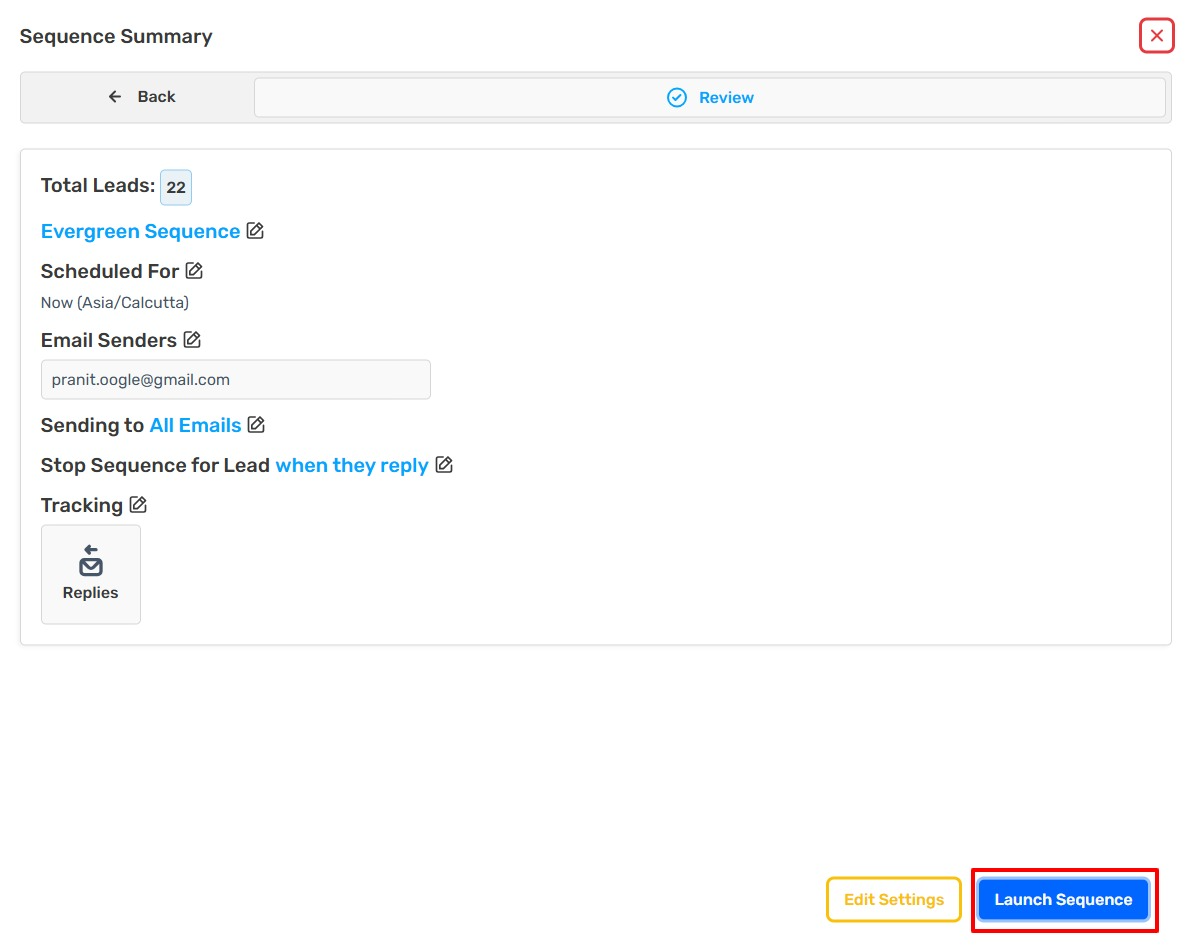
- Verify settings.
- Click Schedule for Launch (or Edit Settings to modify).
You can check the emails of your sequence in the Outbox if you have enabled Review emails in the Outbox.