Overview
Create multi-step outreach sequences using blocks to automate emails, tasks, and lead management.
Prerequisites
- Email sender connected
- Lead list uploaded or CRM integrated
- Email templates created (for email blocks)
Access the Sequence Builder
- Click Sequences in the main navigation.
- Click Create New.

Add Source Blocks
Source blocks define which leads enter the sequence. Drag a source block to the canvas.
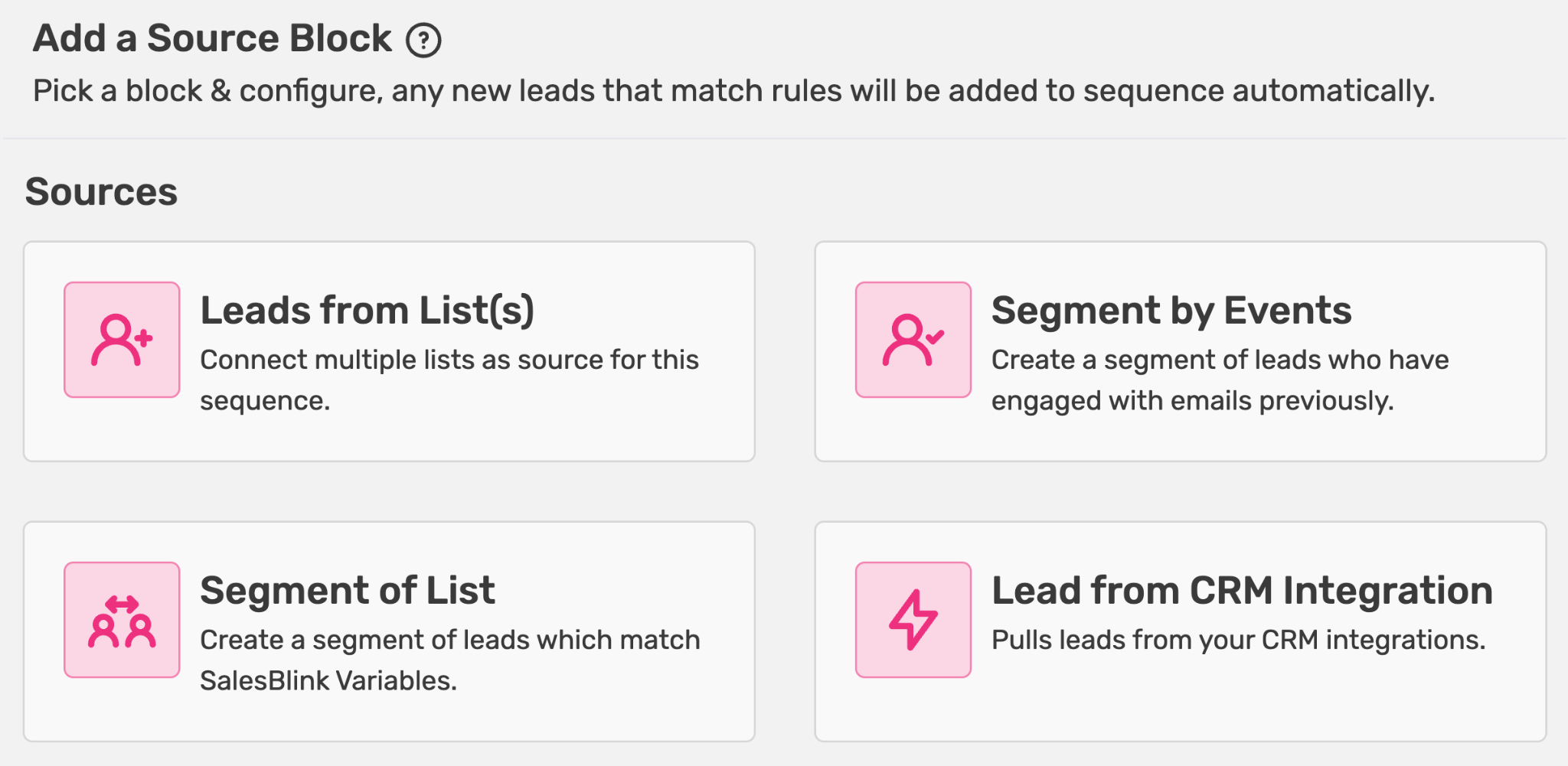
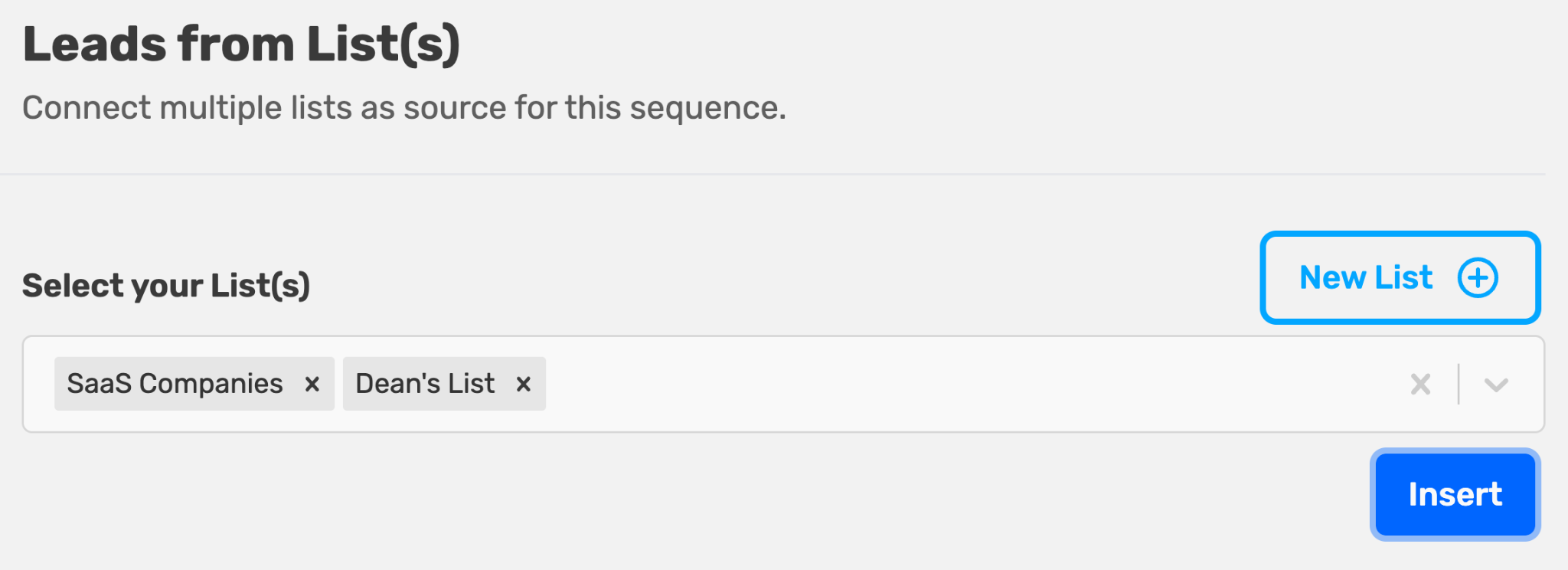
Leads from List(s)
Select one or more lists to pull leads from.
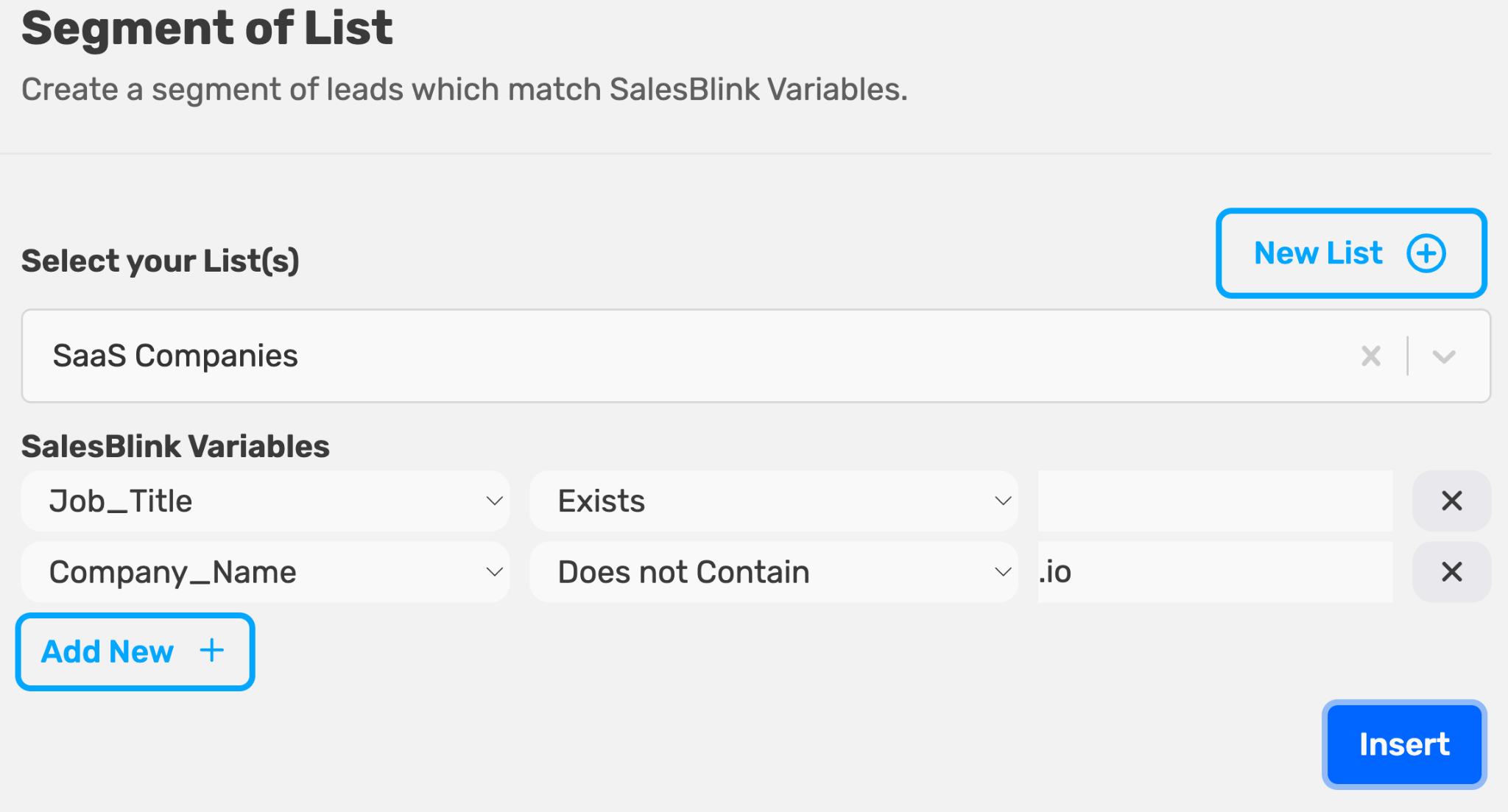
Segment of List
Filter leads by variable conditions:
- Variable Exists
- Variable Contains specific text
- Variable Does Not Contain specific text
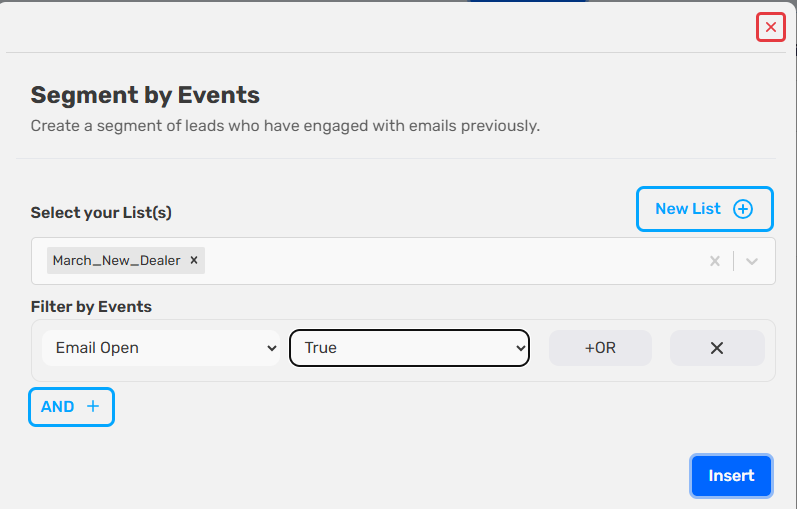
Segment by Events
Filter leads by engagement:
- Email Opened
- Link Clicked
- Email Reply
- Custom Task Events
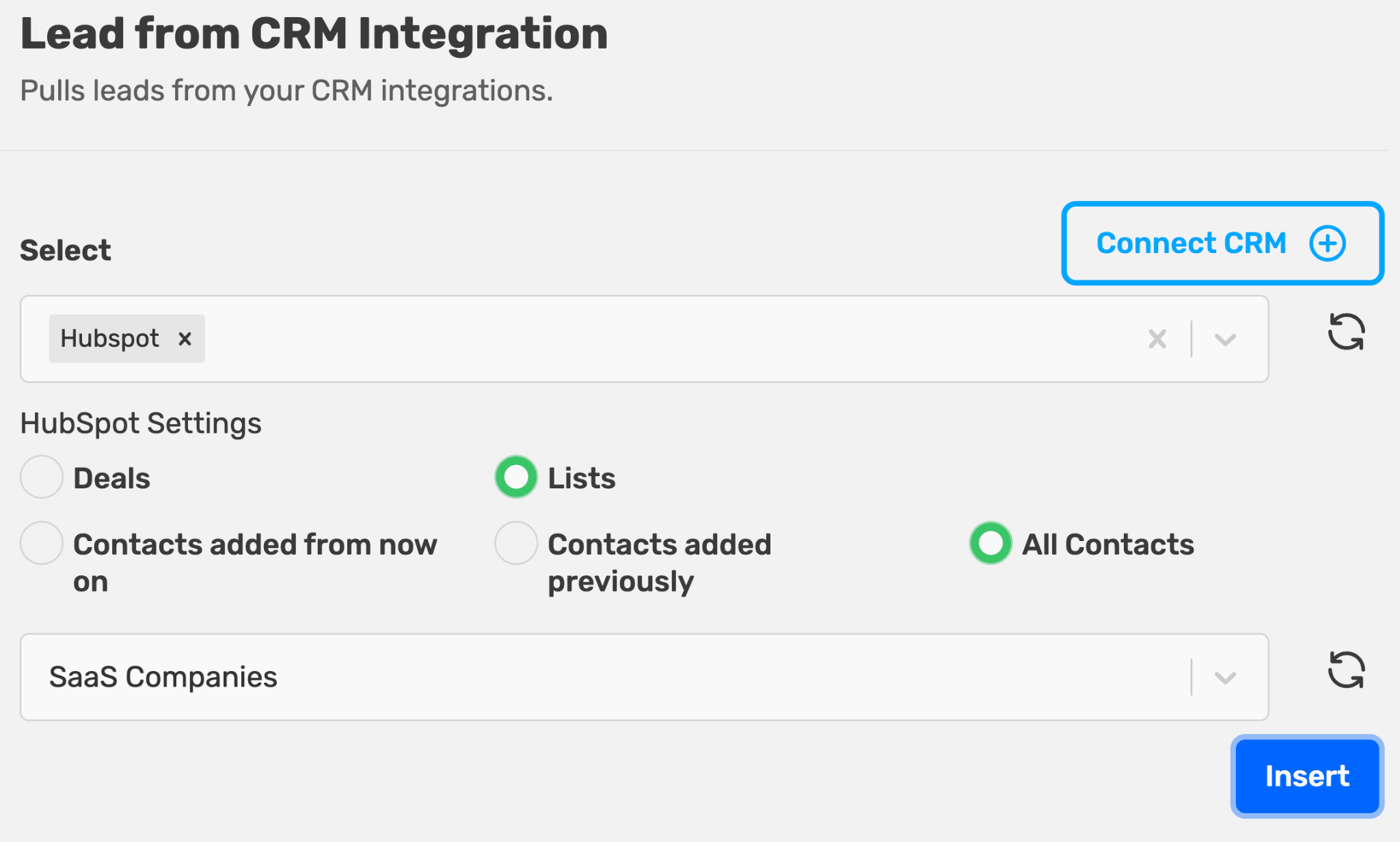
Lead from CRM Integration
Pull leads in real time from your connected CRM (HubSpot, Salesforce, etc.).
Tip: Add multiple source blocks to combine lead sources.
Note: Every sequence needs at least one source block with a list or other lead source selected. If you try to schedule a sequence without a source block, you see the error
A Source block is required.Add a source block, select a list, and save again. A sequence also needs at least one action block (such as an email step), otherwise you seeAn Action block is required.
Add Outreach Blocks
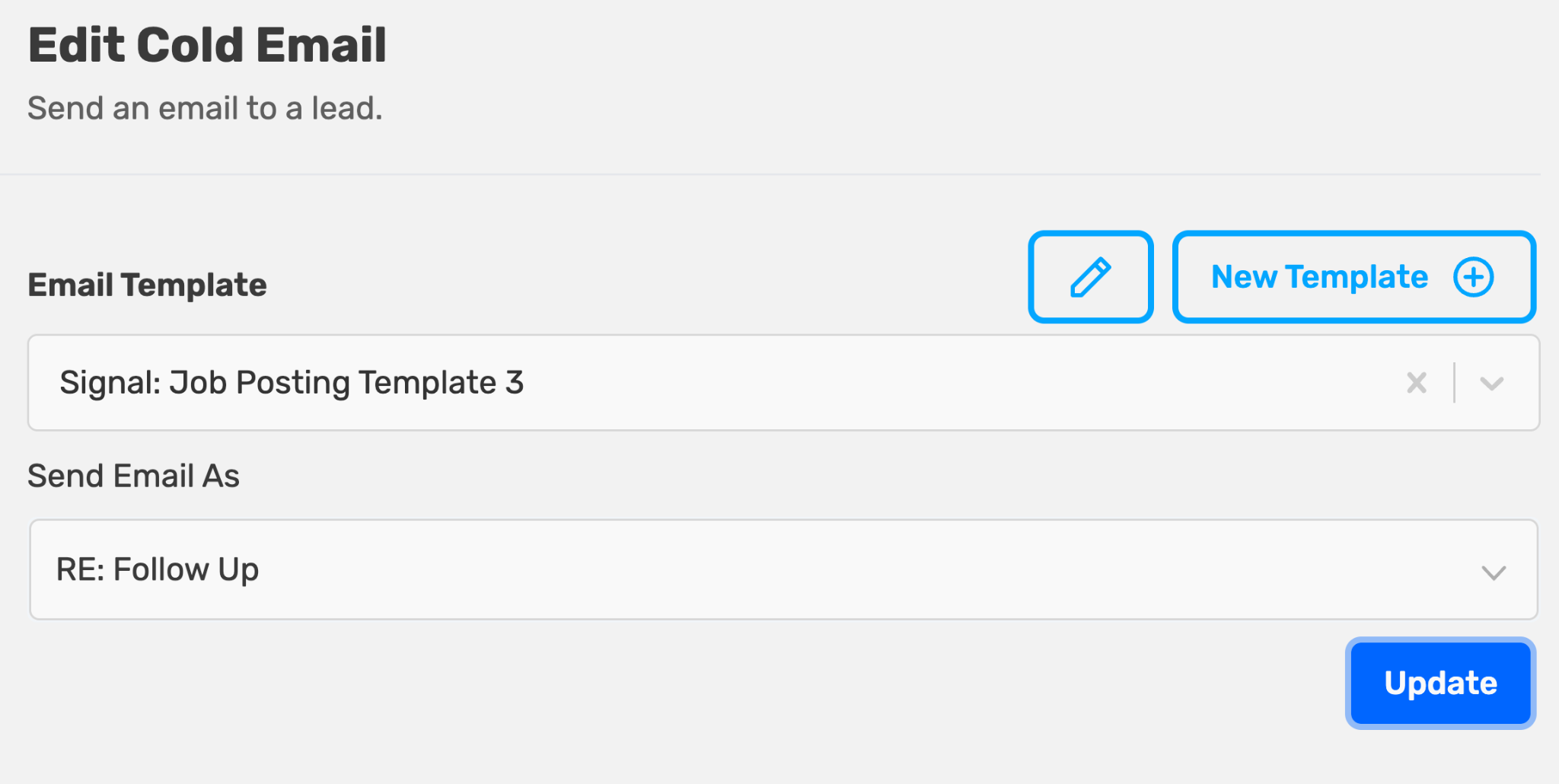
Cold Email
Send automated emails.
- Drag Cold Email block to canvas.
- Select an Email Template.
- Configure Send As:
- New Thread — Standalone email
- Follow-up — Reply to previous email
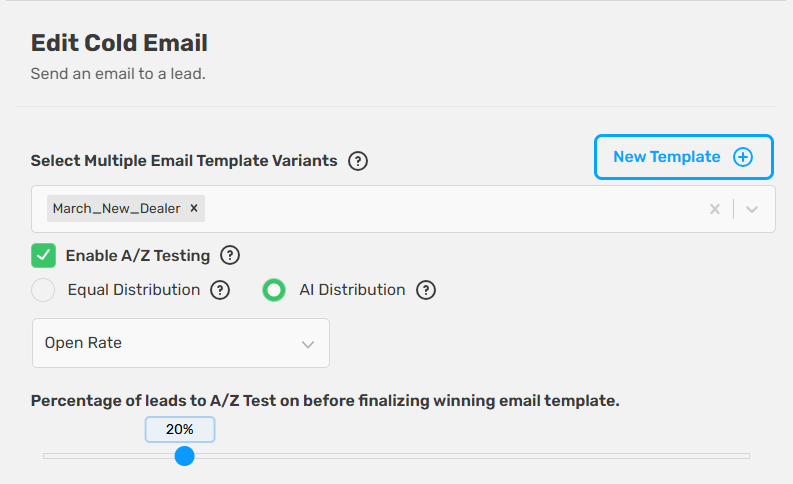
- (Optional) Enable A/B Test to test multiple templates.
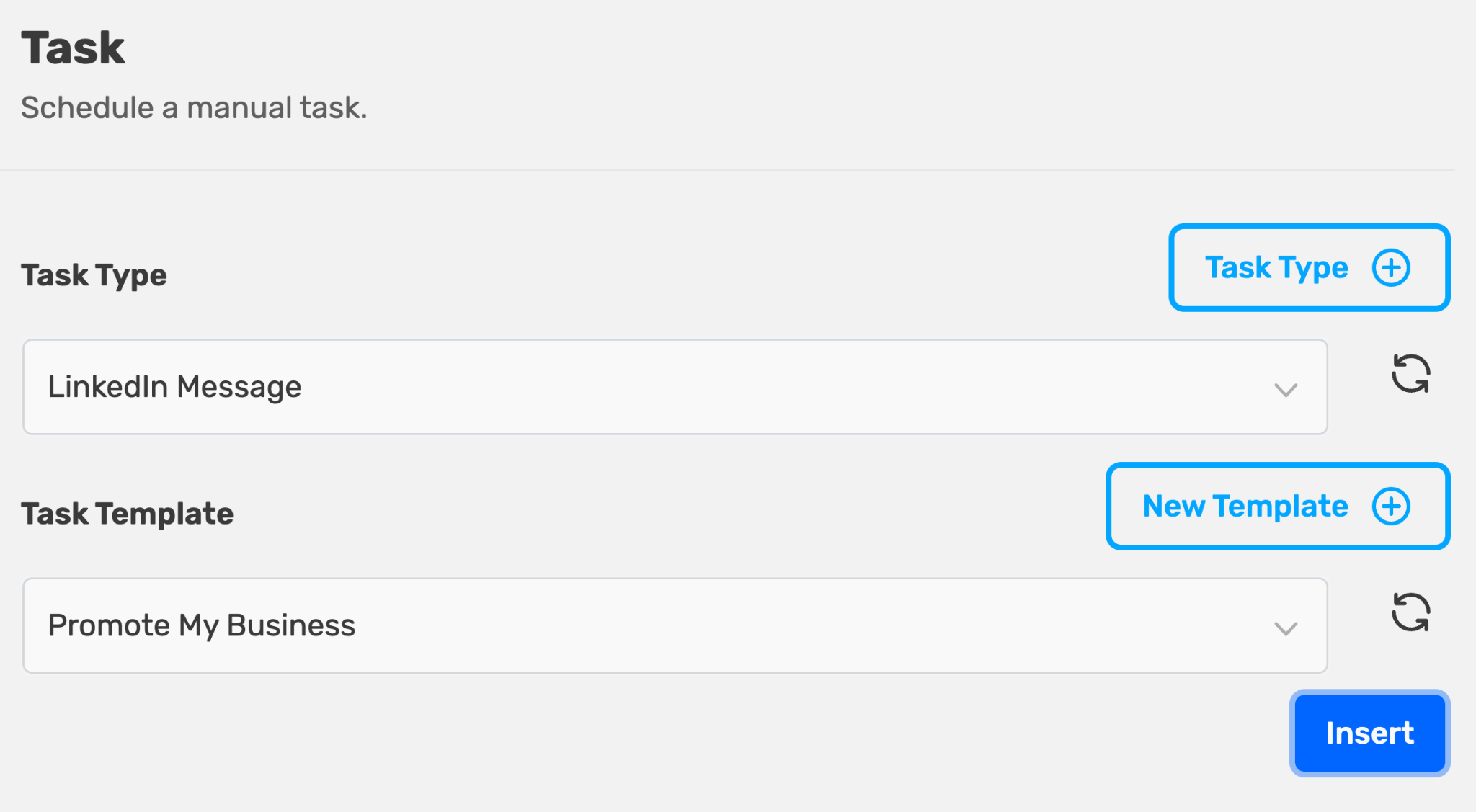
Task
Schedule manual activities.
- Drag Task block to canvas.
- Select Task Type (Call, WhatsApp, LinkedIn, Custom).
- Set Due Date (e.g., "3 days after the previous block").
Add Condition Blocks
Control sequence flow based on lead behavior or timing.
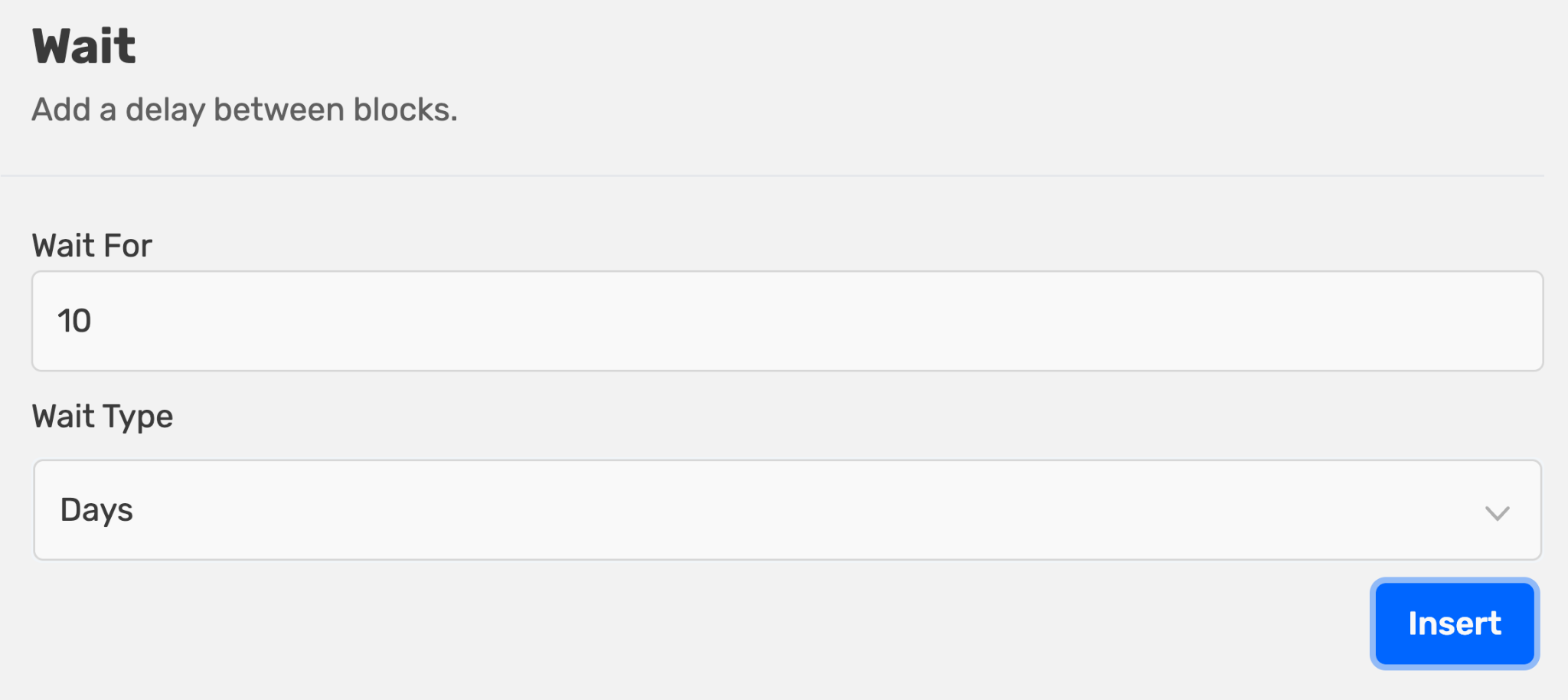
Wait
Add delays between blocks.
- Drag Wait block between two blocks.
- Set duration (hours, days, weeks).
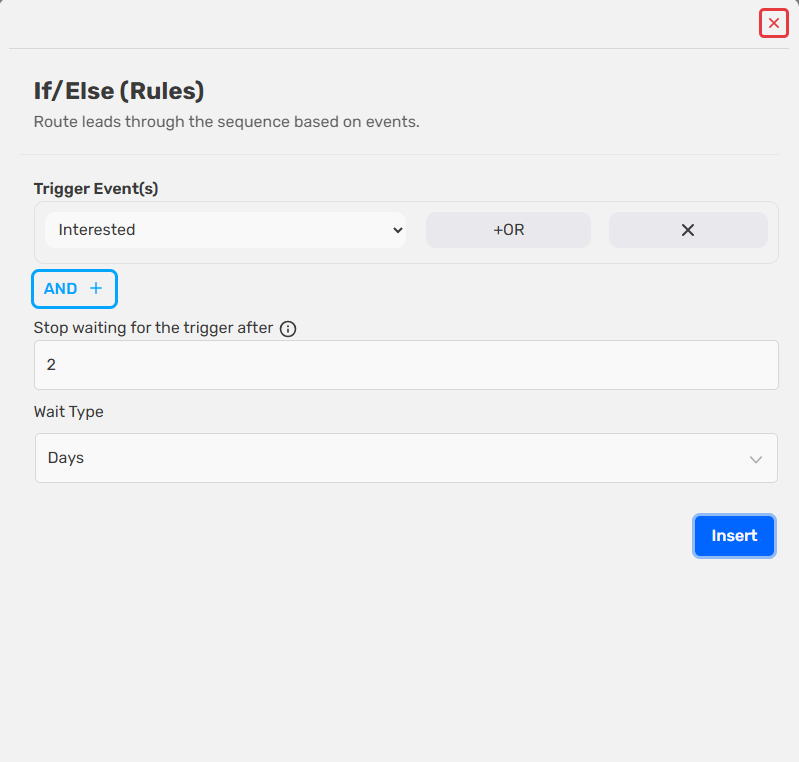
If/Else (Rules)
Branch leads based on events.
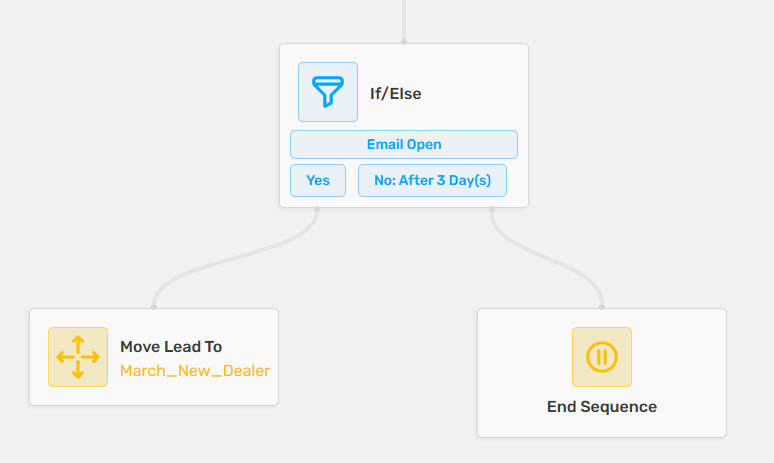
- Drag If/Else block after an outreach block.
- Set condition:
- Email Opened → Yes/No paths
- Link Clicked → Yes/No paths
- Email Replied → Yes/No paths
- Drag blocks to Yes or No paths.
Split 50-50
Randomly divide leads into two paths for A/B testing.
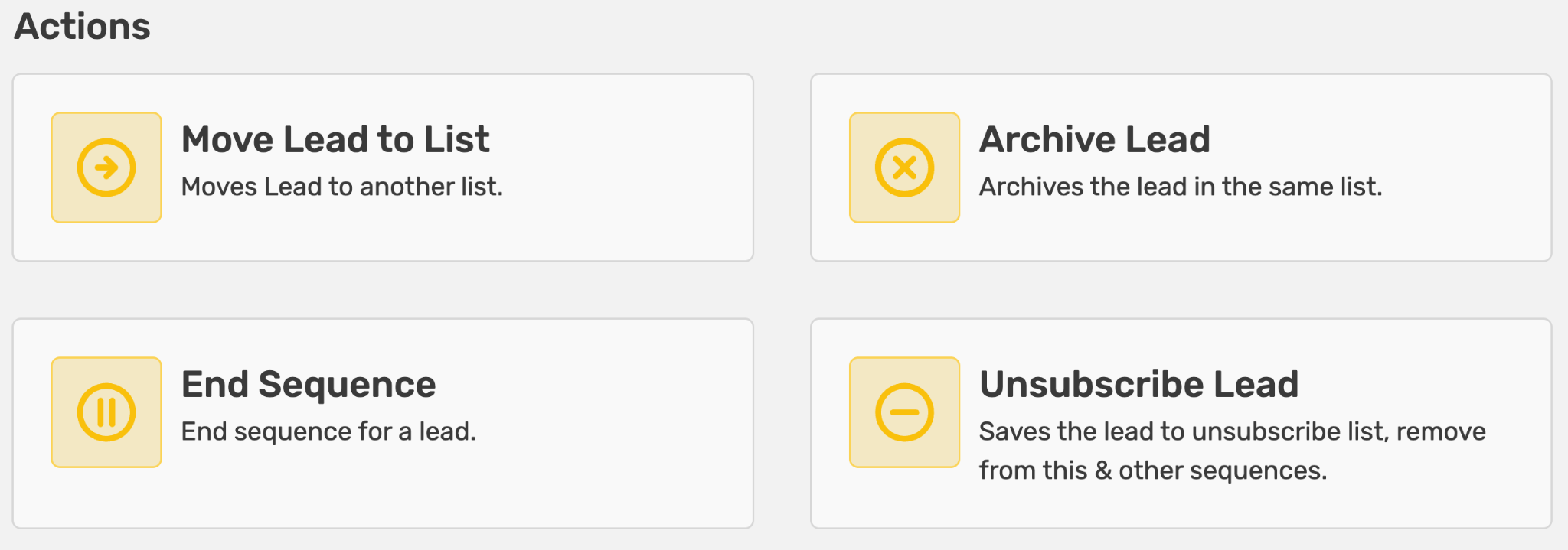
Add Action Blocks
Perform automated actions on leads.
| Block | Action |
|---|---|
| Move Lead to List | Transfer lead to different list |
| Archive Lead | Archive lead in current list |
| End Sequence | Stop sequence for this lead |
| Unsubscribe Lead | Unsubscribe lead from all emails |
Configure Sequence Settings
Before launching, configure settings:
- Click Save & Schedule.
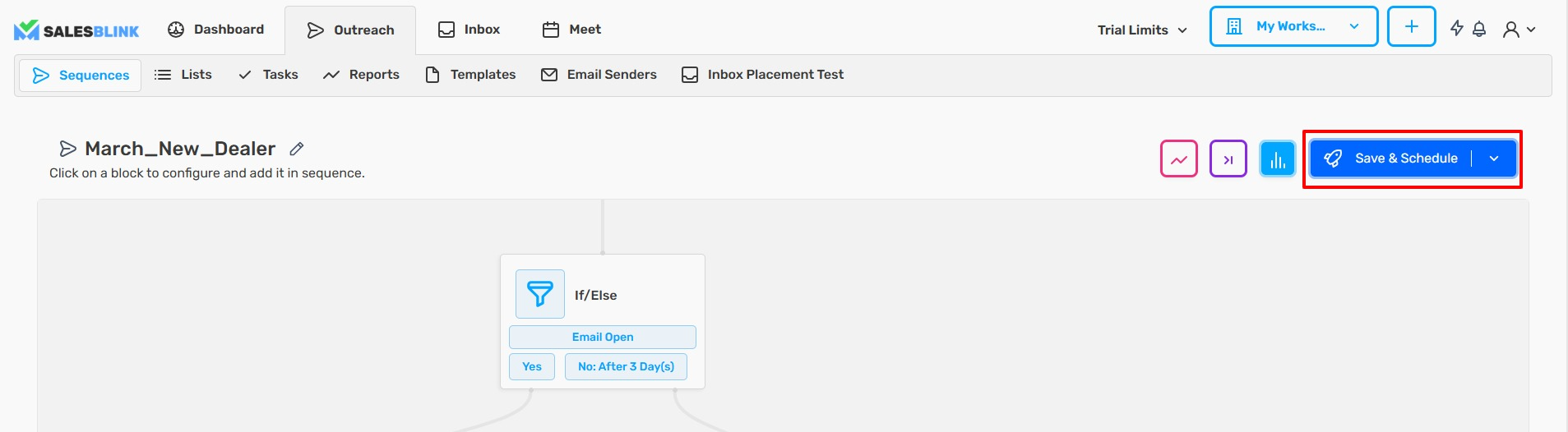
- Configure:
| Setting | Description |
|---|---|
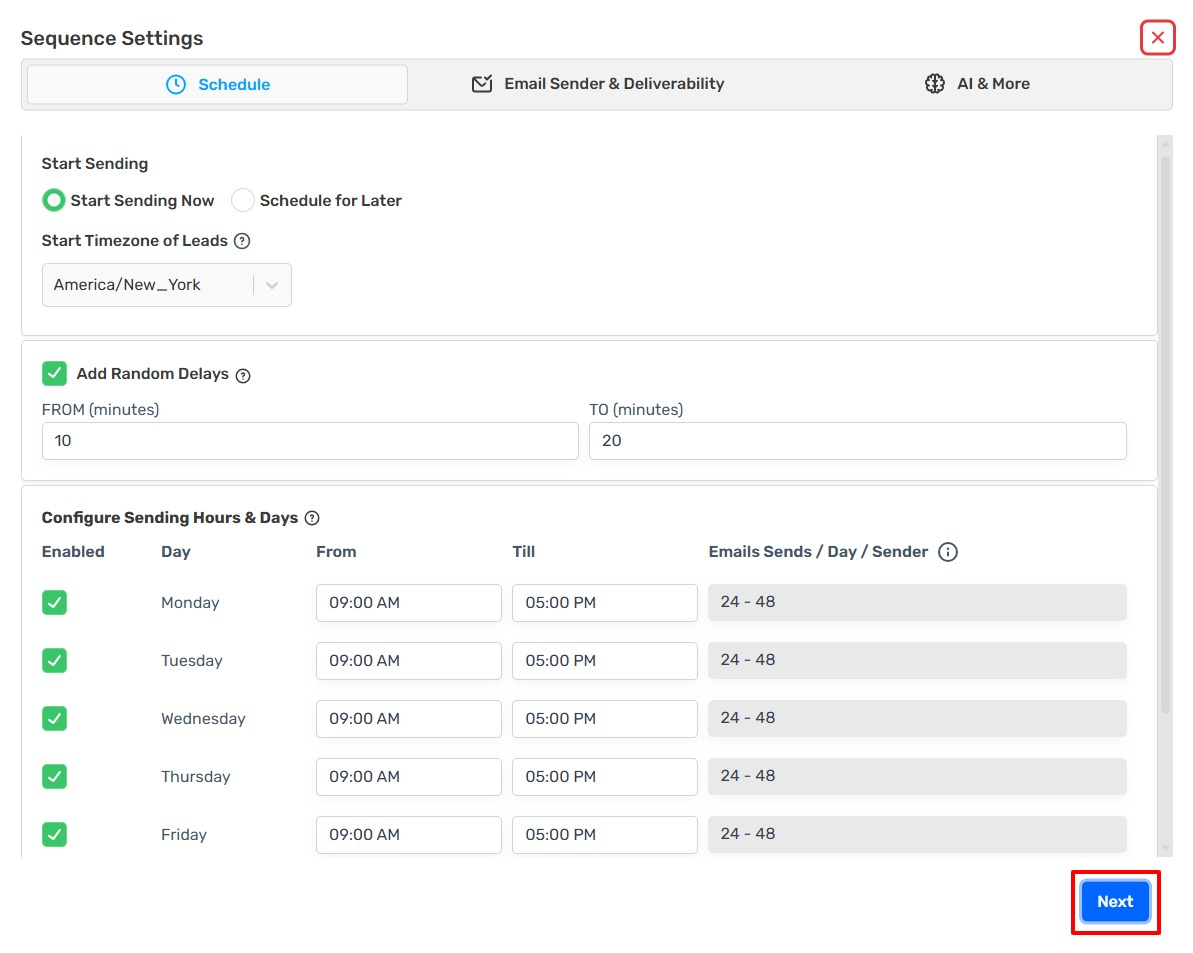
| Schedule Date/Time | When sequence starts |
| Time Zone | Sending time zone |
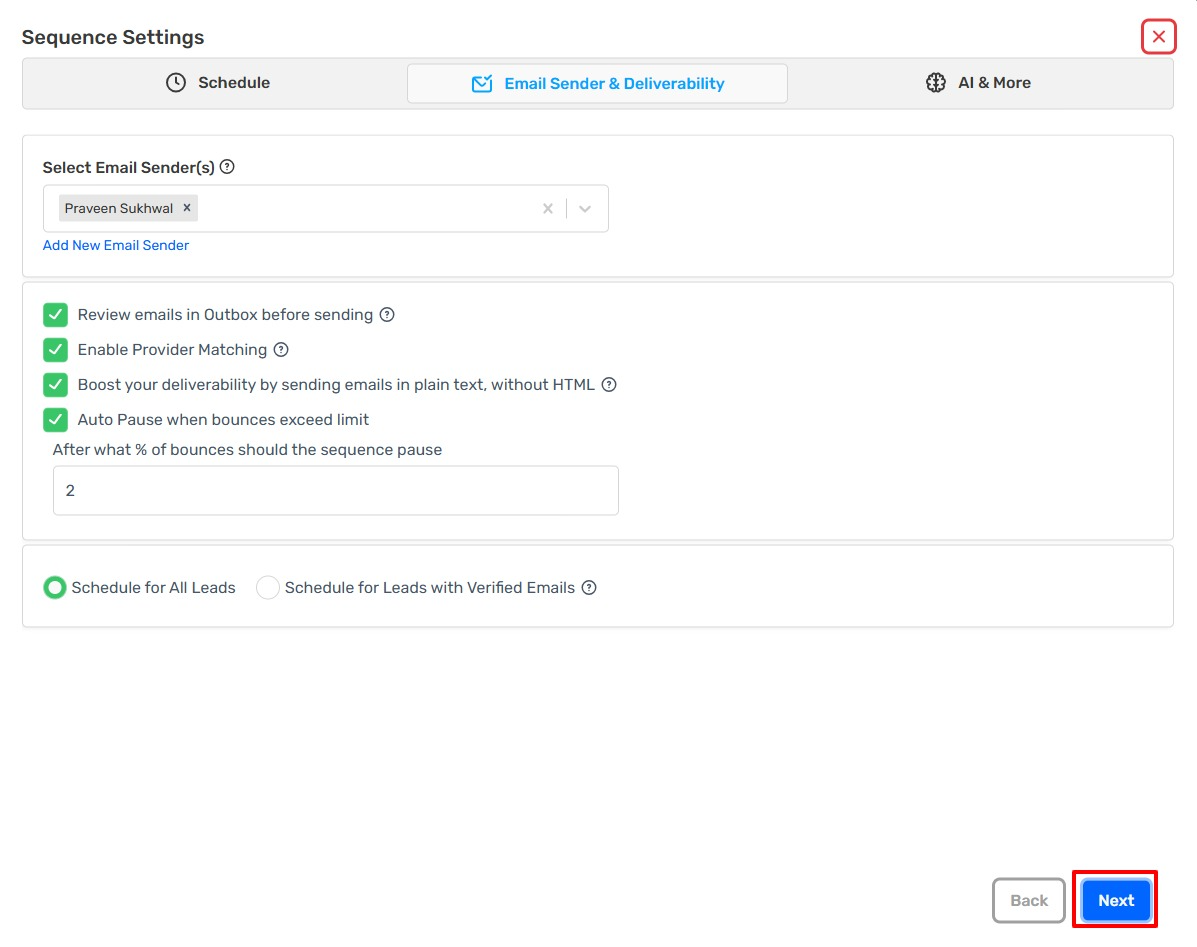
| Email Senders | Which sender(s) to use |
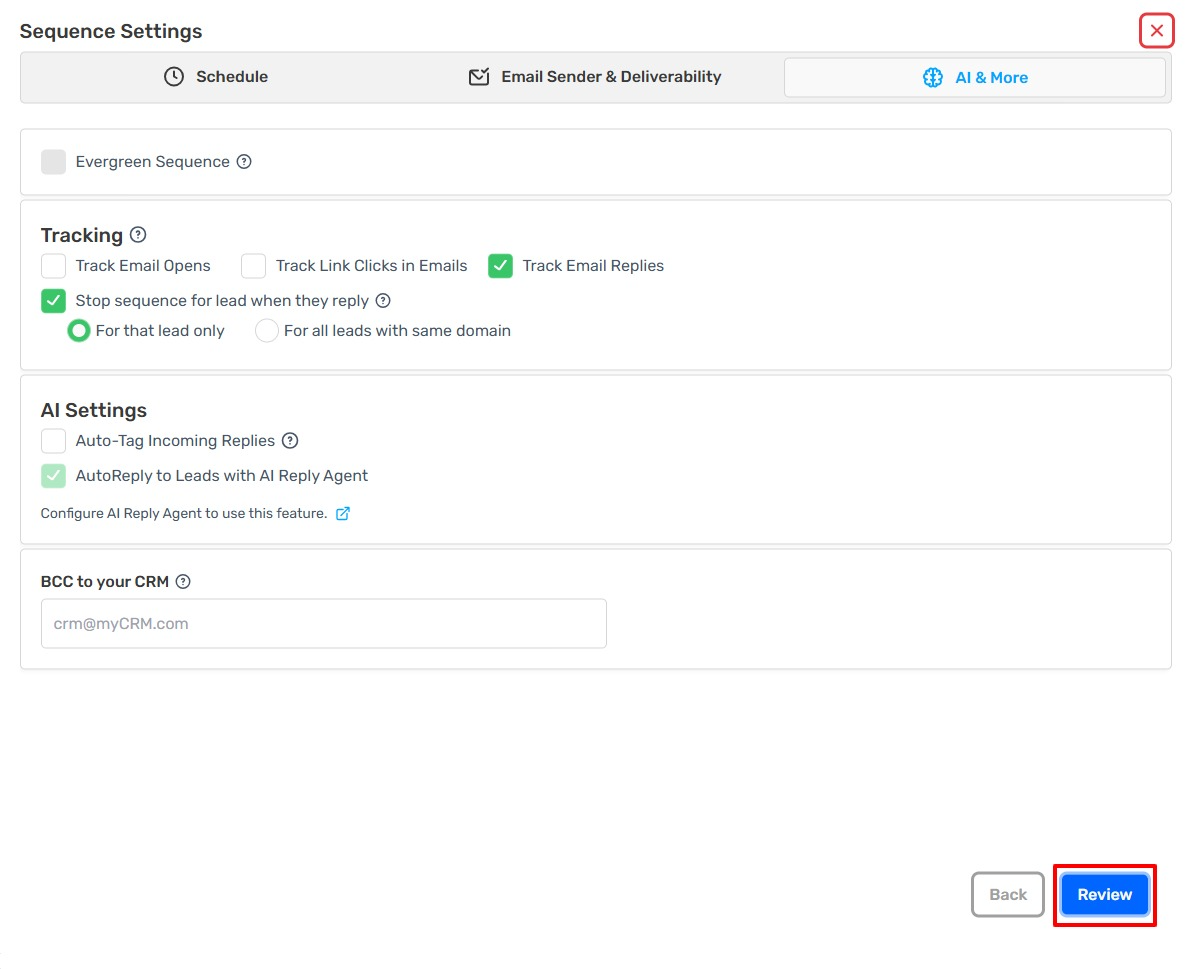
| BCC | CRM BCC email(s) for logging — multiple emails can be comma-separated |
| Evergreen Sequence | Keep running for new leads |
| Review Emails in Outbox | Require approval before sending |
| Stop Sequence on Reply | End sequence when lead replies (lead only or domain-wide) |
| Provider Matching | Match sender provider to lead's email provider |
| Plain-Text Emails | Send without HTML for deliverability |
| Schedule for Verified Leads | Only email valid/risky/invalid leads |
| Tracking | Track opens, clicks, replies |
- Schedule your sequence timing.
- Select your email sender and check the options you need.
Tip: Use one sender, or one sender folder, per sequence. This avoids confusion over daily limits and scheduling, because a sender's daily limit is shared across every sequence that uses it, and per-sequence stats such as opens and replies are most accurate with dedicated senders.
Senders that are already in use by another active sequence are marked with a warning icon in the sender dropdown, and a notice below the selection lists the sequences using them. You can still select and launch with those senders — the warning is only there to help you keep stats and daily limits predictable.
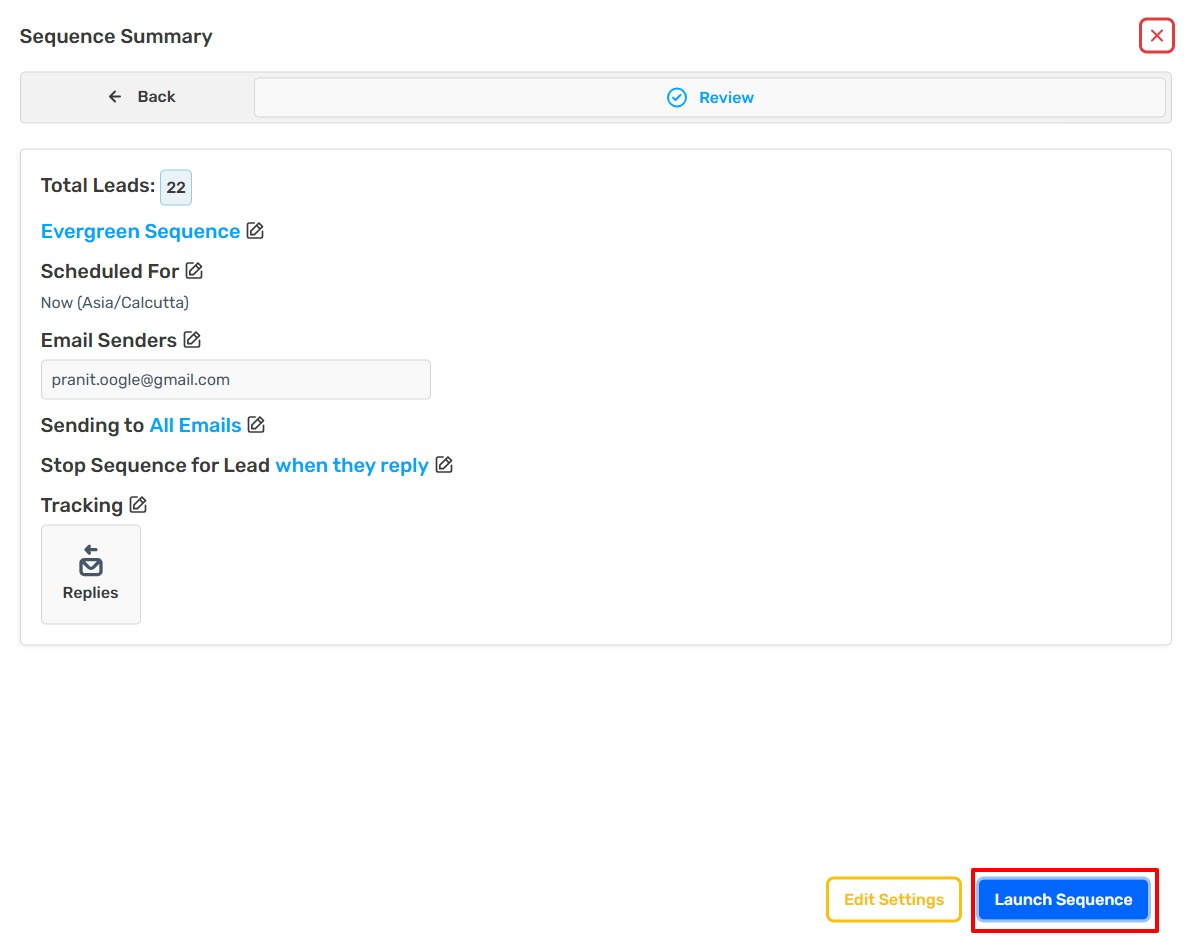
- Select more settings if needed, then click Review to review your sequence settings.
When the sequence uses more than one sender, the review step shows "N Rotating Email Senders". N counts each unique sender once, including the senders inside any sender folders you selected.
Edit Settings or Launch
- Click Edit Settings if more alterations need to be made in sequence settings.
- Click Launch Sequence.
Check the Reports of your sequence.
Frequently Asked Questions
What does A Source block is required. mean?
The sequence has no list or other lead source attached. Add a source block, such as Leads from List(s), select a list, and save the sequence again.
Can I use the same sender in several sequences?
You can, but it isn't recommended. A sender's daily limit is shared, so the sequence scheduled first uses it up and the others send fewer emails, and per-sequence stats are easier to read when each sequence has its own senders. SalesBlink warns you in sequence settings when a selected sender is already in use by another active sequence, but it never stops you from launching. Use one sender, or one sender folder, per sequence. If a sequence isn't sending, see Why Isn't My Sequence Sending?.