Overview
Verify your email sender configuration and fix deliverability issues before launching outreach.
Prerequisites
- Email sender connected in SalesBlink
- Domain DNS records (SPF, DMARC, DKIM) configured
Run a Domain Setup Check
SalesBlink automatically checks your domain setup every 48 hours. To manually check or refresh the report:
- Click Outreach in the main navigation.
- Click Email Senders.

- Click the Actions dropdown (three dots) next to your sender.
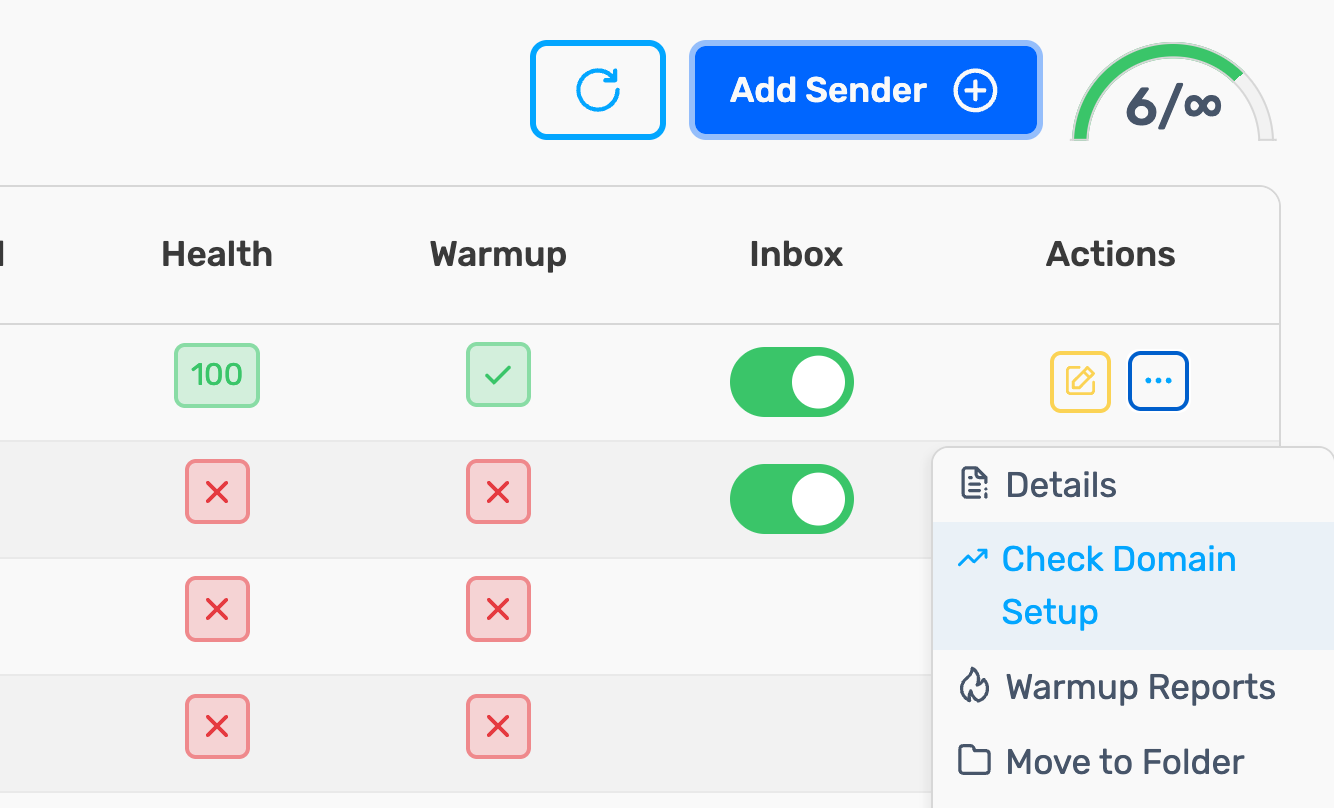
- Click Domain Report. The domain setup report updates immediately, showing:
- SPF record status
- DMARC record status
- DKIM record status
- Custom tracking domain status
When the report updates
| Situation | When the report rechecks |
|---|---|
| Regular senders | Every 48 hours |
| After a bulk upload of senders | About 6–8 hours after the upload |
| New DFY mailboxes | About 12–16 hours after setup |
| Blacklist listings | With the rest of the report: every 48 hours, and each time you open Domain Report |
Note: For new DFY mailboxes, warnings in the report for the first 12–48 hours are normal while DNS records propagate. Wait for the next recheck before contacting support.
Warnings vs errors
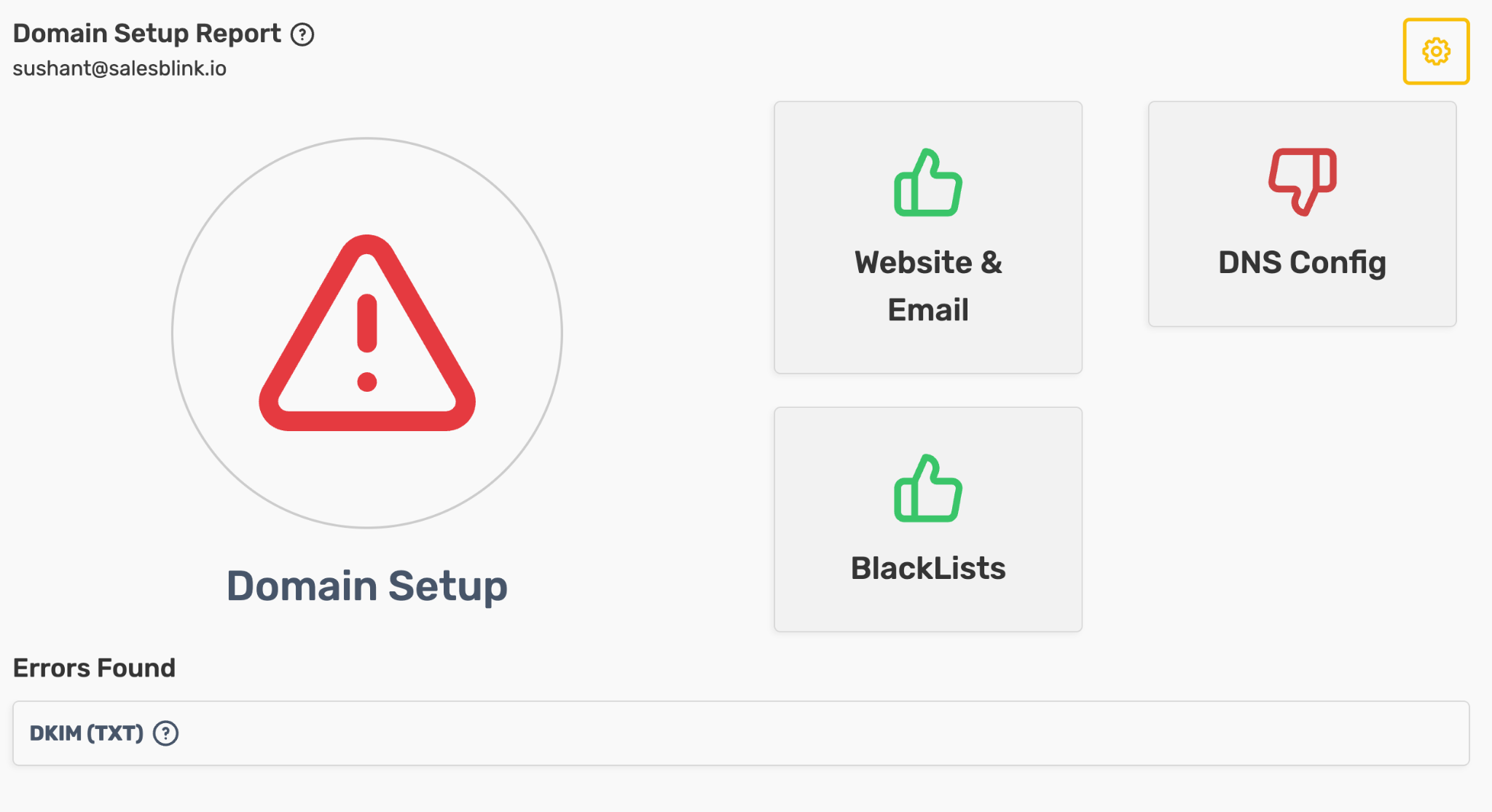
The report shows three summary cards: Website & Email, DNS Config, and BlackLists. A green thumbs-up means the checks passed. A red thumbs-down on Website & Email or DNS Config means one of their checks failed. The BlackLists card shows a yellow warning when your domain's IP is listed. Each failed check is listed under Errors Found.
- The custom tracking domain line is marked (Optional). You only need it if you track opens or clicks.
- A generic username or a missing website shows under Errors Found, but it does not stop SalesBlink from sending.
The report is a diagnostic. It does not pause your sequences by itself. The only check that stops sending outright is SMTP Connected, because SalesBlink cannot send without an active connection.
Note: With WarmUp on, each failed website, SPF, DMARC, MX, or DKIM check lowers the sender's health score by 3 points, and each blacklist listing (up to 5) lowers it by 1 point. If you turned on Pause cold emails when health falls below in the sender's settings, a low health score can pause cold emails from that sender.
Note: If you send from a subdomain, the report shows red and adds
Sending cold emails with email senders on subdomains have poor deliverability. It does not block sending.
What We Check
1. Website Exists
What it means: We check if the domain you are using to send emails is attached to a live, working website.
Why it matters: Email providers (like Gmail and Outlook) and their spam filters get very suspicious if you send bulk emails from a domain that has no website. A live website proves you are a legitimate business.
How to fix it: If this fails, the report shows Website does not return a status code of 200, 301 or 302 which is required for best deliverability (or a more specific error from the website check). Your sending domain must load a page (status 200) or redirect to one (status 301 or 302). You can either:
- Publish a website or a simple landing page on the sending domain, or
- Redirect the sending domain to your main website. Most registrars and DNS providers offer this as Domain Forwarding or URL Redirect. Choose a permanent (301) redirect.
Set up the redirect for both yourdomain.com and www.yourdomain.com, so the domain works with or without www. Then open both addresses in a private browser window to confirm they load or redirect. The check updates on the next recheck. Once the domain returns a status code of 200, 301 or 302, it will qualify for deliverability.
2. Blacklist Check
What it means: We test the IP address your domain's A record points to against over 50 DNS-based email blacklists (commonly called Realtime Blacklists, DNSBL, or RBL) to see if it has been flagged for sending spam.
Note: The A-record IP is checked even if your email is sent through Google Workspace or Microsoft 365. This is usually the IP of your website hosting. Email blacklists are a common way of reducing spam, and we follow the same standard practice as tools like MXToolbox.com.
Why it matters: If your domain's IP is on a blacklist, email providers can block your messages or send them straight to the spam folder. Even one or two listings can mean poor deliverability or a burned domain.
How to fix it: Blacklist flags cannot be fixed overnight, and removal is rarely worth the effort. If your domain is listed, plan to replace it: purchase a new sending domain, set it up properly, and put it through a strict warm-up process before sending campaigns again. See How to Fix Blacklist.
Some listings, such as dnsbl-1.uceprotect.net, are common on new hosting IPs because the IP was used by someone else before you. Blacklists are rechecked every time the report runs (every 48 hours, or when you open Domain Report), so a listing can turn green on its own once the blacklist removes it. If it stays listed, treat it like any other listing and watch your deliverability closely.
3. SPF Record (Sender Policy Framework)
What it means: We check if your domain has a valid SPF record set up in its DNS settings.
Why it matters: Think of SPF as a guest list for a VIP party. It tells email providers exactly which servers are authorized to send emails on your behalf. If an email comes from a server not on your SPF list, it looks like a scammer is spoofing your address, and the email will bounce or go to spam.
How to fix it: Log into your domain registrar (like GoDaddy, Namecheap, or Cloudflare) and add the SPF TXT record provided by your email host (e.g., Google Workspace or Microsoft 365). See Domain Technical Setup for step-by-step instructions.
4. DMARC Record
What it means: We check if you have a DMARC policy configured for your domain.
Why it matters: DMARC is a critical modern security standard. If SPF is the guest list, DMARC is the set of instructions you give to the bouncer. It tells receiving servers exactly what to do with emails that fail your SPF or DKIM security checks (e.g., "reject them" or "send them to spam"). Without DMARC, your deliverability will suffer heavily.
How to fix it: Add a DMARC TXT record to your domain's DNS settings. See Domain Technical Setup for detailed guidance.
5. MX Records (Mail Exchange)
What it means: We check if your domain is properly configured to receive emails.
Why it matters: MX records act like the postal service for your domain. If you don't have them, you can't receive replies. Spam filters know that legitimate senders want to receive replies, so missing MX records is a massive red flag.
How to fix it: Add the MX records provided by your email host (Google, Outlook, etc.) to your domain's DNS settings. See Domain Technical Setup for detailed guidance.
6. DKIM Record
What it means: We verify that your emails are being sent with a valid DKIM digital signature.
Why it matters: DKIM acts like a wax seal on a physical letter. It proves to the receiving server that the email truly came from you and wasn't intercepted or tampered with along the way.
How to fix it: Add the DKIM TXT record from your email host into your DNS settings. See Domain Technical Setup for detailed guidance.
If the report shows Set DKIM Identifier to check, SalesBlink needs your DKIM identifier (the selector, such as google or selector1) before it can check DKIM. Click the gear icon next to the error and enter the identifier. Once verified, we automatically apply it to all other senders using that same domain. See Find your DKIM identifier (selector) for a list of identifiers by provider.
Note: Enter only the selector, not the long DKIM record value. If you use bulk Sender Settings and see
Enter a valid DKIM identifier., untick Update DKIM Identifier unless you are changing it.
7. SMTP Connected (Sending Enabled)
What it means: We check if SalesBlink has the proper permissions to send emails out of your inbox.
Why it matters: Without an active SMTP connection, SalesBlink physically cannot send your cold email campaigns.
How to fix it: Reconnect or update your email account credentials in your SalesBlink sender settings. See Update Email Sender Settings.
8. IMAP Connected (Receiving Enabled)
What it means: We check if SalesBlink has the proper permissions to read incoming emails in your inbox.
Why it matters: IMAP allows SalesBlink to detect when a prospect replies to your campaign. This is how we know to stop sending automated follow-ups to someone who has already responded to you.
How to fix it: Reconnect or update your email account credentials in your SalesBlink sender settings. See Update Email Sender Settings.
9. Generic Username Check
What it means: We check if your email address uses a generic, role-based name (like sales@, info@, admin@, support@, ceo@, or hola@). If it does, the report shows a message like this:
Your email sales@yourdomain.com contains a generic username of sales. Use an email address with human name for better deliverability.
Why it matters: Cold emails sent from generic addresses perform poorly. Prospects (and spam filters) trust emails that come from real human beings (like john@ or sarah@).
How to fix it: Create and connect a new email account that uses a real person's name for better open and reply rates. This is a warning only. It does not stop you from sending from the address.
10. Custom Tracking Domain
What it means: We check if you have set up a custom tracking domain to track your open and click rates. If not, the report shows Custom domain for tracking is not set for this email sender. This check is optional.
Why it matters: If you use a shared tracking link, your deliverability is tied to the behavior of everyone else using that link. By setting up a custom tracking domain, you isolate your reputation, ensuring that only your good behavior impacts your inbox placement.
How to fix it: If you track opens or clicks, create a CNAME record in your domain's DNS settings that points to cname.salesblink.io, and then link it inside your SalesBlink account. If you do not track opens or clicks, you can ignore this line. See Custom Domains for Email Tracking for full setup instructions.
Fix Reported Issues
If any check fails, follow the recommended solution shown in the report:
- Review the issue description.
- Click the How to Fix link for step-by-step instructions.
- Update your DNS or settings accordingly.
- Reload the page to view the updated results.
Common error messages
| Message | What it means | What to do |
|---|---|---|
Set DKIM Identifier to check |
SalesBlink doesn't know your DKIM selector yet | Enter the selector from the gear icon. See Find your DKIM identifier. |
Enter a valid DKIM identifier. |
A bulk Sender Settings save had Update DKIM Identifier ticked with an empty field | Untick Update DKIM Identifier, or enter a valid selector. |
Website does not return a status code of 200, 301 or 302 which is required for best deliverability |
Your sending domain has no working website or redirect | Publish a page or add a 301 redirect for both the root domain and www. |
Your email … contains a generic username of … |
The address uses a role-based name such as sales@ or info@ | Use an address with a person's name. This is a warning only. |
Custom domain for tracking is not set for this email sender |
No custom tracking domain is assigned | Optional. Set one up only if you track opens or clicks. |
Frequently Asked Questions
Do errors in the report stop my emails from sending?
No. Errors in the Domain Setup Report do not pause sequences by themselves. They tell you what can hurt deliverability. Only a disconnected SMTP connection stops sending outright. With WarmUp on, failed checks lower the sender's health score, which can pause cold emails if you turned on Pause cold emails when health falls below.
My domain is on one blacklist. Is that a problem?
It can be. Even one or two listings can mean poor deliverability or a burned domain. Watch your bounce and reply rates, and plan to move to a new domain if the listing stays. See How to Fix Blacklist.
Why is my domain blacklisted when I send through Google Workspace or Microsoft 365?
The report also checks the IP address your domain's A record points to, which is usually your website hosting. A listing on that IP shows up in the report even if your email goes through Google or Microsoft.
I fixed my DNS records. Why does the report still show the old result?
The report rechecks automatically every 48 hours (about 6–8 hours after a bulk upload, and about 12–16 hours for new DFY mailboxes). DNS changes can also take up to 24 hours to propagate. Click Domain Report again to refresh it.
I set the DKIM identifier but the DKIM check is still red. Why?
Make sure you entered the selector (for example, google), not the record value. SalesBlink looks for a TXT or CNAME record at <selector>._domainkey.<your sending domain>. If you send from a subdomain, the DKIM record must exist on that subdomain. A red DKIM check does not block sending.