Overview
Secure your SalesBlink account by adding 2FA with an authenticator app.
Prerequisites
- Authenticator app installed (Google Authenticator, Authy, or similar)
Enable 2FA
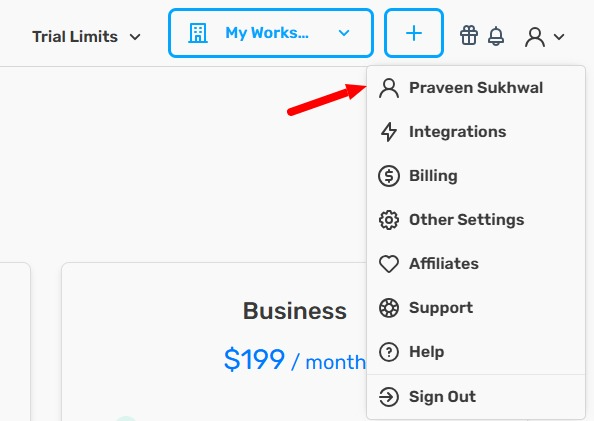
- Click your Profile icon in the top-right corner.

- Click your Name in the dropdown.
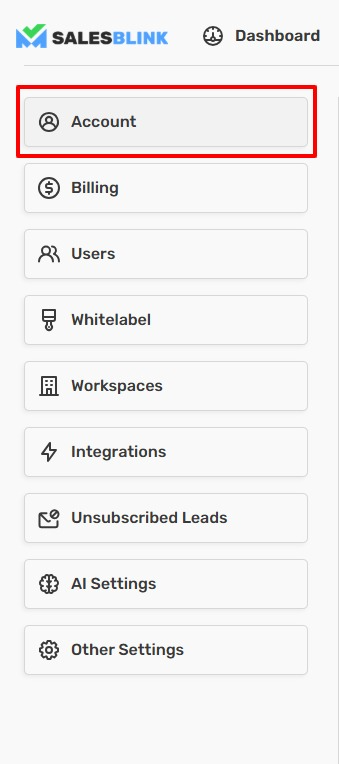
- Click Account in the Left Sidebar (opens by default).
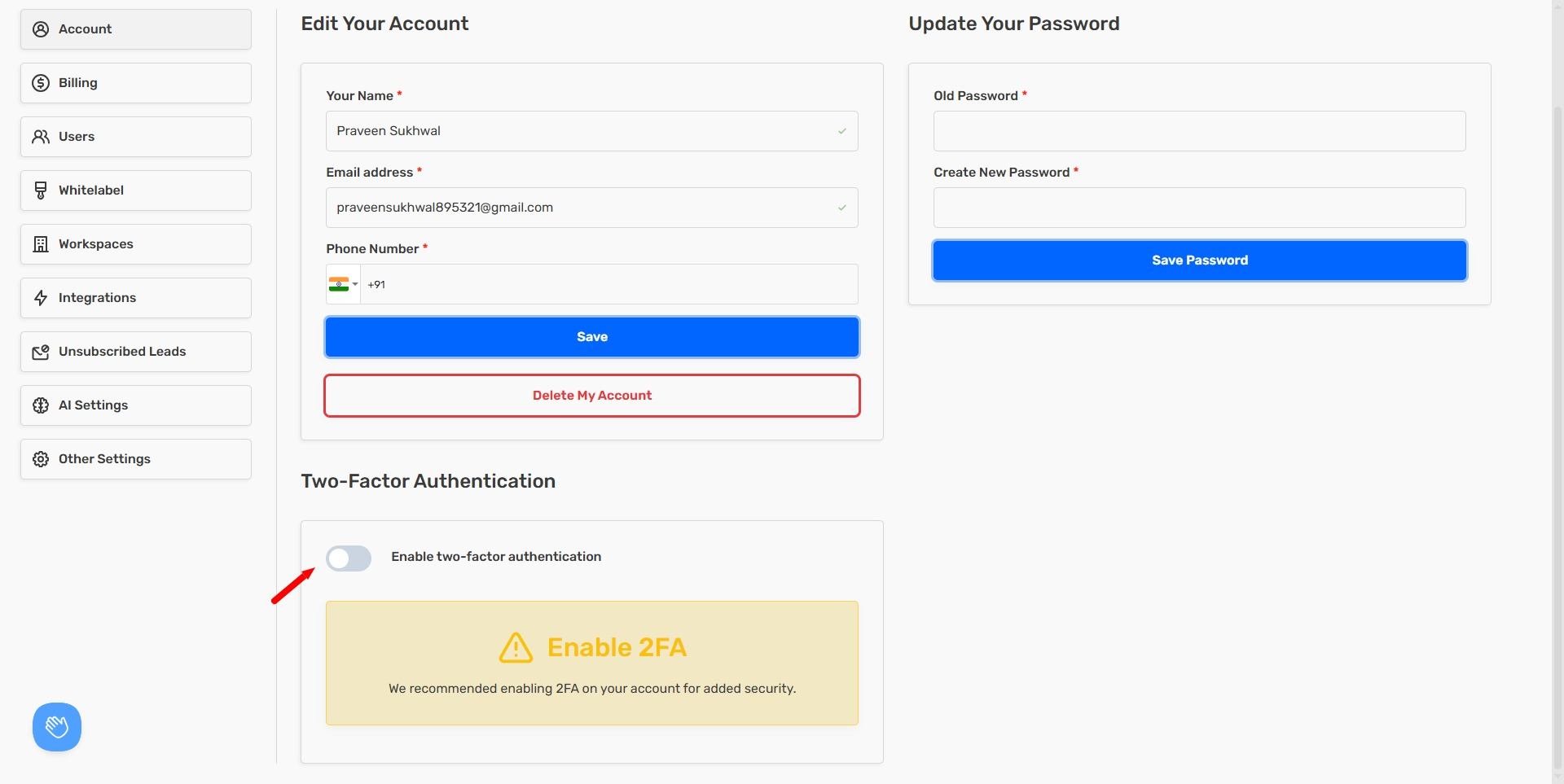
- Toggle Two-Factor Authentication to On.
- Scan the QR Code with your authenticator app.
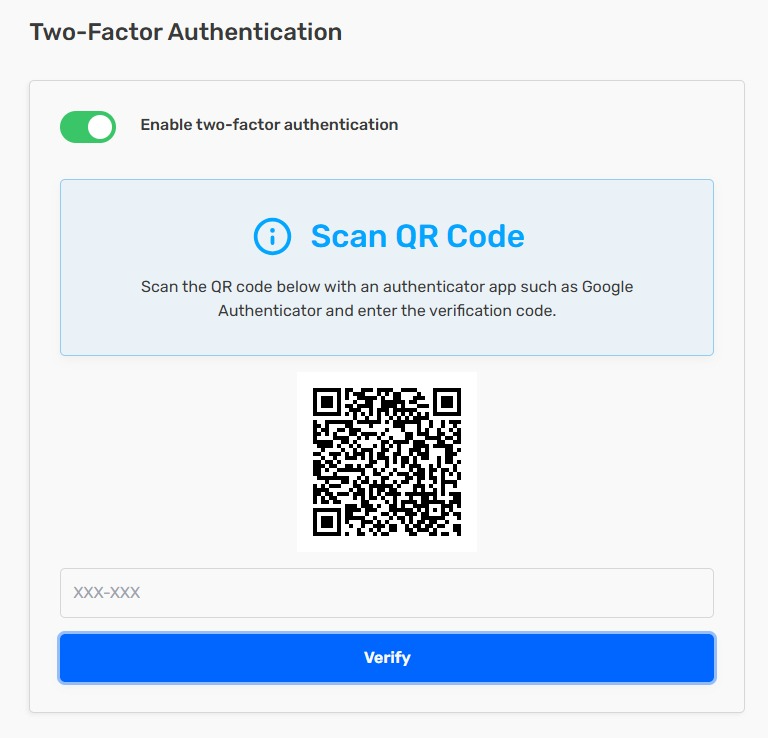
- Enter the 6-Digit Code from your authenticator app.
- Click Verify.
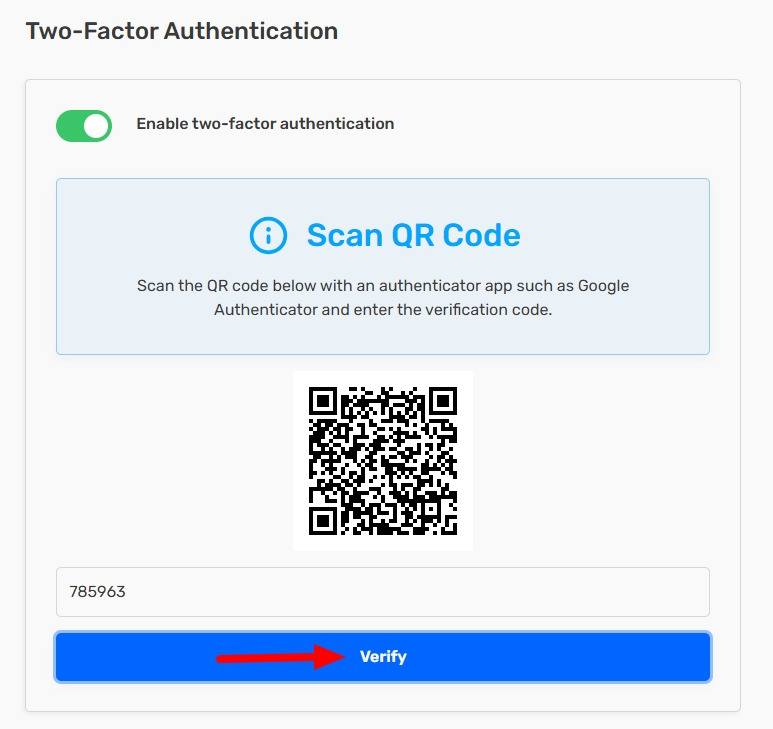
Two-factor authentication is now enabled. You'll need to enter a code from your authenticator app each time you log in.