Overview
Add users, assign permissions, and manage team member access in your SalesBlink workspace.
Prerequisites
- Admin or Owner role in SalesBlink
- Email addresses of team members to invite
Add a Team Member
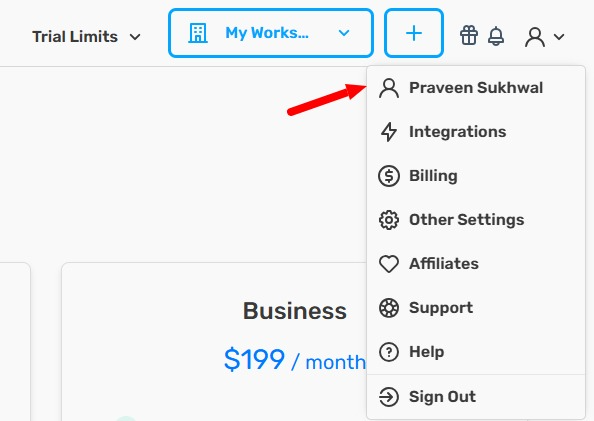
- Click your Profile icon in the top-right corner.

- Click your Name in the dropdown.
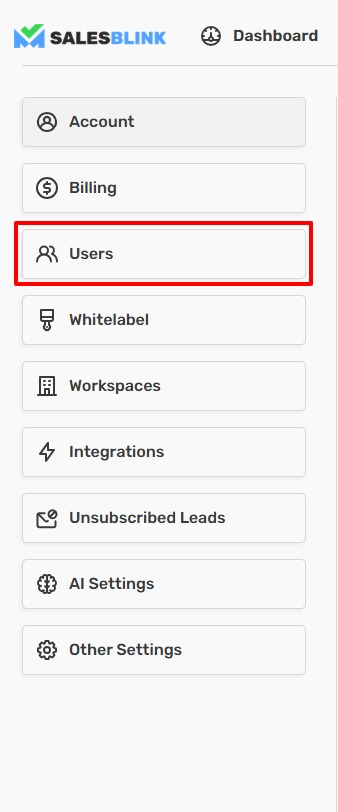
- Click Users in the Left Sidebar.
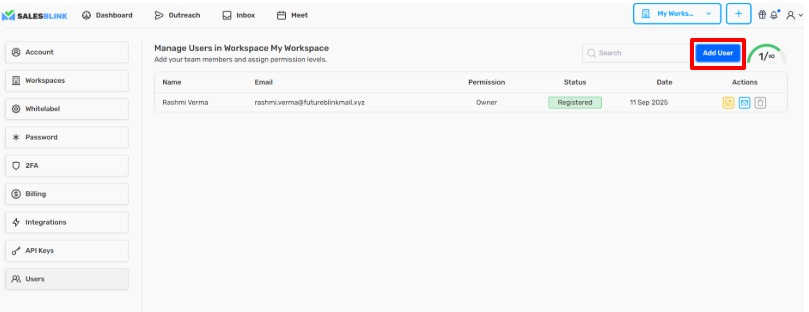
- Click Add User.
- Enter the Email Address.
- Select Permission (Admin, Developer, Client, or User).
- Click Send Invite.
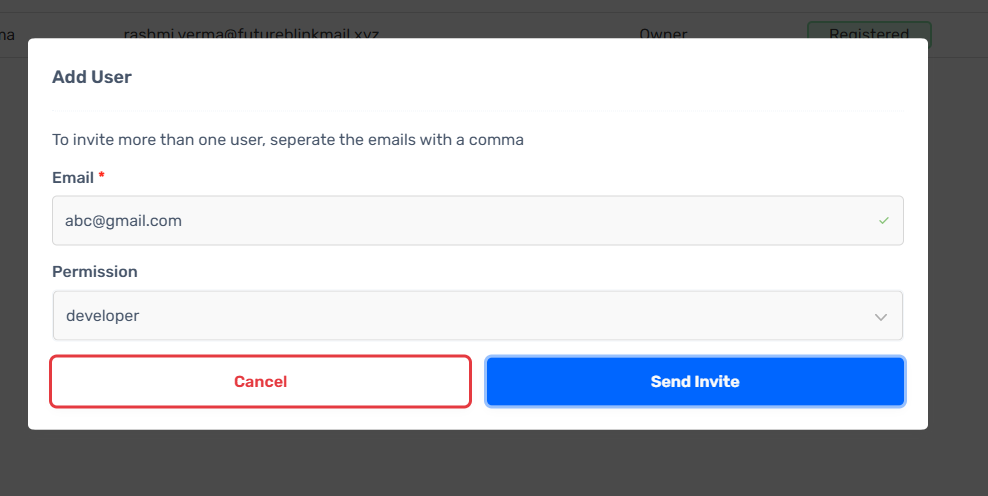
The user will receive an invite email. Once accepted, they can access your SalesBlink workspace.
Remove a Team Member
- In Users, find the team member.
- Click the Trash icon next to their name.

Edit Team Member Details
- In Users, find the team member.
- Click the Edit (pencil) icon.
- Update the Email Address or Permission.
- Click Save.
Note: If you change the email address, the user must log in with the new email address going forward.