Overview
Change the email address associated with your SalesBlink account.
Prerequisites
- New email address ready to use Note: After changing your email, you must use the new address to log in. The old email will no longer work.
Change Your Email Address
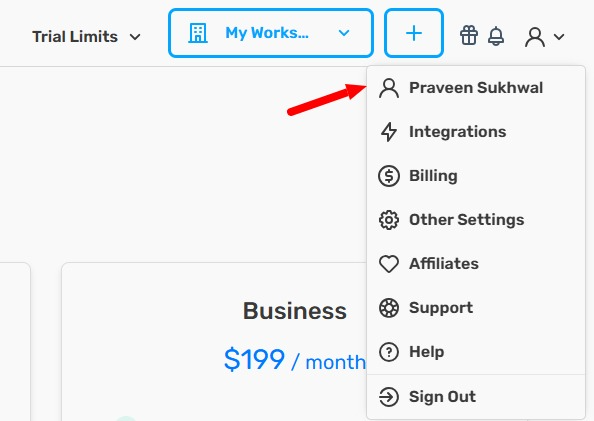
- Click your Profile icon in the top-right corner.

- Click your Name in the dropdown.
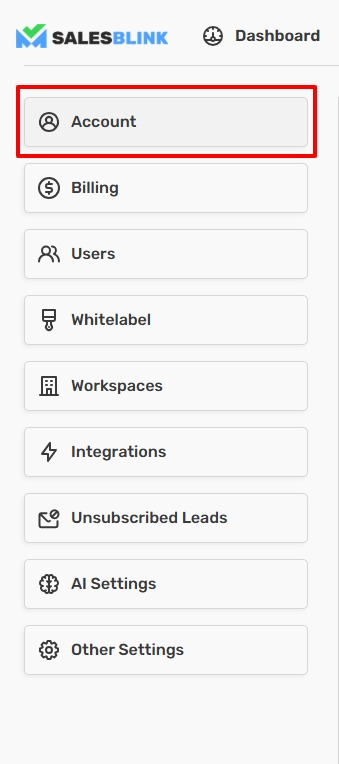
- Click Account in the Left Sidebar (opens by default).
- Enter your new Email Address in the field.
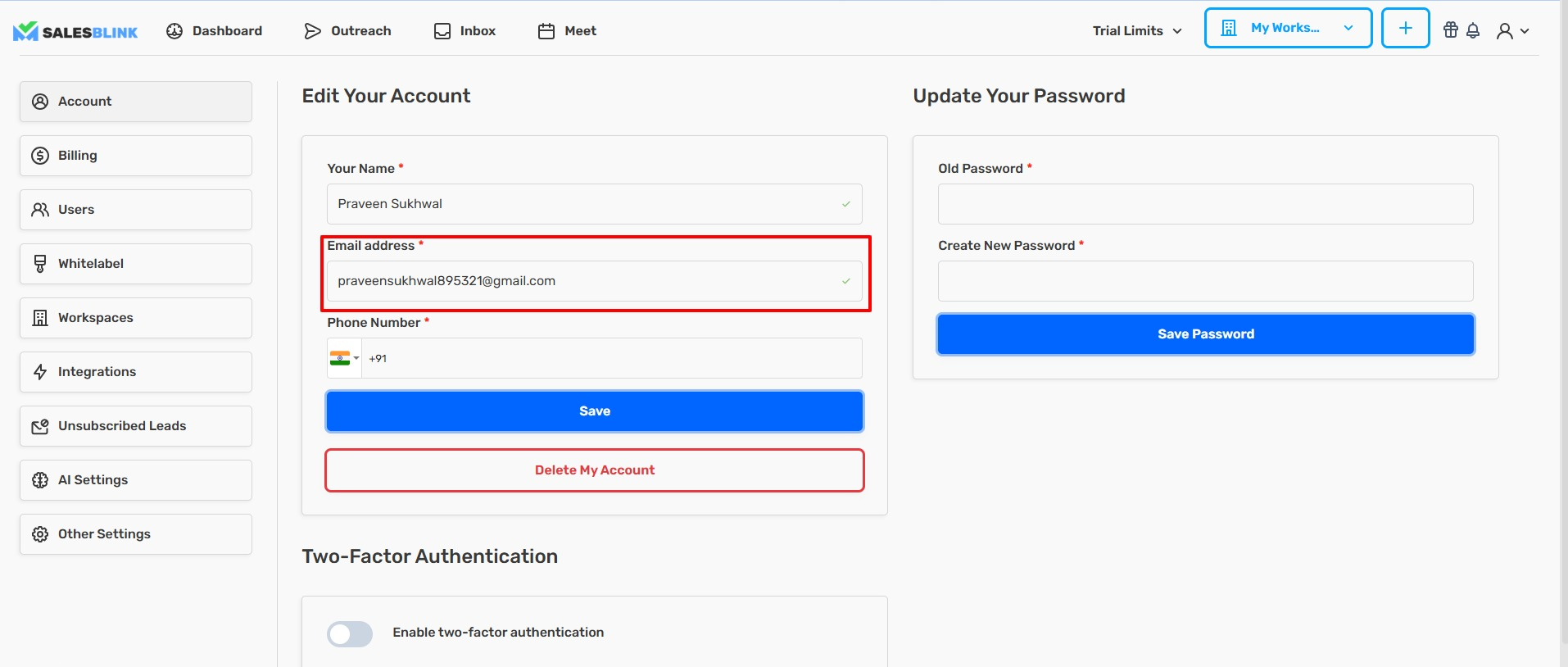
- (Optional) Add your Phone Number in the field below.
- Click Save. Your email address is now updated. Use the new email address and your existing password for future logins.
You can also update your password from the Account Settings page.