Overview
View, reply to, and organize all lead conversations in one place.
Access Your Inbox
- Click Inbox in the main navigation.

Navigate Conversations
Conversation List (Left Panel)
View all conversations with:
- Lead name and email
- Last interaction date
- An outcome badge (for example, Not Interested) when an outcome is set
- A sequence badge showing the sequence the conversation belongs to
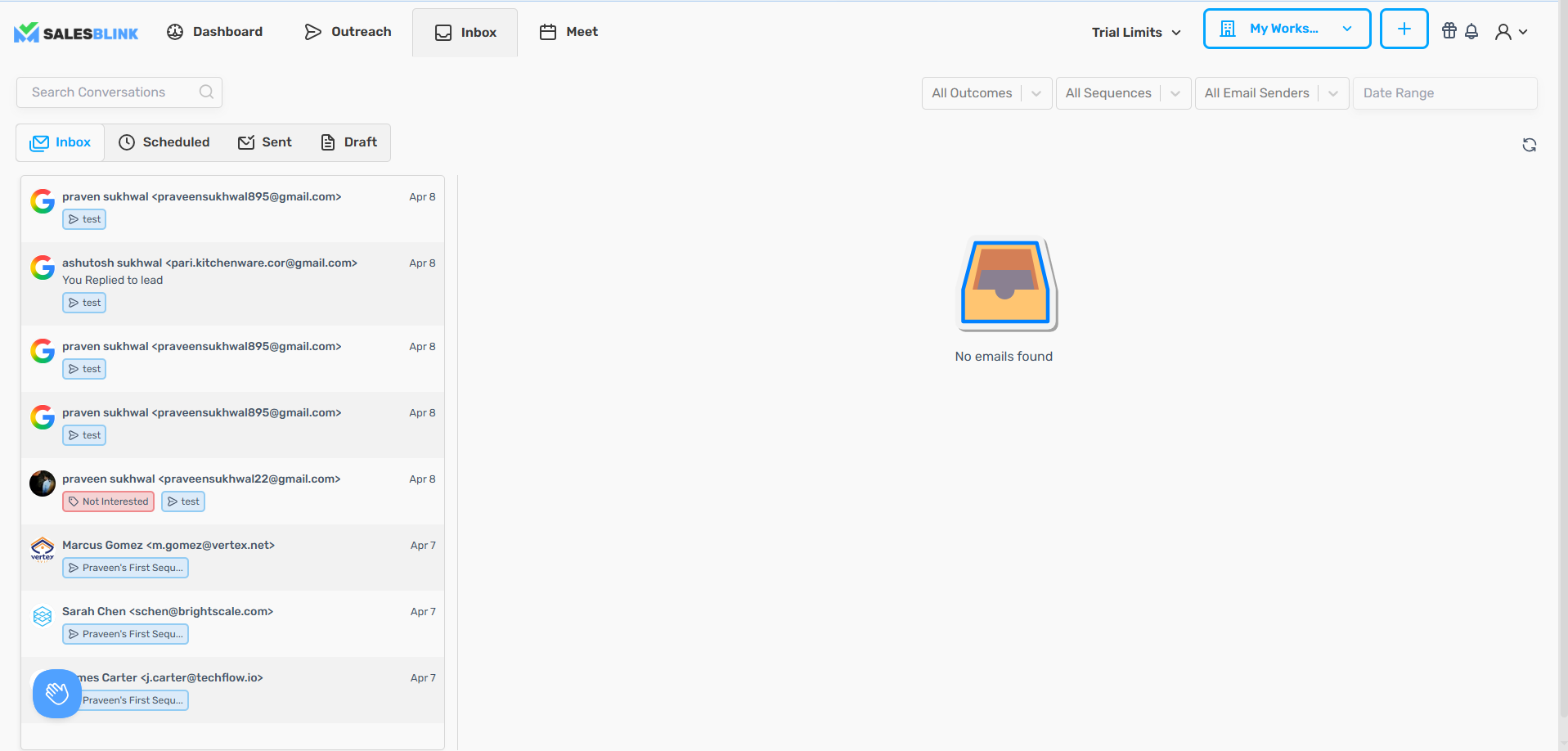
Hover over a row to see quick actions:
| Action | Where it appears |
|---|---|
| Mark as unread | Rows you have already read |
| Select outcome | Inbox, Sent and Archived tabs |
| Archive | Inbox and Sent tabs. You can restore it from the Archived tab. |
| Restore to inbox | Archived tab |
Tabs
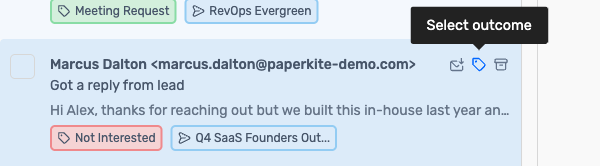
The tabs sit in a row above the conversation list and preview panel. Switch between views:
| Tab | Content |
|---|---|
| Inbox | Active conversations with replies. Shows your unread count. |
| Scheduled | Emails queued to send later |
| Sent | Already sent emails |
| Draft | Unfinished or unsaved emails |
| Archived | Conversations you archived |
The time your inboxes were last checked and a recheck icon sit at the right of the tab row. Hover over the icon to see Recheck All Inboxes, then click it to check all inboxes for new replies. While a recheck is running, the tooltip reads "Rechecking all inboxes for replies can take 5-10mins."
Note: Archived conversations are permanently deleted after 90 days.

Search and Filter
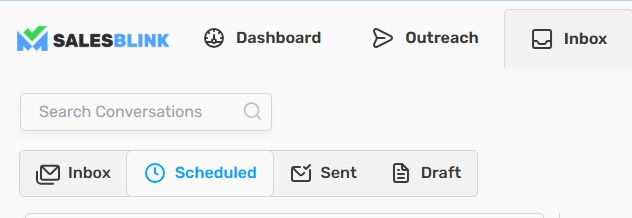
Find specific emails using:
- Search Conversations: Matches the lead's email address, the email subject and the message body
- Filters:
- All Outcomes: Interested, Not Interested, Automatic Response, Meeting Request, Out of Office, Do not contact, Wrong Person, Closed
- All Sequences
- All Email Senders
- Date Range
- Unread: Toggle to show only unread conversations


View and Manage Emails
- Click any Email in the list to open it.
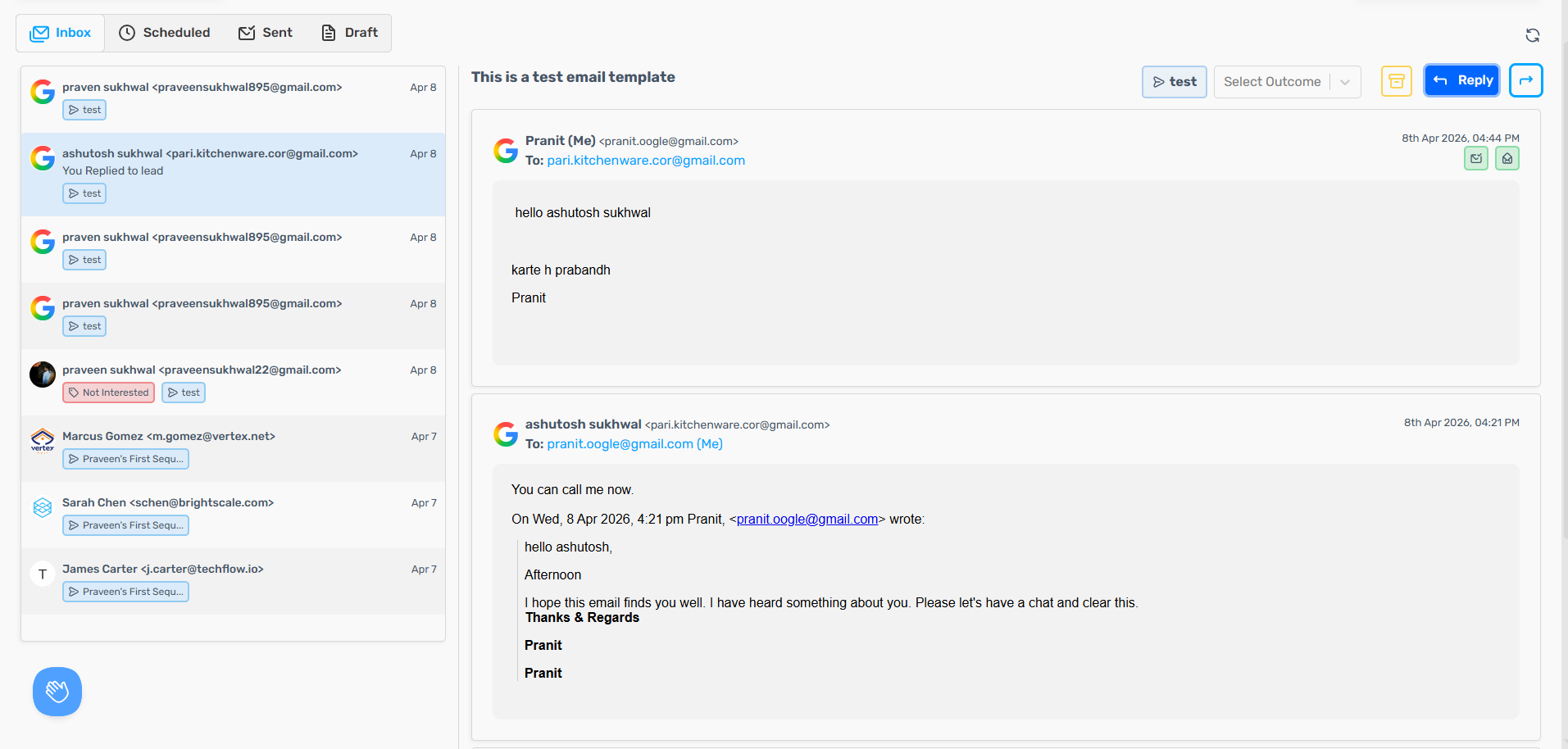
- Review email details:
- From/To addresses
- CC/BCC fields
- Full email content
Available Actions
| Action | How to Use |
|---|---|
| Outcomes | Mark result: Interested, Not Interested, etc. |
| Archive | Move the conversation to the Archived tab. Archived conversations are permanently deleted after 90 days. |
| Reply | Respond without leaving SalesBlink |
| Forward | Send to another recipient |
| Compose | Write new email to any lead |

Bulk actions
Act on many conversations at once.
- Tick the checkbox on each row you want. Hold Shift and click to select a range of rows. The header checkbox selects all loaded rows.
- To select more than the loaded rows, click Select all N conversations matching these filters →. This uses all your active filters, including Unread. Click Clear selection to undo it.
- Choose an action from the bulk bar. While rows are selected, the bulk bar replaces the filter bar. On small screens, the actions are in the … menu.
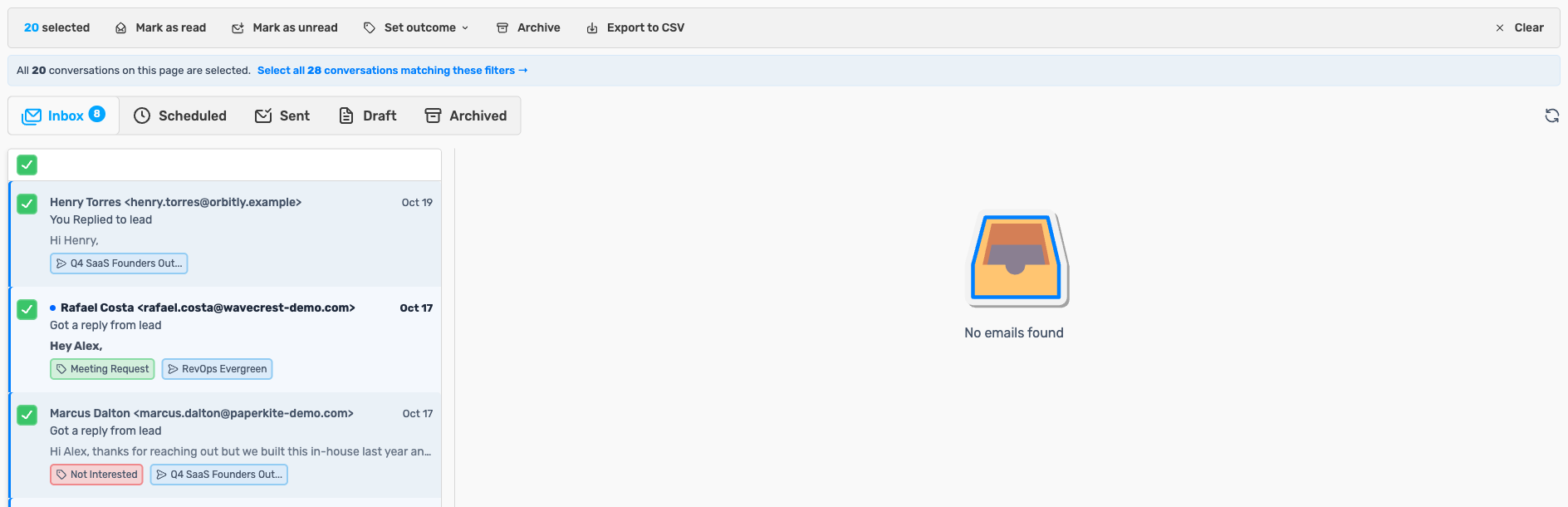
The actions available depend on the tab:
| Action | Tabs |
|---|---|
| Mark as read / Mark as unread | Inbox |
| Set outcome | Inbox, Sent, Archived |
| Archive | Inbox, Sent |
| Restore from archive | Archived |
| Cancel scheduled send | Scheduled |
| Delete draft | Draft |
| Export to CSV | All tabs |
- Confirmations: Deleting drafts asks "Delete N draft(s) permanently?". Click Delete permanently to continue. When you use select-all on more than 100 conversations, SalesBlink asks you to confirm (for example, "Archive for N conversations?"). Click Apply action to continue.
- Undo: After marking as read or unread, setting an outcome, archiving or restoring, an UNDO button appears for 10 seconds.
- Progress: Actions on more than 500 conversations show a progress strip, for example "Archiving conversations: 120 of 900… 13%".

- CSV export: Downloads a file named after the tab (for example,
inbox-conversations.csv) with up to 5,000 rows. Columns: Email, Name, Sequence, Outcome, Date and Snippet (the first 120 characters of the message as plain text).
Keyboard shortcuts
| Key | Action |
|---|---|
x |
Toggle selection on the focused row |
↑ / ↓ |
Move row focus |
Shift + ↑/↓ |
Extend selection |
e |
Archive (restores on the Archived tab) |
u |
Mark unread (Inbox tab) |
Shift + U |
Mark read (Inbox tab) |
Esc |
Clear selection |
? |
Open the shortcut cheat sheet |
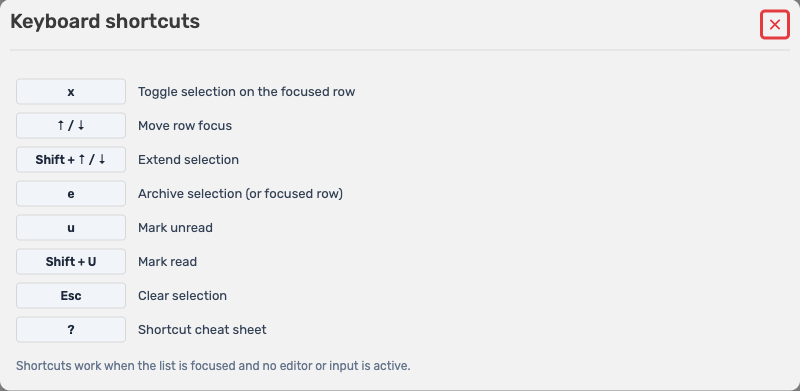
Note: Shortcuts work when the list is focused and no editor or input is active.
Compose and Send Emails
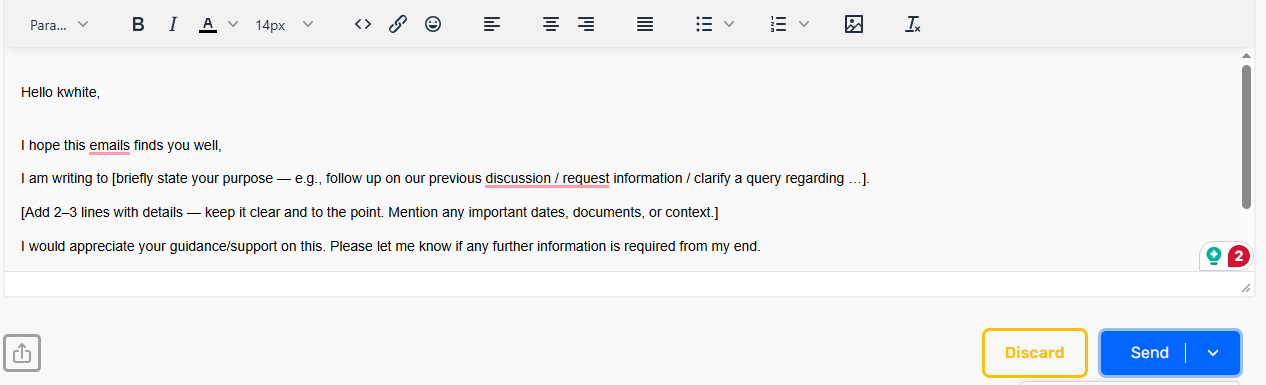
- Click Compose or Reply.
- Write your message.
- Attach up to 3 files (optional).
- Choose send option:
| Option | Result |
|---|---|
| Send Now | Immediate delivery |
| Schedule | Send at selected date/time |
| Discard | Delete draft |
You can also learn about Outbox.
If replies are not showing, see Replies Not Showing in Inbox.