Overview
While SalesBlink automates cold emails, you may need to perform manual outreach tasks to increase your meeting booking rate. Manual tasks can include:
Sending LinkedIn messages
Sending iMessages
Sending WhatsApp messages
Calling leads
Any other custom manual task
This guide explains the process using LinkedIn Message Outreach as an example, but the steps are similar for any type of manual task.
Prerequisites
- Understanding of your outreach workflow
Key Concepts
Task Types
Task types define the kind of manual task you want to perform. These are created from the Tasks page and can be customized for any manual outreach activity (e.g., LinkedIn Message, Phone Call).
Task Conditions
Conditions determine when a task is considered complete. They can trigger automatically or manually and can initiate If/Else blocks in sequences based on outcomes. Each task type can have multiple conditions.
Task Templates
Templates are reusable pieces that help remind you about message content and other details when performing tasks.
Create a Task Type
Click Outreach → Tasks
Click Task Types in the Left Sidebar, then click New Task Type
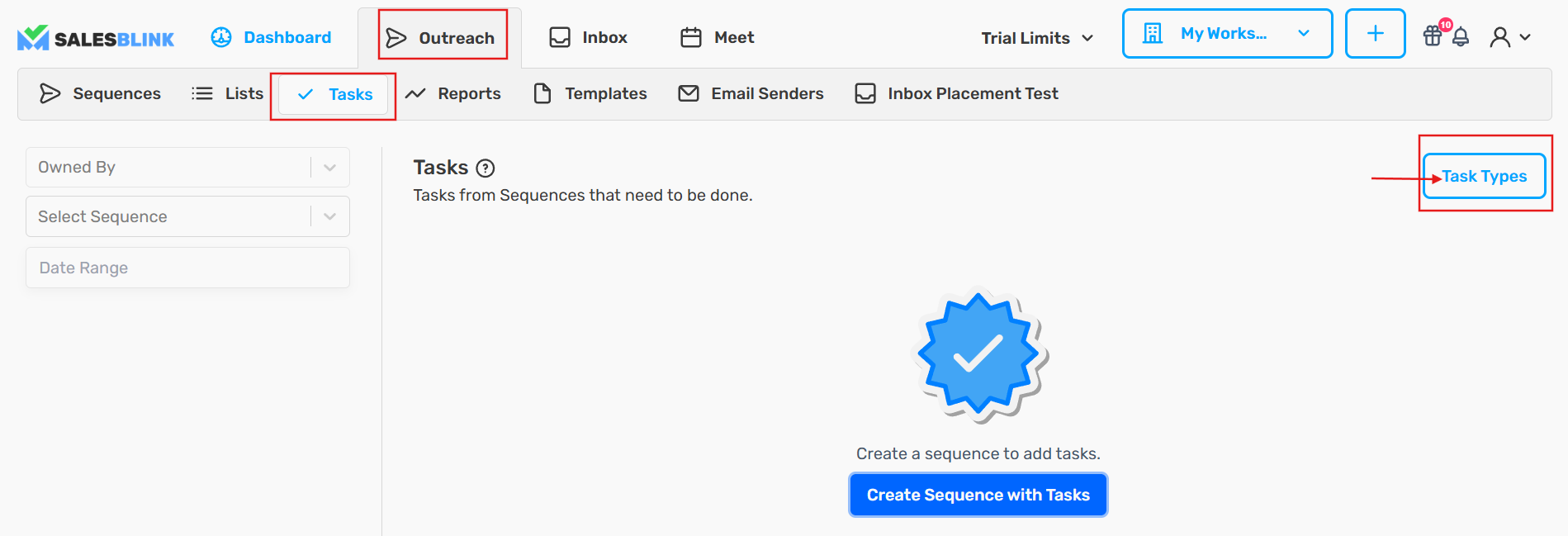
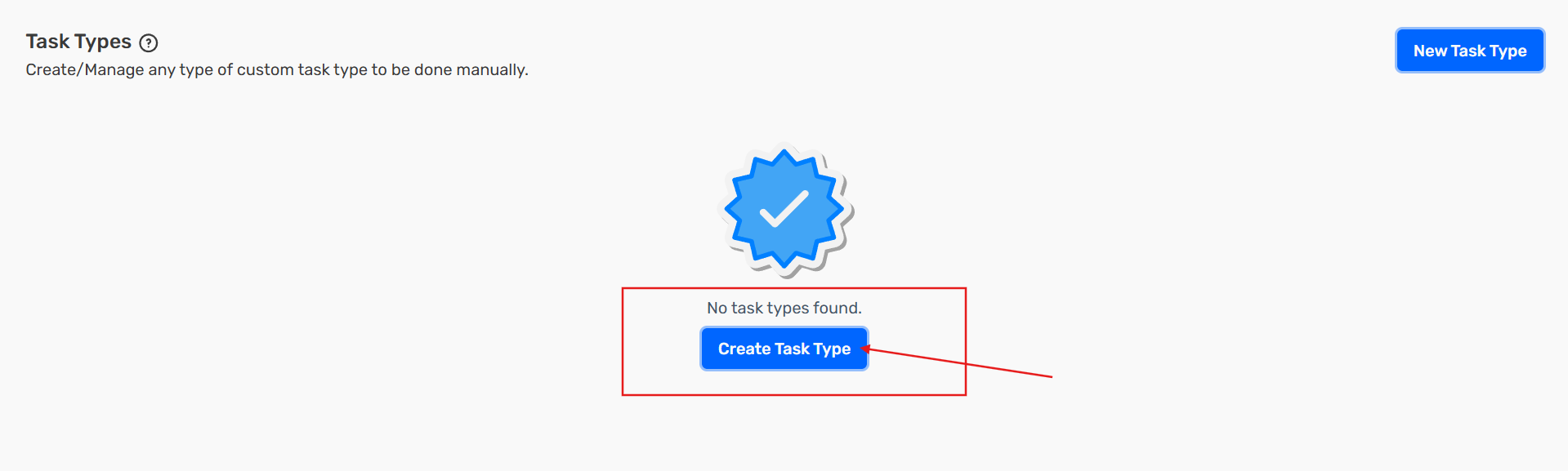
- Either select a Task preset or click Add Manually
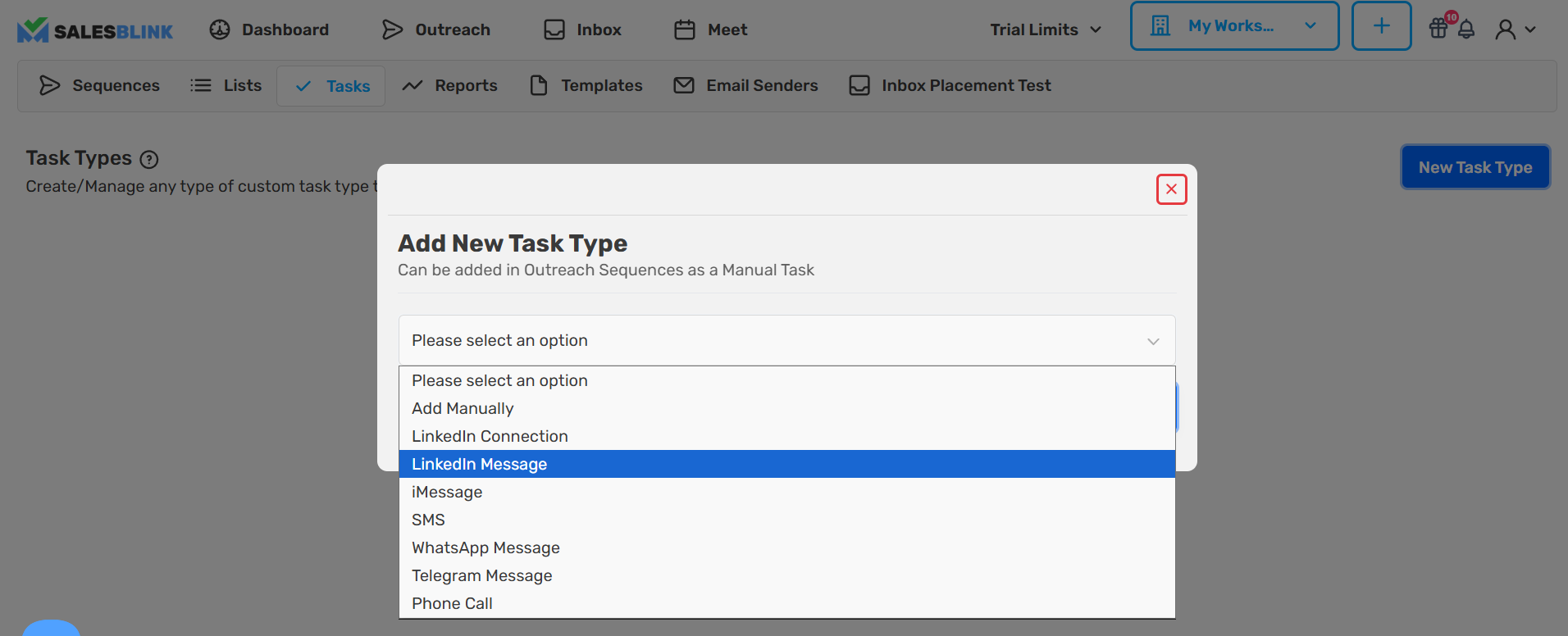
If You Choose Add Manually
Enter the following details:
Name: Name of the manual task type
Description: For internal purposes only
Required Variable: Task will only be scheduled if the lead has this data. Leads missing it are logged as Skipped in Sequence Logs.
Create Templates for this Task Type: Enable if this task should have templates
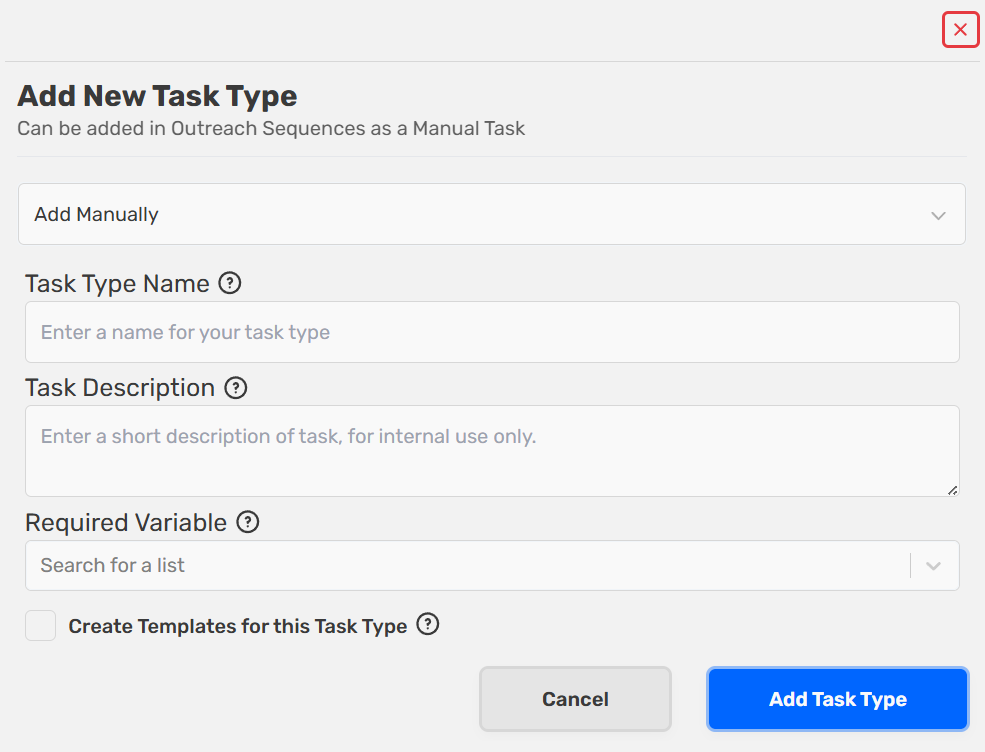
- Click Add Task Type to save
Create Task Conditions
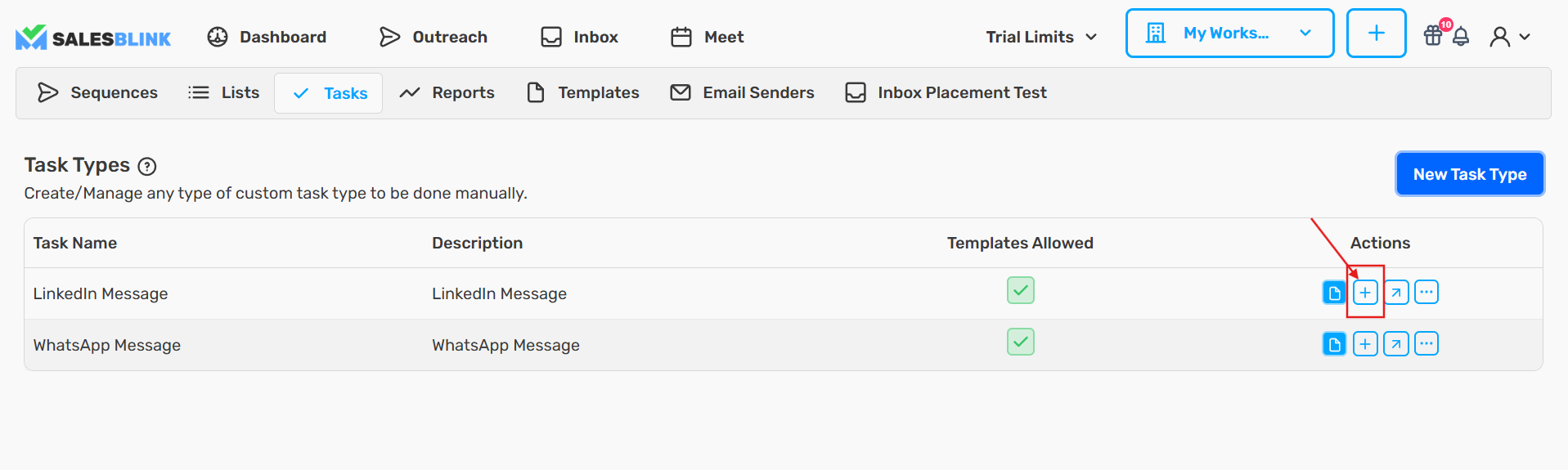
After creating a task type, you will be prompted to create a condition. Conditions determine how tasks are marked complete and can trigger sequence branches.
- Click the [+] icon next to the task type to open the conditions section, or SalesBlink will prompt you automatically after creating a new task type
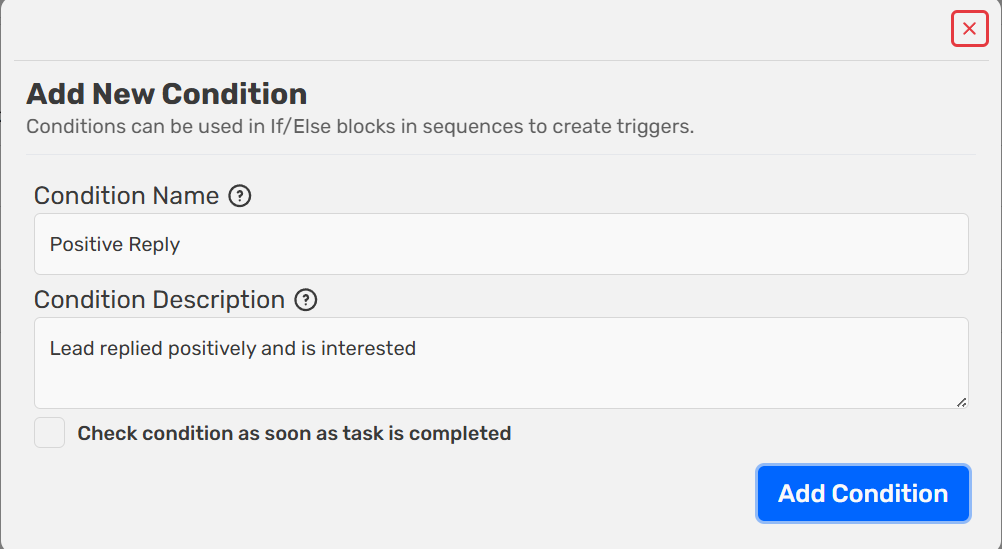
- Enter the condition details and save:
Condition Name: Name of the condition corresponding to the task
Condition Description: Short description for internal use as a reminder
Mark condition complete once task is done: Enable to trigger automatically when task is completed
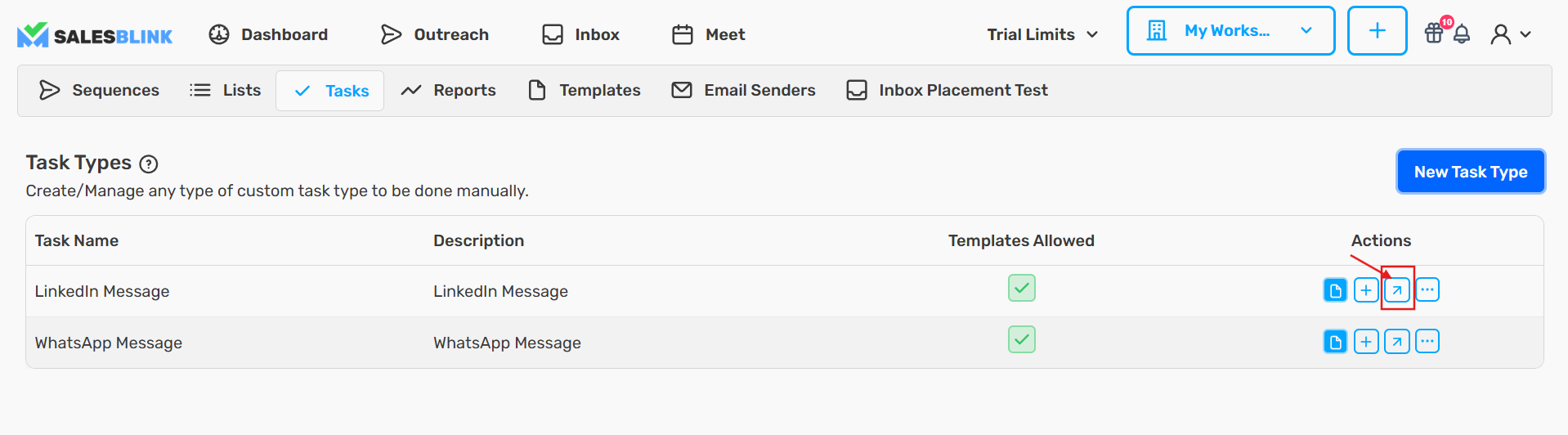
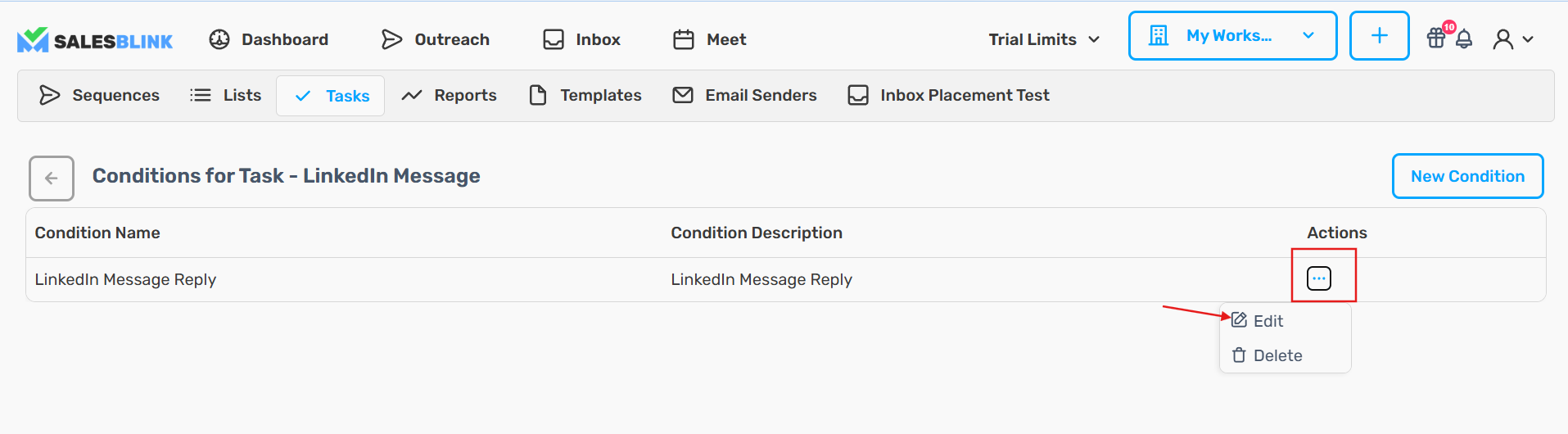
Example: A LinkedIn Message task type can have multiple conditions like "Received a Negative Reply" or "Received a Reply & Meeting Scheduled"
Create Task Templates
Templates are reusable pieces that help remind you about messages and other details when performing tasks.
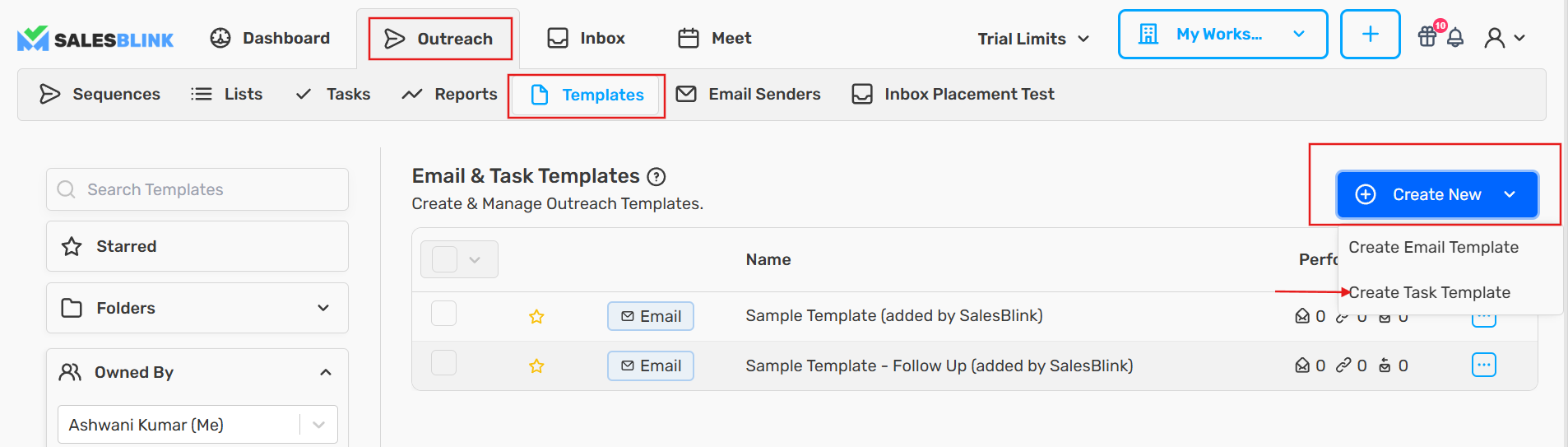
- Click Outreach → Templates, then click Create New and select Create Task Template
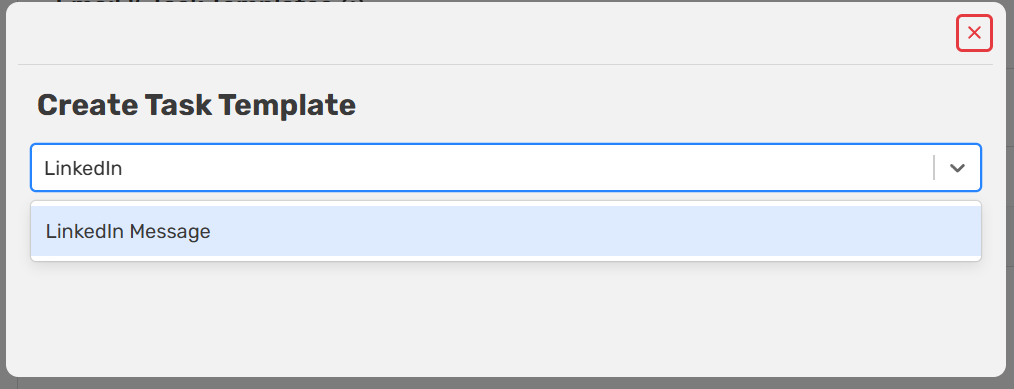
- Select the Task Type for which you want to create a template
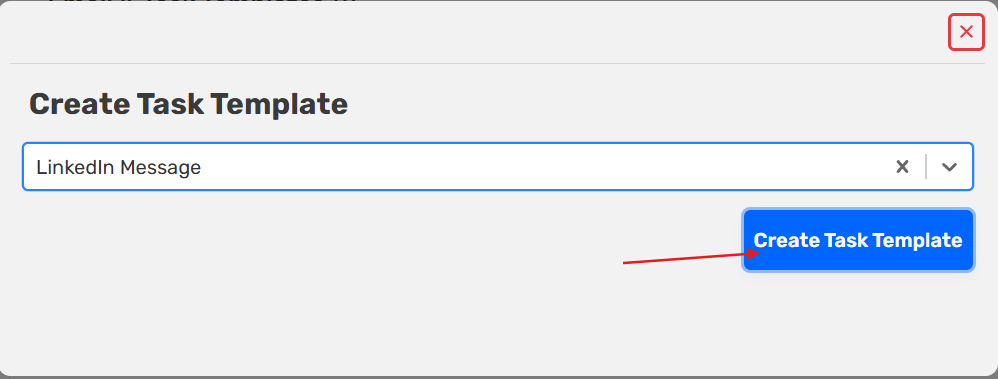
- Click Create Task Template
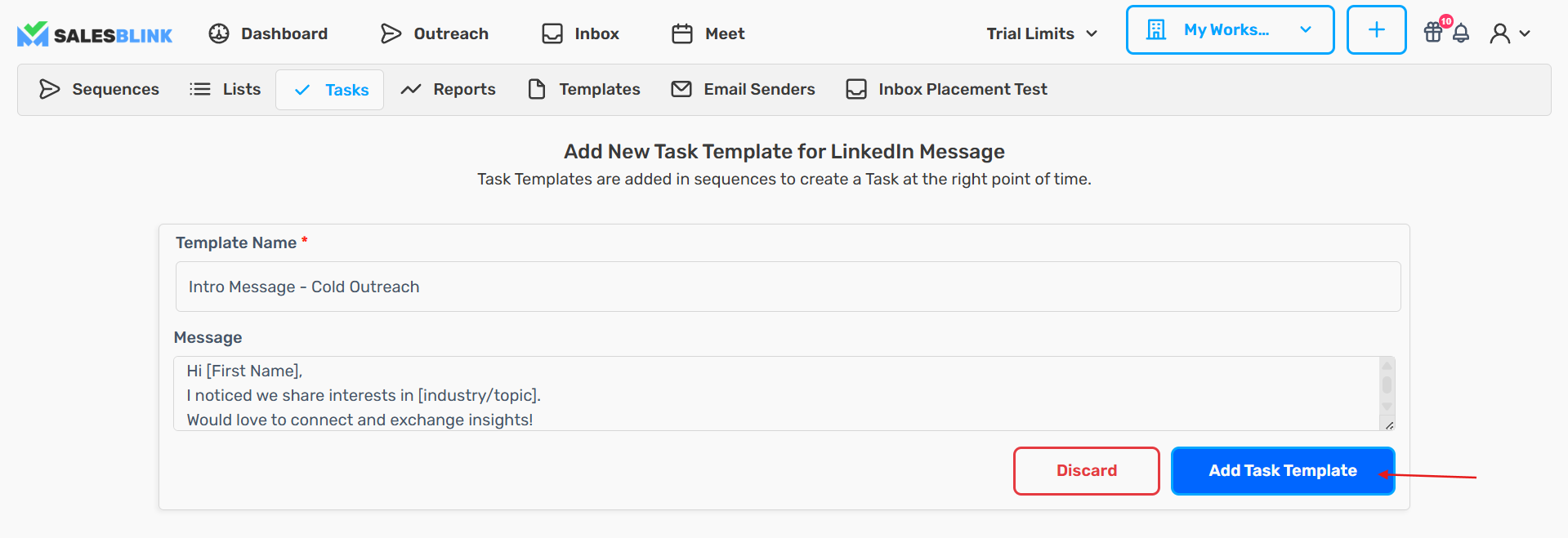
- Enter the Template Name and other fields according to the requirements set when creating the task type, then click Add Task Template to save
Add Tasks in Sequences
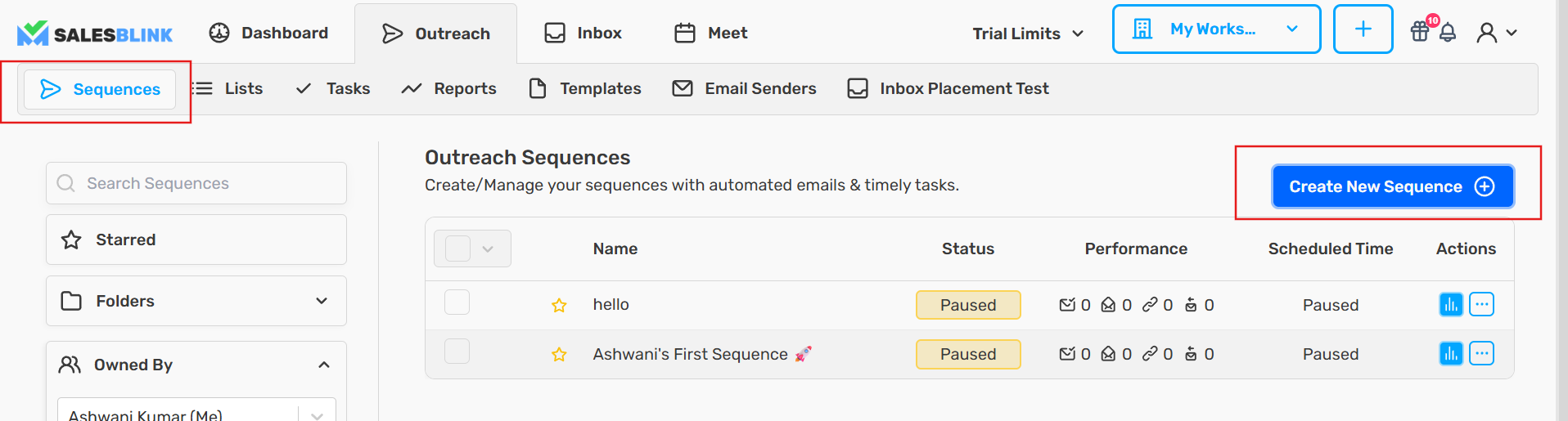
Create a new Sequence or open an existing one
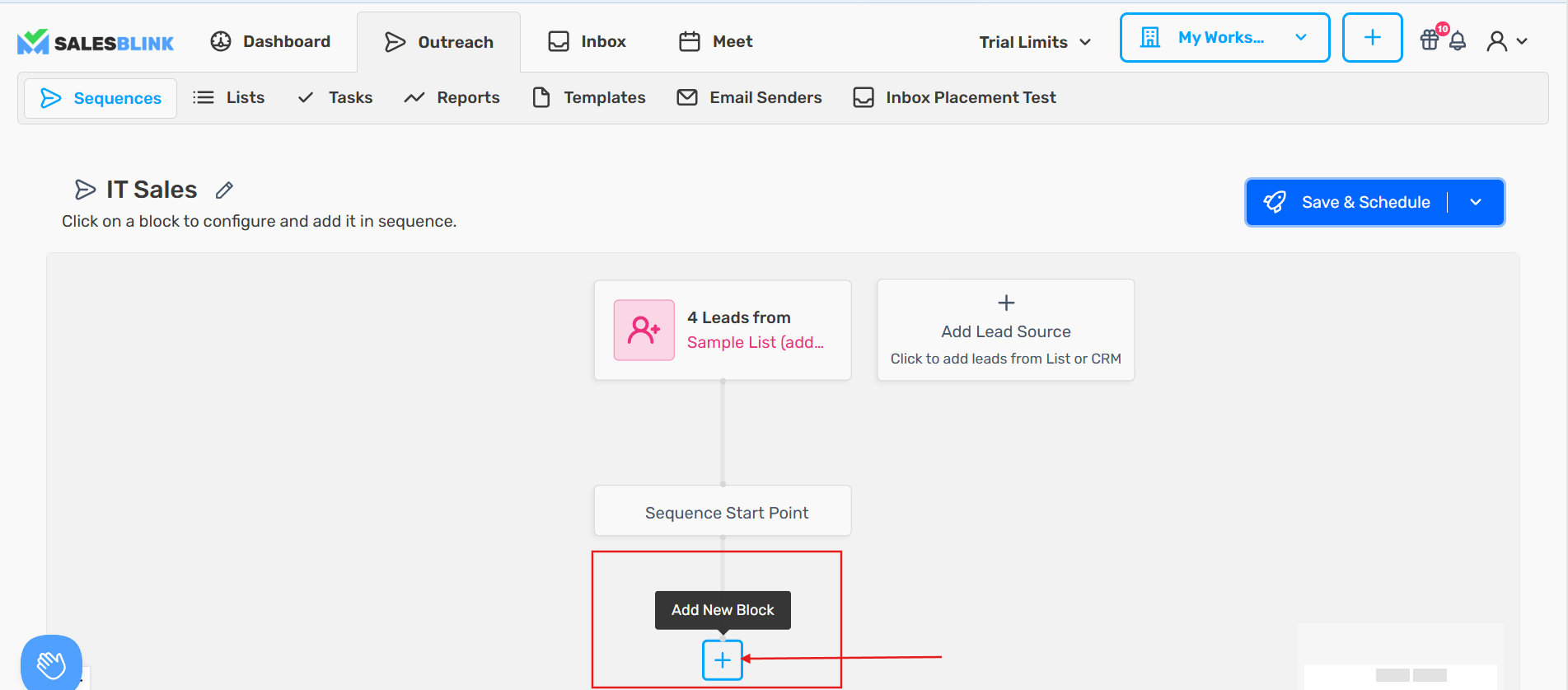
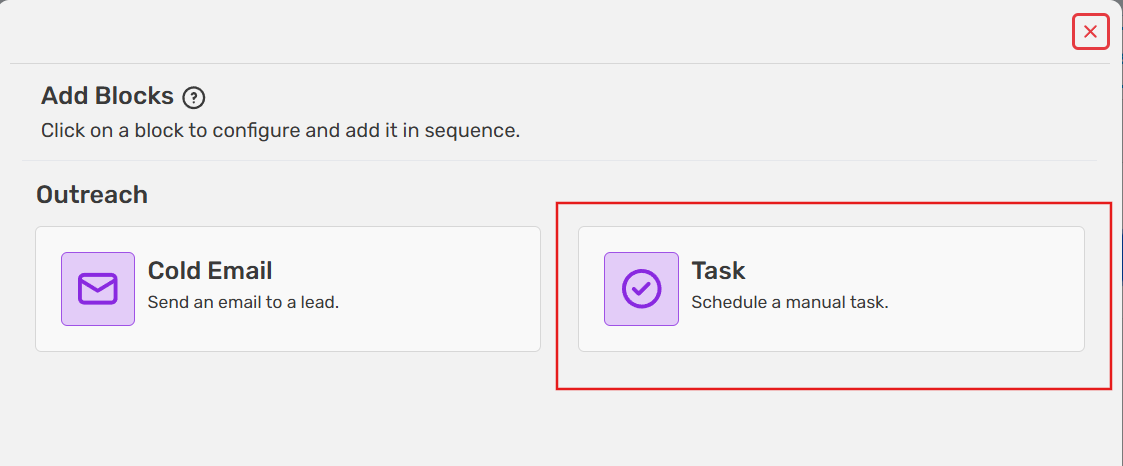
Click the [+] icon to add a task block, select Task from the menu, and confirm the block appears on the canvas
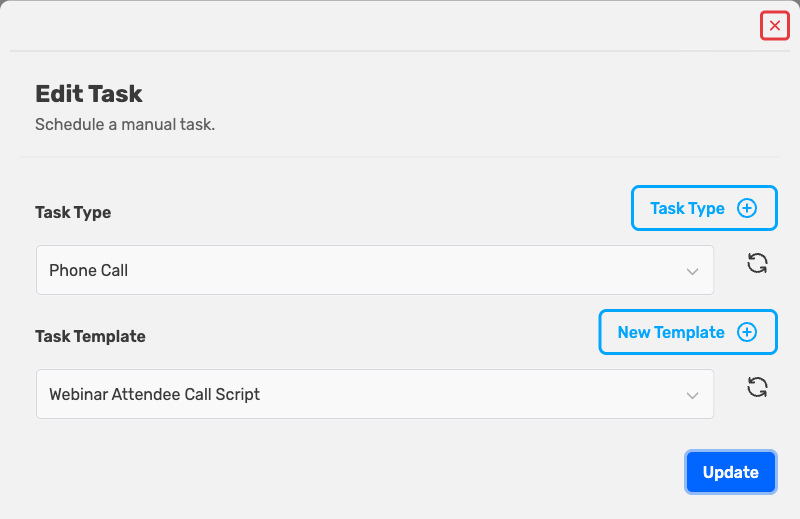
- Select the Task Type you want to add. If the task type has templates enabled, you must also select a Task Template. Then click Insert to add the task to the sequence
Note: Insert stays disabled until you choose a template ("Please select a template to save."). If the task type has no templates yet, click New Template to create one.
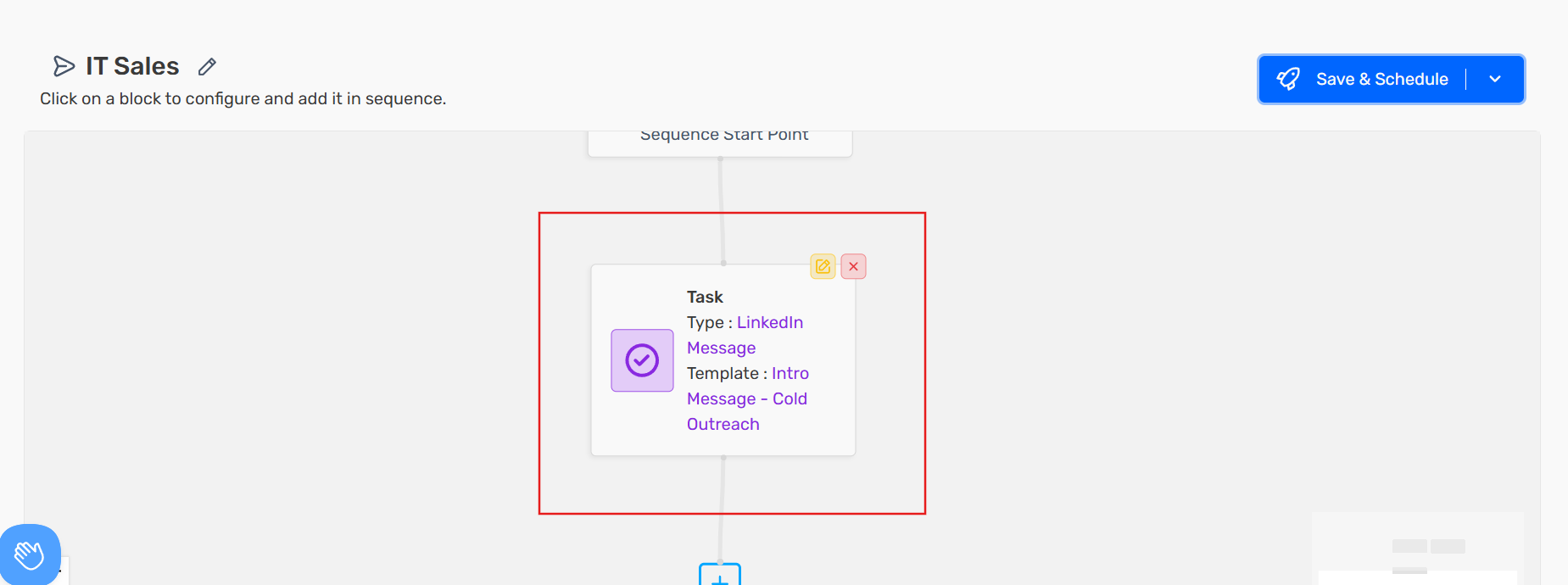
Tasks will be scheduled at the appropriate time in the sequence, and you can complete them from the Tasks page.
Note: Task blocks aren't available in AI Agent Sequences.
Perform Tasks
- Click Outreach → Tasks

(Optional) Narrow the list with the filters: Owned By, Select Sequence, Date Range, Show completed tasks and Tasks due today. Active filters show as chips. Remove a chip to clear that filter, or click Clear all to reset them.
Click the check icon to mark a task as complete
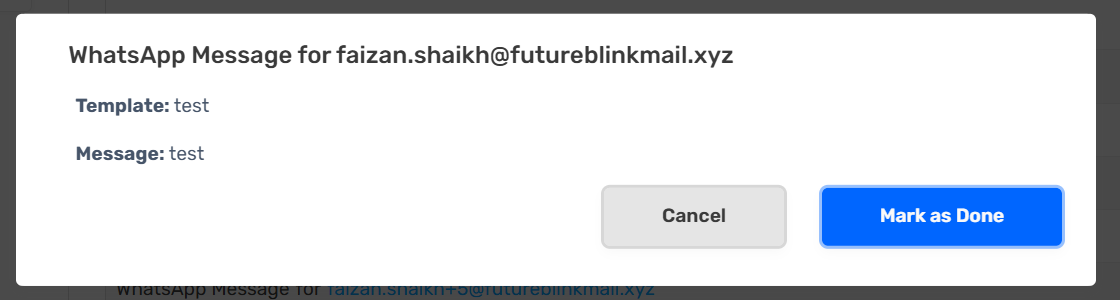
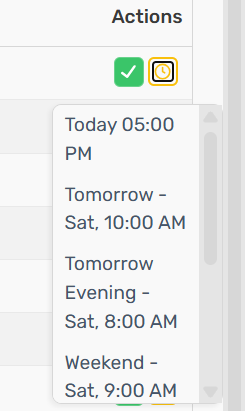
- (Optional) Click the clock icon to snooze the task and complete it later
Task Reminders
SalesBlink sends reminders via email or Slack (if connected) when tasks need to be completed.