Overview
Automatically save booking leads to a list and enroll them in automated email sequences.
Prerequisites
- Meeting Scheduler configured with a connected calendar
- Existing sequence or plan to create one
Save Attendees to a List
- Click Meet in the main navigation.
- Click Settings.

- Scroll to Attendees List.
- Toggle Save Attendees to List.
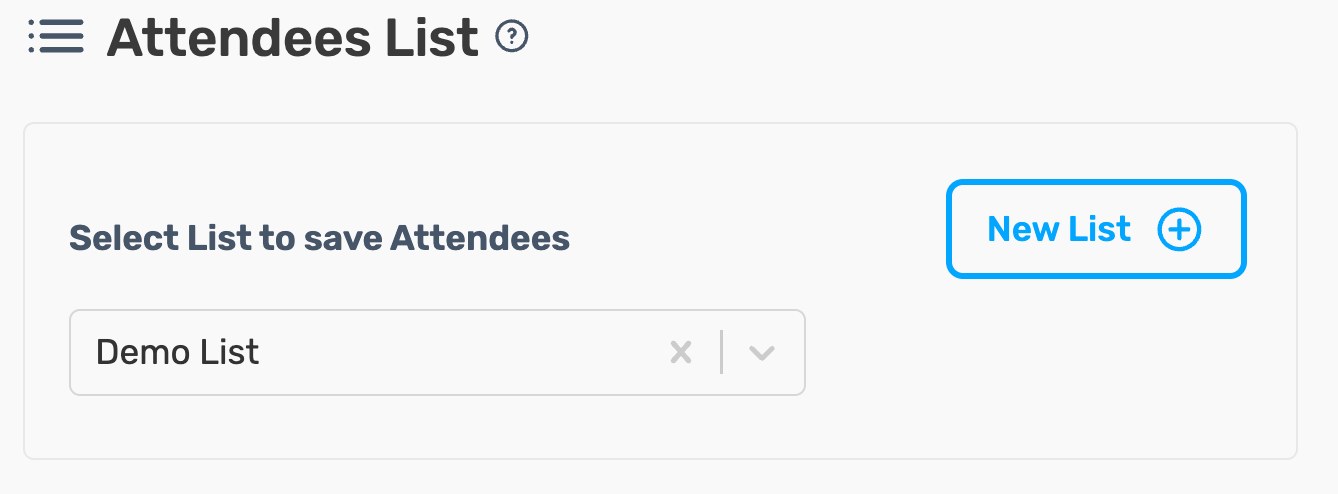
- Select an existing List or click Create New List. From this point forward, every person who books a meeting is automatically added to this list with their name and email address.
Capture Additional Lead Data
Add qualifying questions to your booking form and map answers to SalesBlink variables for personalization.
- In Meet → Settings, scroll to Booking Form.
- Click Add Question.
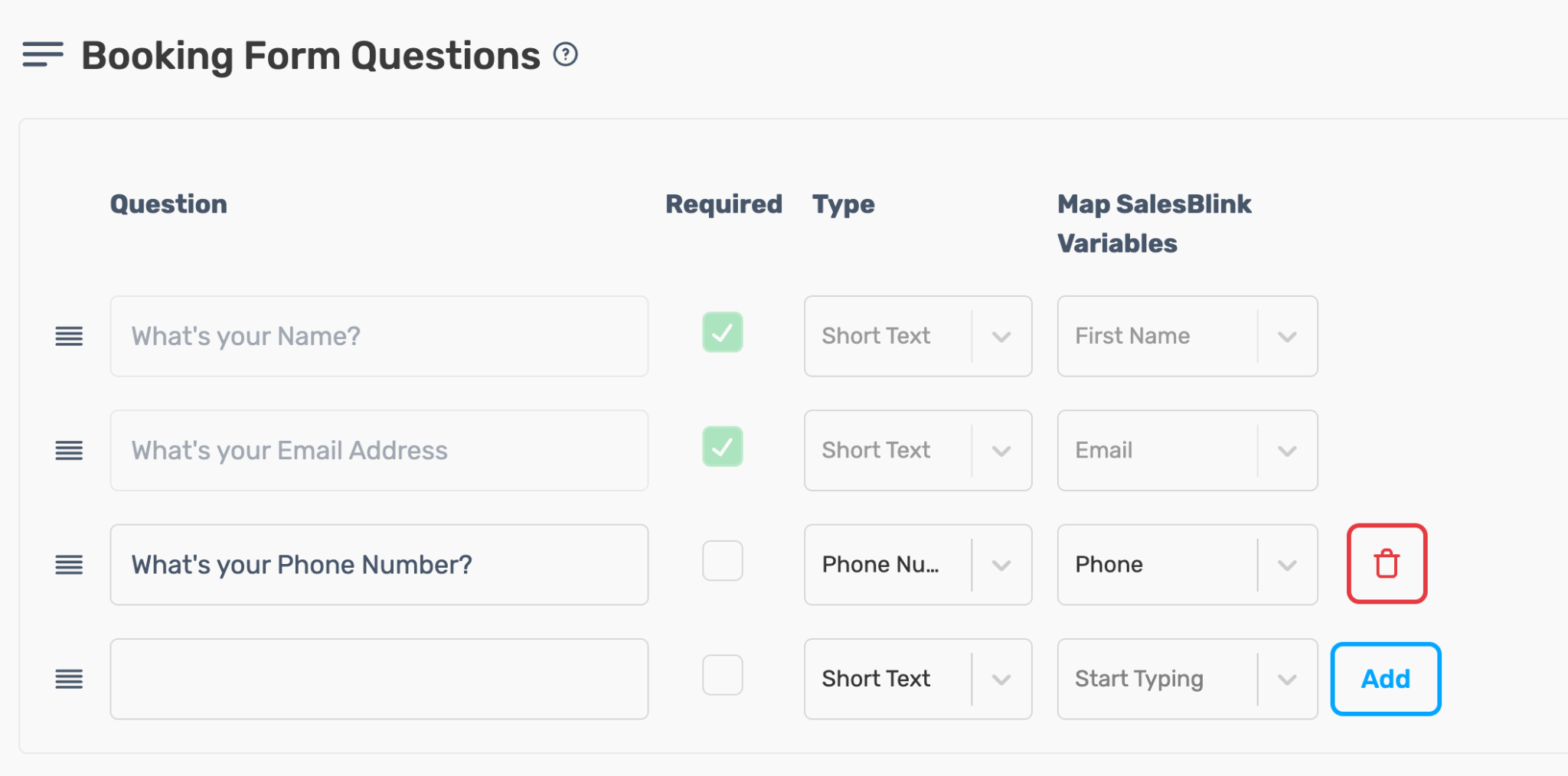
- Enter the Question text.
- Select the Question Type (Short Text, Long Text, Phone, URL, etc.).
- Toggle Map to SalesBlink Variable.
- Select or create a Variable Name (e.g., phone_number, company_website).
- Click Save Question.
Repeat for each data point you want to collect. Mapped variables can now be used in email templates like
{{phone_number}}or{{company_website}}.
Enroll Attendees in a Sequence
- Navigate to Sequences → Create New.
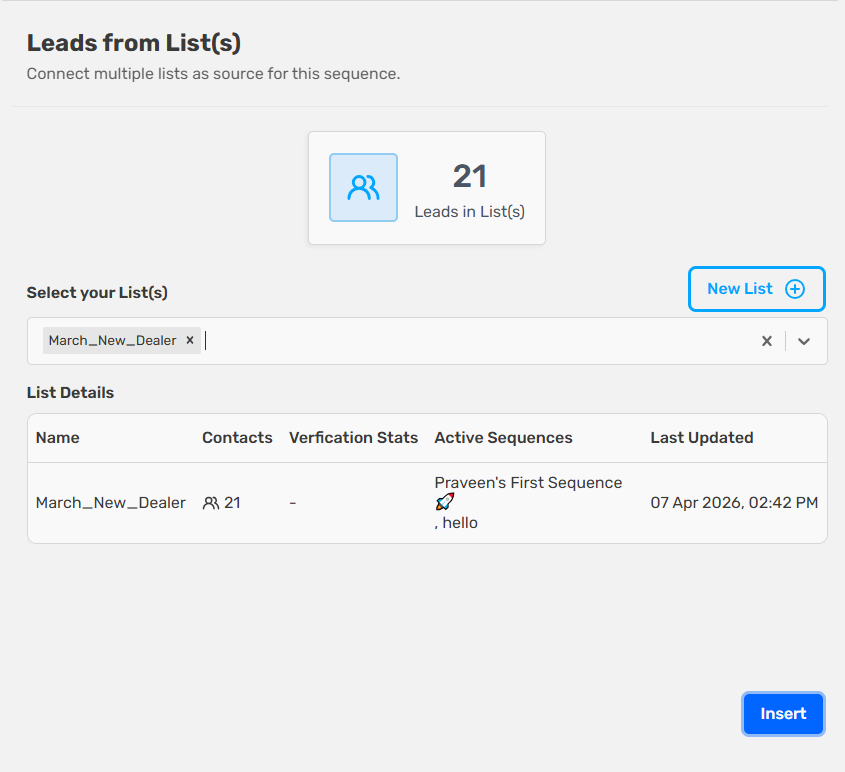
- Select Lead from List as the source.
- Choose your Attendees List.
- Enable Make it Evergreen Sequence so new bookings automatically enter the sequence.
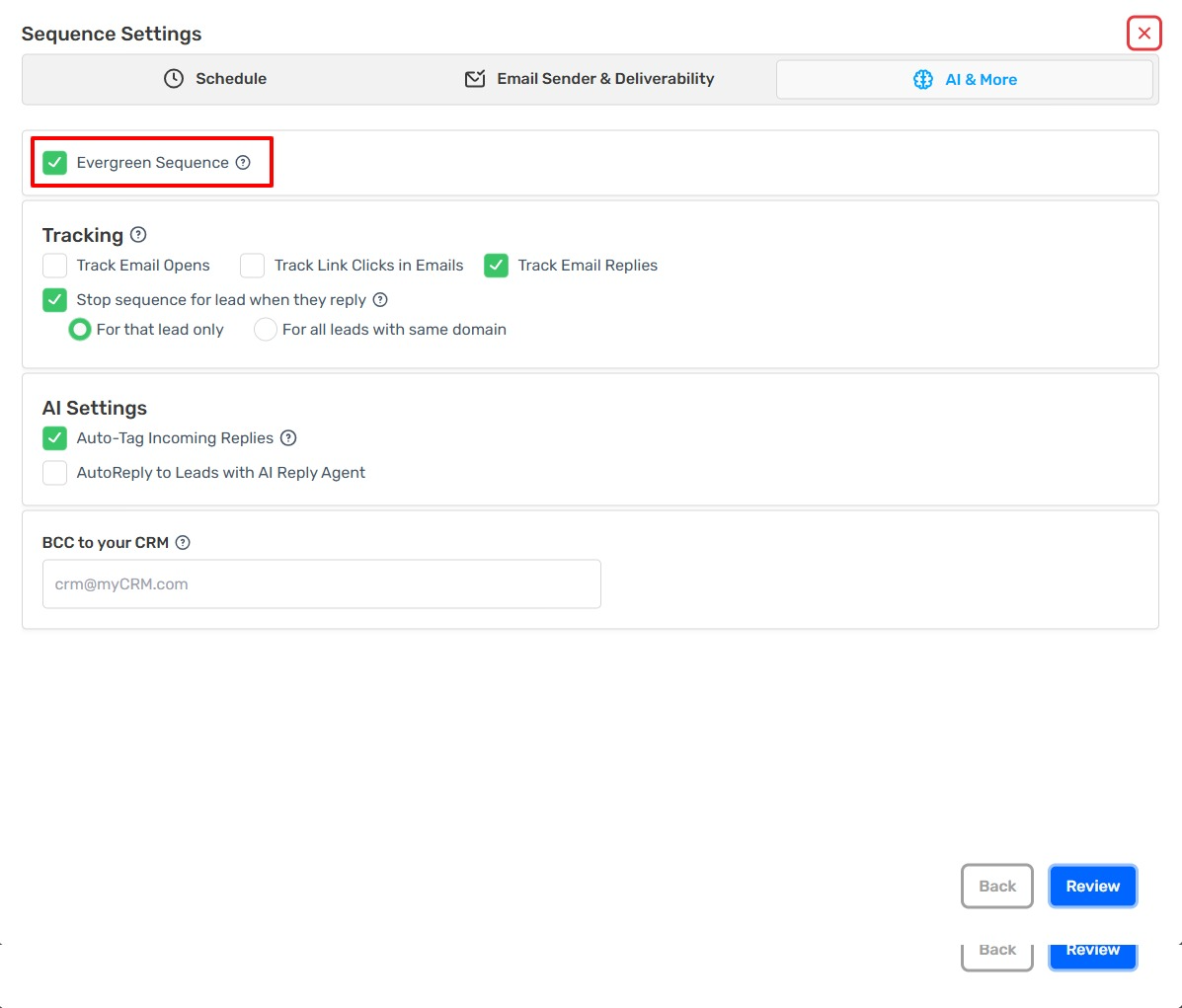
New meeting bookings are now automatically saved to your list and enrolled in your sequence.