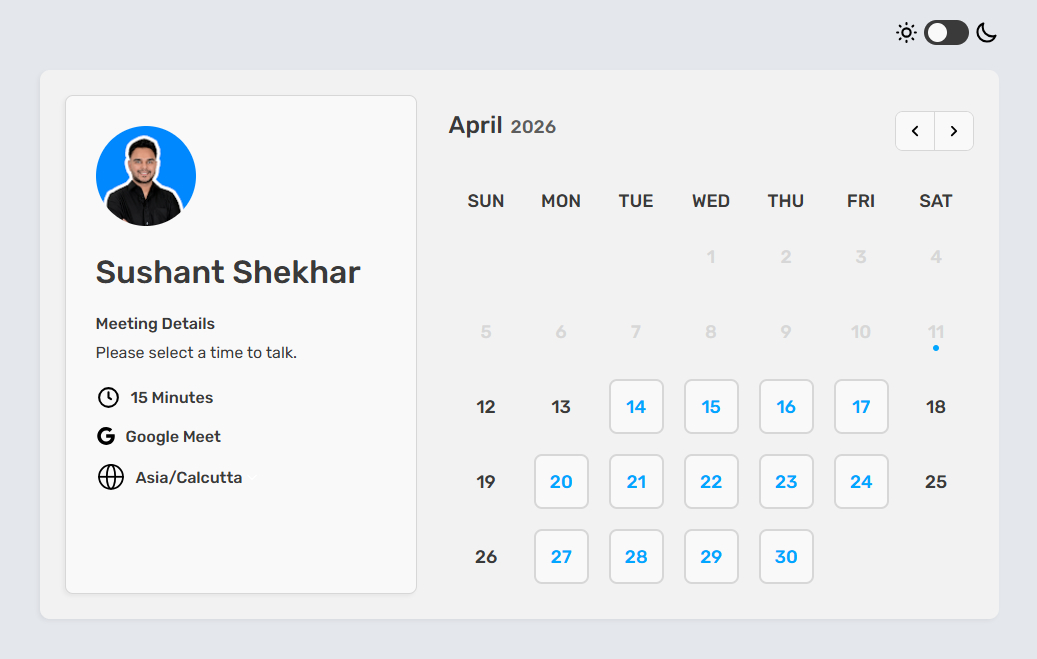
Overview
Connect your calendar and create a booking link so leads can schedule meetings directly.
What Is the Meeting Scheduler?
The Meeting Scheduler is a customizable booking page that syncs with your calendar. Share your unique link in emails or embed it on your website so prospects can book time without back-and-forth emails. SalesBlink checks your calendar for conflicts and only shows available slots.
Prerequisites
- Google or Outlook/Exchange calendar account
- Calendar access permissions granted to SalesBlink
Connect Your Calendar
- Click Meet in the Top Navbar.

- Click Settings
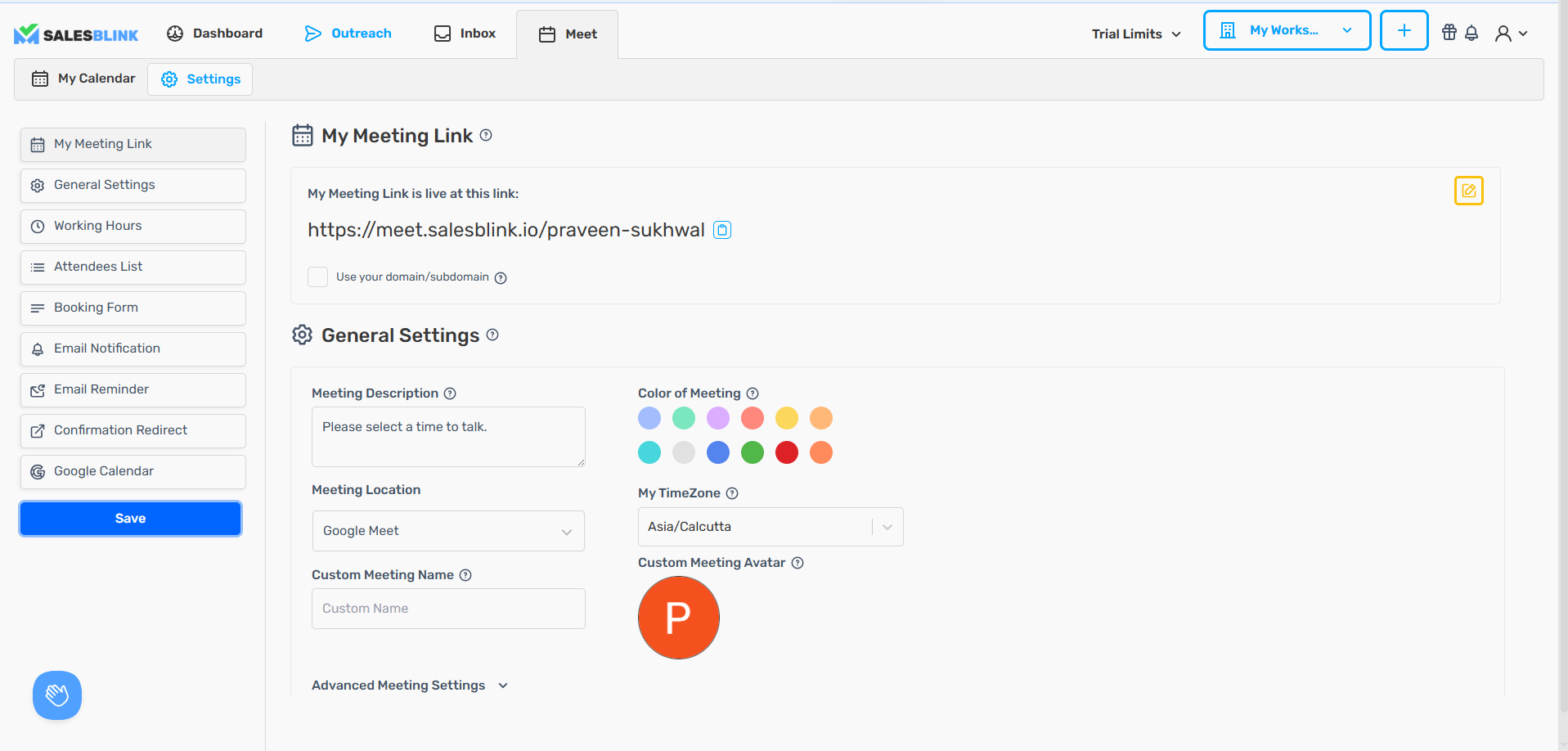
- Select Google Calendar or Outlook Calendar.
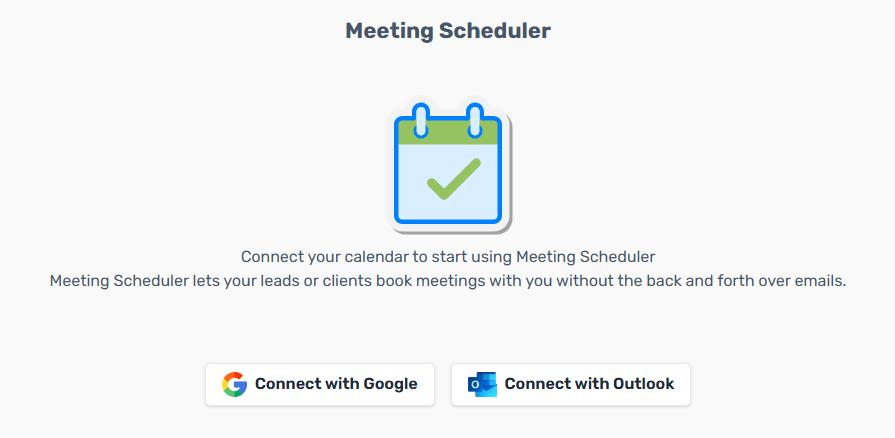
- Sign in to your account and grant SalesBlink access to view and create events.
Configure Your Meeting Link
- Enter your desired Meeting Link slug.
- Click Save Calendar.

- Select which Calendar to save meetings to.
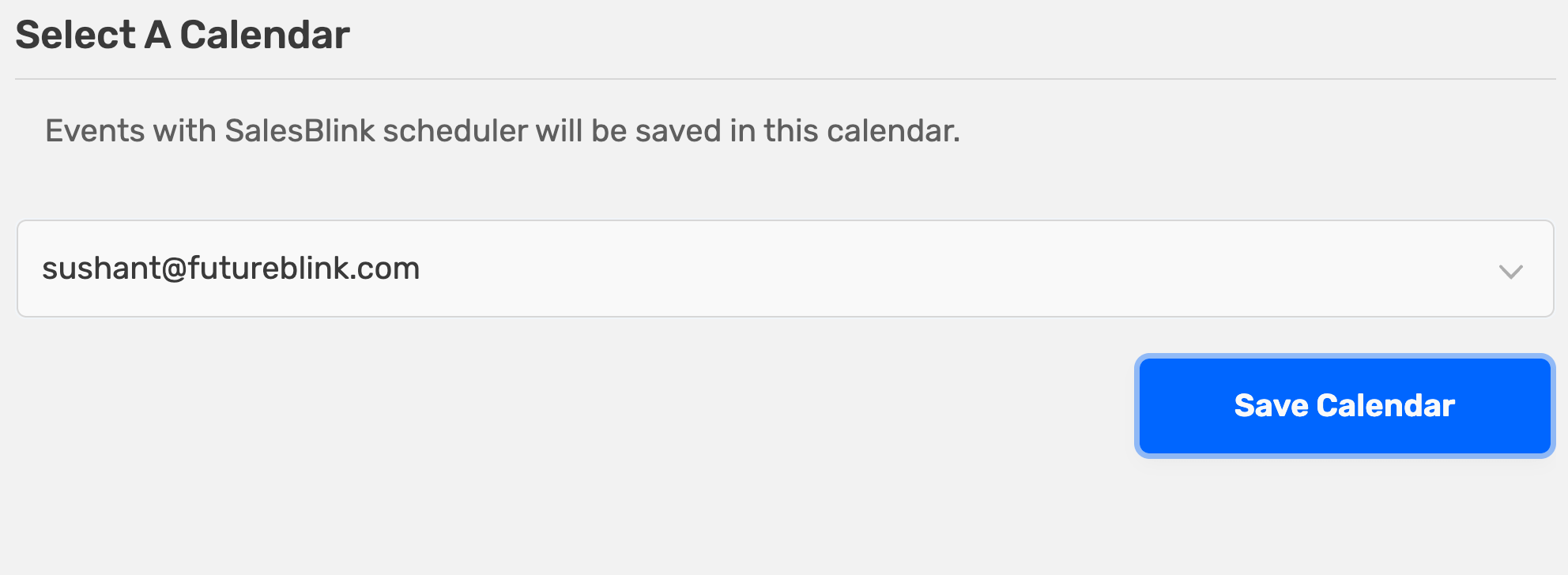
Set Your Availability
- Click Settings in the Meet toolbar.

- Navigate to Working Hours.
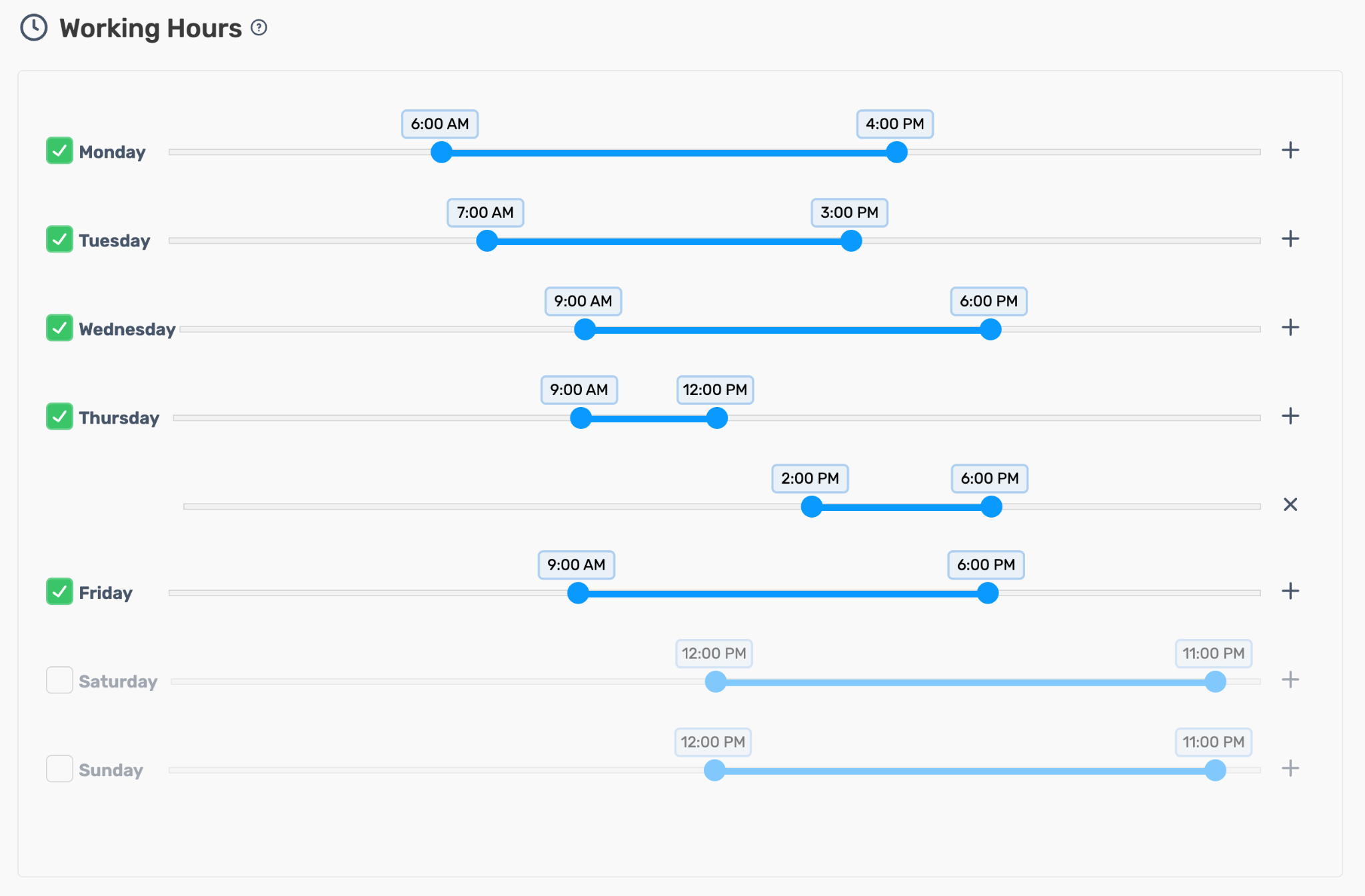
- Toggle days on/off and set your available time ranges.
Share Your Booking Link
Copy the Link
- Go to Meet → Settings.
- Copy the Meeting Link URL.
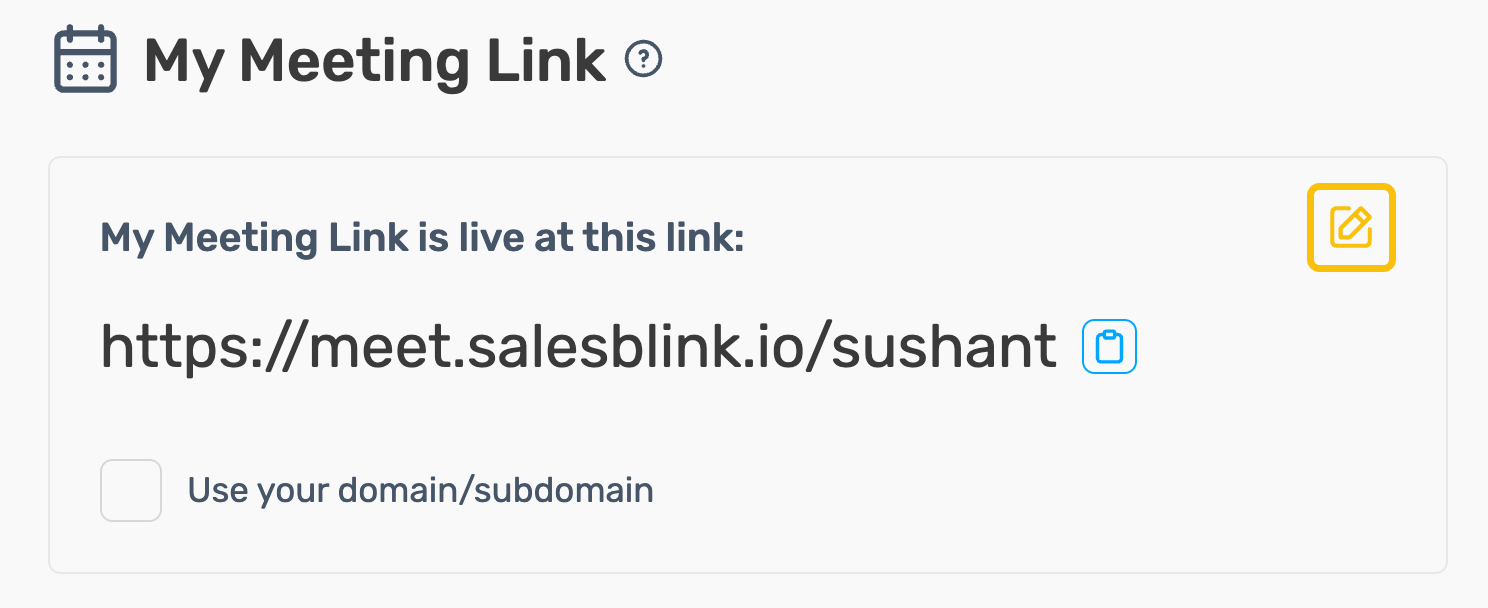
Add to Email Templates
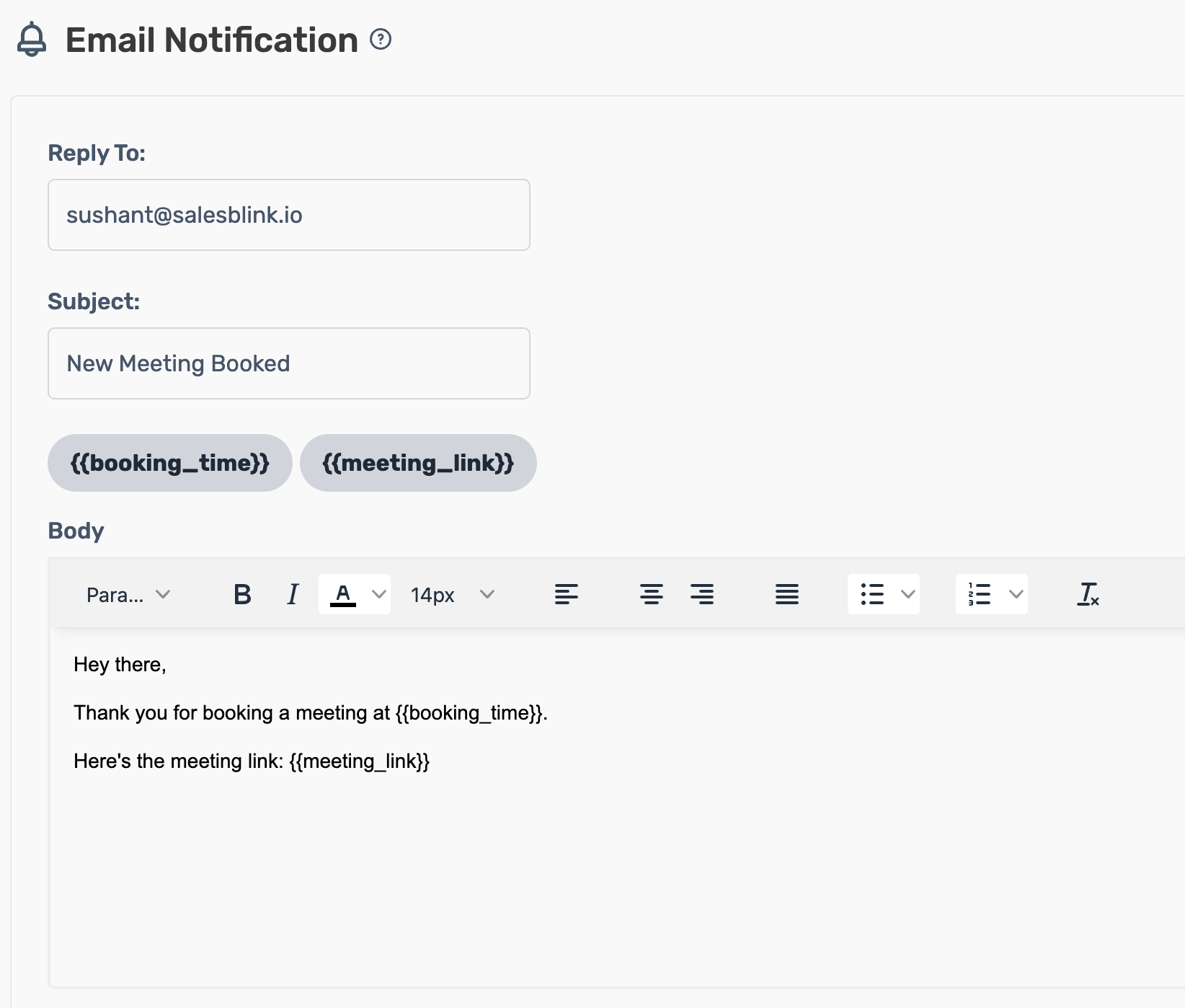
Insert the dynamic variable {{my_meeting_link}} in any email template. SalesBlink automatically replaces it with your booking URL when sending.
Verify Your Setup
Open your meeting link in a browser to confirm:
- Your profile and availability display correctly
- Time slots match your Working Hours settings
- Booking a test meeting appears in your connected calendar