Overview
Bulk upload up to 100 SMTP/IMAP email senders at once using a CSV file.
Prerequisites
- CSV file with email account details
- SMTP/IMAP credentials for each email account
Bulk Upload Email Senders
Click Outreach → Email Senders.
Click the Add Sender button.
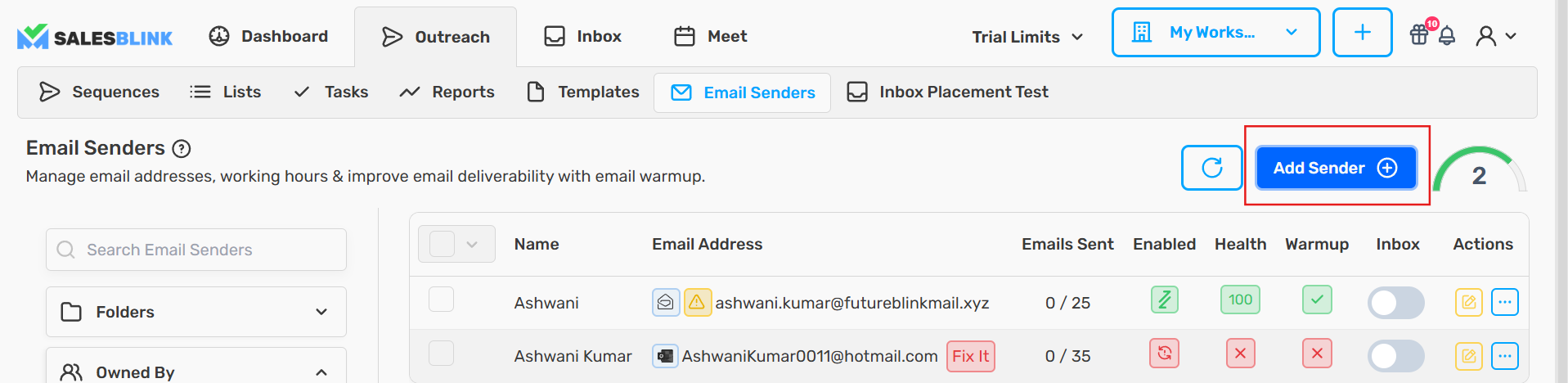
Select Bulk Upload.
Choose Any Provider (SMTP/IMAP).

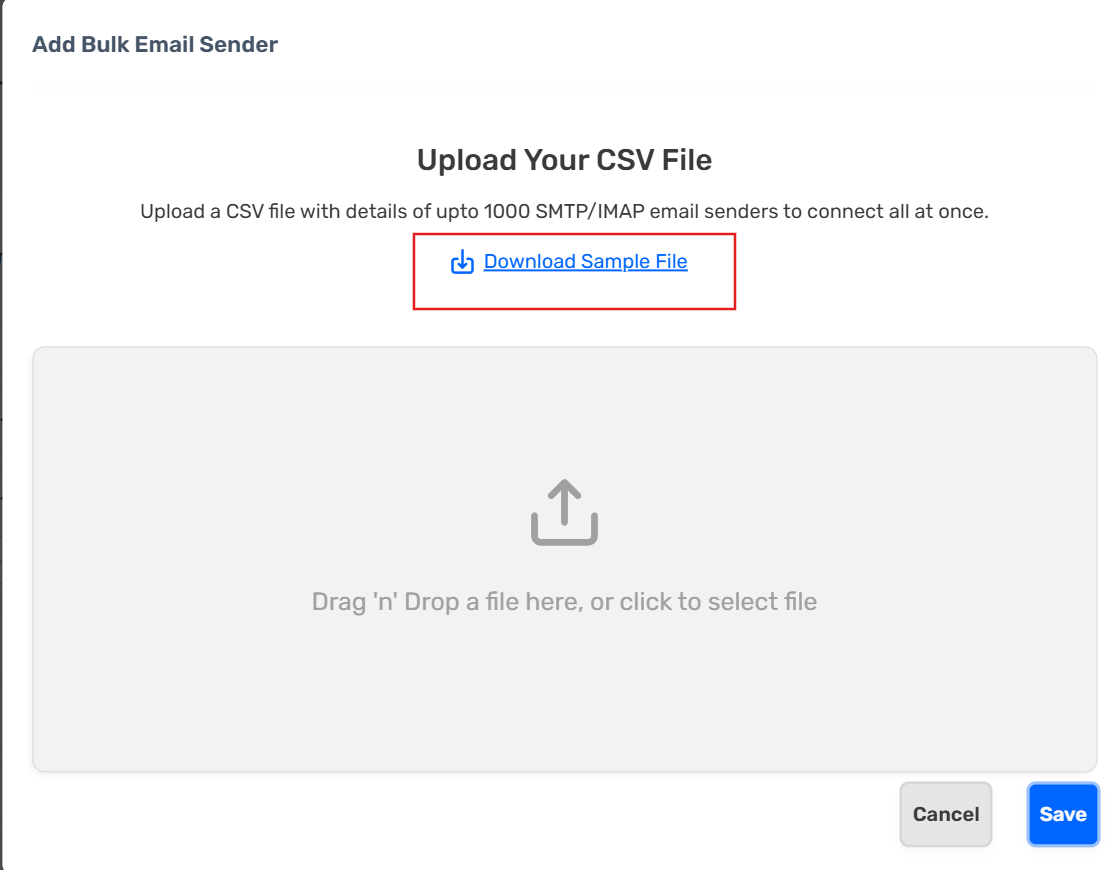
- Upload your CSV file with email account details.
CSV Fields for Email Senders
Download the sample CSV file and fill in all the details of your email senders.
Basic Details
| Field | Description | Example |
|---|---|---|
| from_name | Display name of your email sender | John Doe |
| from_email | Email address of the sender | email@company.com |
| user_name | Username of the email sender (usually same as from_email) | email@company.com |
| password | Password or App Password of the email sender | dsjknavaj42ds$ |
SMTP Settings
| Field | Description | Example |
|---|---|---|
| smtp_host | SMTP host of the email sender | smtp.server.com |
| smtp_port | SMTP port of the email sender | 465 |
IMAP Settings
| Field | Description | Example |
|---|---|---|
| imap_host | IMAP host of the email sender | imap.server.com |
| imap_port | IMAP port of the email sender | 992 |
Advanced IMAP Configuration
| Field | Description | Example |
|---|---|---|
| different_reply_to_address | Use a different IMAP username & password | TRUE or FALSE |
| imap_user_name | IMAP username/email (if different_reply_to_address is TRUE) | imap@company.com |
| imap_password | IMAP password (if different_reply_to_address is TRUE) | dsjknavaj42ds$ |
Sending Limits
| Field | Description | Example |
|---|---|---|
| max_emails_per_day | Maximum number of emails (including follow-ups) sent per day | 10 |
| sequence_auto_ramp_up_enabled | Enable automatic ramp-up for sequence sending | TRUE or FALSE |
| sequence_initial_daily_frequency | Initial daily emails when sequence ramp-up starts | 30 |
| sequence_ramp_up_frequency | Daily increment in sequence emails | 3 |
Additional Settings
| Field | Description | Example |
|---|---|---|
| signature_id | ID of your email signature (refer to FAQ section) | a97a1b65-defc-4def-89b9-8a924cde7780 |
| custom_tracking_url | Custom tracking domain for opens and clicks (must be verified) | track.mycompany.com |
Warmup Settings
| Field | Description | Example |
|---|---|---|
| warmup_enabled | Enable or disable WarmUp | TRUE or FALSE |
| warmup_max_daily_frequency | Maximum number of warmup emails per day (max 50, defaults to 30) | 30 |
| warmup_auto_ramp_up_enabled | Enable automatic ramp-up for warmup emails | TRUE or FALSE |
| warmup_initial_daily_frequency | Initial daily warmup emails when ramp-up starts (defaults to 5) | 5 |
| warmup_ramp_up_frequency | Daily increment in warmup emails (defaults to 1) | 1 |
| warmup_tag | Custom tag for filtering warmup emails (two words joined by a hyphen) | friendship-fright |
Inbox Settings
| Field | Description | Example |
|---|---|---|
| inbox_enable | Enable visibility of replies in Inbox | TRUE or FALSE |
| inbox_path | Folder path for inbox emails | INBOX |
| spam_path | Folder path for spam emails | Spam |
Health & Protection Settings
| Field | Description | Example |
|---|---|---|
| pause_cold_emails_when_health_low | Pause cold emails when sender health drops below threshold | TRUE or FALSE |
| pause_cold_emails_health_threshold | Health score threshold to pause at (defaults to 80) | 80 |
DKIM & Reply-To Settings
| Field | Description | Example |
|---|---|---|
| dkim_identifier | Custom DKIM identifier for domain setup verification | my-dkim-id |
| reply_to_email | Different email address where replies should be sent | replies@company.com |
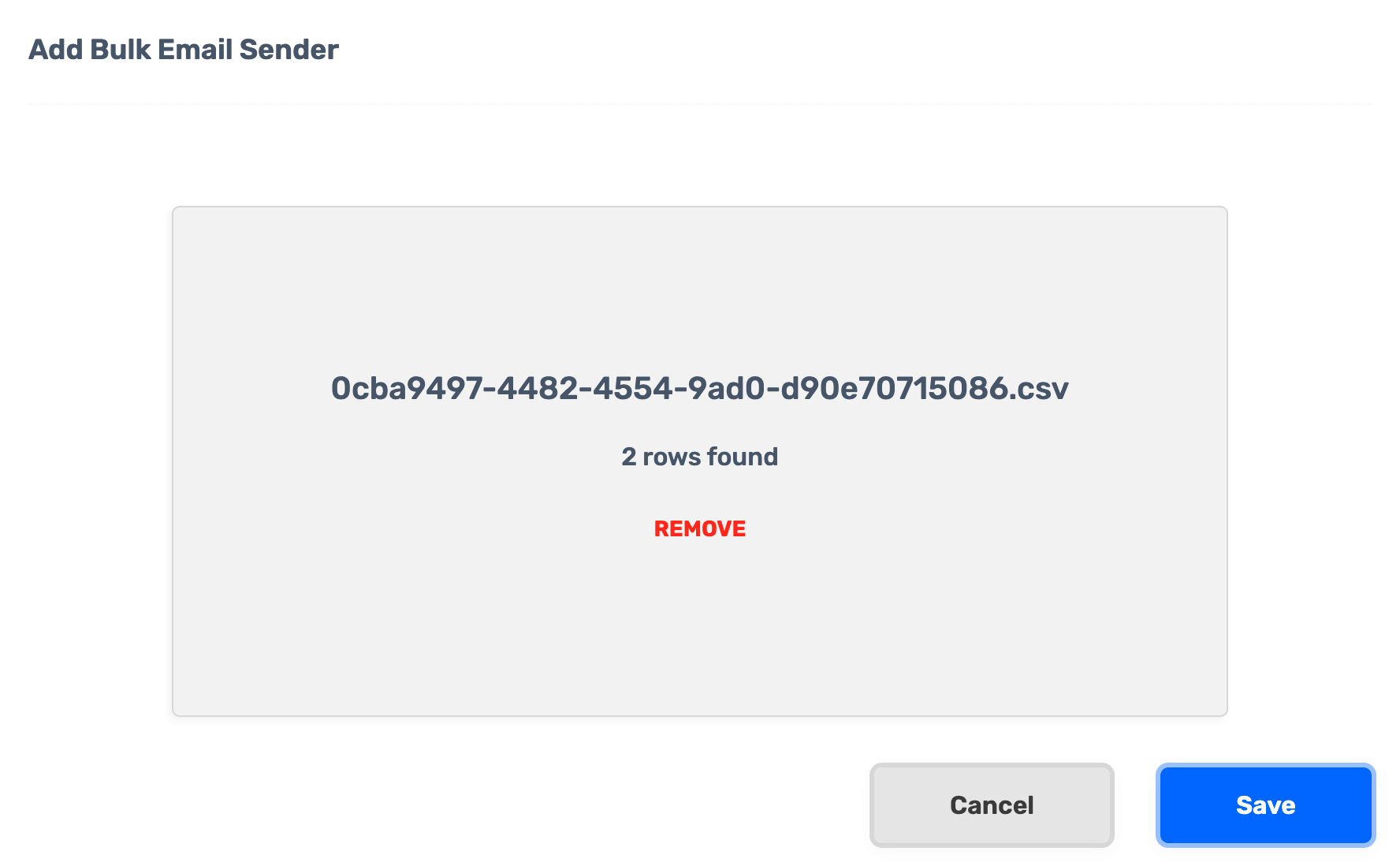
- Click Save to upload the CSV file.
Frequently Asked Questions
Q: By mistake, I uploaded email senders with wrong credentials, now what? A: Re-upload the CSV file with correct credentials. SalesBlink will update the credentials for existing email senders.
Q: I uploaded the file but only one or a few email senders got connected. A: Make sure no cell in your CSV file contains a comma "," as it breaks the CSV file.
Q: What if I want to bulk update Email WarmUp or other settings? A: Re-upload the CSV with updated information. SalesBlink will update the settings of existing email senders.
Q: How to Find the ID of the Email Signature? A: Click the Profile icon (top right) → Other Settings → Signatures → copy icon next to the signature.