Overview
This guide explains how to connect your Microsoft Outlook email as an email sender in SalesBlink for use in cold email sequences.
Prerequisites
- An active Microsoft Outlook account
- Admin consent enabled (for organization accounts). See Admin consent for organization accounts.
Connect Outlook with SalesBlink
- In SalesBlink, click Outreach in the Left Sidebar.
- Click Email Senders.
- Click Add Sender.
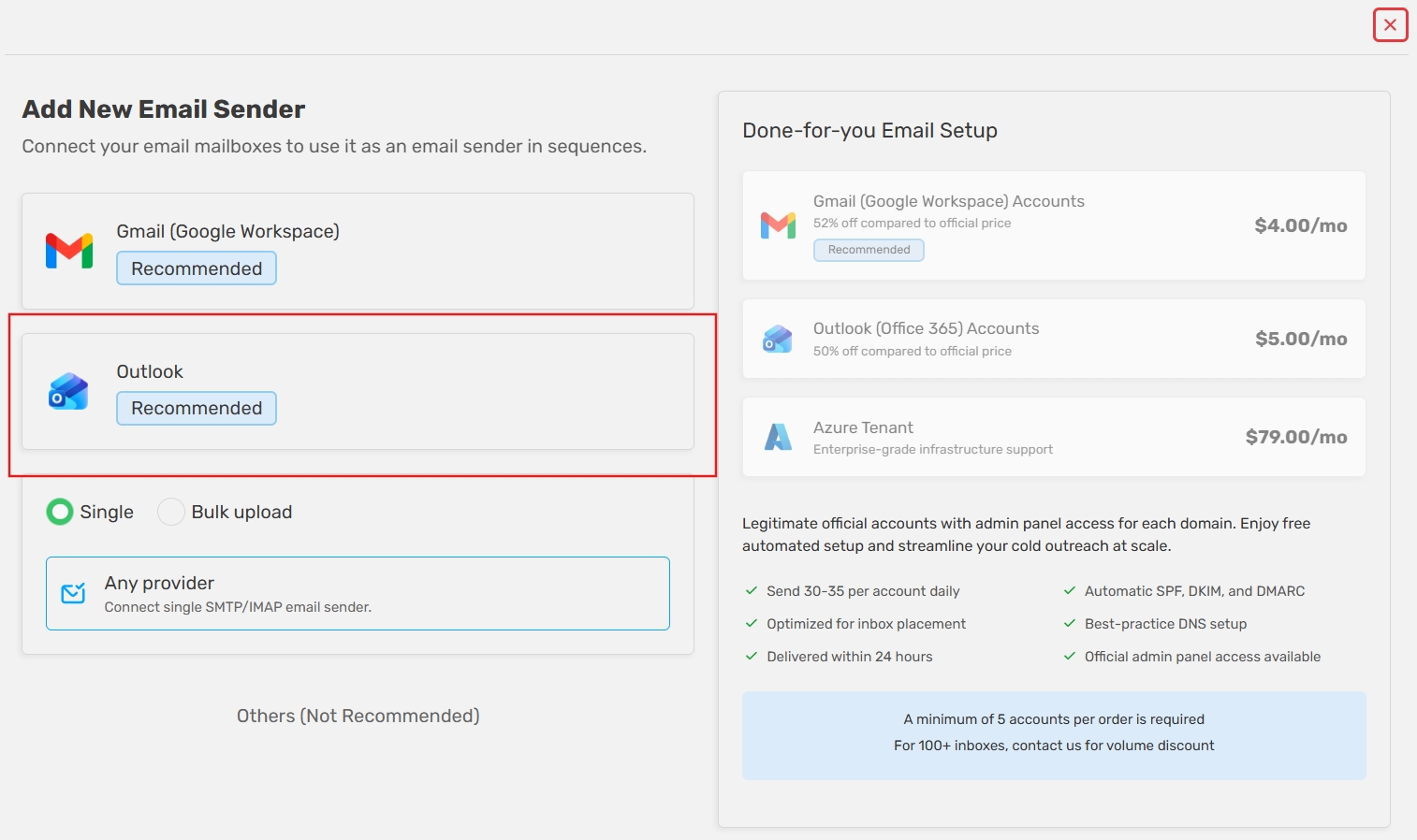
- Select Outlook from the available provider options.
- Choose a connection option:
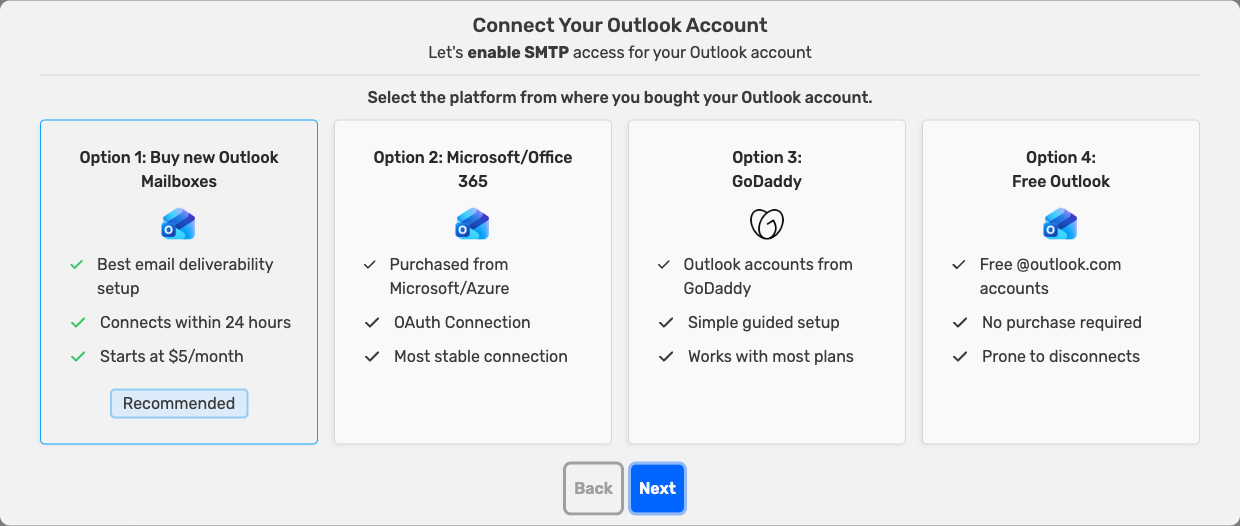
- Option 1: Buy new Outlook Mailboxes (Recommended): Buy ready-to-use mailboxes from SalesBlink. See Buy DFY Outlook Mailboxes.
- Option 2: Microsoft/Office 365: Accounts purchased from Microsoft or Azure.
- Option 3: GoDaddy: Outlook accounts purchased via GoDaddy.
- Option 4: Free Outlook: Personal @outlook.com accounts. These are more prone to disconnects.
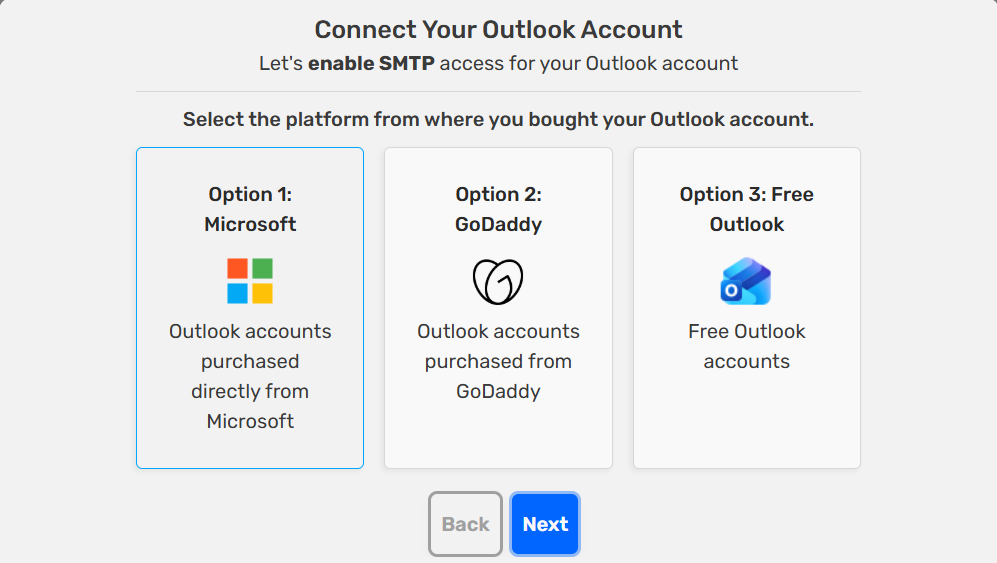
- Click Next. An instructions screen for your account type appears:
- Microsoft/Office 365: In the Microsoft 365 admin center, open Active Users, select the user, then Mail → Manage email apps. Check Authenticated SMTP and make sure IMAP is checked, then click Save Changes.
- GoDaddy: In your GoDaddy account, go to My Products → Email and Office → Manage All. Click Manage next to the user, open Advanced Settings, and turn on SMTP Authentication.
- Free Outlook: In Outlook settings, go to Mail → Forwarding and IMAP and turn on Let devices and apps use IMAP, then click Save Changes.
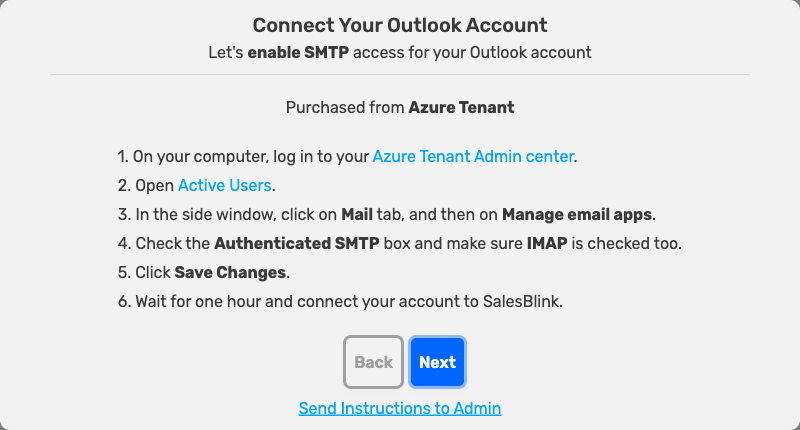
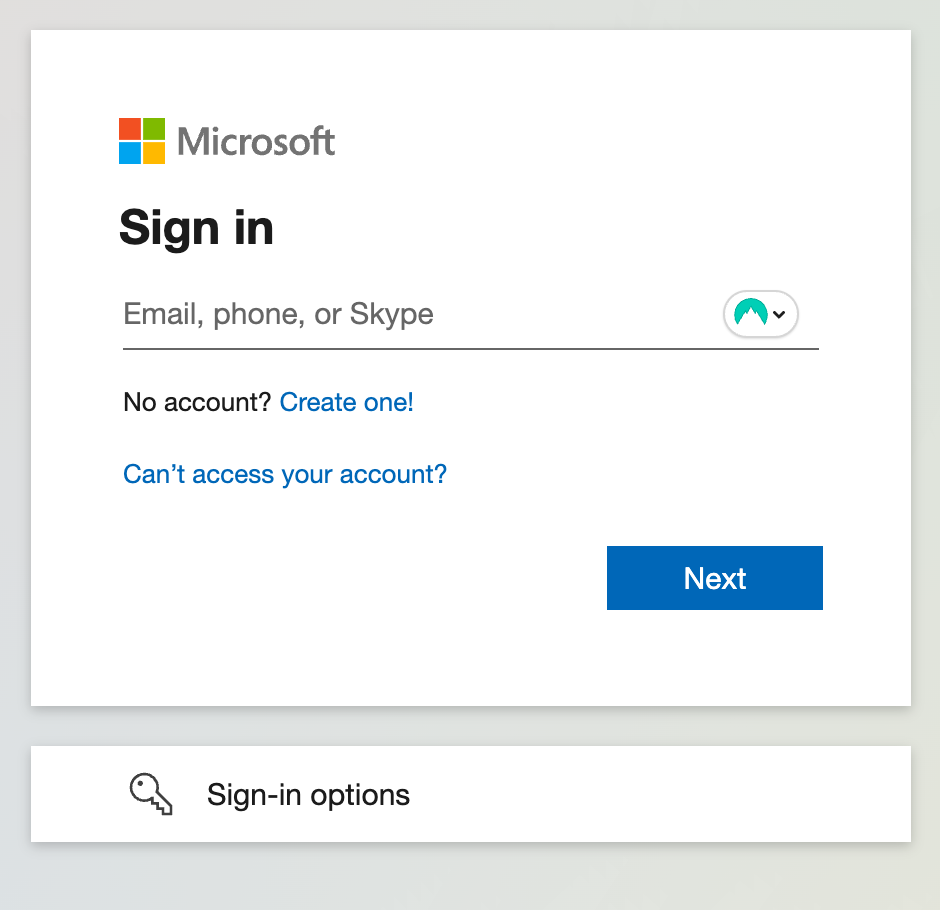
- Wait about one hour after changing these settings, then click Next again. The Microsoft sign-in page opens.
- Sign in to your Microsoft account.
- Allow the requested permissions.
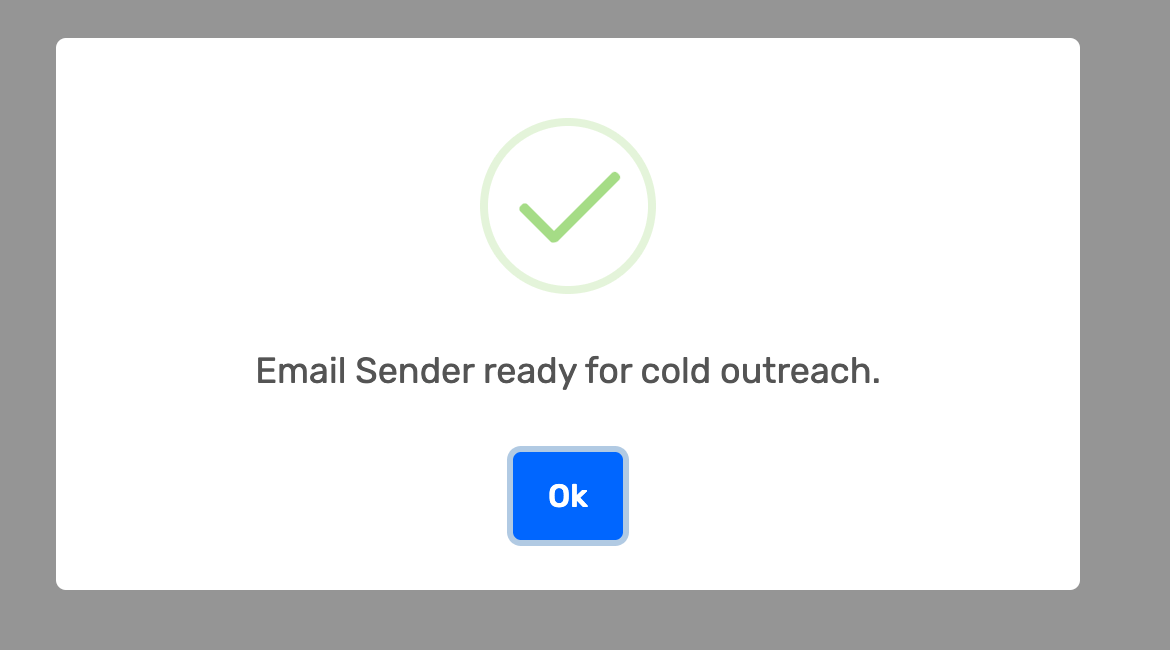
Your Outlook email is now connected to SalesBlink.
Optional Settings
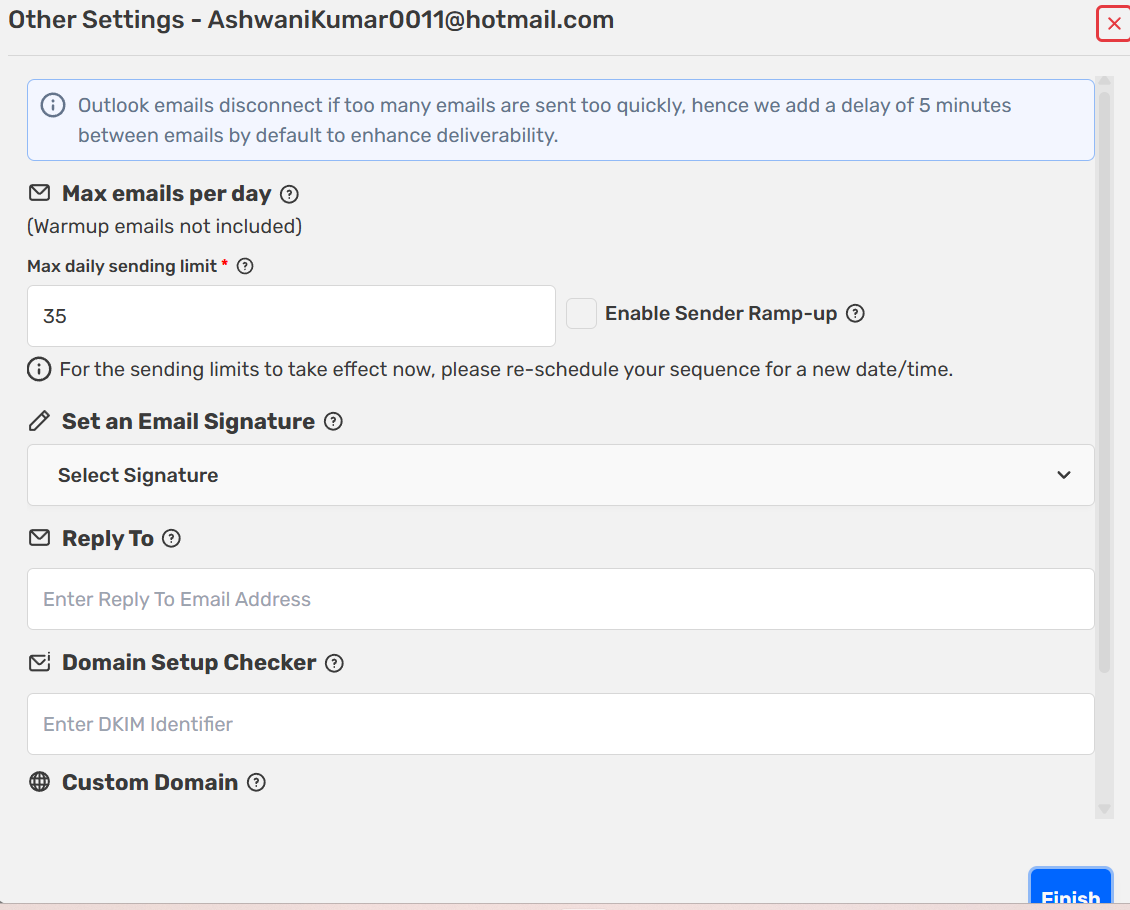
- Set your email signature
- Enable Email Warmup for better deliverability
- Enable email sender in Unified Inbox
- Set your custom domain for better email deliverability
- Check your domain setup
Launch Your Cold Email Sequence
You can now use your connected Outlook email address to launch cold email sequences. Choose from the following sequence types:
- AI Assisted Sequences
- Cold Email Sequences using Templates
- Cold Email Sequences from Scratch (Advanced)
Common error messages
| Error message | What it means | What to do |
|---|---|---|
| Approval required | Your Microsoft 365 admin has turned off user consent for third-party apps | Ask your admin to grant consent. See Admin consent for organization accounts. |
| Failed to connect Outlook OAUTH with Request failed with status code 400 | Microsoft rejected the sign-in request | See Failed to connect Outlook OAUTH (status code 400). |
| Sender Already Exists | The Outlook account you signed in with is already a sender in SalesBlink. Often this is because the browser is still signed in to a different Outlook account that is already connected. | Connect again from an Incognito or Private window. If the address is connected in another SalesBlink account, remove it there first. See the FAQ below. |
Admin consent for organization accounts
Your administrator has not allowed users to give consent to apps
If your Microsoft account belongs to an organization, your Microsoft 365 administrator may have disabled user consent for third-party apps. When you try to connect your Outlook email, Microsoft blocks the sign-in and shows an "Approval required" screen for the SalesBlink app, since the permissions SalesBlink needs (send mail, read/write mail, IMAP/SMTP access, calendar access) require admin approval.
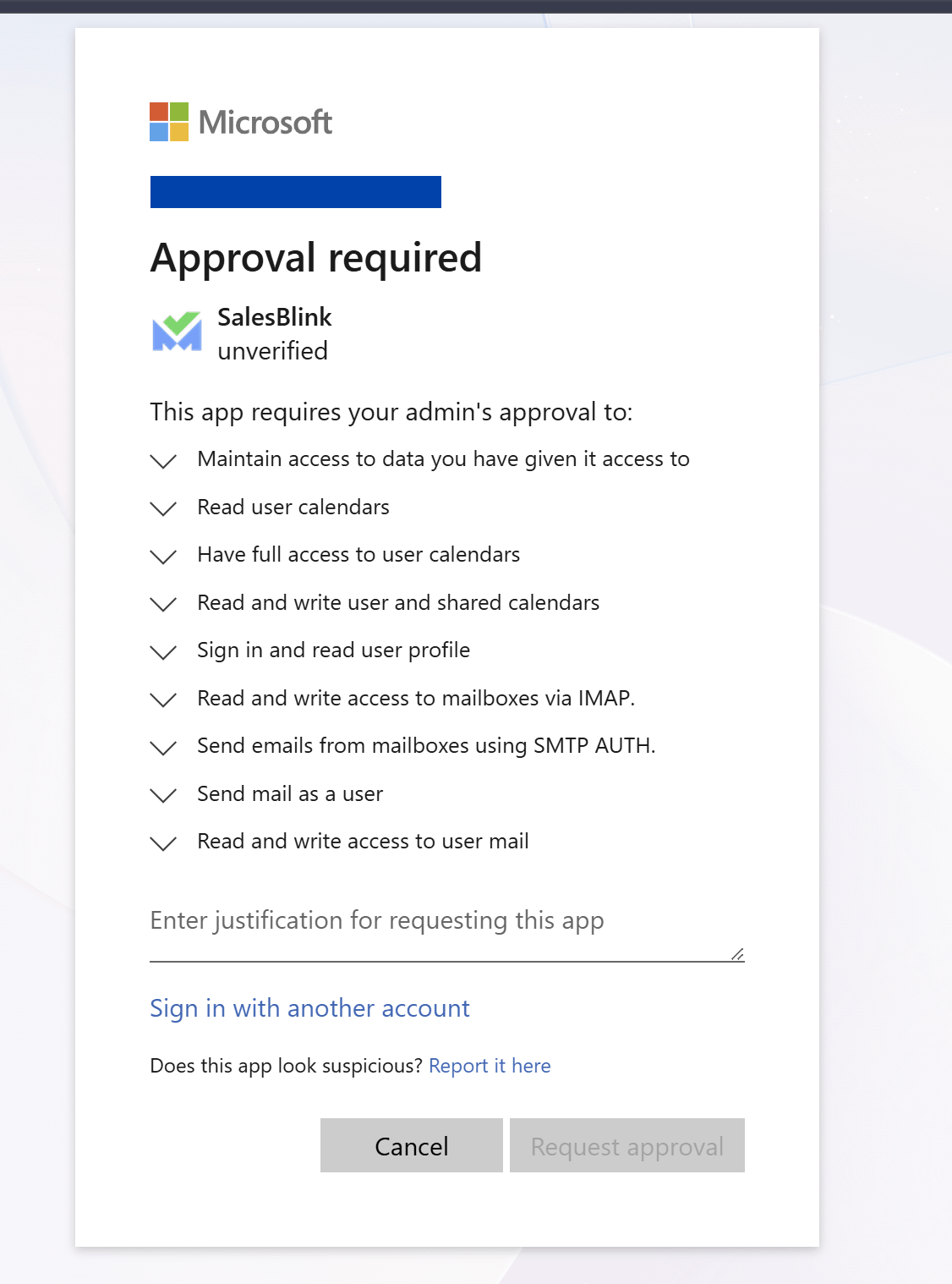
To resolve this, forward the following link to your Microsoft 365 administrator and ask them to approve SalesBlink for your organization:
- Your admin opens the link and signs in with their administrator account.
- Microsoft shows the permissions SalesBlink requests; the admin clicks Accept to grant consent on behalf of the organization.
- Once approved, go back to SalesBlink and connect your Outlook email again. The sign-in will complete without the approval error.
Note: Only a Microsoft 365 admin can open this link and grant consent. Regular users will see the same "Approval required" error until the admin approves.
If the approval screen keeps coming back
If your admin has approved SalesBlink but you still see Approval required every time you connect:
- Ask your admin to open the Microsoft Entra admin center → Enterprise applications, find SalesBlink, and delete it.
- Ask the admin to open the consent link above again and click Accept.
- If the screen still comes back, the admin can replace
commonin the consent link with your organization's tenant ID (shown on the Overview page of the Microsoft Entra admin center) and open the link again. - Connect your Outlook email in SalesBlink again, using an Incognito or Private window.
Failed to connect Outlook OAUTH (status code 400)
You may see this error when connecting or reconnecting an Outlook sender. It appears when you click Fix It next to the sender on Outreach → Email Senders:
{"message":"Failed to connect Outlook OAUTH","description":"Request failed with status code 400"}
Microsoft rejected the sign-in request, so SalesBlink could not get access to the mailbox. Try these steps in order:
- Open a new Incognito or Private window, sign in to SalesBlink, and connect the sender again. This rules out a different Microsoft account being signed in.
- If the mailbox belongs to an organization, make sure your admin has granted consent. See Admin consent for organization accounts.
- If the sender was connected before and now fails, delete the sender from Outreach → Email Senders and add it again. After a Microsoft update in July 2026, some Outlook senders can only be fixed this way.
If the error continues, contact SalesBlink support through Live Chat with the affected email addresses. For senders that stay on Connecting..., see Sender Stuck on Connecting or Reconnecting a Sender.
Frequently Asked Questions
Why do I get the error "Sender Already Exists"?
Unlike Google, where you can be logged into multiple accounts simultaneously, Outlook only allows one account to be logged in at a time by default. If you are already logged into an Outlook account and try to connect or reconnect a different email address, you will see this error.
The error means the mailbox you signed in with is already connected as a sender in SalesBlink (in this or another SalesBlink account), and each mailbox can be connected only once.
To resolve this, open a new Incognito or Private browsing window and try connecting your Outlook email sender again. If the address is genuinely connected in another SalesBlink account, remove it there first, or contact support if you no longer have access.
How many emails can I send using Outlook?
We recommend sending 30–50 emails per day per email sender, regardless of whether you use Outlook, Google Workspace, or another provider. Staying within this range protects your sender reputation and deliverability.