Overview
This guide explains how to connect your free Gmail account as an email sender in SalesBlink for use in cold email sequences.
Note: Sending cold emails from a free Gmail account is not recommended, as most emails will likely end up in spam. Use this setup only for testing, getting started, or if you plan to send fewer than 10-15 emails per day.
Prerequisites
- A free Gmail account
- 2-Step Verification enabled on your Google Account
- An App Password generated from Google
Step 1: Create an App Password
Enable 2-Step Verification
Before you can create an App Password, you must enable 2-Step Verification on your Google Account.
- Sign in to your Google Account.
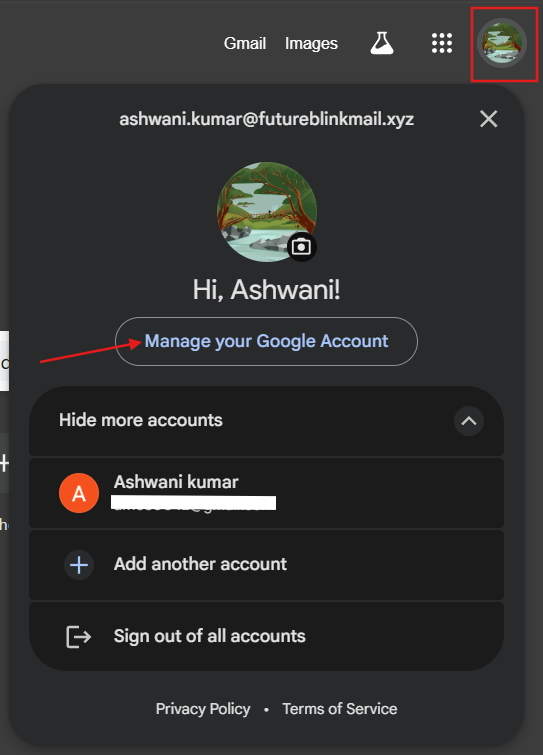
- Click on your Profile icon in the top right and select Manage your Google Account.
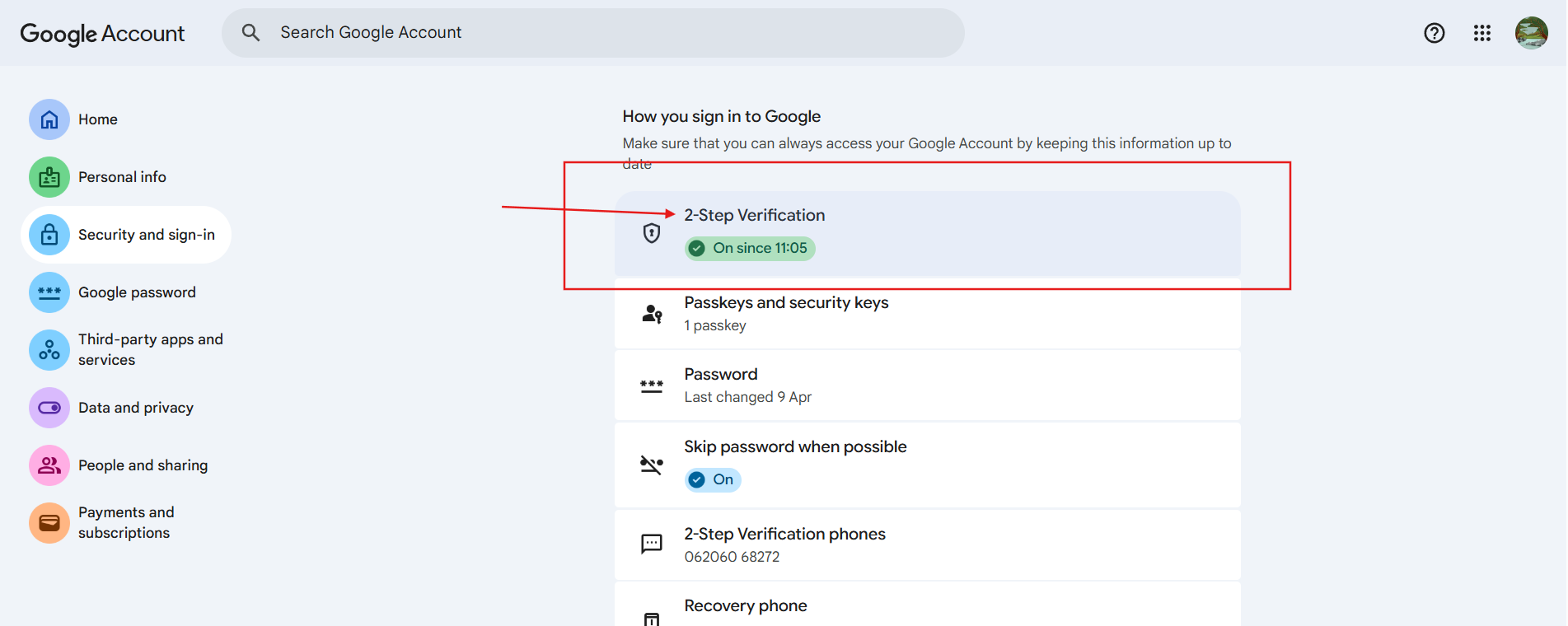
- Navigate to the Security tab.
- Click 2-Step Verification.
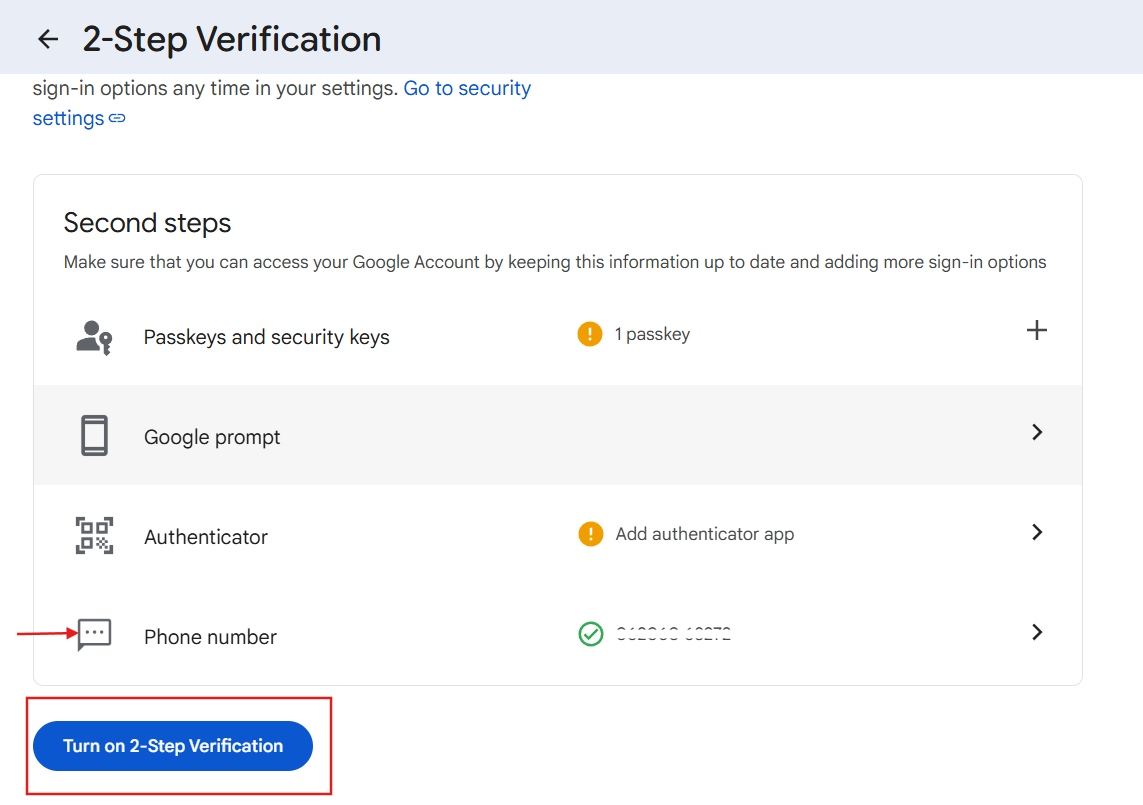
- Add a verification method. Choose one of the following options:
- Authenticator: Add and verify using an authenticator app
- Phone number: Add and verify via OTP
- Click Turn on and complete the setup.
Generate an App Password
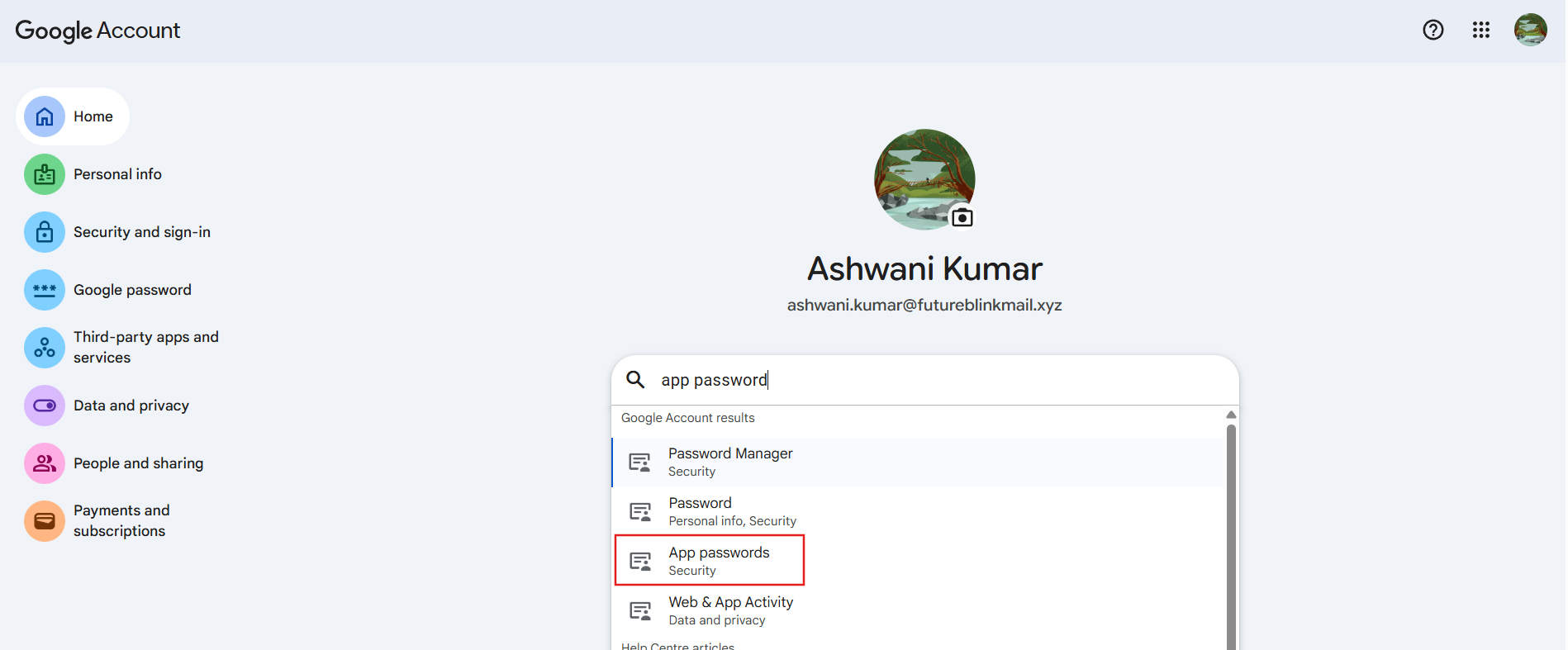
- On the Google Account home page, click the search bar at the top and type App Passwords.
- Select the App Password option from the search results.
- Enter SalesBlink as the app name.
- Click Create.
- Copy the generated app password and store it in a secure location.
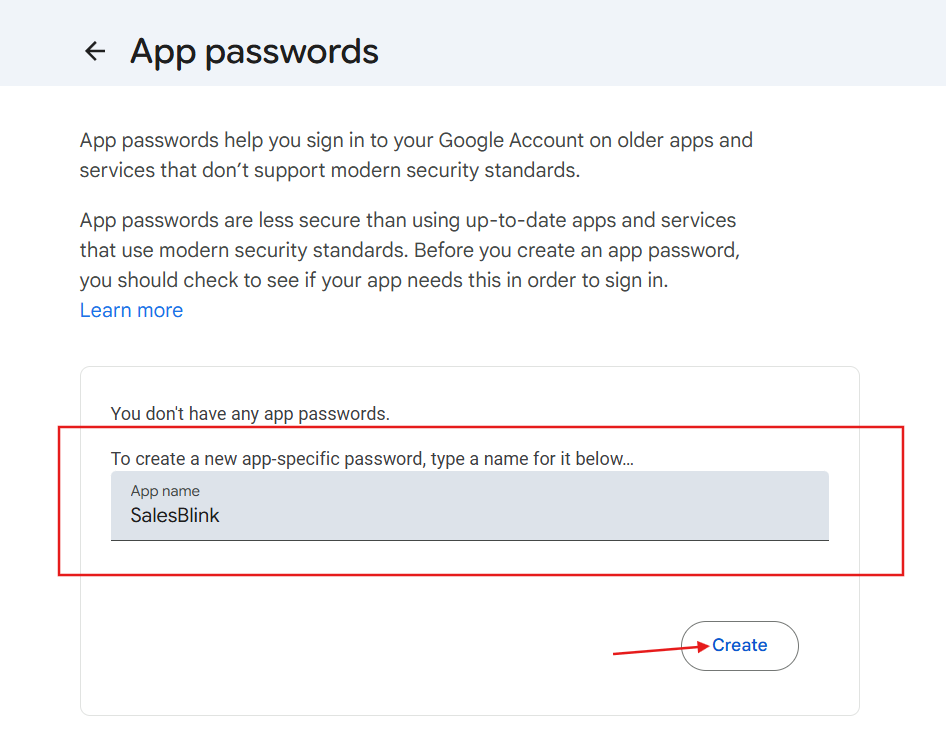
You now have an App Password for your Gmail account. Keep this password secure and do not share it.
Step 2: Connect Free Gmail with SalesBlink
- In SalesBlink, click Outreach in the left sidebar.
- Click Email Senders.
- Click Add Sender.
- Under Single, select Any Provider.
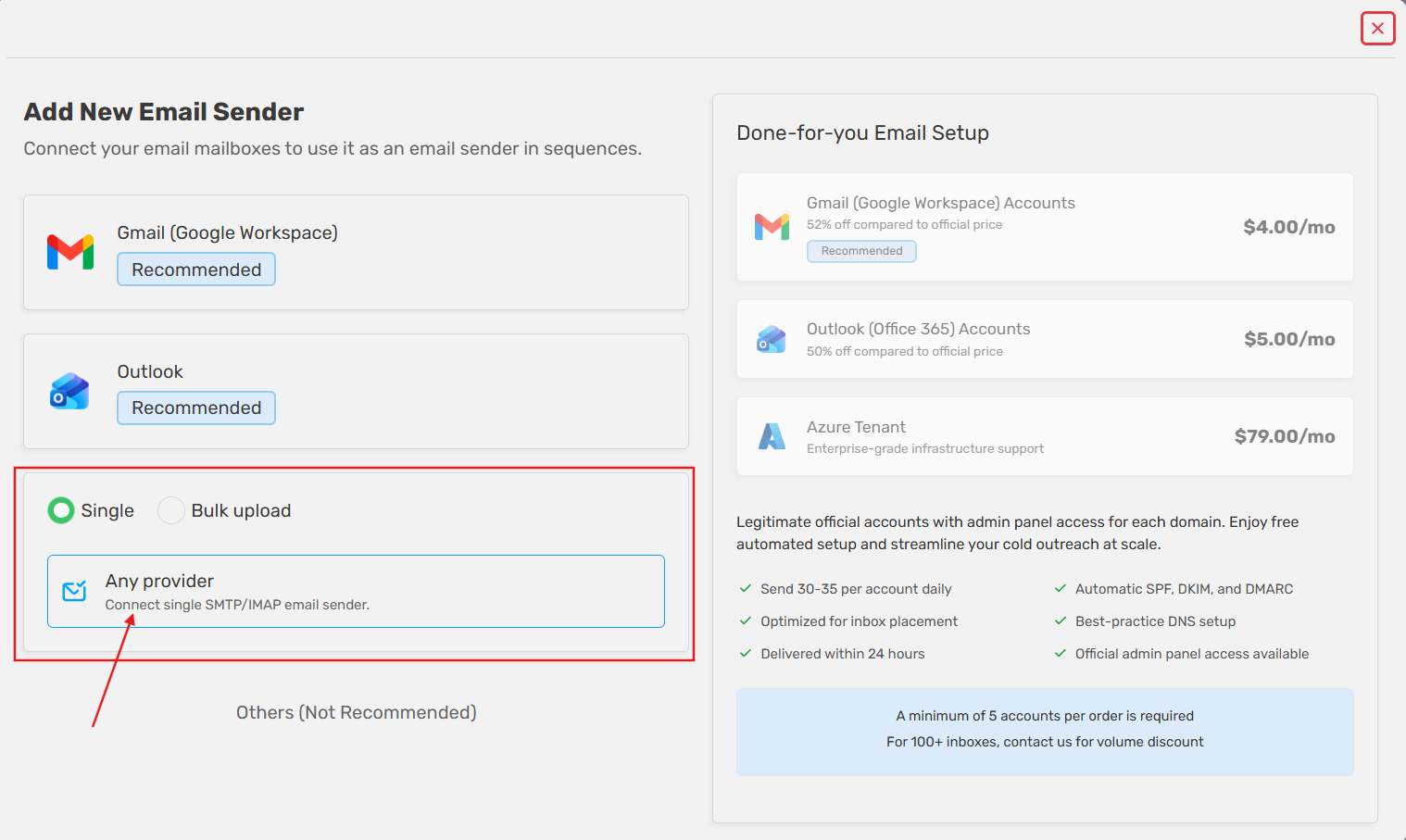
Enter the following connection details:
- Your Name: Your display name as shown to recipients
- Sender Username: Your Gmail address
- Sender Email Address: Your Gmail address
- Sender Password: The App Password you generated
- SMTP Host: smtp.gmail.com
- SMTP Port: 465
- IMAP Host: imap.gmail.com
- IMAP Port: 993
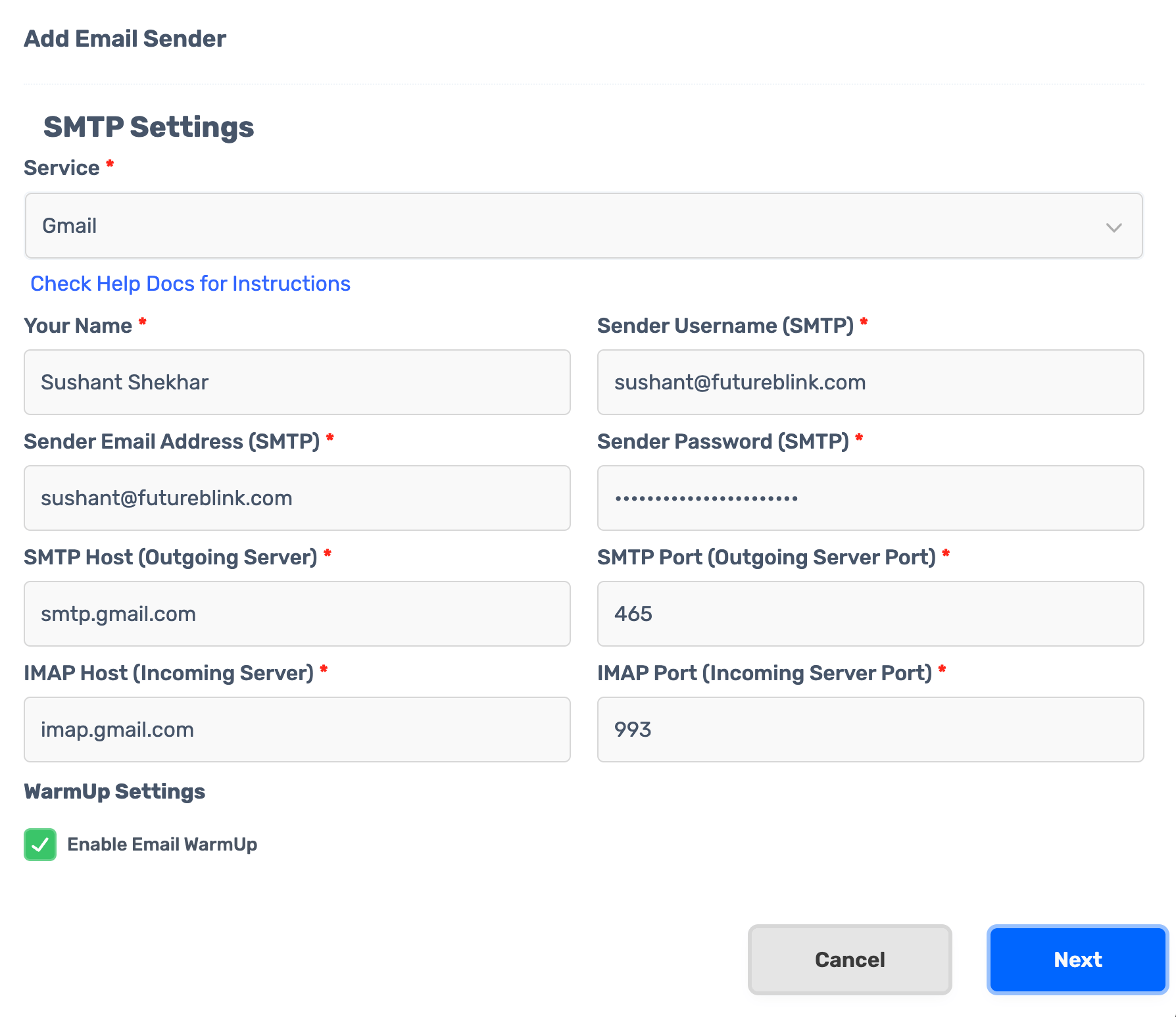
- Click Next. Your email address will be connected to SalesBlink.
Optional Settings
- Set your email signature
- Enable Email Warmup for better deliverability
- Enable email sender in Unified Inbox
Optional: Connect a Gmail Alias
If you want to send emails using a Gmail alias instead of your primary Gmail address, follow these extra steps before adding the sender in SalesBlink.
Configure the Alias in Gmail
- In Gmail, click the Settings gear icon and select See all settings.
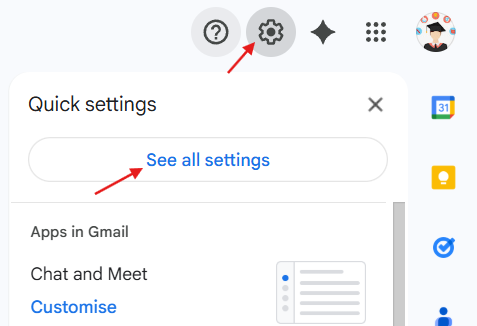
- Navigate to the Accounts and Import tab.

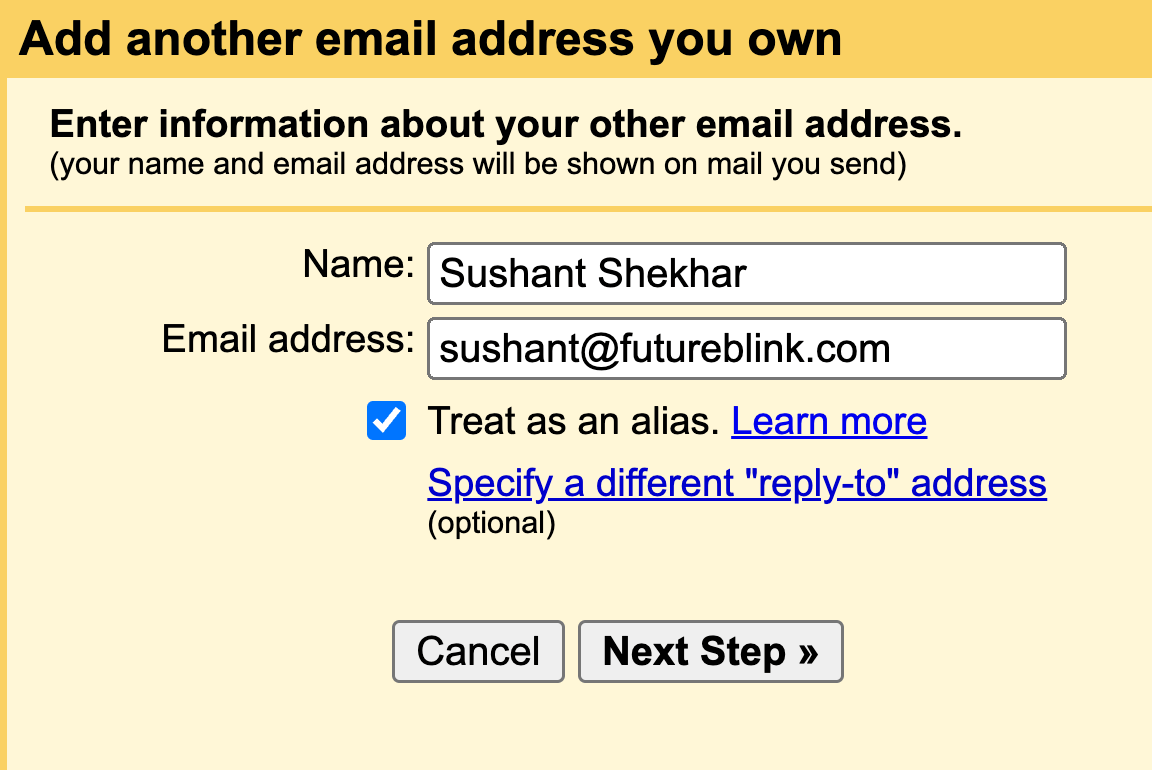
- In the Send mail as section, click Add another email address.

- Enter your alias email address and click Next Step.
- Verify your alias email address in Gmail.
- Close the settings panel.
Your alias is now configured in Gmail.
Add the Alias to SalesBlink
Follow the same steps as in Step 2: Connect Free Gmail with SalesBlink, with these changes:
- Sender Username: Your primary Gmail address (the account you sign in with)
- Sender Email Address: Your alias email address
- Sender Password: The App Password you generated for your primary Gmail account
Note: Do not enter the alias as the Sender Username. Google only accepts the primary account as the login, so using the alias returns an "email password or app password incorrect" error. The Sender Email Address is what your leads see in the From field.
To connect several aliases as separate senders, each with its own WarmUp, see Connect Google Workspace Aliases as Separate Senders.
Step 3: Launch Your Cold Email Sequence
You can now use your connected Gmail email address to launch cold email sequences. Choose from the following sequence types:
- AI Assisted Sequences
- Cold Email Sequences using Templates
- Cold Email Sequences from Scratch (Advanced)
Common Reasons for Error
- 2-Step Verification is not enabled on your Google Account
- The App Password is incorrect or was entered with spaces
Frequently Asked Questions
How many emails can I send using free Gmail?
You can send up to 500 emails per day with a free Gmail account.
How do I know if I have a Google Workspace account?
If you sign in at gmail.com but your email address does not end with @gmail.com, it is likely a Google Workspace account. Refer to the Google Workspace connection guide for setup instructions.