Overview
Connect your Zoho Mail account to SalesBlink using SMTP/IMAP configuration.
Not recommended for cold email: Zoho is not recommended for sending cold emails. Cold emails sent via Zoho will most often land in spam, and since Zoho has a strict no-cold-email policy, they will block your mailboxes and domain. We recommend connecting Zoho only for regular business or transactional email.
Prerequisites
- Zoho Mail account with Multi-Factor Authentication enabled
Step 1: Gather Zoho Mail Details
- Log in to your Zoho Mail account
- Click Settings → Mail Accounts
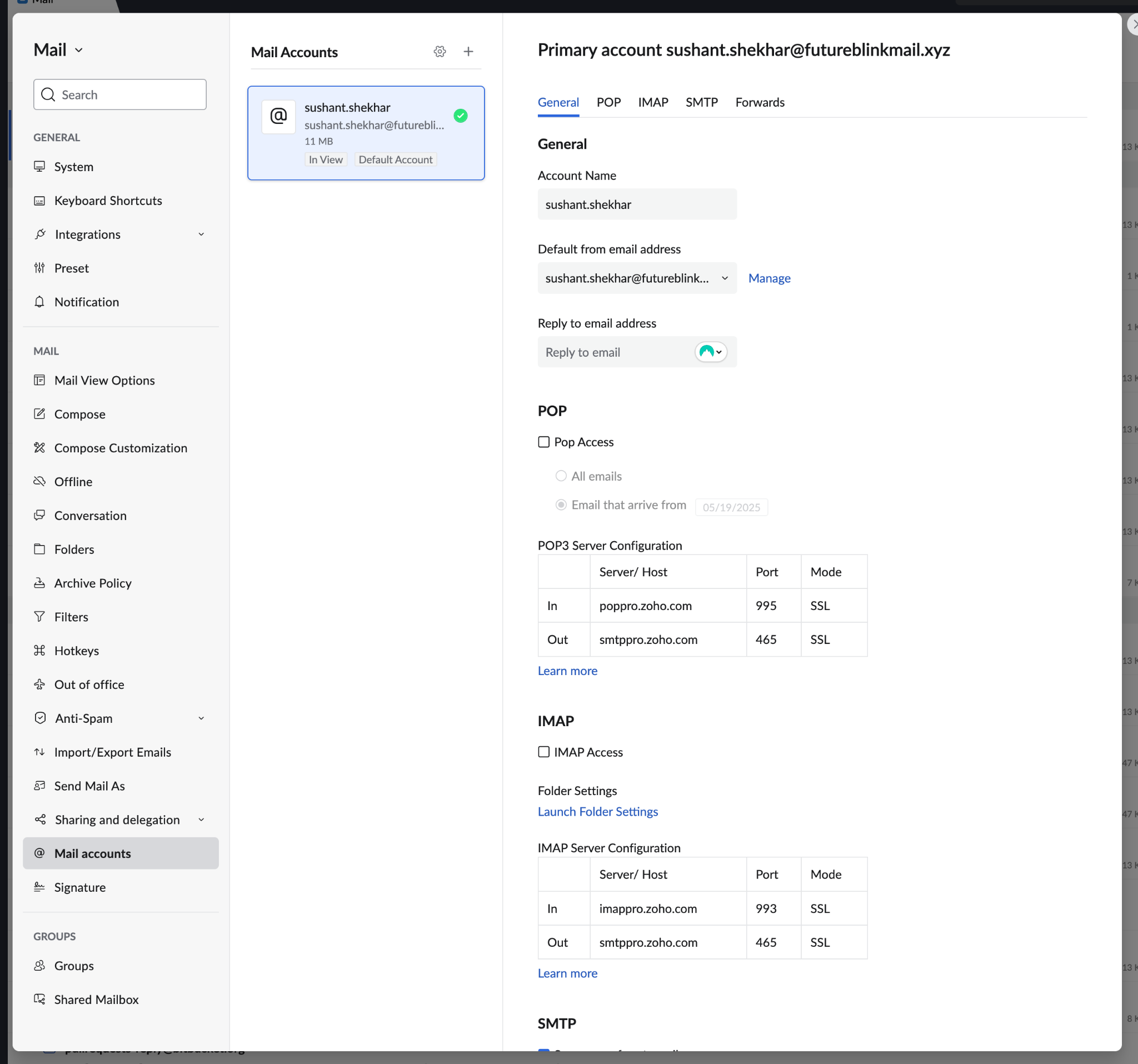
Enable IMAP Access
Copy and save your IMAP server configuration details
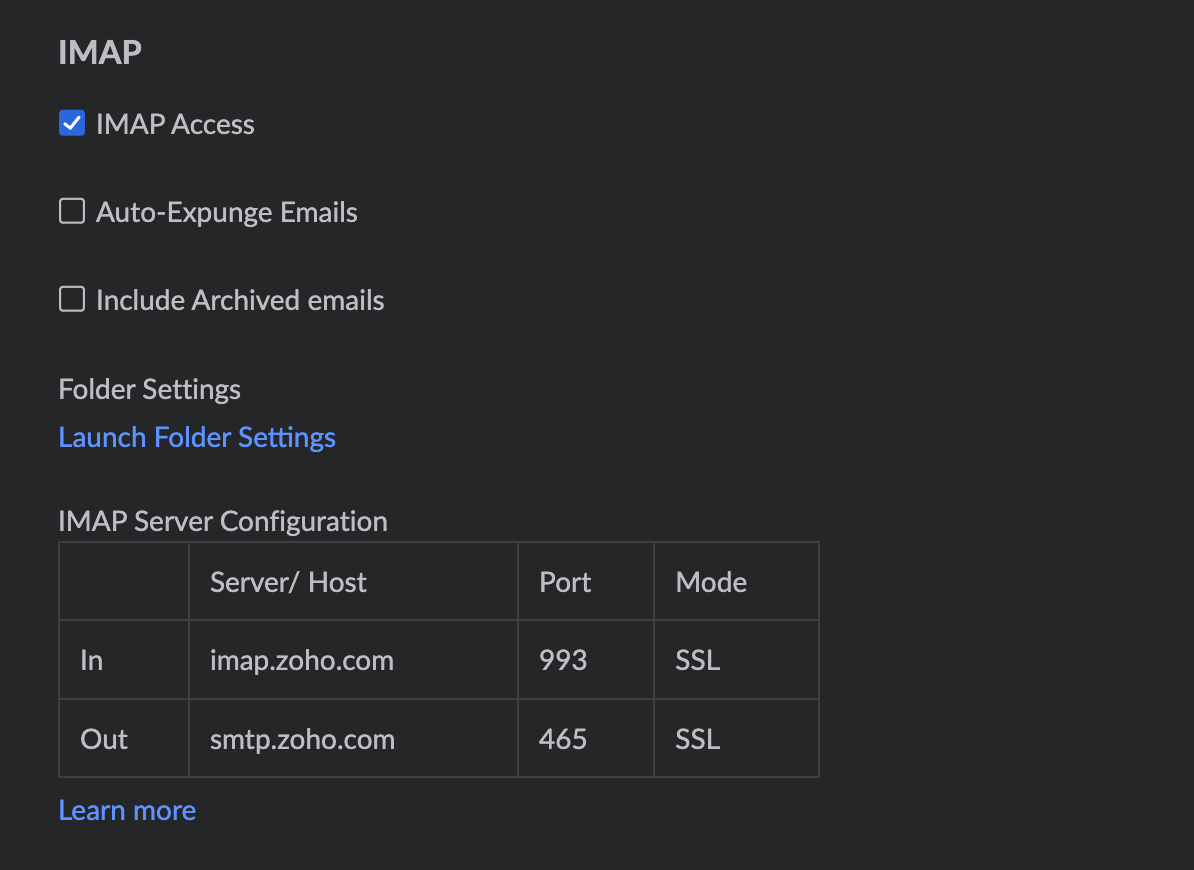
Note: Your server configuration details may vary. Save them for the next steps.
Step 2: Generate App Password
- Close the settings panel
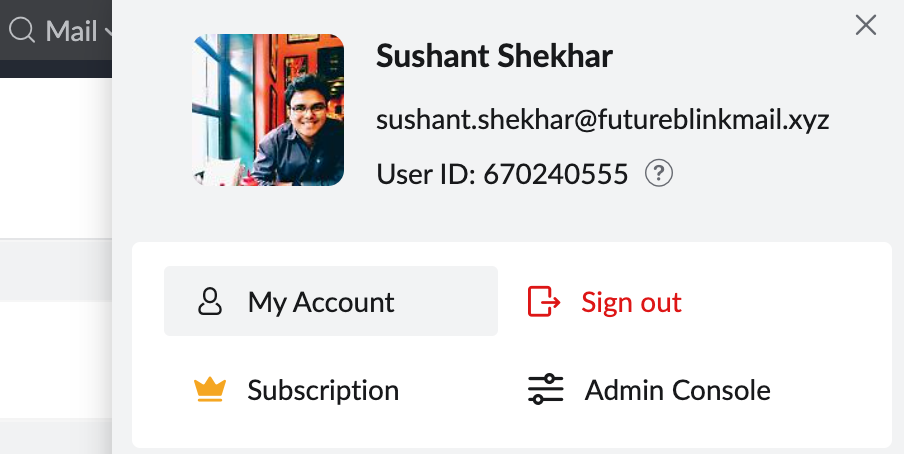
- Click My Profile → My Account
- Navigate to Security → App Passwords
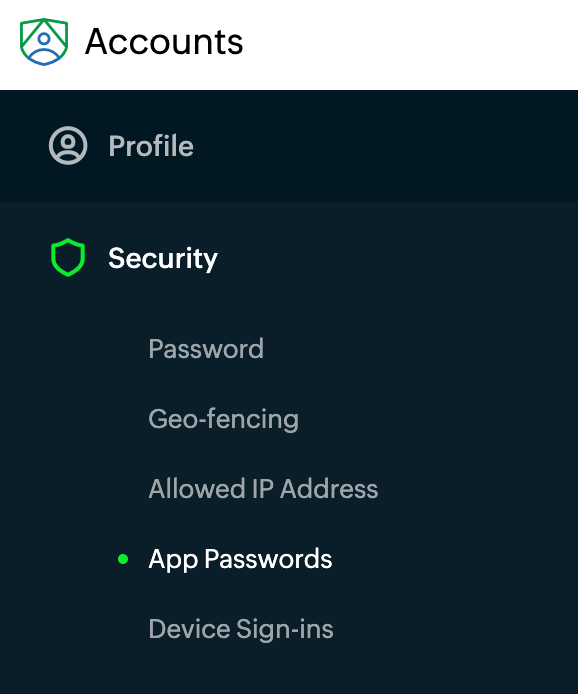
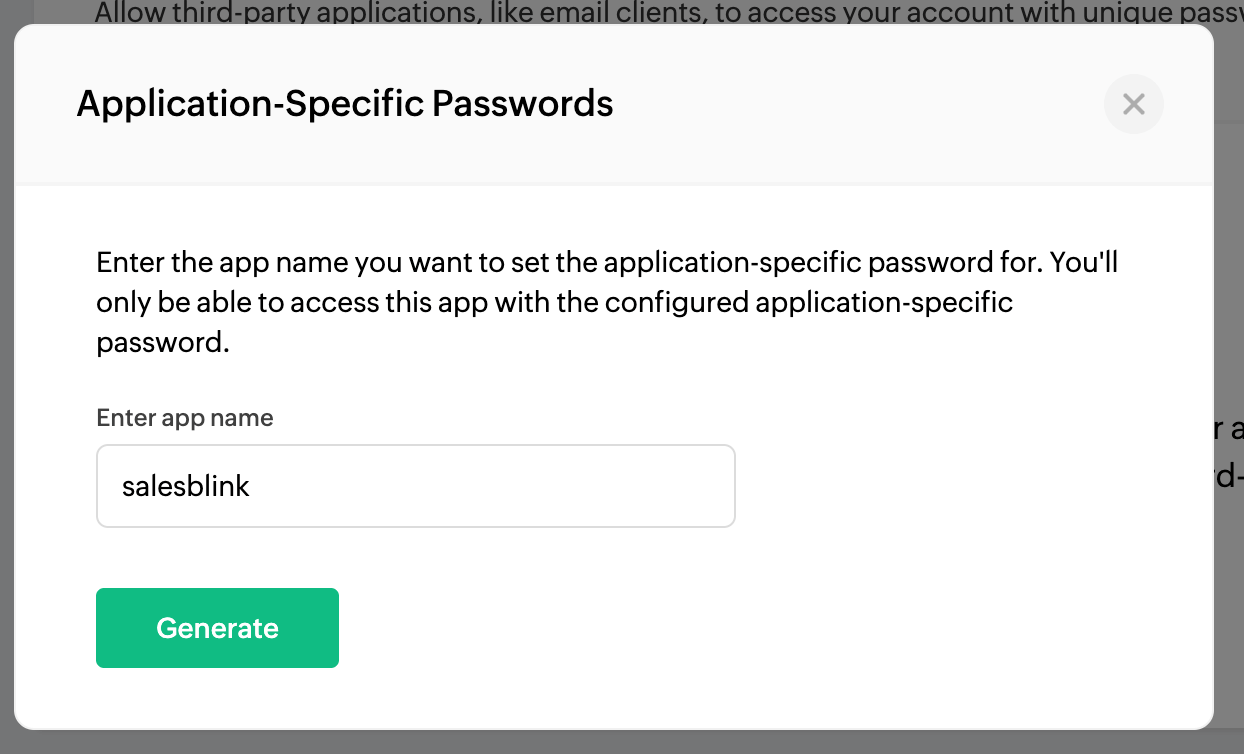
Click Generate New Password
Enter SalesBlink as the app name
Click Generate
- Copy the Application Specific Password and save it securely
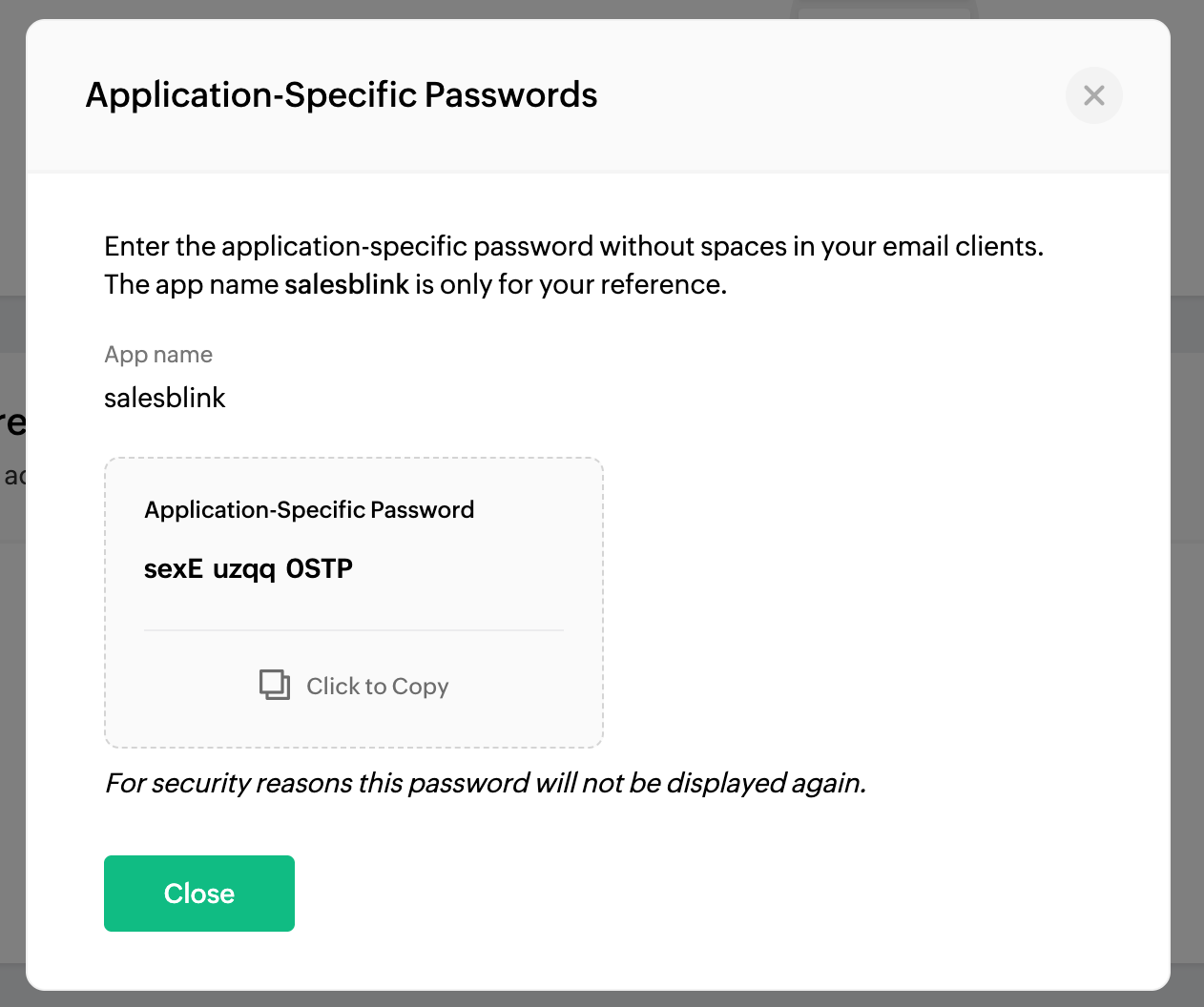
Important: Store this password securely. You cannot view it again.
Step 3: Connect Zoho Mail to SalesBlink
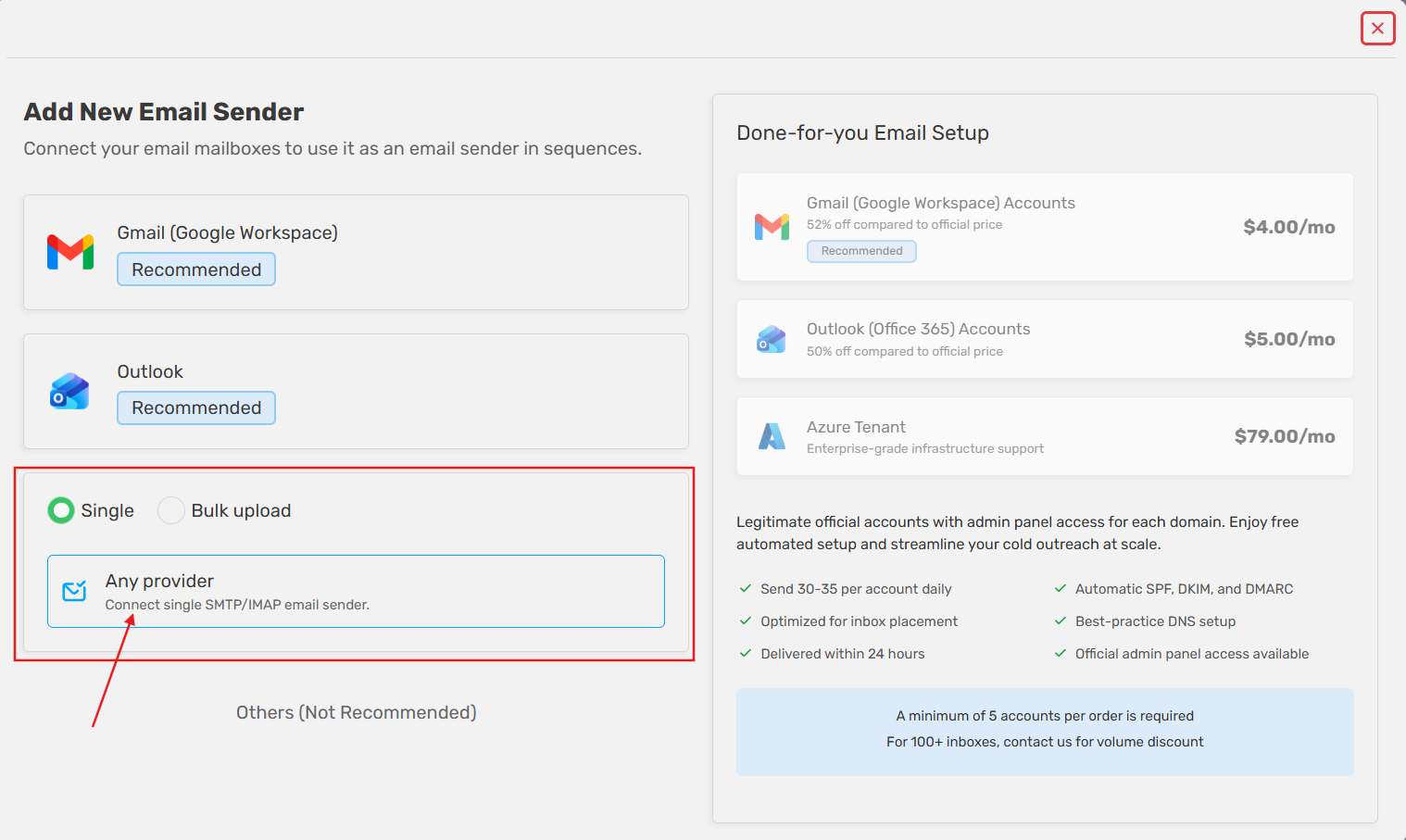
Click Outreach → Email Senders
Click the Add Sender button
Select Single → Any Provider
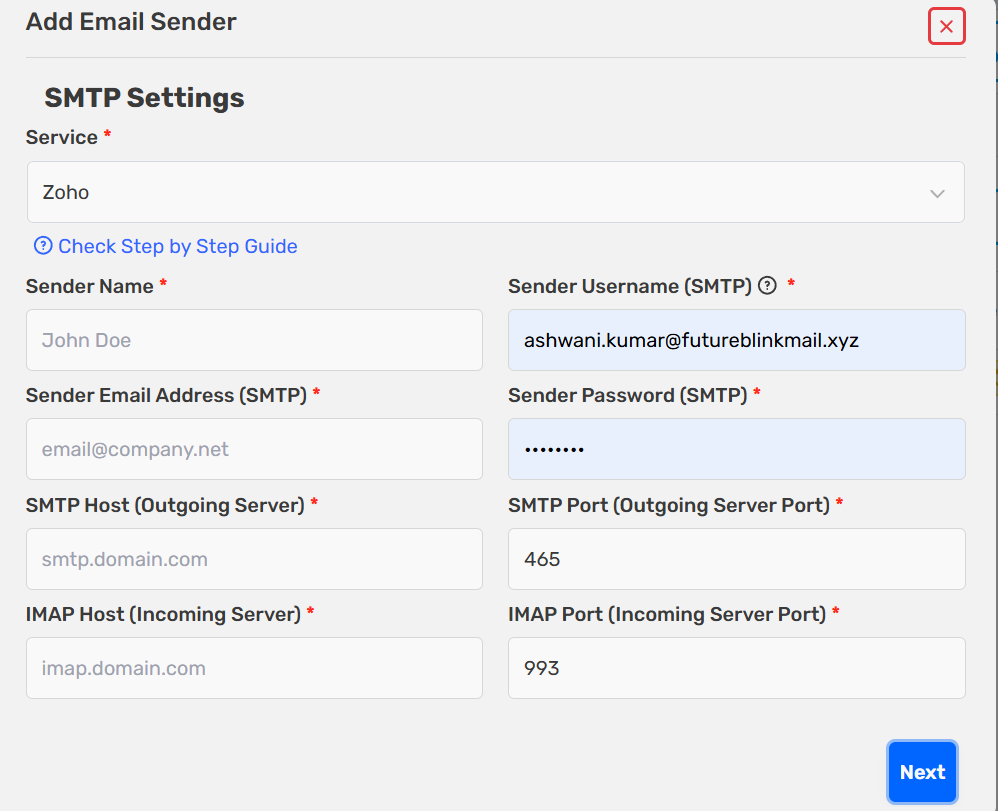
- Enter the following details:
| Field | Value |
|---|---|
| Sender Name | Your name as displayed to recipients |
| Sender Username | Your Zoho Mail email address |
| Sender Email Address | Your Zoho Mail email address |
| Sender Password | App Password created in Step 2 |
| SMTP Host | Out-Host from IMAP Server Configuration |
| SMTP Port | Out-Port from IMAP Server Configuration |
| IMAP Host | In-Host from IMAP Server Configuration |
| IMAP Port | In-Port from IMAP Server Configuration |
- Click Next to connect your email
Your Zoho Mail account is now connected and ready to send emails.
Next Steps (Optional)
Complete these optional steps to maximize email deliverability:
Enable email sender in Unified Inbox
Launch Your Email Sequence
Your Zoho Mail email is ready for regular business and transactional email. For cold email, use a provider better suited for it, such as Google Workspace or Outlook, to avoid spam placement and Zoho blocking your mailbox and domain.
Create a sequence using one of these methods:
Troubleshooting
Common Errors
Connection failed
Ensure Multi-Factor Authentication is enabled in Zoho
Double-check SMTP/IMAP Host and Port from IMAP Server Configuration
Frequently Asked Questions
Q: What are Zoho Mail sending limits? A: Check the Email Limits on Zoho Knowledge Base for your plan.
Q: Can I use the same app password for multiple accounts? A: No. Generate a unique app password for each email account you connect.
Q: What if I lose my app password? A: Generate a new app password in Zoho Security settings. The old one cannot be recovered.