Note: Do not order DFY on your main website domain.
What Are Gmail Mailboxes?
Gmail Mailboxes are Google Workspace email accounts you connect to SalesBlink to send and receive outreach emails. They use Google's trusted infrastructure to maintain high deliverability and keep your emails out of spam folders.
Prerequisites
- Valid credit card for payment
- Minimum 1 mailboxes per order Pricing: Domains are Priced per year and mail boxes are priced per month.
Quick Start: You can directly go to this link to start placing your order: https://run.salesblink.io/outreach/email-senders?addsenders=true
Why Use a New Burner Domain?
Using a dedicated burner domain for cold email outreach is critical for protecting your primary business domain's email reputation. Outreach activity can affect domain reputation, and if a domain gets flagged or blacklisted, your main domain remains unaffected. This separation ensures your primary website, branded emails, and transactional messages continue to land in inboxes while your outreach operates independently. A fresh burner domain also starts with a clean reputation, giving you the best chance for high deliverability from day one.
Important Notes
- As we advise, you never use your main domain for cold email. Hence, either you should use a burner domain that you have purchased yourself or get it directly from us.
- We recommend using .com domains only, as it builds trust.
- These mailboxes currently are only available for use with SalesBlink for cold email outreach.
- You do not get webmail or Google Admin access by default. You can see all replies and activity in SalesBlink, except warm-up activity, which is hidden in the SalesBlink inbox by default. If you need to log in to a mailbox, an app password is available on request through support.
- DFY mailboxes and domains are non-refundable. See Billing, Plans, Credits and Refunds.
Before you order
Most DFY problems start before checkout. Check these points first, especially if you are connecting a domain you already own.
- Do not use your main or live website domain. Pointing its nameservers to SalesBlink affects your website and your regular email. Use a separate burner domain.
- Your registrar must allow nameserver changes. Connecting an existing domain requires you to point its nameservers to SalesBlink. Cloudflare Registrar does not allow this. If your domain is registered with Cloudflare, your options are:
- Buy a new burner domain from SalesBlink in the same order flow.
- Use a domain registered with another registrar that allows nameserver changes.
- If you already placed the order, ask support to cancel it for account credit.
- Never paste a Cloudflare Global API Key in chat. If support needs access to your Cloudflare DNS, create a scoped API token limited to the zone (Edit zone DNS, plus Page Rules or Dynamic Redirects if a redirect is needed) and share only that token.
- Remove extra nameservers. Keep only the nameservers SalesBlink gives you. Delete any others, for example
*.nsone.netentries. - Remove the old setup. Cancel any old Google Workspace subscription on the domain and delete old DNS records before you order.
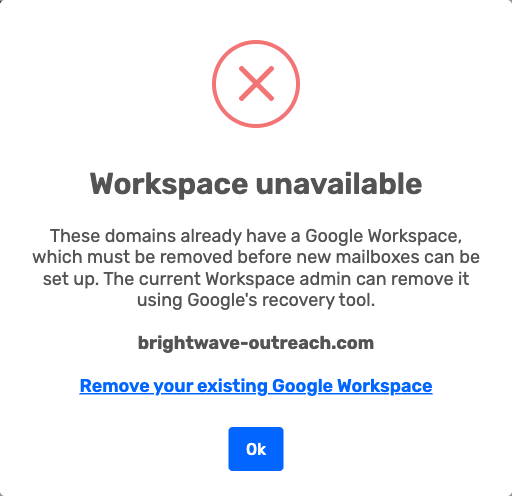
- Workspace unavailable: If this popup appears when you connect an existing domain, the domain already has a Google Workspace. The current Workspace admin must remove it before new mailboxes can be set up. Click the Remove your existing Google Workspace link in the popup to open Google's domain-in-use recovery tool, release the domain, then try again.
Method 1: Buy Gmail Mailboxes with a New Domain
Step 1: Navigate to Email Senders
- Click Outreach in the Left Sidebar.
- Click Email Senders.
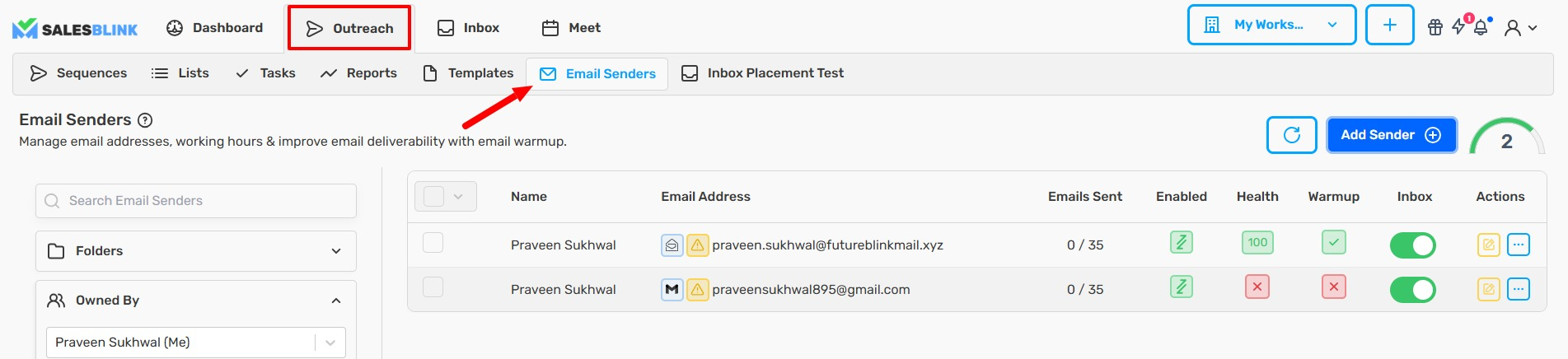
Step 2: Add a New Sender
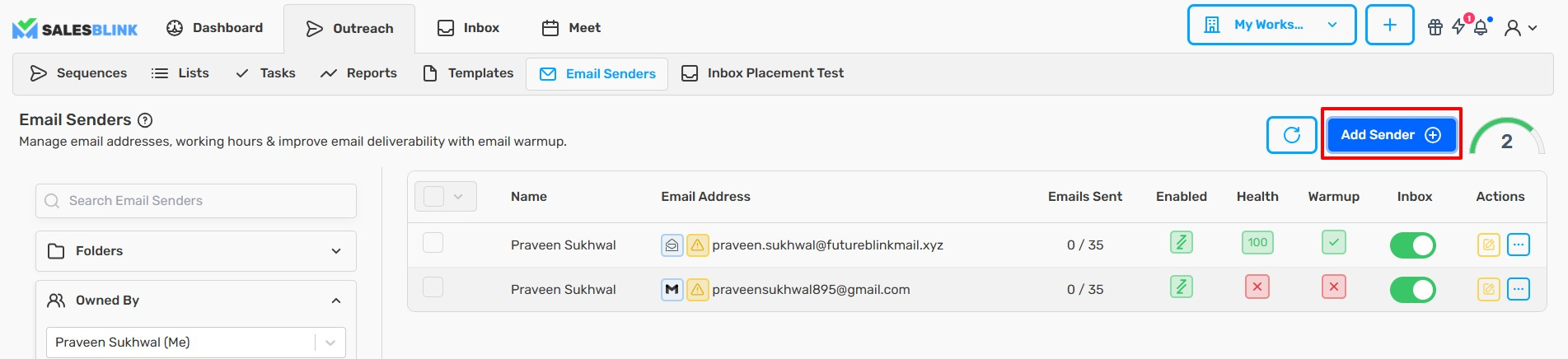
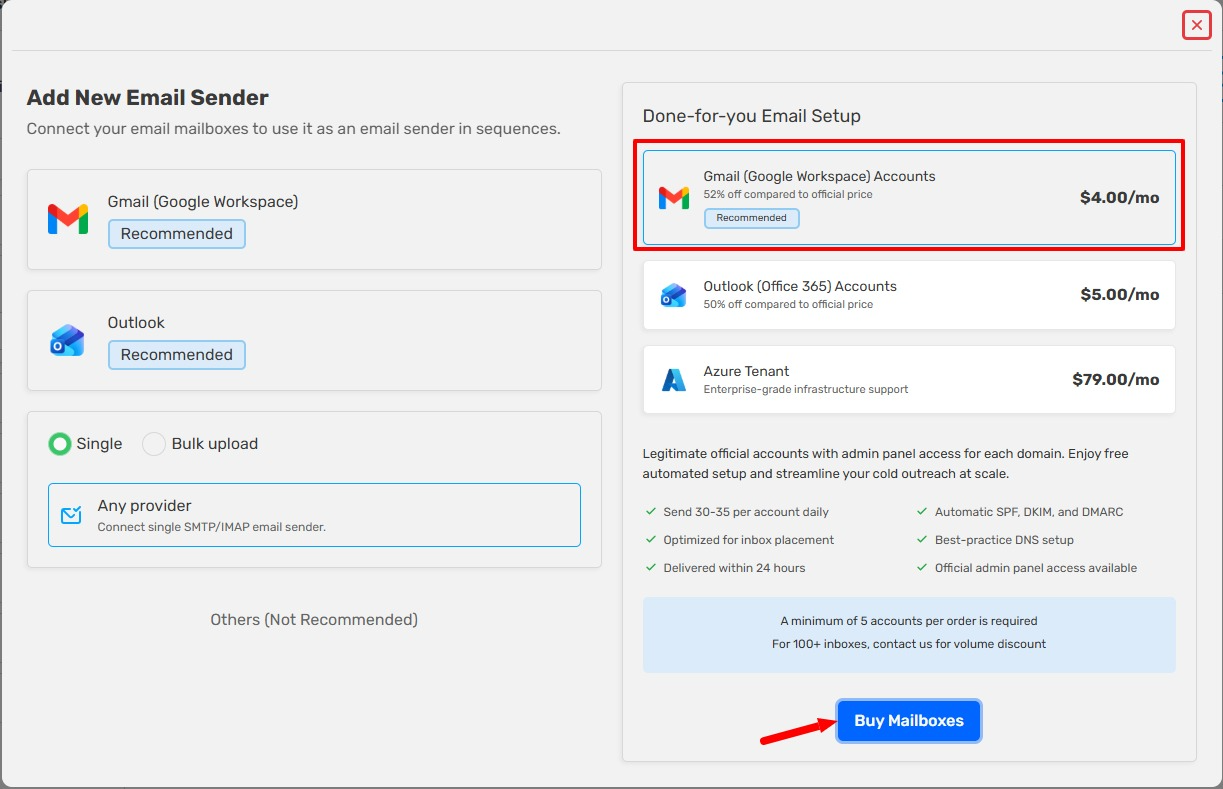
Step 3: Select Gmail and Buy Mailboxes
- In the pop-up, select Gmail (Google Workspace) Accounts.
- Click Buy Mailboxes.
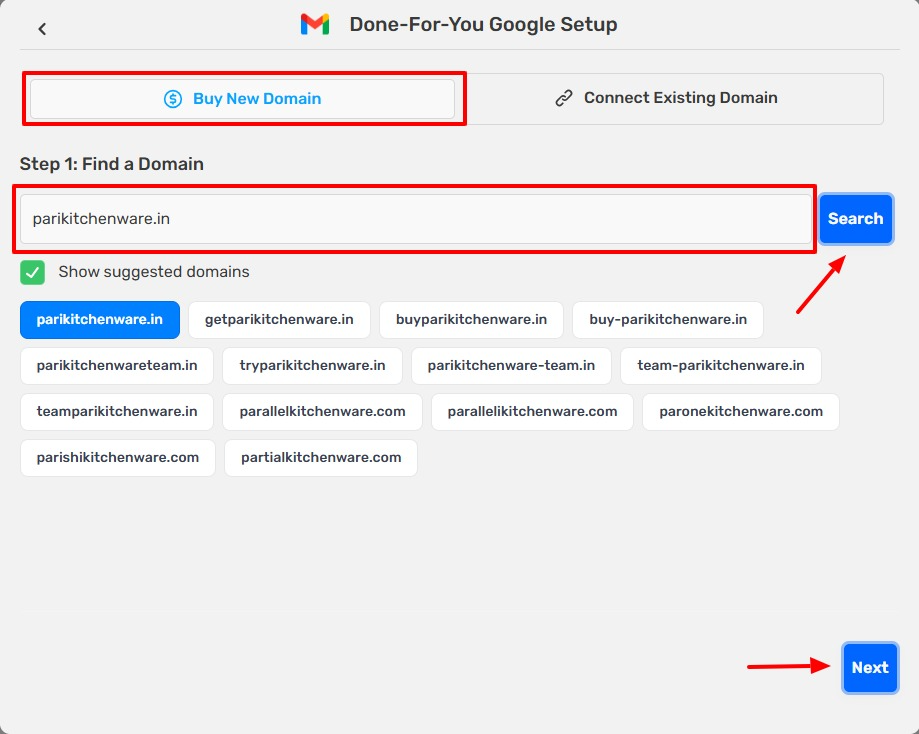
Step 4: Choose Buy New Domain
- Click Buy New Domain.
- Enter your desired domain name.
- Click Search.
- Select an available domain from the results. (Optional: Select multiple domains or use a suggested domain.)
- Click Next.
Step 5: Generate Usernames
- Enter your First Name and Last Name.
- Click Generate Username. (You can edit the generated username if needed.)
- Click Next.
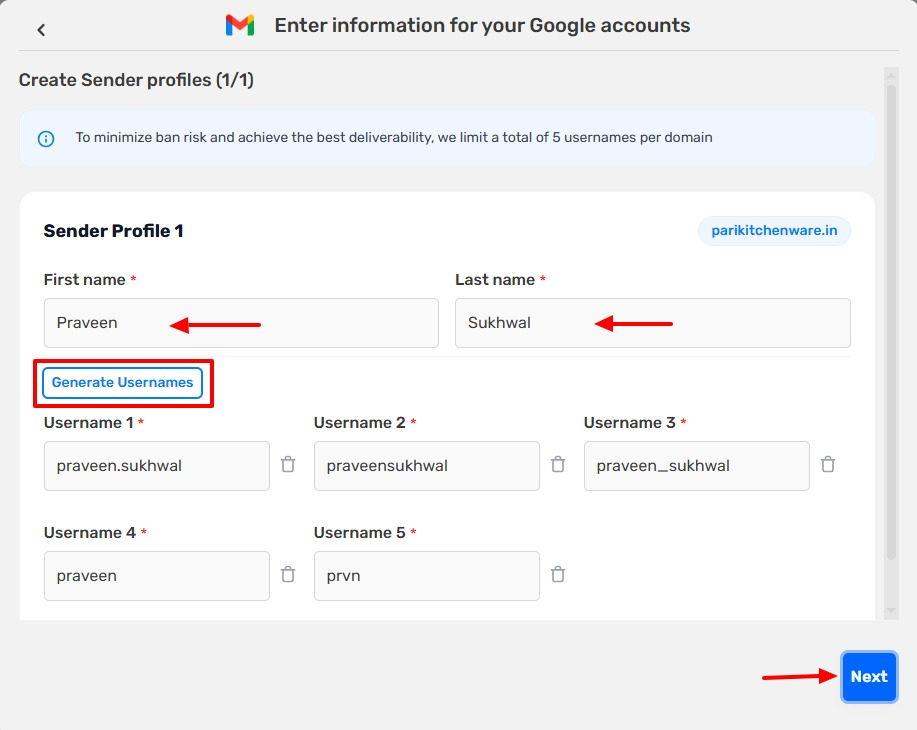
Note: You must purchase a minimum of 1 mailbox.
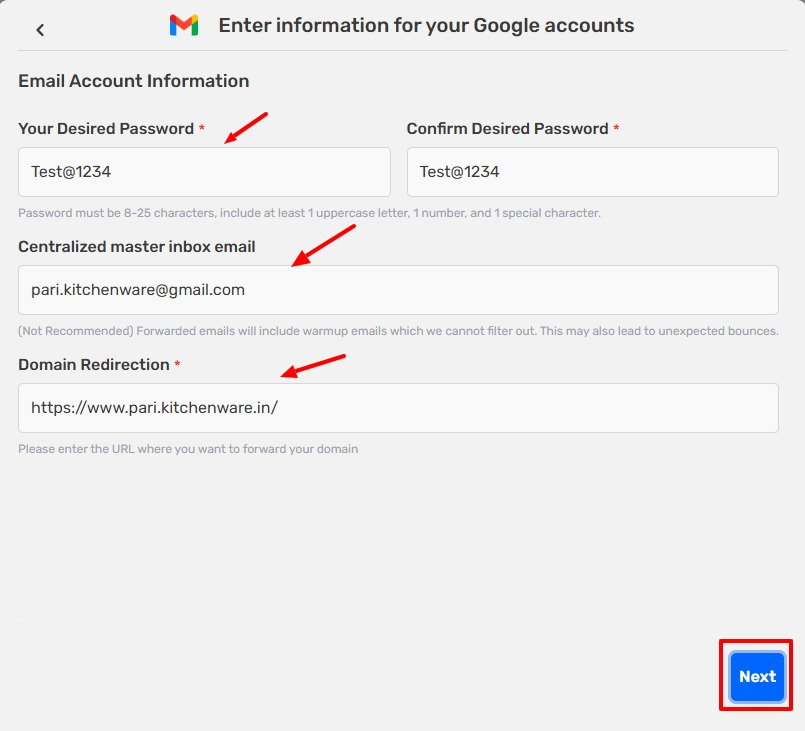
Step 6: Set Passwords and Master Inbox
- Enter your desired Password.
- Confirm the password.
- Enter your Centralized Master Inbox Email (for receiving all replies).
- Enter your Domain Redirect URL.
- Click Next.
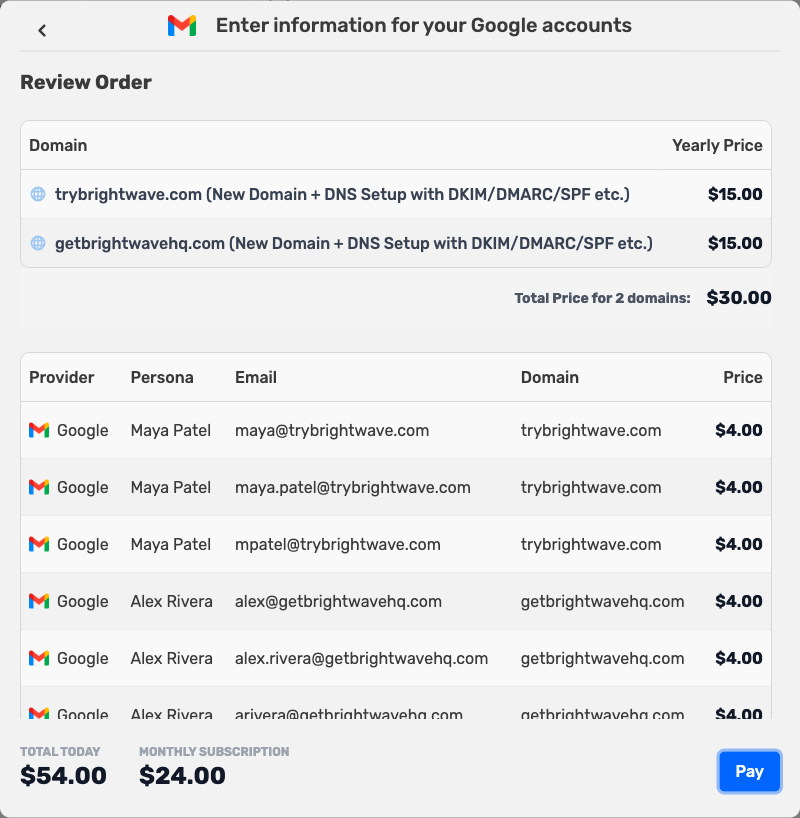
Step 7: Review and Pay
- Review your order details. See Understanding your order total.
- Click Pay (if you already had card details saved in SalesBlink then payment will be completed automatically).
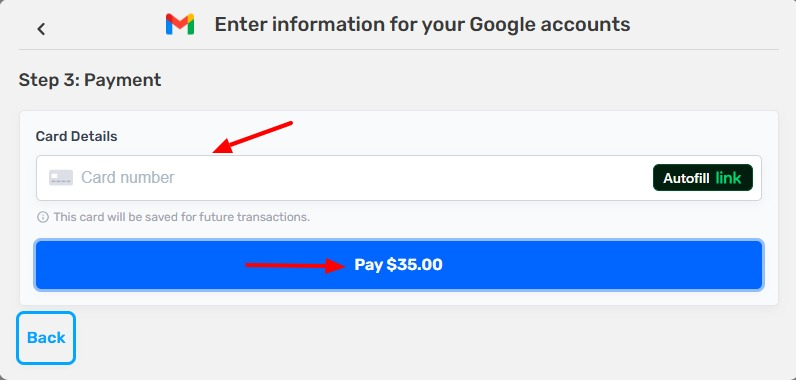
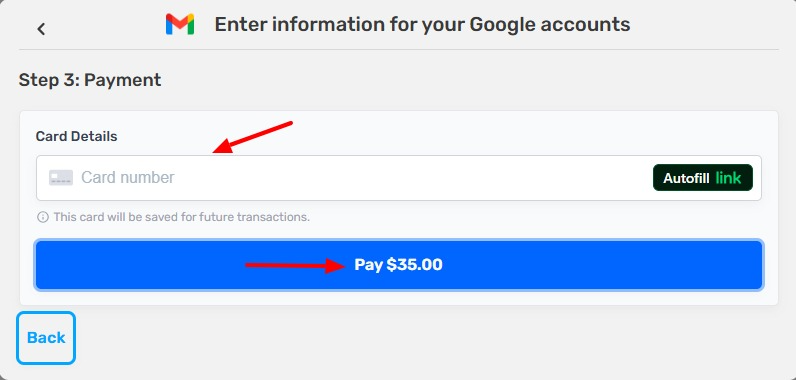
Step 8: Enter Card Details
- If you do not have card details stored in SalesBlink then a modal for adding the card details will appear, enter your Card details there.
- Click Pay to complete the purchase.
Your domain and Gmail mailboxes are generally ready within 3 hours, but it can take up to 24-48 hours due to DNS propagation.
Method 2: Buy Gmail Mailboxes with an Existing Domain
Step 1: Navigate to Email Senders
- Click Outreach in the Left Sidebar.
- Click Email Senders.
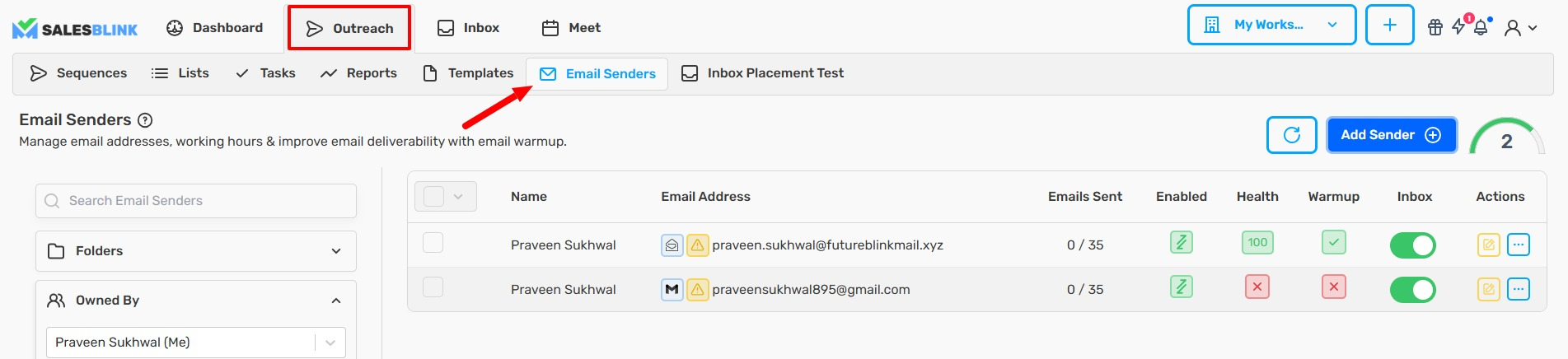
Step 2: Add a New Sender
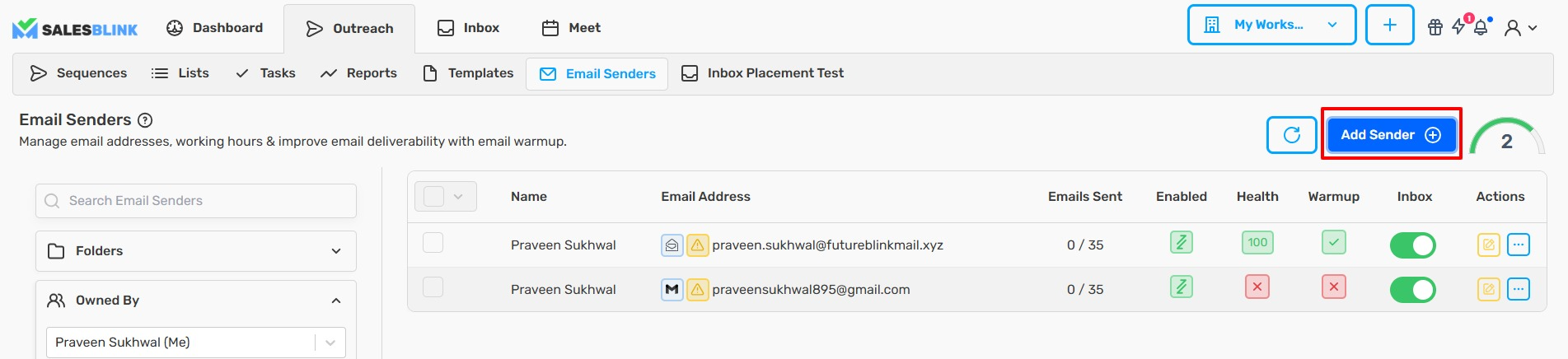
Step 3: Select Gmail and Buy Mailboxes
- In the pop-up, select Gmail (Google Workspace) Accounts.
- Click Buy Mailboxes.
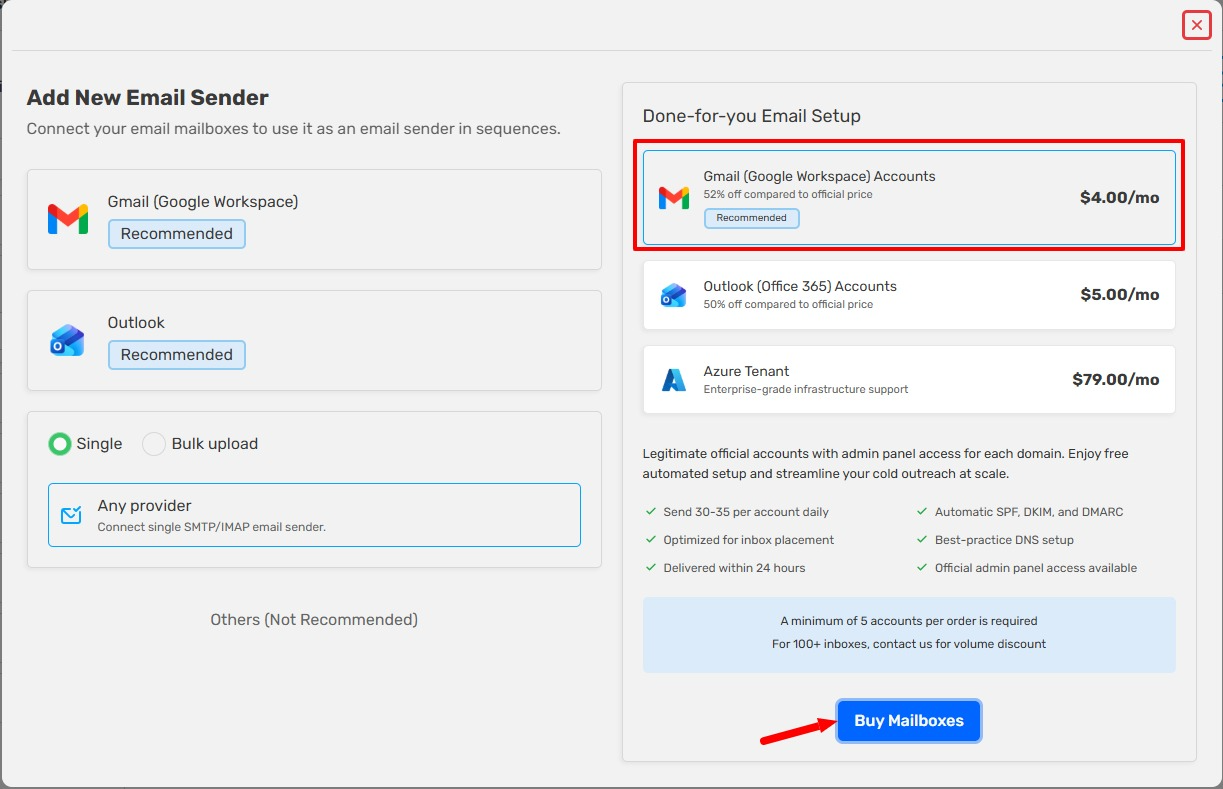
Step 4: Connect Existing Domain
- Click Connect Existing Domain.
- Enter your existing Domain Name. (You can add multiple domains.)
- Click Next.
If a Workspace unavailable popup appears, the domain already has a Google Workspace. Use the Remove your existing Google Workspace link in the popup to release the domain, then try again.
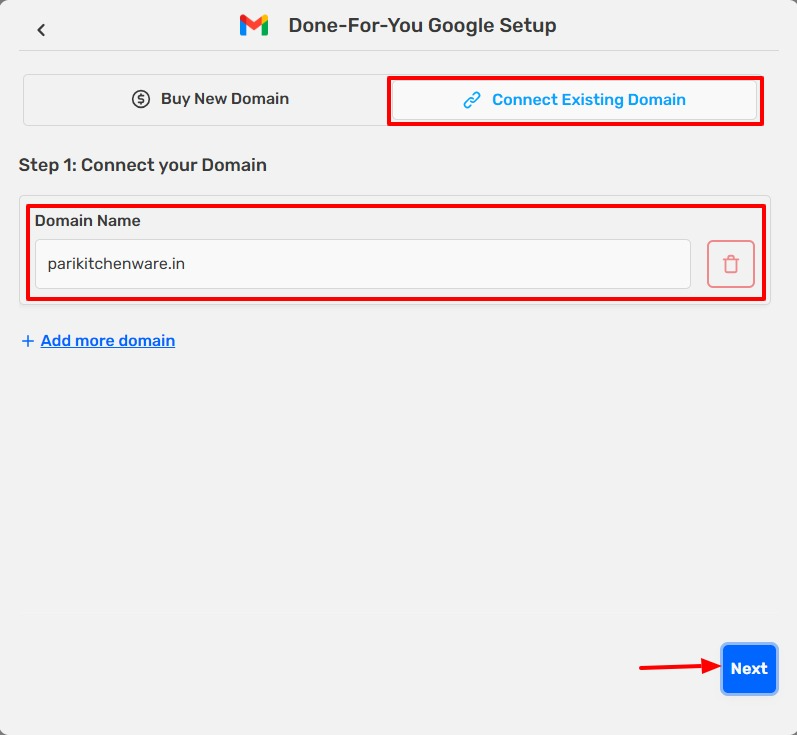
Step 5: Generate Usernames
- Enter your First Name and Last Name.
- Click Generate Username. (You can edit the generated username if needed.)
- Click Next.
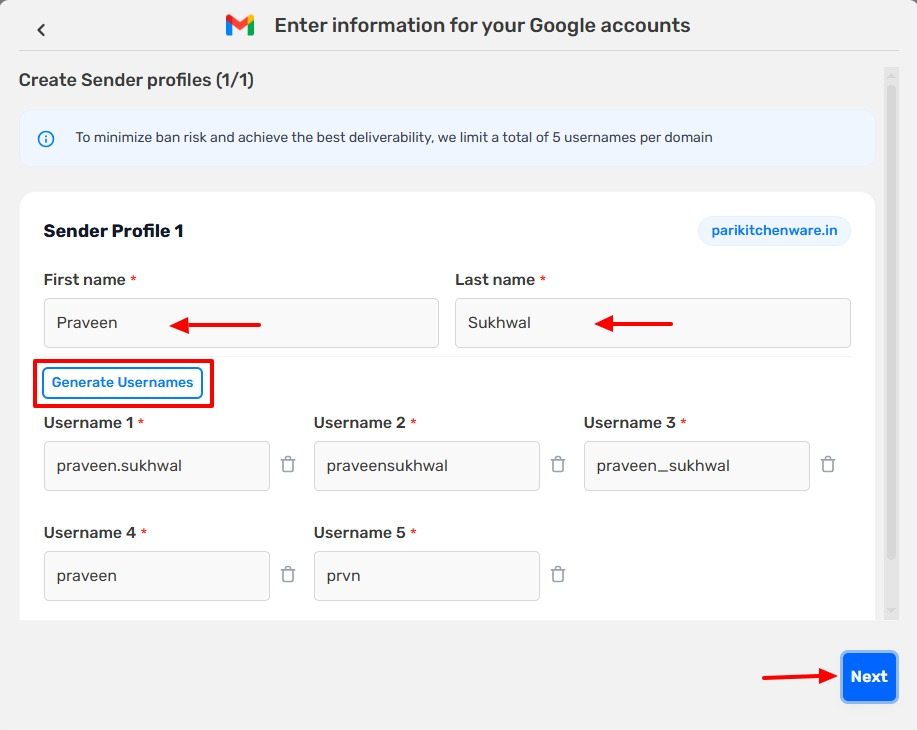
Note: You must purchase a minimum of 1 mailbox.
Step 6: Set Passwords and Master Inbox
- Enter your desired Password.
- Confirm the password.
- Enter your Centralized Master Inbox Email (for receiving all replies).
- Enter your Domain Redirect URL.
- Click Next.
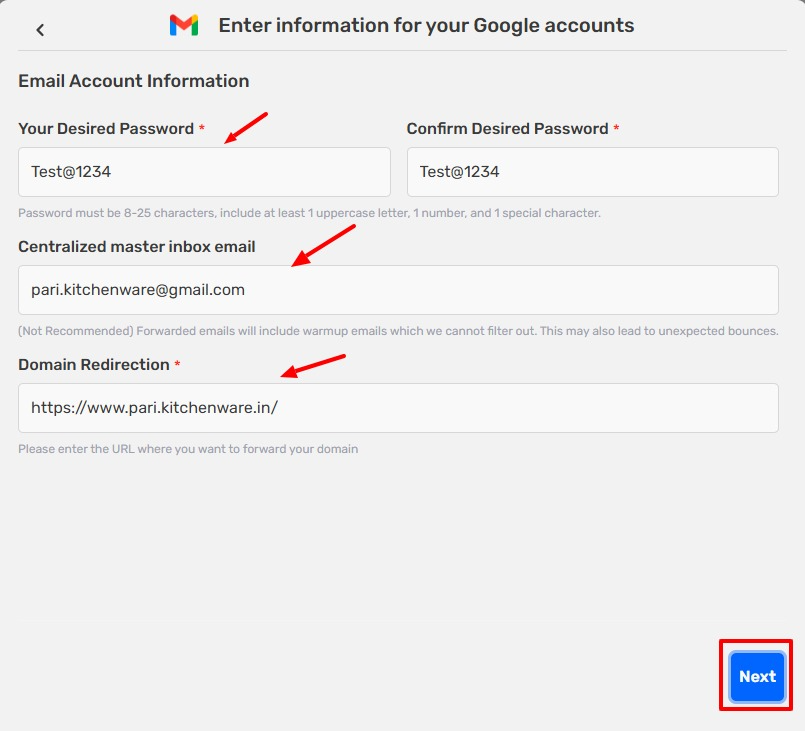
Step 7: Review and Pay
- Review your order details. See Understanding your order total.
- Click Pay (if you already had card details saved in SalesBlink then payment will be completed automatically).
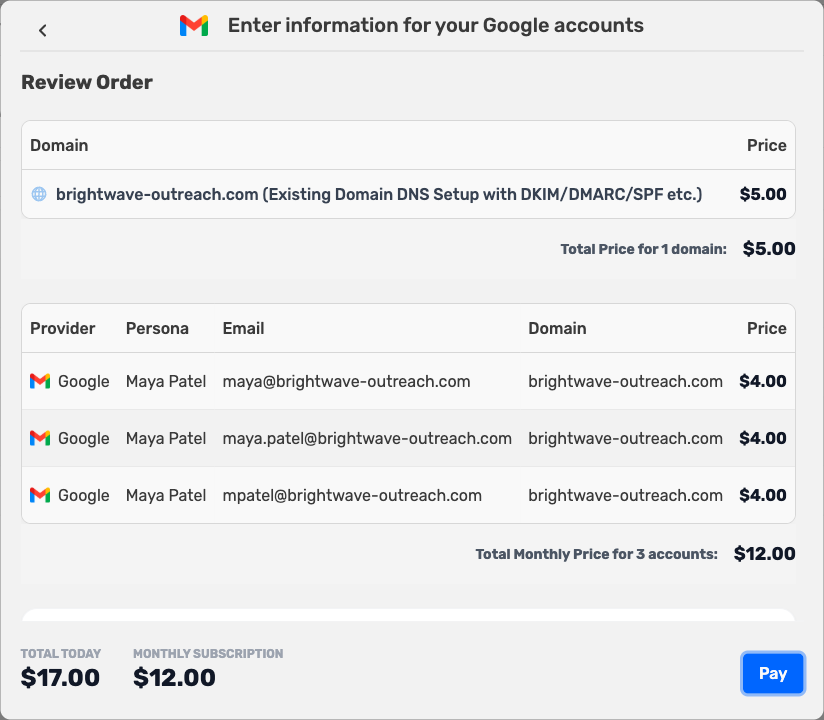
Step 8: Enter Card Details
- If you do not have card details stored in SalesBlink then a modal for adding the card details will appear, enter your Card details there.
- Click Pay to complete the purchase.
Your Gmail mailboxes are generally ready within 3 hours, but it can take up to 24-48 hours due to DNS propagation.
Understanding your order total
The Review Order page shows two totals:
- Total Today: What you pay now. This is the domain cost ($15 per year for each new domain, or a one-time $5 for each existing domain you connect) plus the first month of mailboxes.
- Monthly Subscription: The recurring mailbox charge, at $4 per mailbox per month.
Order confirmation
After payment, the Order Successful! screen confirms your order. What you see next depends on your domain:
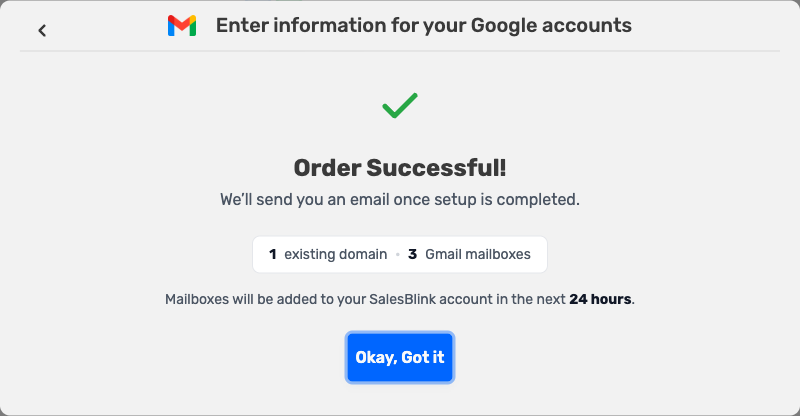
- No nameserver change needed: Your mailboxes are added to your SalesBlink account within 24 hours. Click Okay, Got it.
- Nameserver change needed: An Action Required: Update Nameservers box lists the nameservers for each domain. Update them at your domain registrar, tick I have updated the nameservers, then click Complete Order. Your order completes within 24 hours of the update.
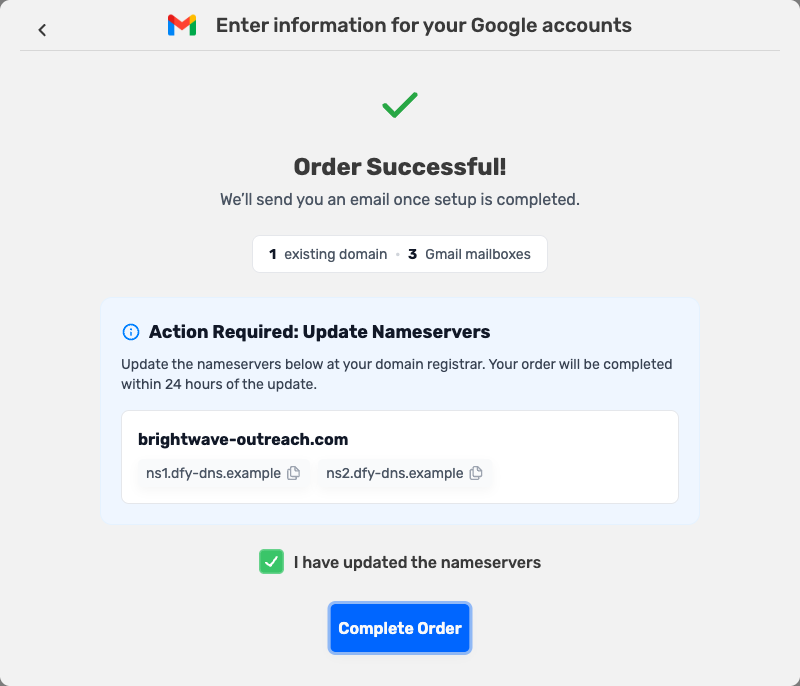
Both buttons open Account → Billing → Subscriptions, where you can see your order.
After you order
- Update your nameservers. If you connected an existing domain, the nameservers are in your order email. If you can't find it, ask support to resend it.
- Wait for provisioning. Mailboxes are generally ready within 3 hours. For an existing domain, setup can take up to 24 hours after your nameserver change propagates. You receive a confirmation email when the mailboxes are ready.
- Expect early Domain Setup Report warnings. Warnings in the Domain Setup Report for the first 12–48 hours are normal while DNS propagates.
- No email senders found: If you see this on Outreach → Email Senders after receiving the confirmation email, check that you are in the correct workspace. DFY mailboxes are added to the workspace you ordered from. See Workspaces.
- Never change the nameservers back. Changing them breaks DKIM and email receiving, and cancels the subscription.
- Avoid renaming mailbox addresses. Changing a mailbox's username makes it a new mailbox, and its warmup starts over.
What you get
- Mailboxes for SalesBlink only. You do not get webmail, Google Admin, Google Drive, or DNS access. DFY mailboxes can't be moved to other cold email tools.
- App password on request. If you need to log in to a mailbox, ask support for an app password.
- Forwarding and redirects through support. Contact support to change email forwarding or your domain redirect.
- Mailbox names from your profile. Mailboxes use the sender profile (first and last name) you entered during the order. To change the display name, send support the new first and last name. Changes take 24–48 hours.
- Subscription management. You can add or remove mailboxes and domains from Account → Billing → Subscriptions. See How to Manage Your DFY Mailbox Subscriptions.
What SalesBlink Sets Up Automatically
After purchase, SalesBlink configures everything automatically. No manual DNS or server setup is required.
| Feature | Configuration |
|---|---|
| Daily Sending Limit | 30–35 emails per mailbox per day |
| Inbox Optimization | Configured for maximum inbox placement |
| Authentication | SPF, DKIM, and DMARC records are applied automatically |
| DNS Setup | Best-practice DNS configuration applied |
| Domain Redirection | Stealth domain redirection enabled |
| Delivery Time | Mailboxes generally ready within 3 hours; up to 24-48 hours due to DNS propagation |
Understanding DNS Propagation
DNS propagation is the time it takes for updates to your domain's DNS records (such as SPF, DKIM, DMARC, and MX records) to spread across the internet. When SalesBlink configures your mailbox, these records are published to global DNS servers. Internet service providers and email servers around the world periodically refresh their cached copies of these records, and until they do, they may not see the latest configuration.
Because of this caching, even though we set up everything immediately, some servers may not recognize the new records right away. This is a normal part of how the internet works and is outside of SalesBlink's direct control. Most propagation completes within a few hours, but in rare cases it can take up to 24-48 hours.
Troubleshooting
Nameserver Conflicts (Existing Website on Domain)
Do not use your main business domain for cold email. For cold email outreach, always use a burner domain or purchase a domain directly through SalesBlink.
If you already have a website on your domain:
- You can still buy DFY mailboxes, but you must point your domain's nameservers to SalesBlink
- This will break your existing website unless you set up a redirect
- During purchase, enter your main website URL in the Domain Redirect URL field. SalesBlink will redirect your domain to your main site
Alternative: Buy a new burner domain specifically for cold email. This protects your main domain's reputation and avoids any website downtime.
Can I Use My Main Domain?
No. Using your main domain for cold email risks damaging its reputation. If the domain gets flagged or blacklisted, your primary website and transactional emails will be affected. Always use a separate burner domain for outreach.
Frequently Asked Questions
Why am I charged every 28 days if DFY mailboxes are a monthly subscription?
DFY mailboxes are a monthly subscription, but the payment is collected every 28 days. Google expects payment for mailboxes every 30 days and cancels mailboxes that aren't paid on time. Charging 2 days early leaves time to collect the payment before that happens. If SalesBlink doesn't receive the payment within 48 hours, the subscription is cancelled and the mailboxes are released.