Overview
Sync your HubSpot contacts with SalesBlink sequences and track email engagement in your CRM.
Prerequisites
- Active HubSpot account with appropriate permissions
- Admin access
Step-by-Step Instructions
1. Start the Integration
- Click your Profile icon in the top-right corner of the dashboard.
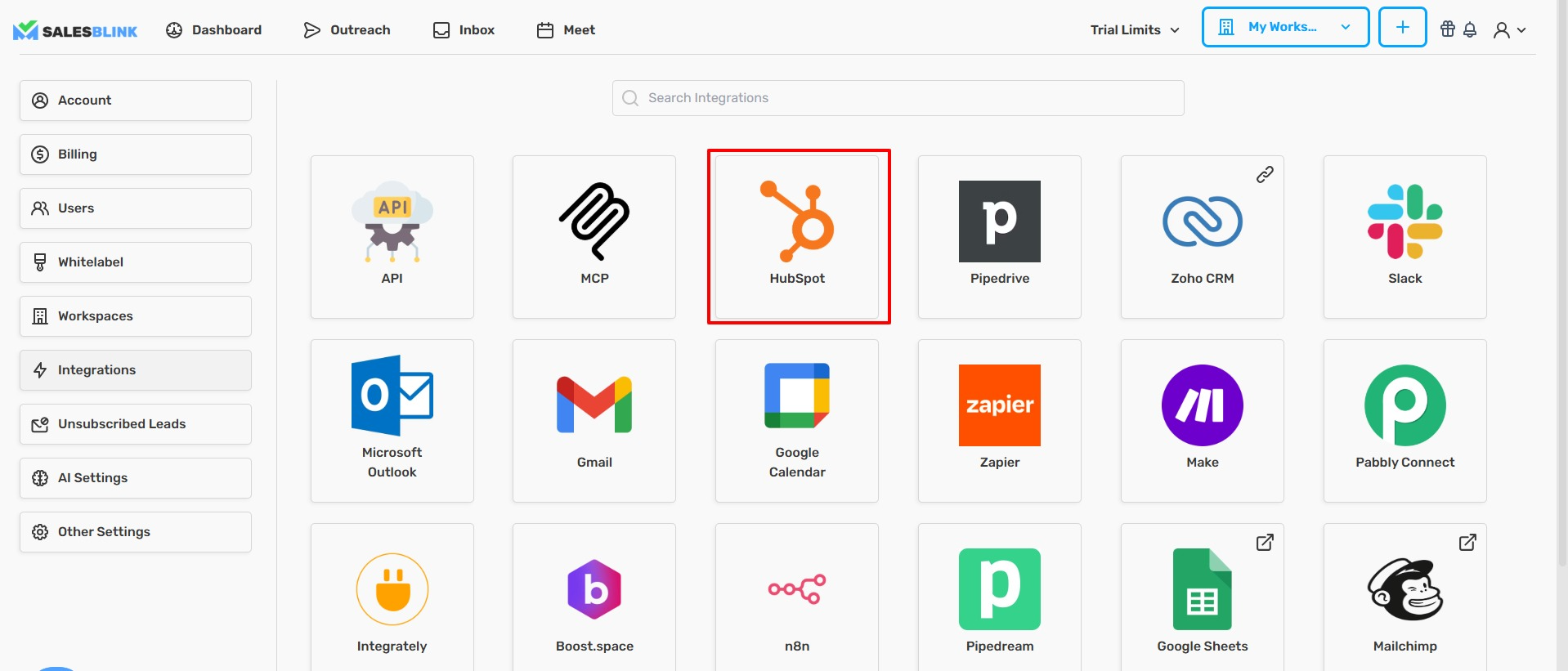
- Select Integrations from the dropdown menu.

- Click HubSpot on the Integrations page.
- Click Connect.
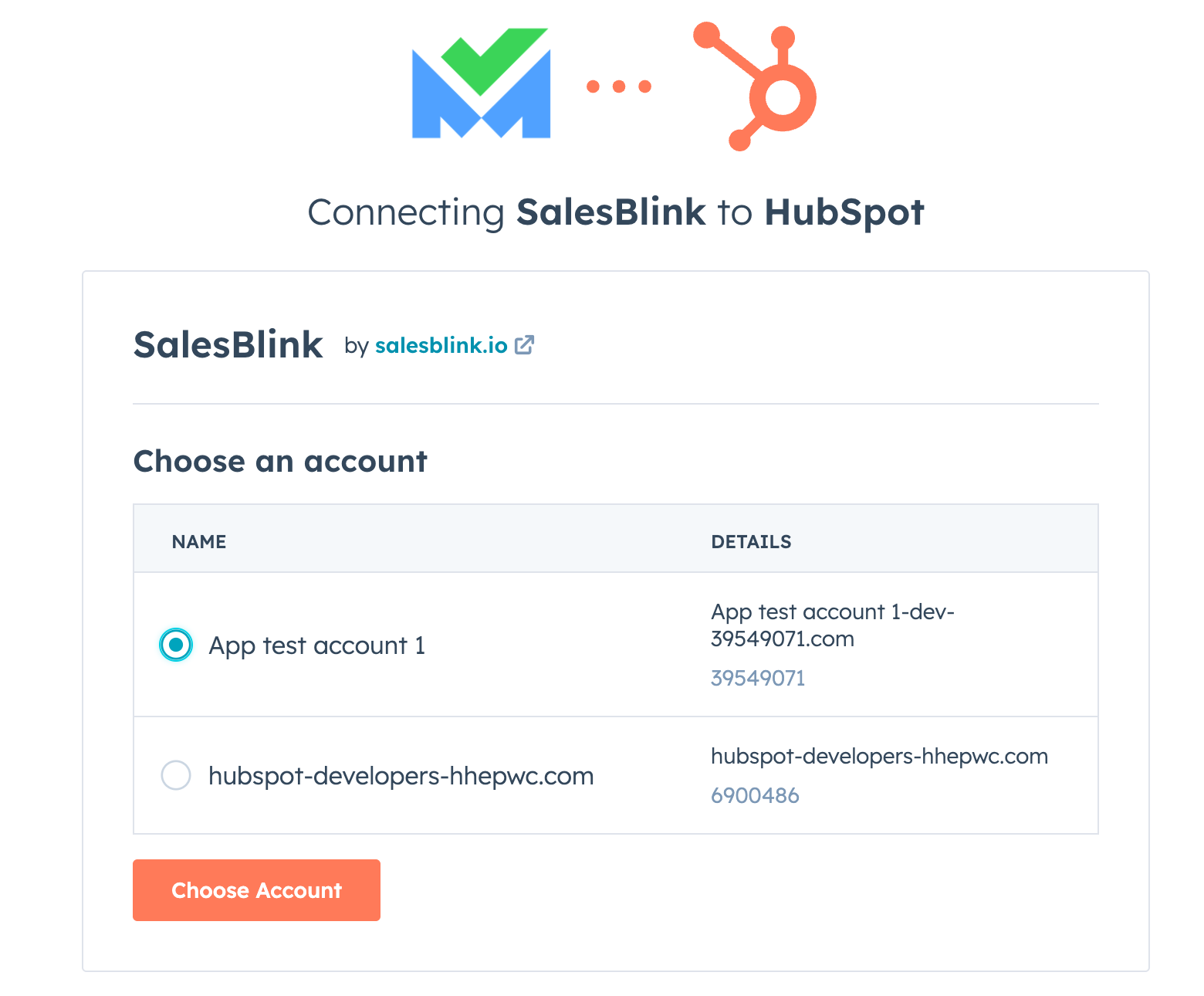
- Enter your HubSpot login credentials.
- Click Connect Account to grant SalesBlink access.
2. Map HubSpot Properties to SalesBlink
After authorization, you'll return to SalesBlink to map properties:
- Select a HubSpot Property from the dropdown.
- Select the corresponding SalesBlink Variable from the dropdown.
- Click the ➕ icon to add the mapping.
- Click Save.
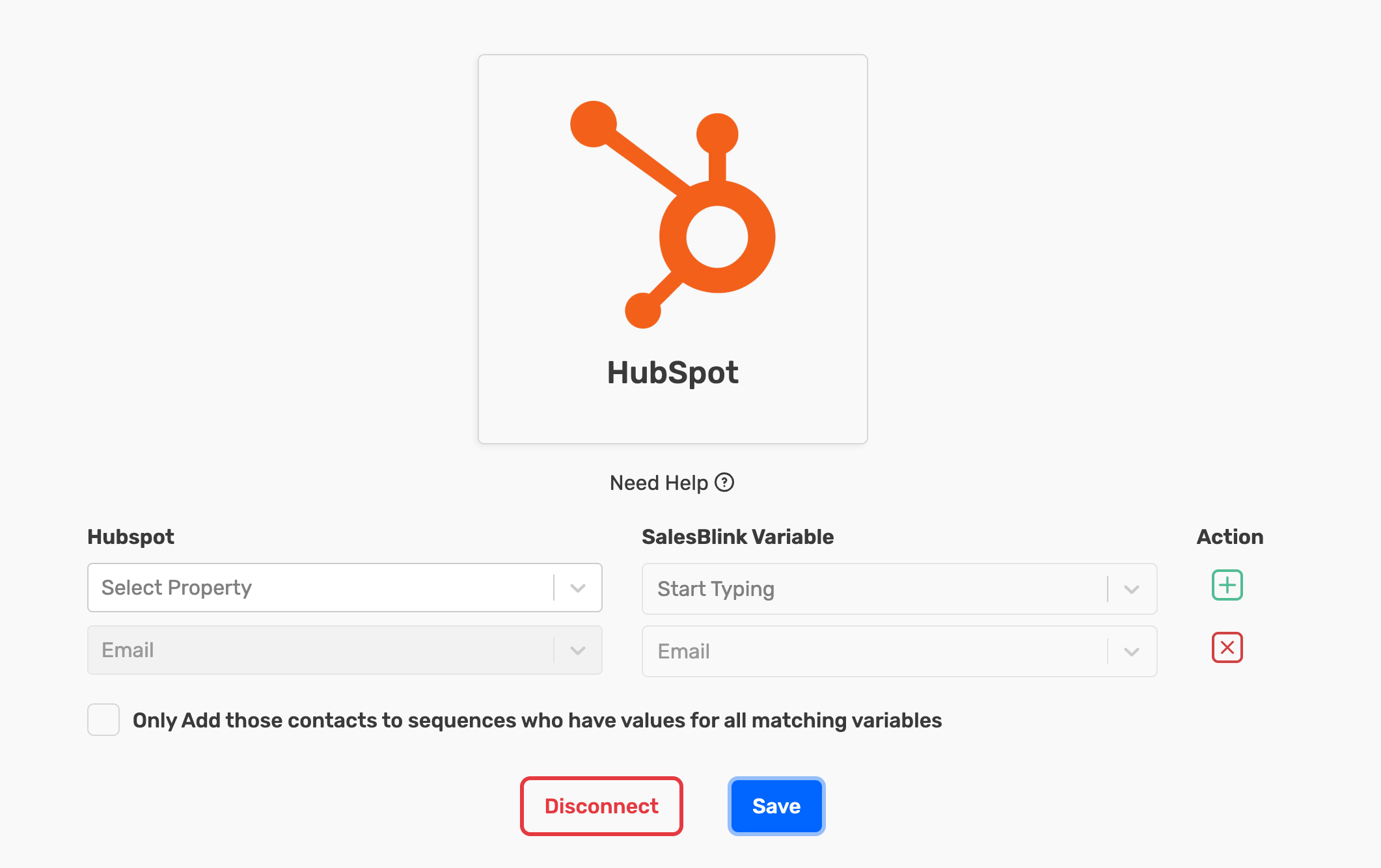
Required: You must map at least the Email property to send emails.
3. Use HubSpot Variables in Email Templates
- Navigate to Templates.
- Click Create New → Create Email Template.
- Click the CRM Variables dropdown in the subject line or body editor.
- Select your mapped HubSpot variable to insert it.

4. Create a Sequence for HubSpot Contacts
- Click Sequences → Create New.
- Select Lead from CRM Integration as the source.
- Choose your HubSpot Integration.
- Select a HubSpot View (contact list).
- Under Filter Leads, select one option:
- Leads added from now on (only new contacts)
- Leads added previously (existing contacts only)
- All Leads (both new and existing)
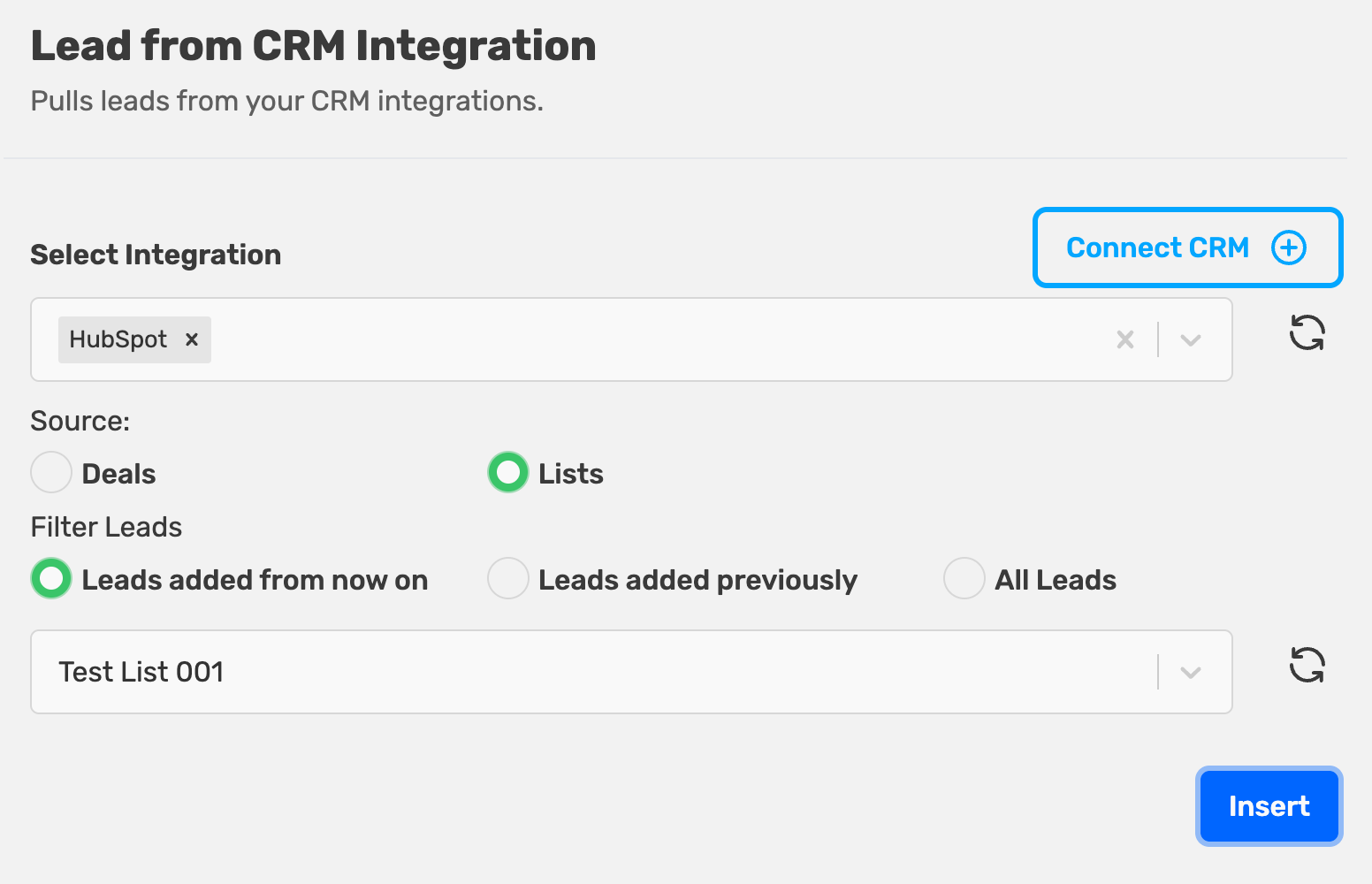
Important: If you select "Leads added from now on" or "All Leads," enable Make it Evergreen Sequence in your sequence settings. Otherwise, new HubSpot contacts won't automatically enter the sequence.
5. Launch Your Sequence
- Review your sequence settings and email content.
- Click Launch Sequence.
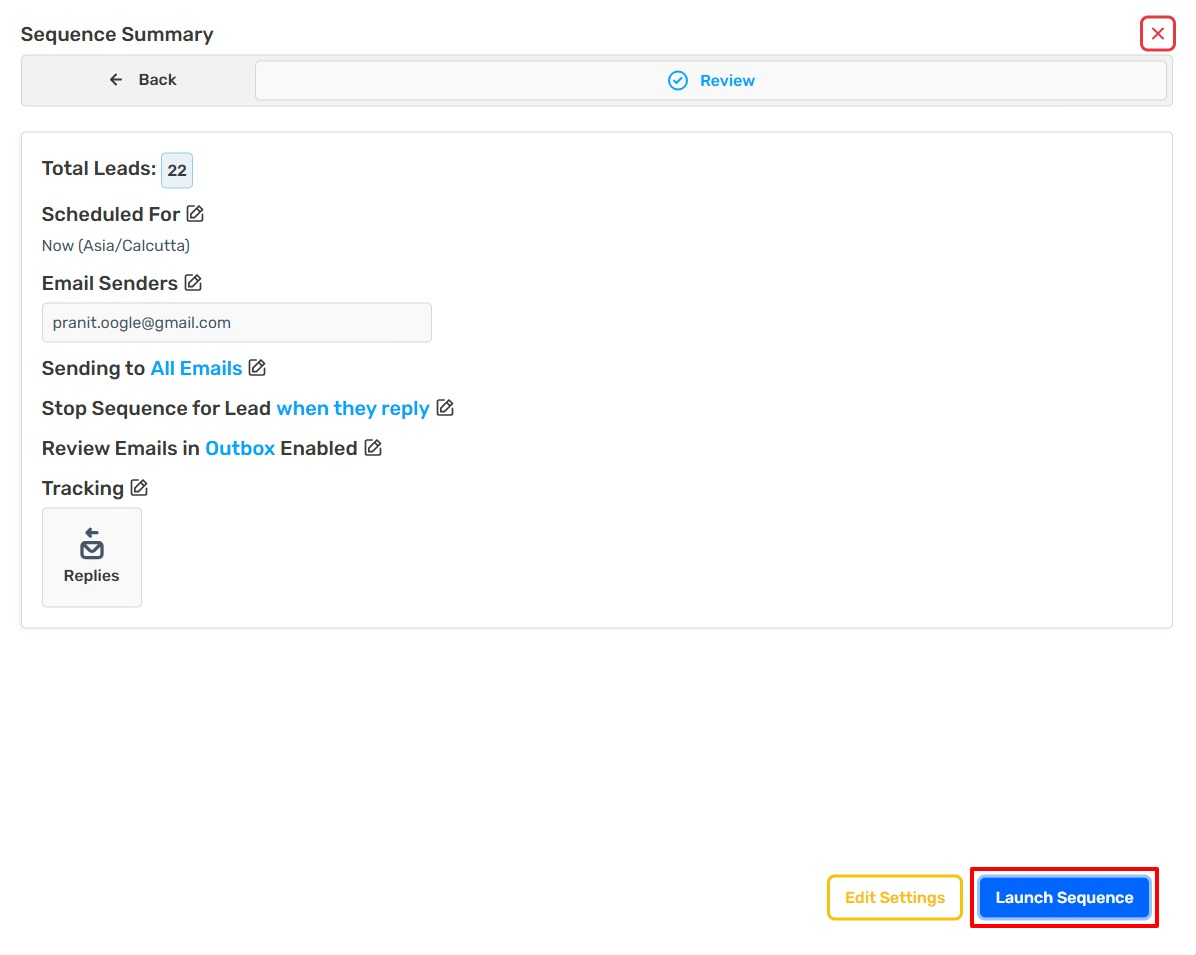
Your sequence will now send emails to HubSpot contacts, and sync opens, clicks, and replies to HubSpot.