Overview
Connect SalesBlink with Zoho CRM to sync your contacts and personalize email campaigns using CRM data.
Prerequisites
- Zoho CRM account
Connect Zoho CRM
- Click on your Profile icon and select My Profile
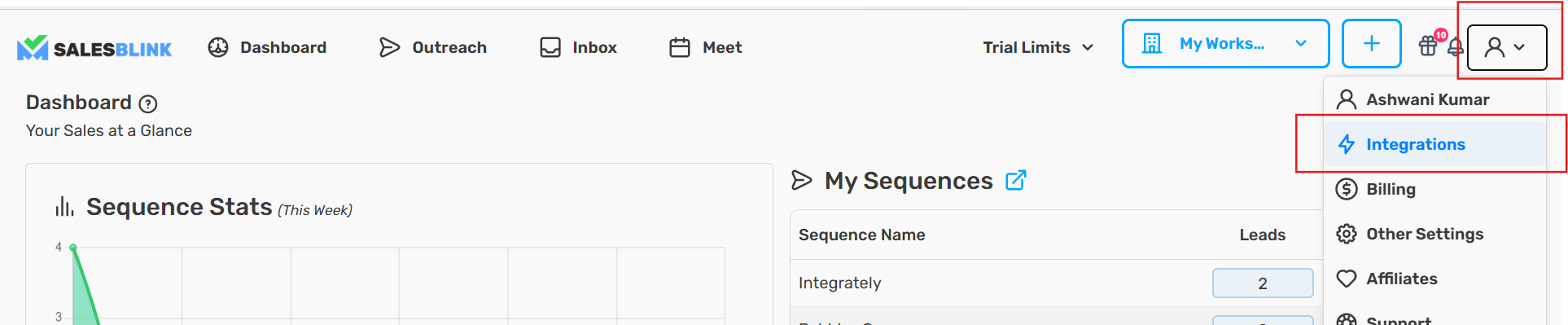
Navigate to Integrations
Find Zoho CRM and click Connect
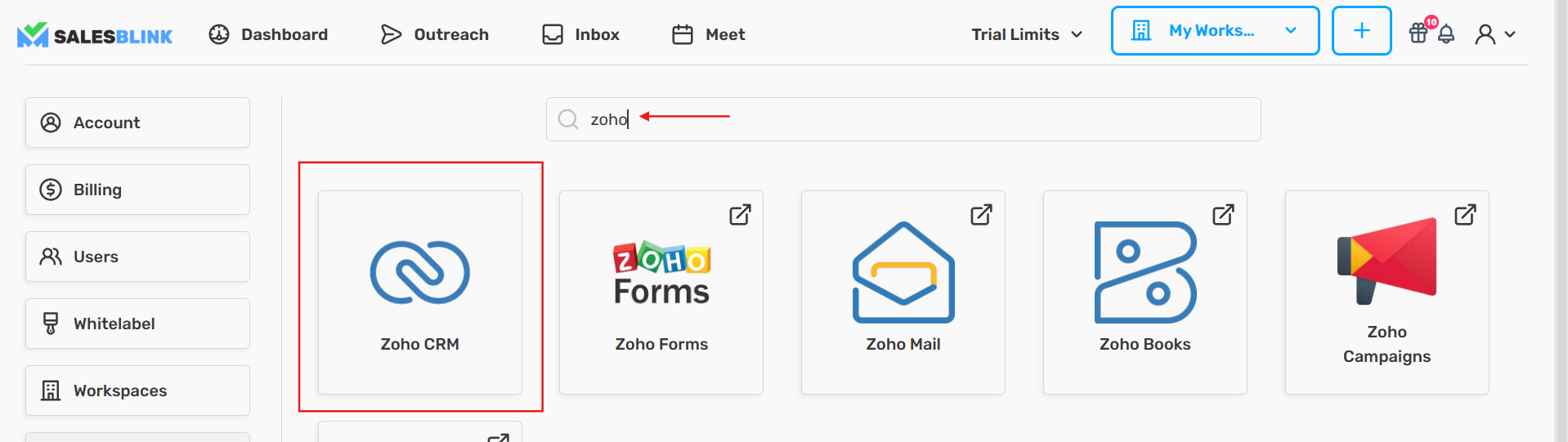
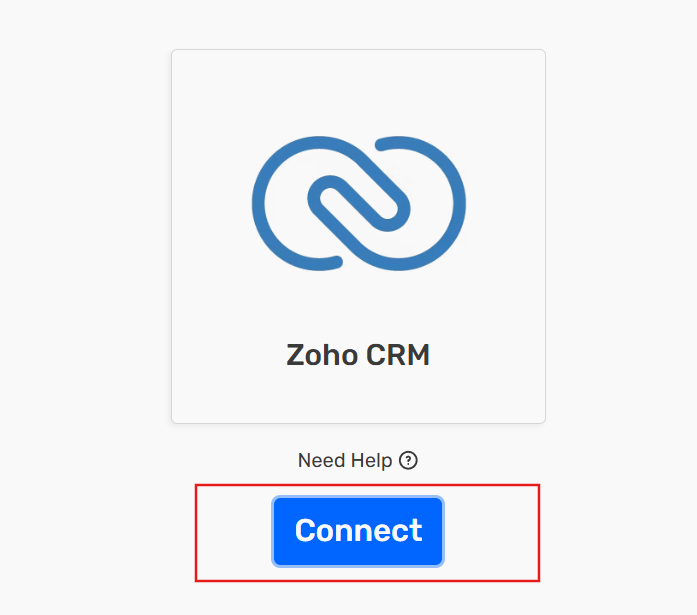
- Enter your Zoho CRM credentials and authorize the connection
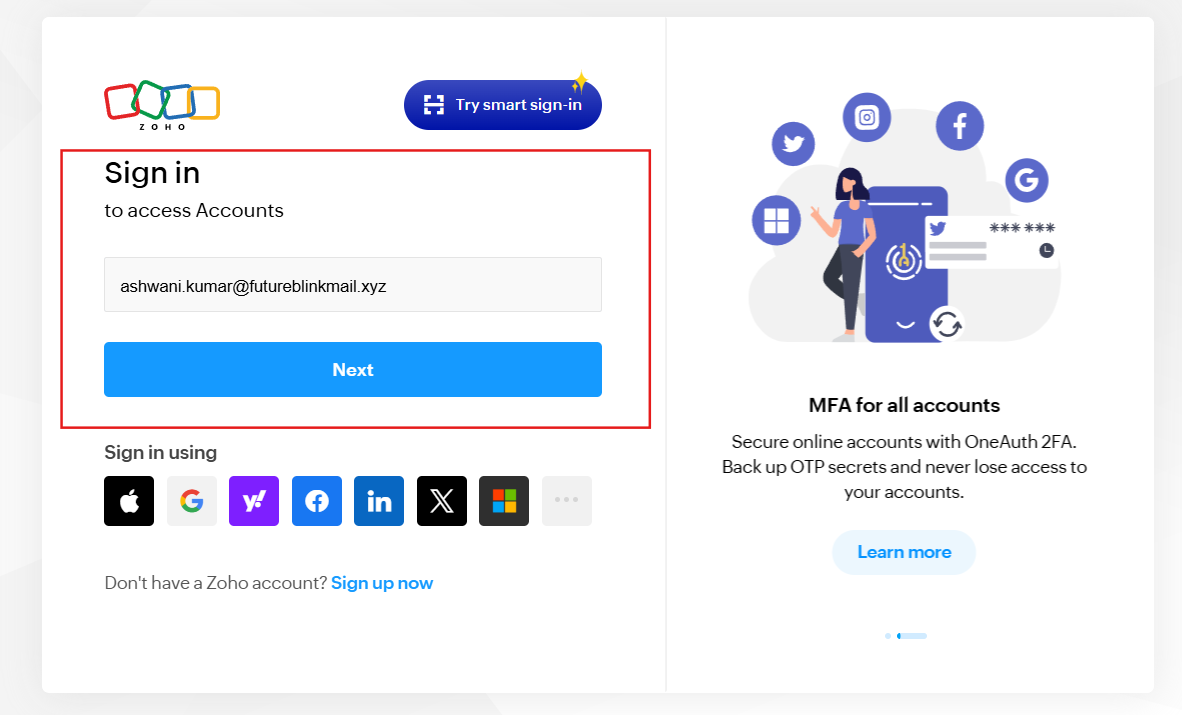
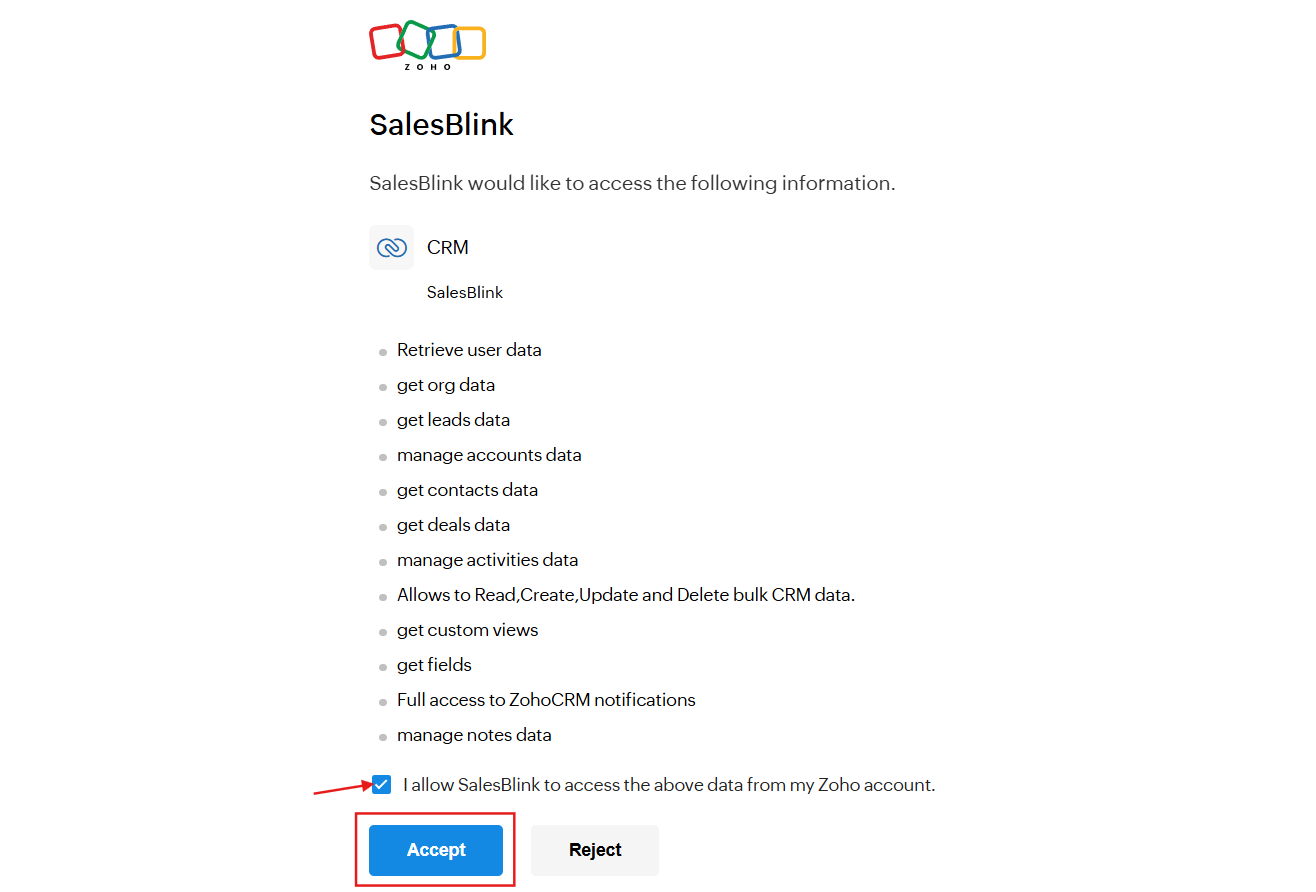
- You will be redirected back to SalesBlink for mapping properties from Zoho CRM to SalesBlink
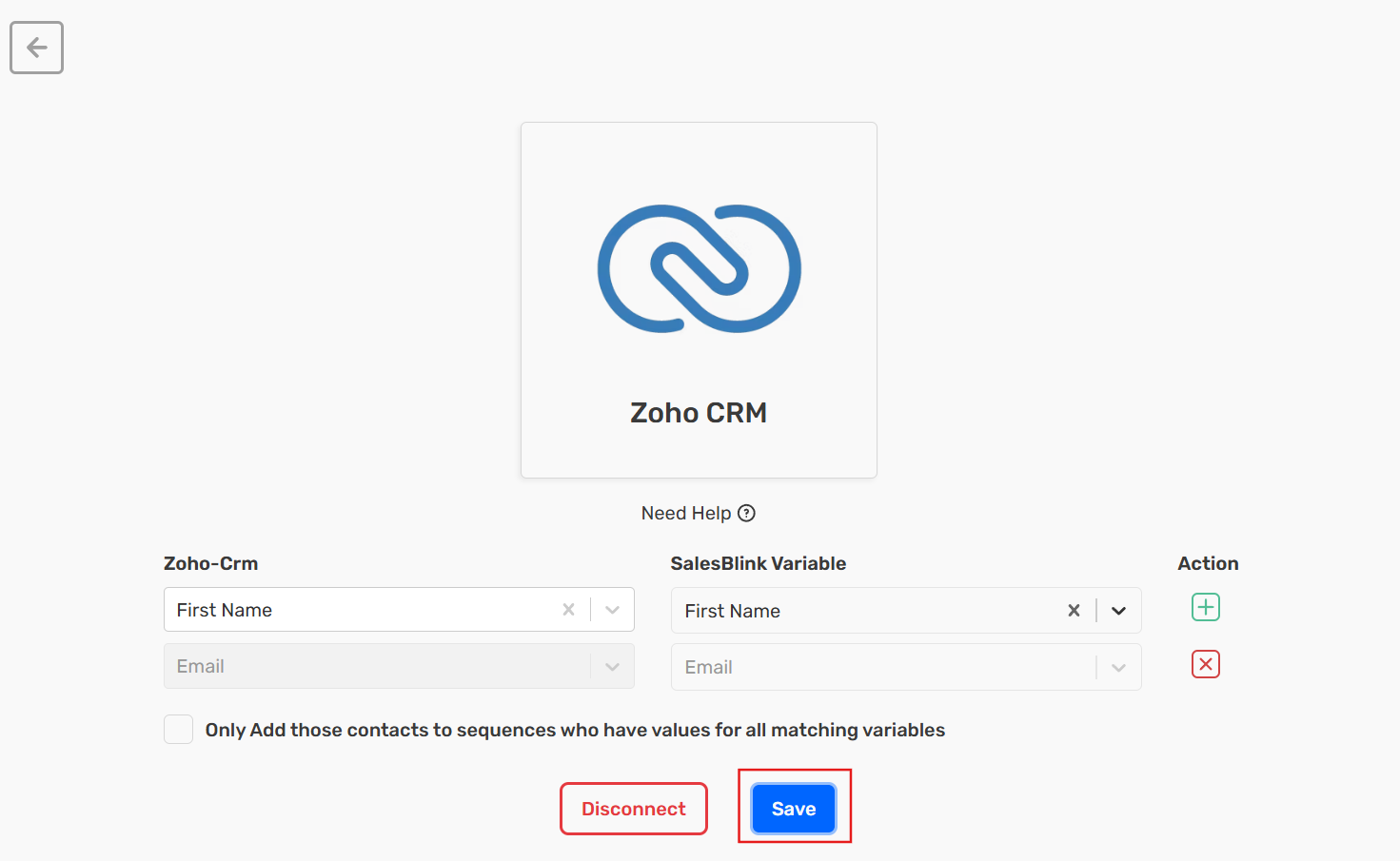
Your Zoho CRM account is now connected to SalesBlink!
Personalizing Email Template with Zoho CRM Properties
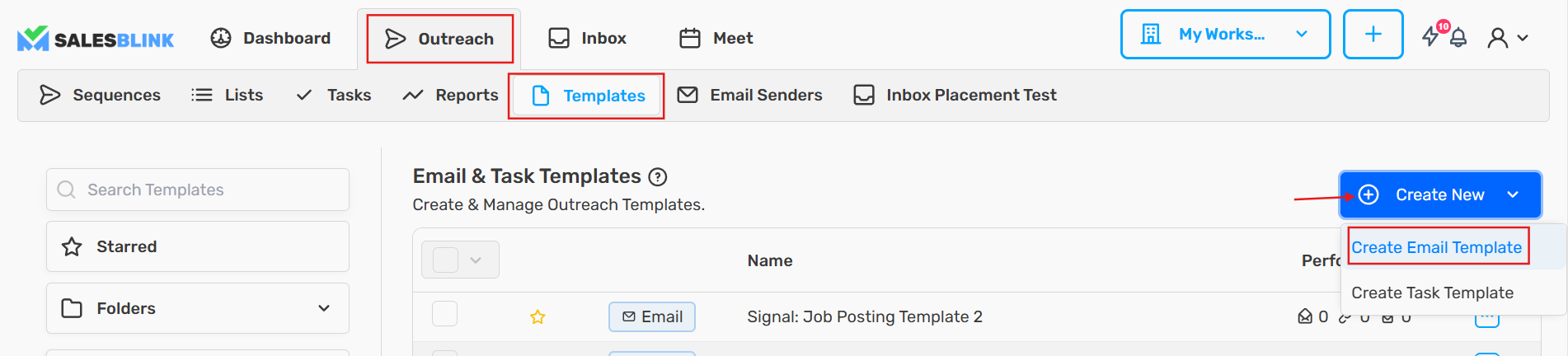
Click Outreach → Templates
Click Create New and select Email Template
In the email editor, click the Insert Variable button
Select Zoho CRM from the variable source dropdown
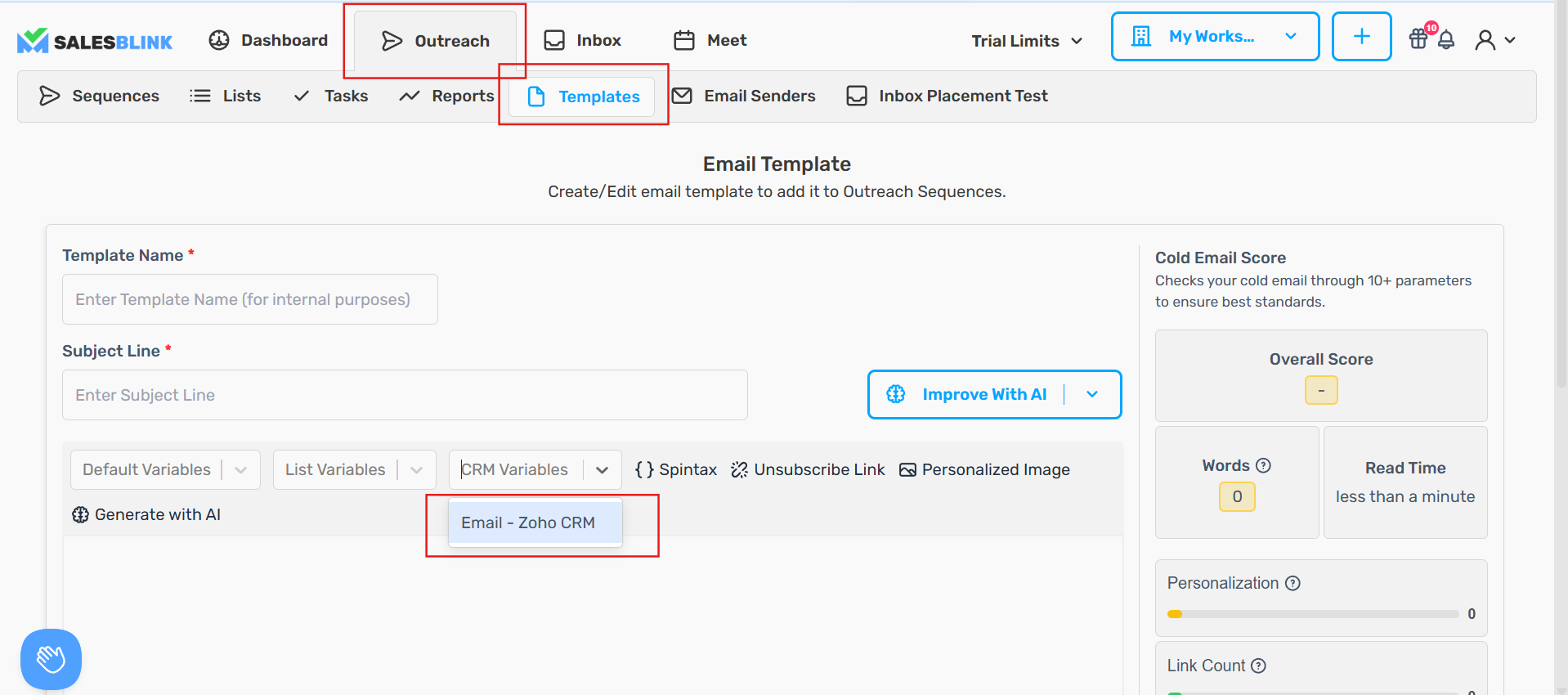
Choose the CRM property you want to insert (e.g., First Name, Company, Industry)
Click Insert to add the variable to your template
Your email template is now personalized with Zoho CRM data!
Send Emails to Zoho CRM Contacts
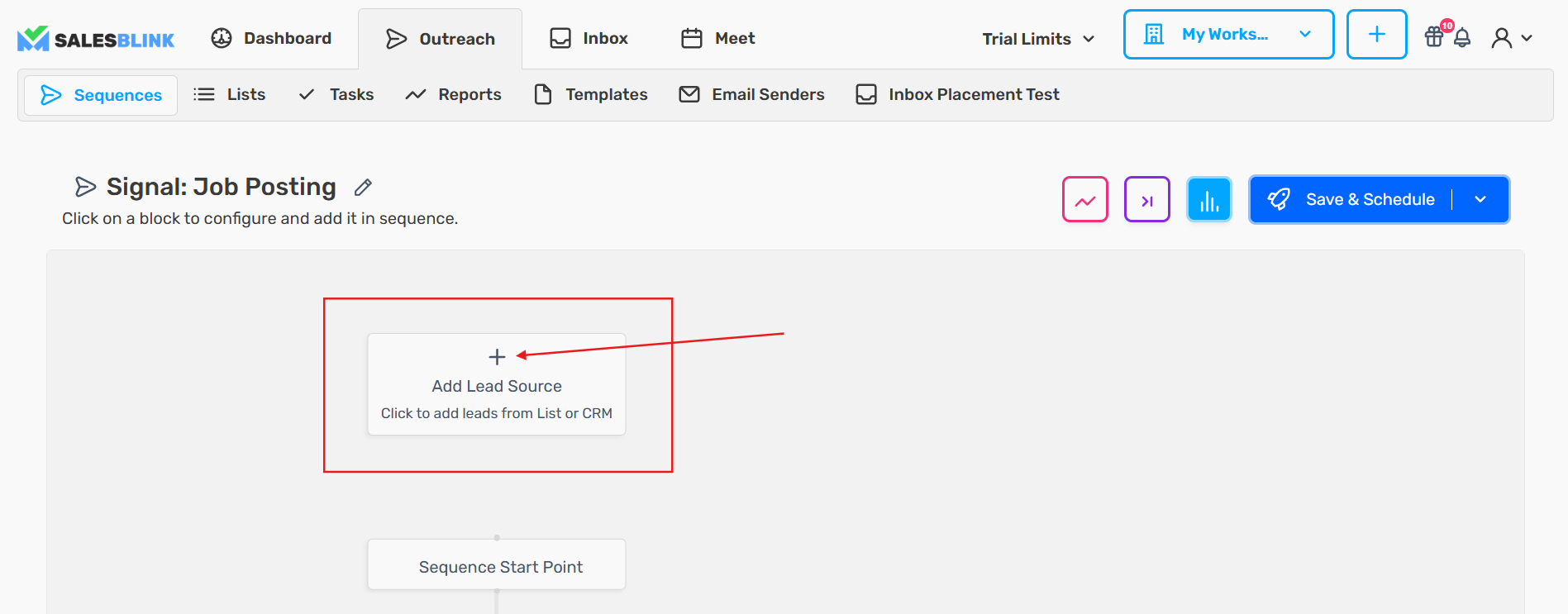
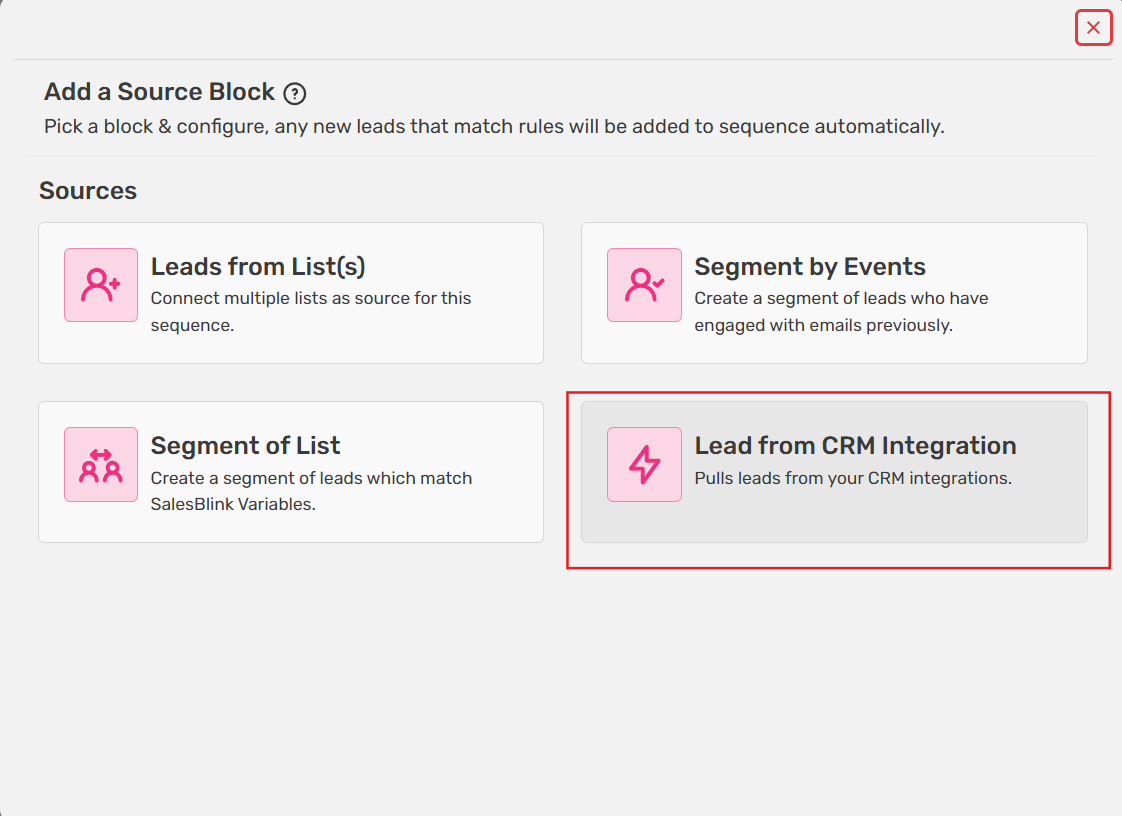
- Create a new sequence & select Lead from CRM Integration as Source

- Select Add Lead Source
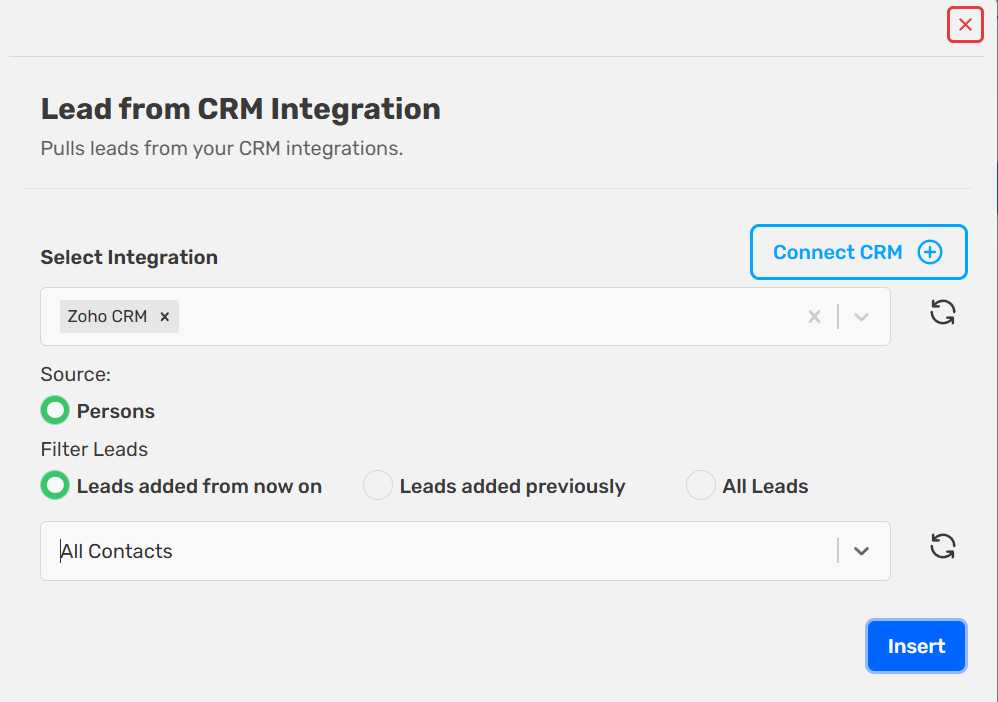
- Select your Zoho CRM Integration & a View from Zoho CRM
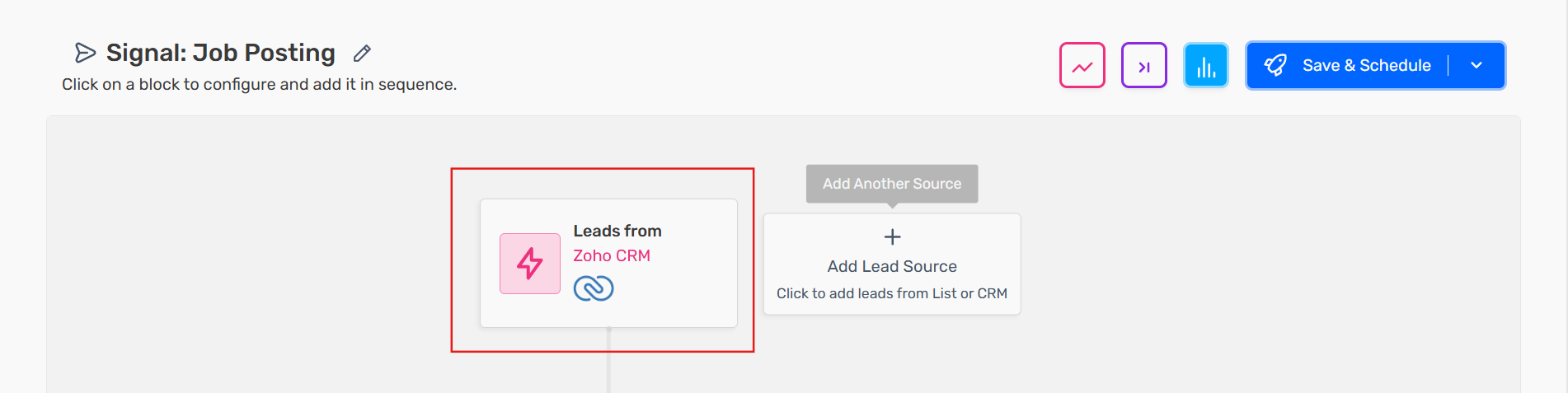
Your emails will be sent to Zoho CRM contacts with personalized content!