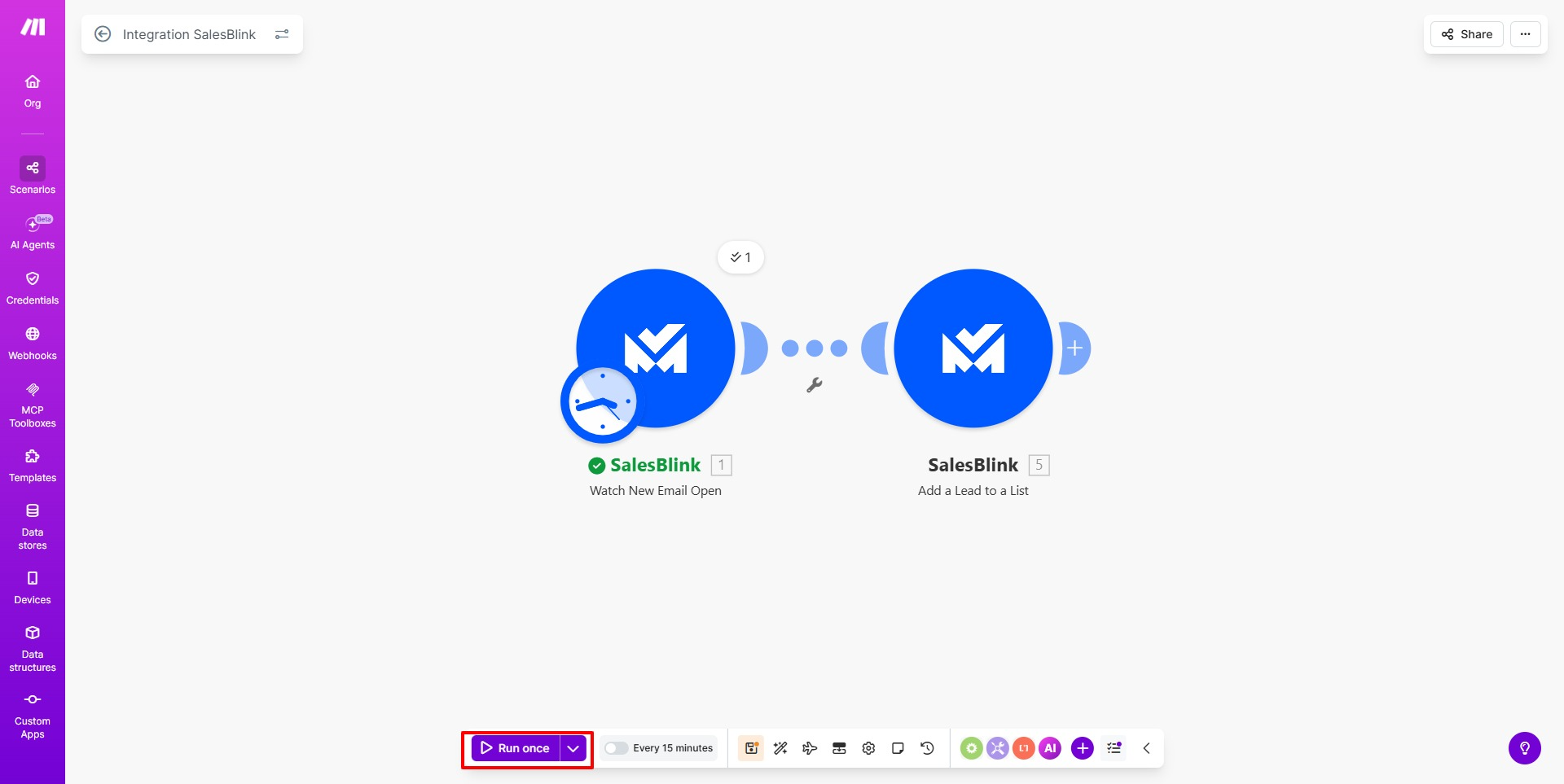
Overview
Integrate SalesBlink with 5000+ apps using Make's automation platform.
Prerequisites
- Active Make.com account
- Admin access
Generate Your SalesBlink API Key
- Click your Profile icon in the top-right corner.

- Select Integrations from the dropdown.

- Click API.
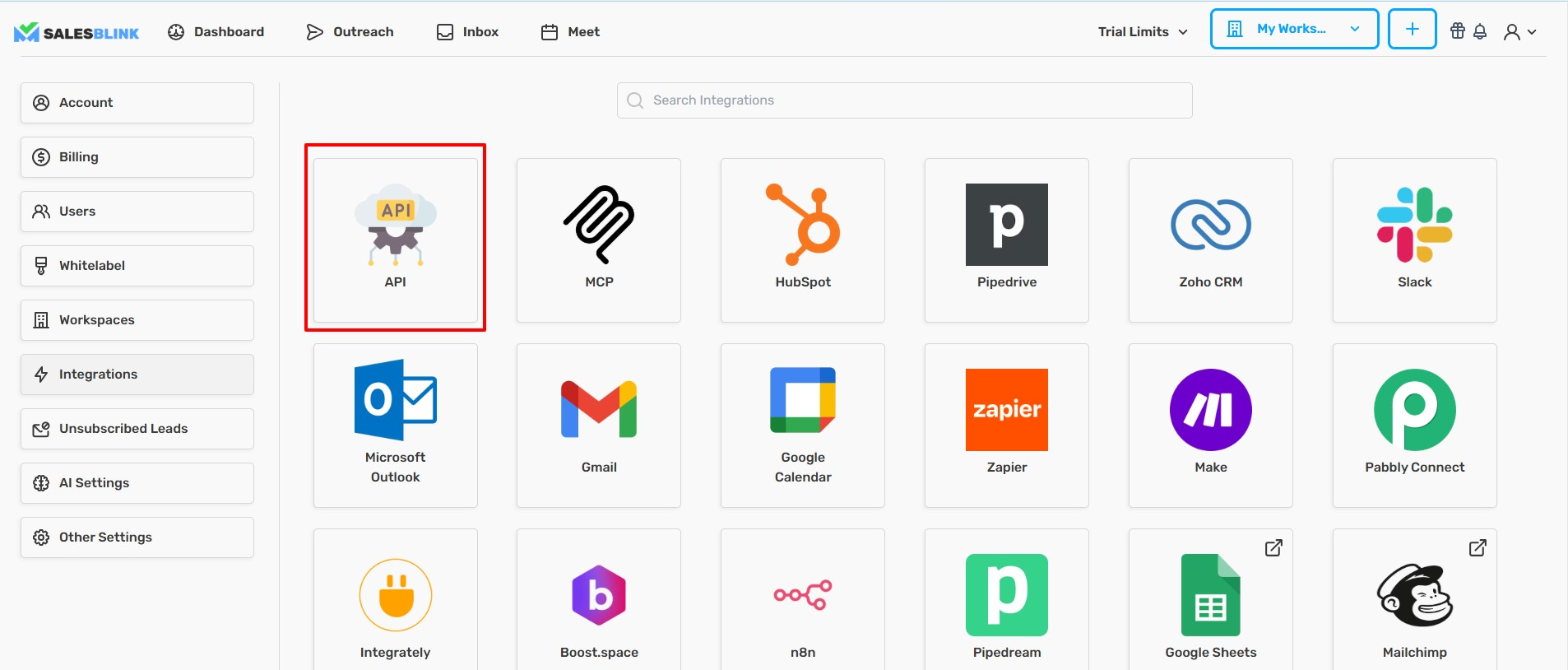
- Click Generate New API Key.

- Enter a Name for the key (e.g., "Make Integration").
- Click Create New API Key.
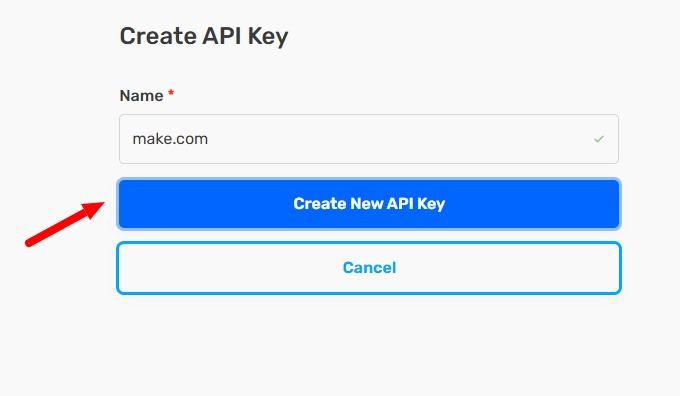
- Copy the generated API key.

Create a Make Scenario
- Log in to make.com.
- Click Create Scenario.
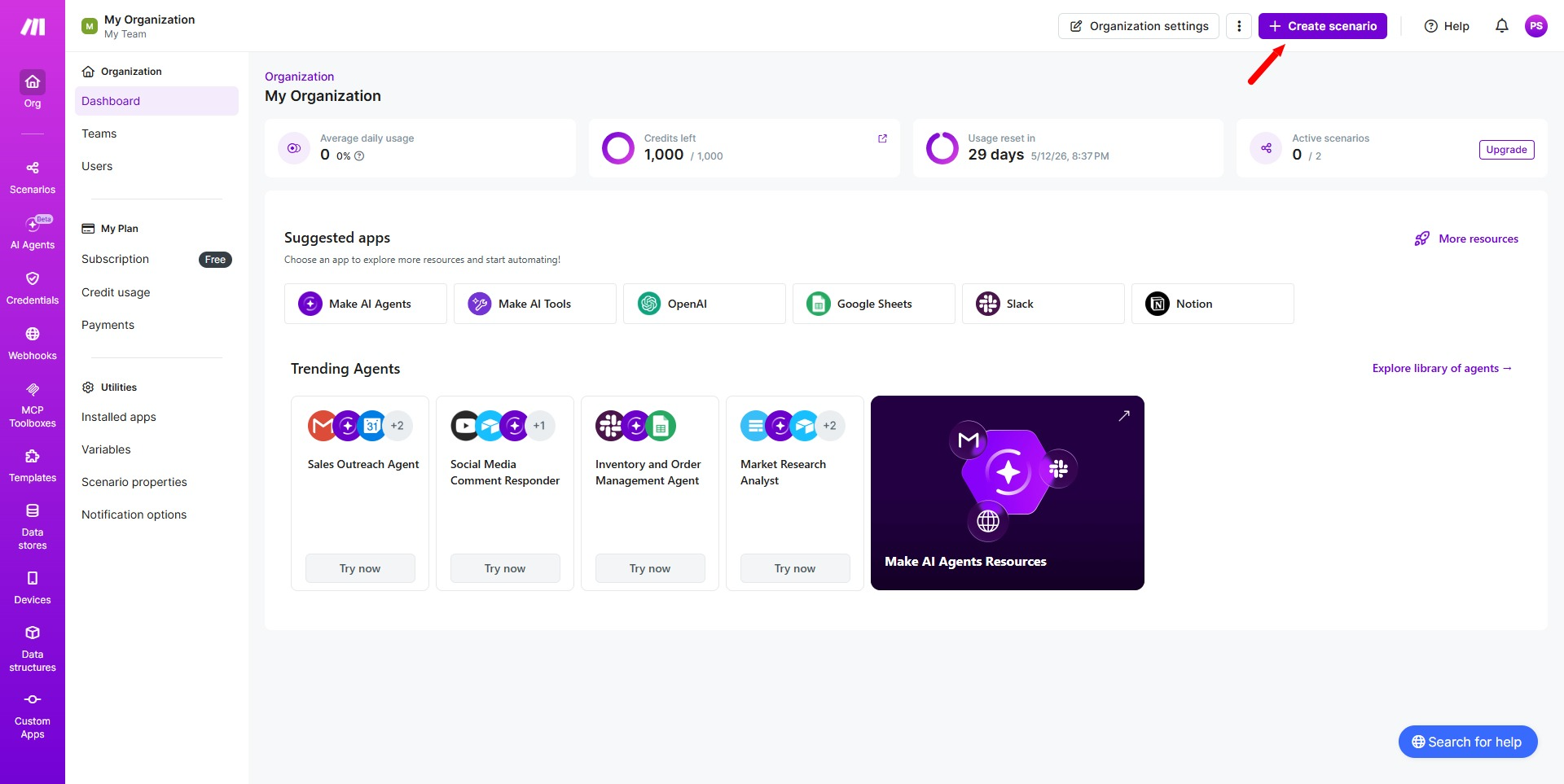
- Search for SalesBlink and select it.
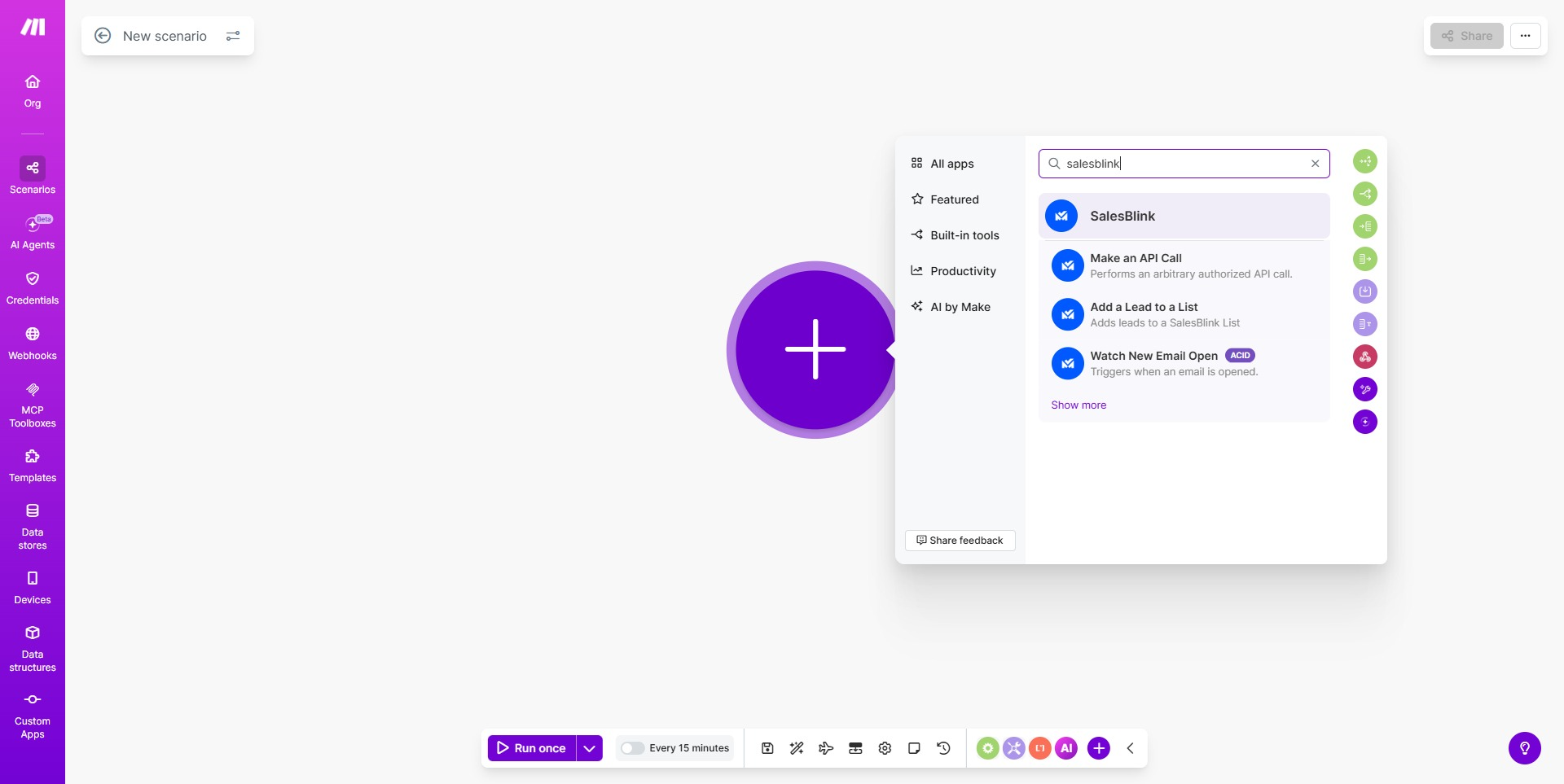
Available Triggers and Actions
| Triggers (Watch for events) | Actions (Perform tasks) |
|---|---|
| Watch New Email Open | Add a Lead to a List |
| Watch New Link Click | Make an API Call |
| Watch New Reply Received |
Build a Trigger-Based Scenario
- Select SalesBlink as the trigger module.
- Choose a trigger (e.g., Watch New Reply Received).
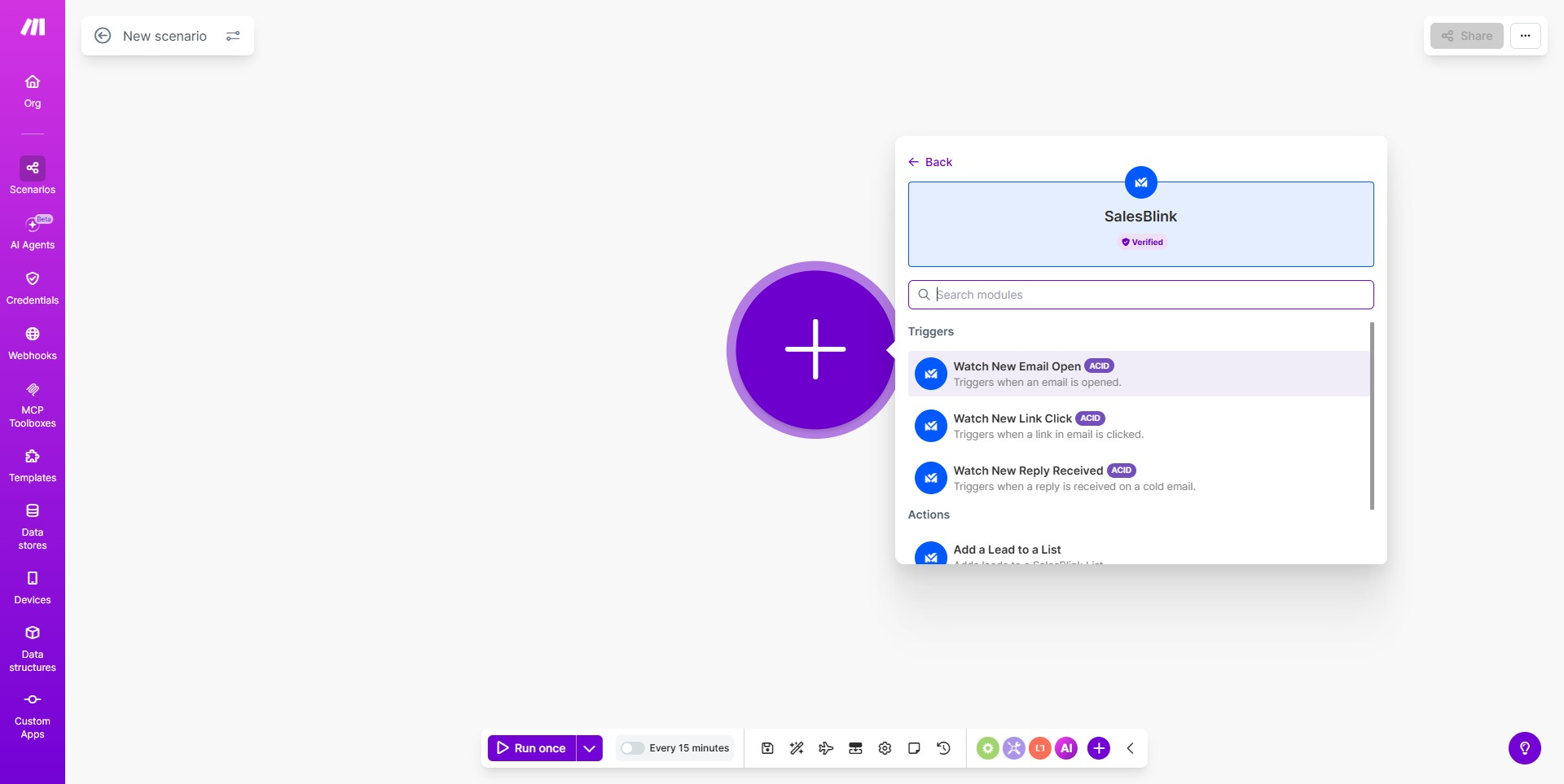
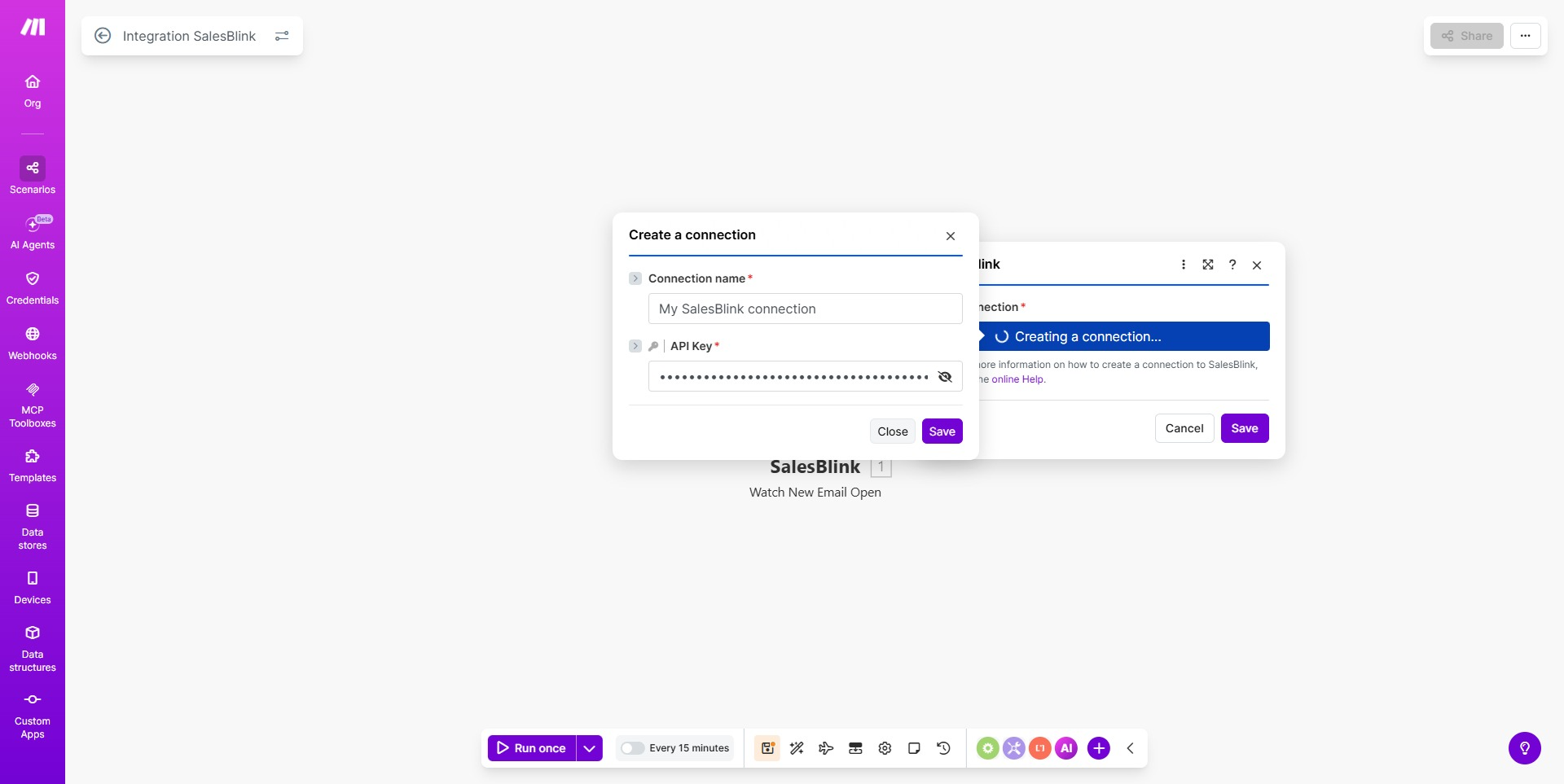
- Click Create a Connection.
- Enter a Connection Name.
- Paste your API Key.
- Click Save.
- Set the Limit (max records to return per run).
- Click Save.
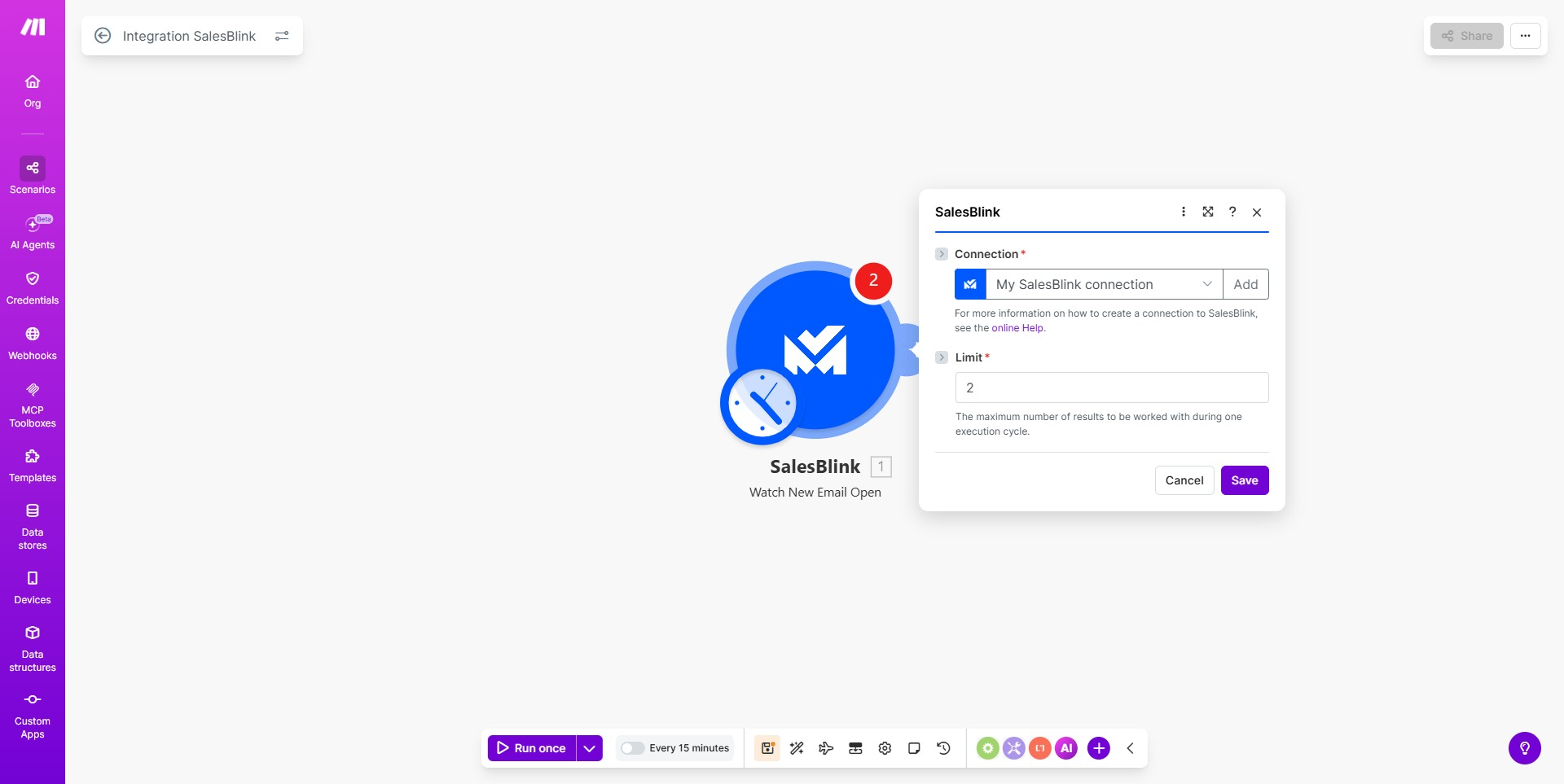
- Click Save to confirm.
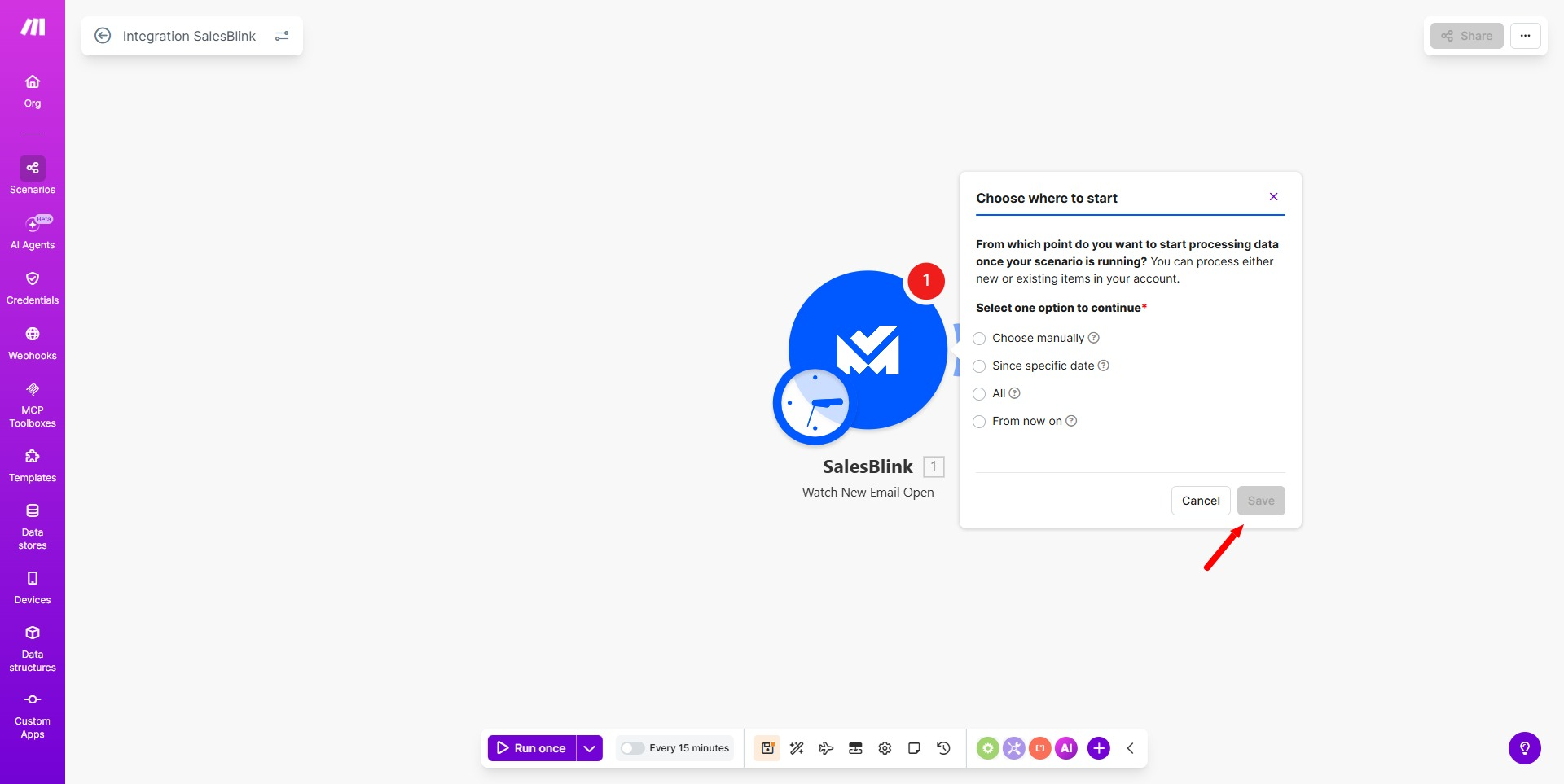
Your trigger is now active. Add subsequent modules to process SalesBlink events.
Build an Action-Based Scenario
- Add a trigger from another app (or a scheduled trigger).
- Click the + icon to add a module.
- Search for and select SalesBlink.
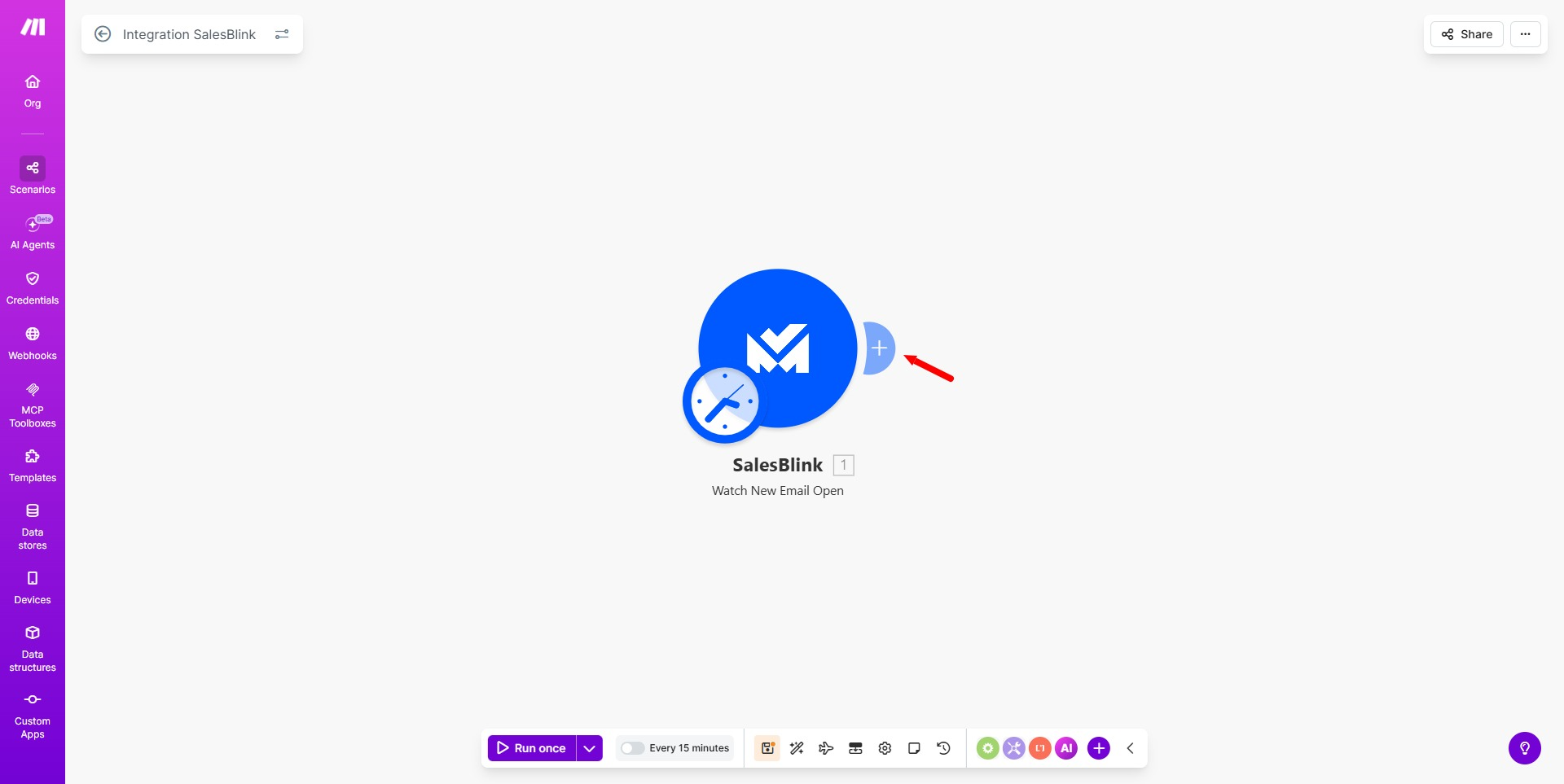
- Select an Action (e.g., Add a Lead to a List).
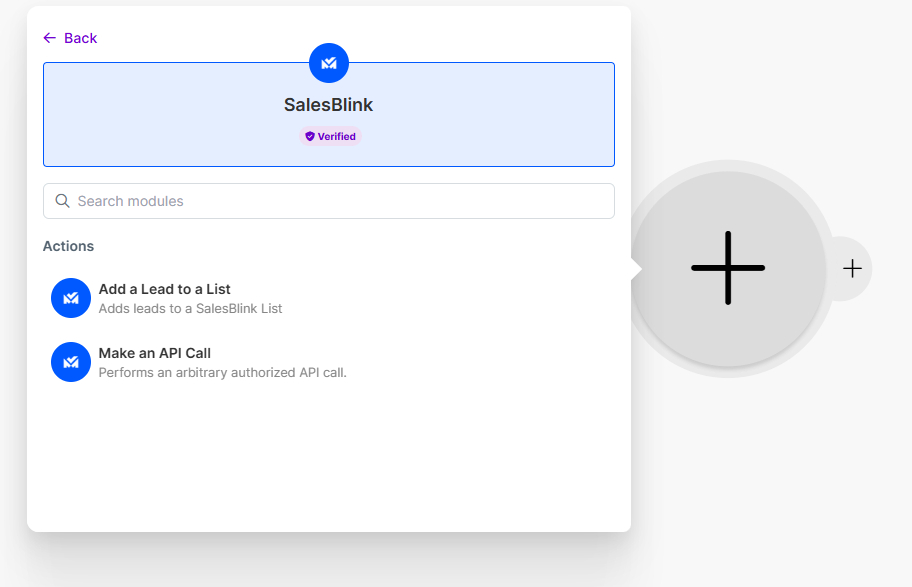
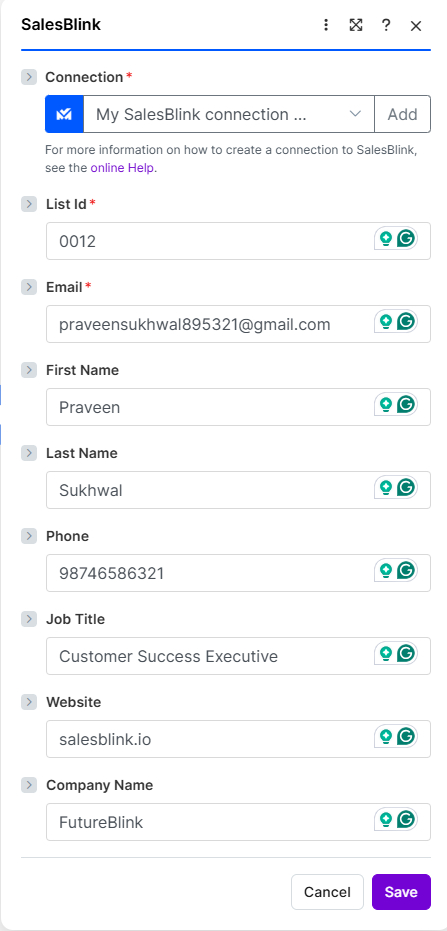
- Select your Connection (or create one using your API key).
- Fill in the Required Fields (e.g., List ID, Lead details).
- Click Save.
Run Your Scenario
Click Run to test your scenario.