Overview
Connect SalesBlink with Integrately to automate your outreach workflows. This integration allows you to trigger actions in other apps when email events occur in SalesBlink.
Prerequisites
- Integrately account
Step 1: Create Your SalesBlink API Key
- Click on your Profile icon and select My Profile
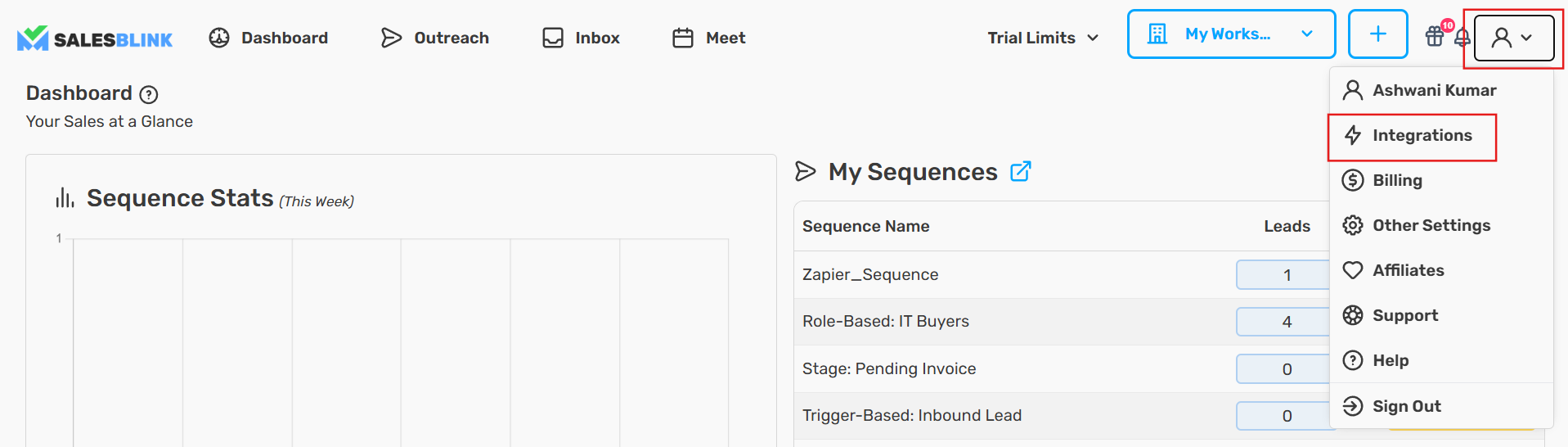
- Navigate to Integrations → API
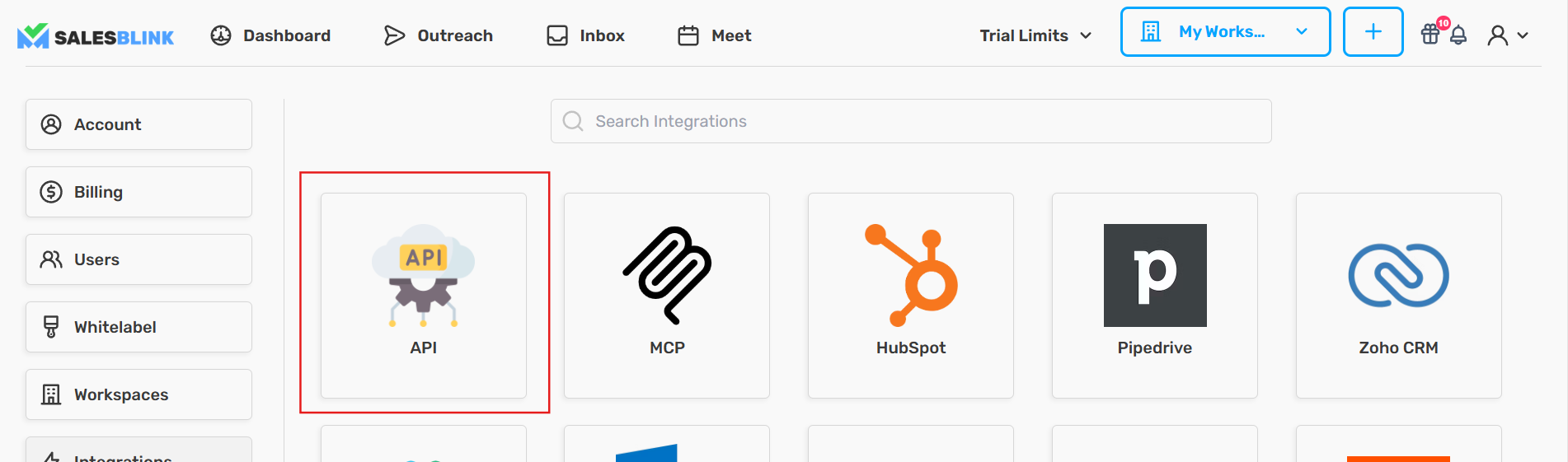
Click Create API Key
Enter a name for your API key and click Create New API Key
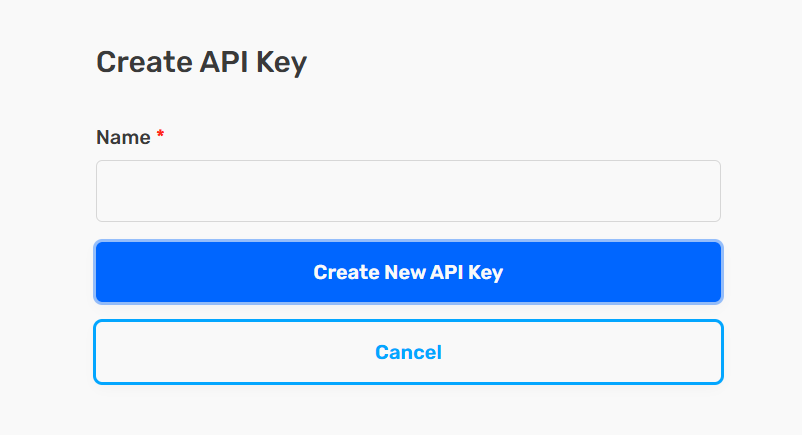
Note: Copy and store this key somewhere safe. You can view it again later with the eye icon in the API keys list.
Available Triggers
New Link Click
New Reply
New Email Opened
Available Actions
- Add Lead to List
Step-by-Step Setup
Step 1: Create Automation
Log in to Integrately
Click Create Automation
Select SalesBlink as the trigger app
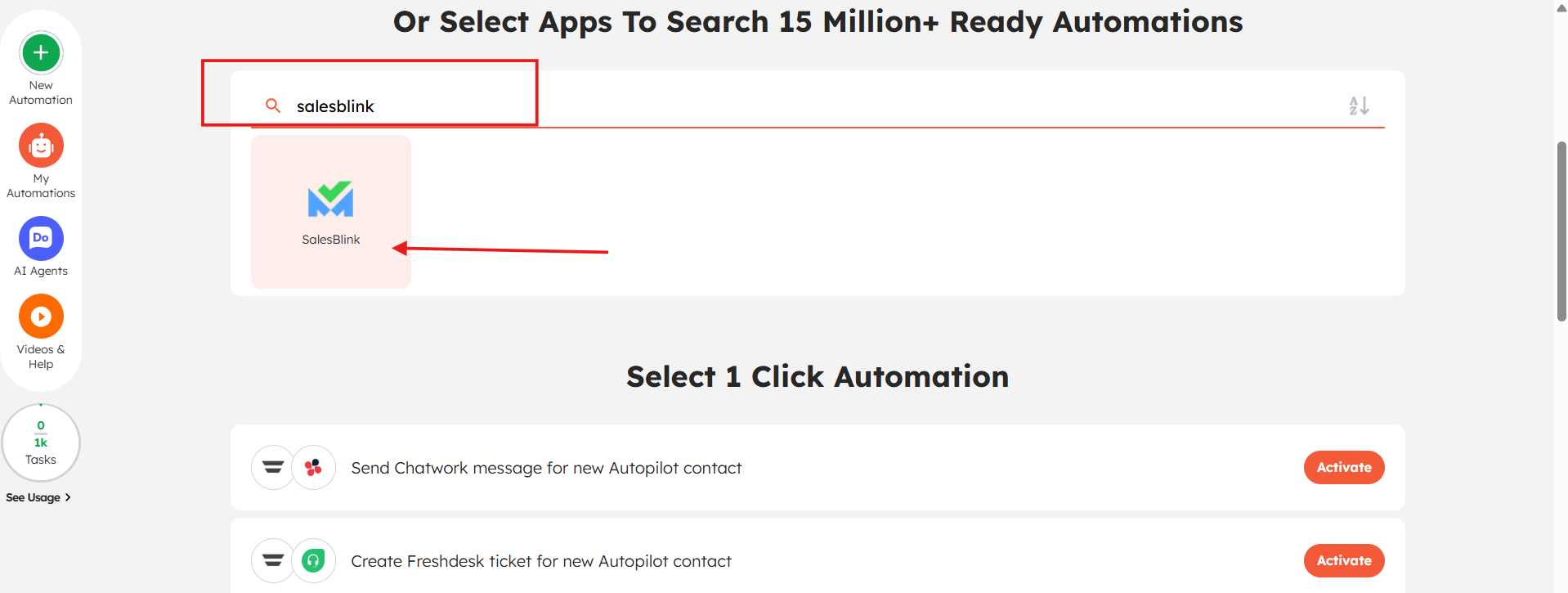
Step 2: Connect SalesBlink Account
- Click Connect or Add New Connection
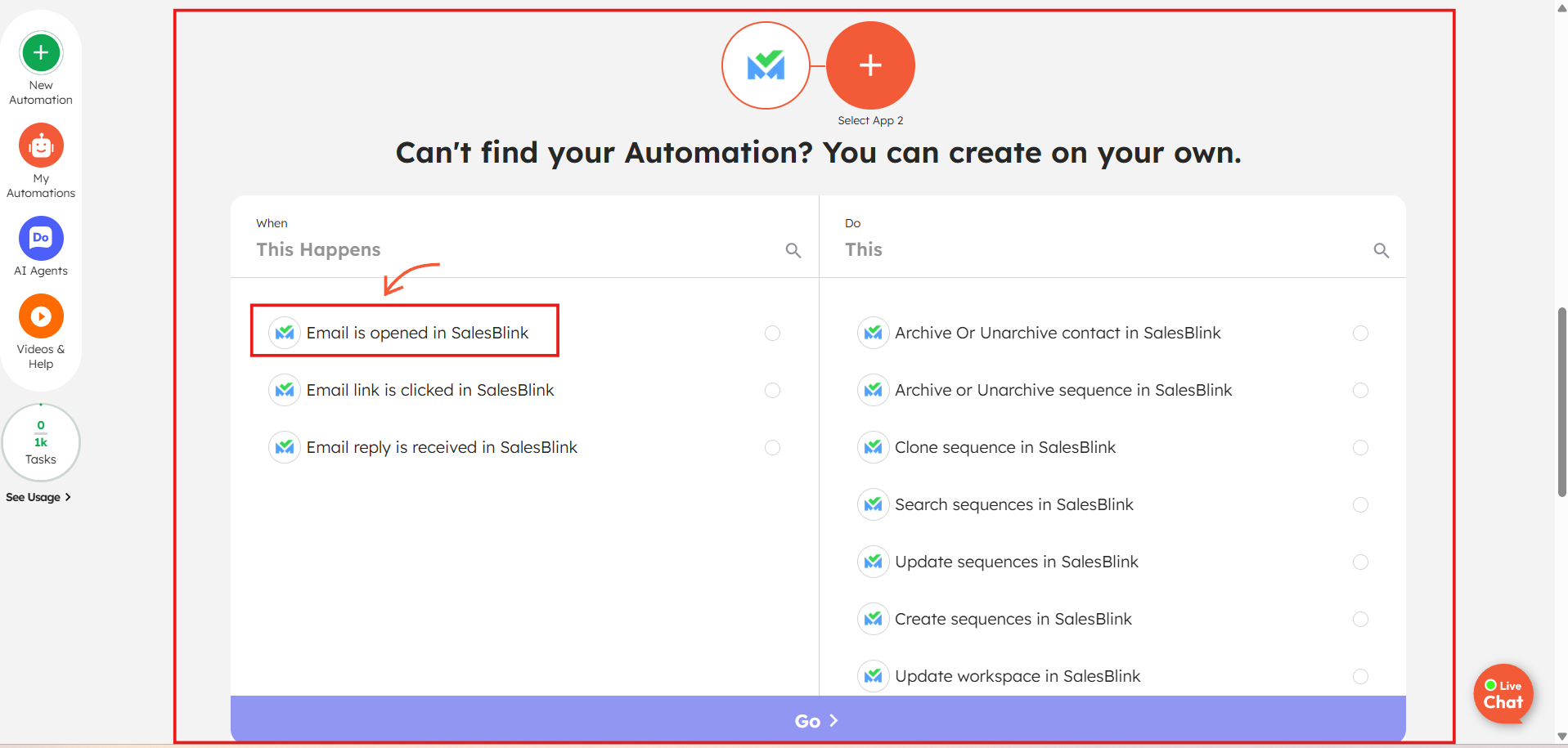
- Enter your SalesBlink API Key and click Save
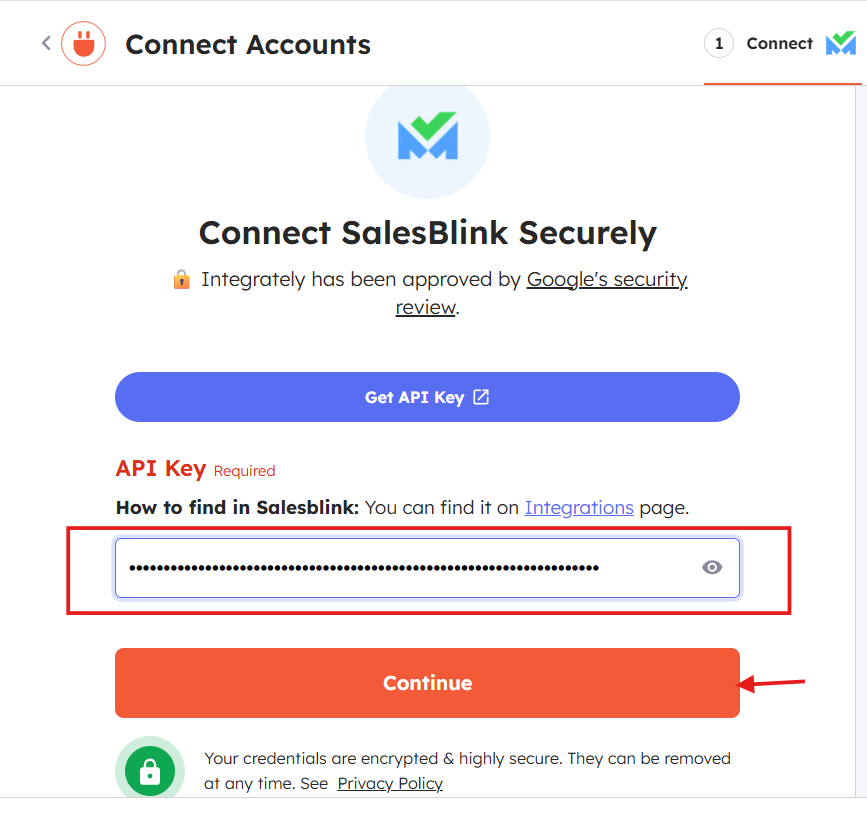
Your SalesBlink account is now connected to Integrately!
Step 3: Fetch Trigger Data
- Click Fetch Data to capture sample data from SalesBlink
Step 4: Configure Action
Select the Action App you want to connect
Choose the Action Event
Required Fields
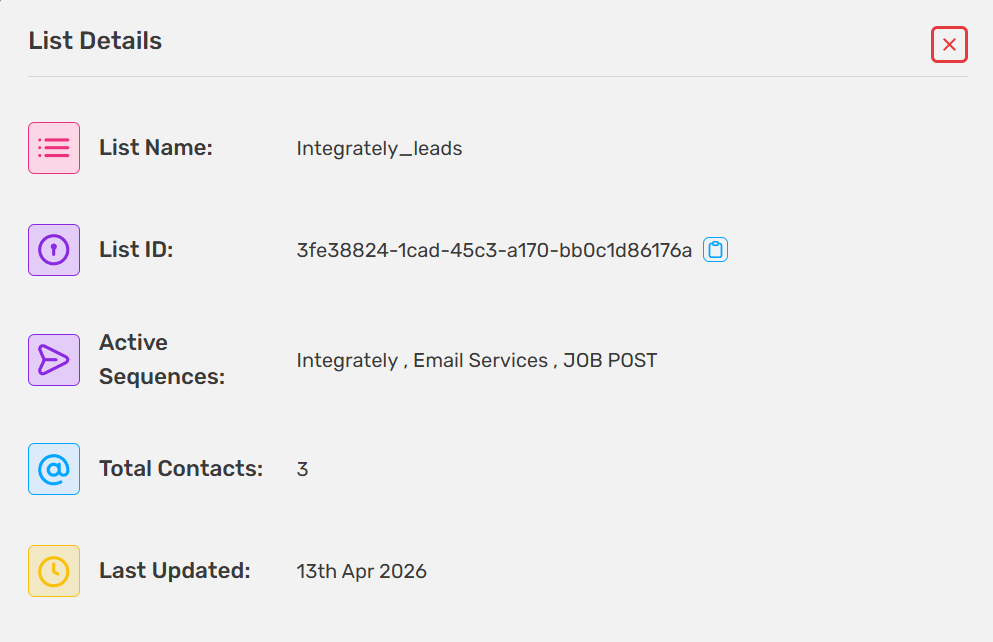
List ID
Email
First Name
Last Name
Step 5: Map Data
Map the fields from the trigger to the action
Click Save to confirm mapping
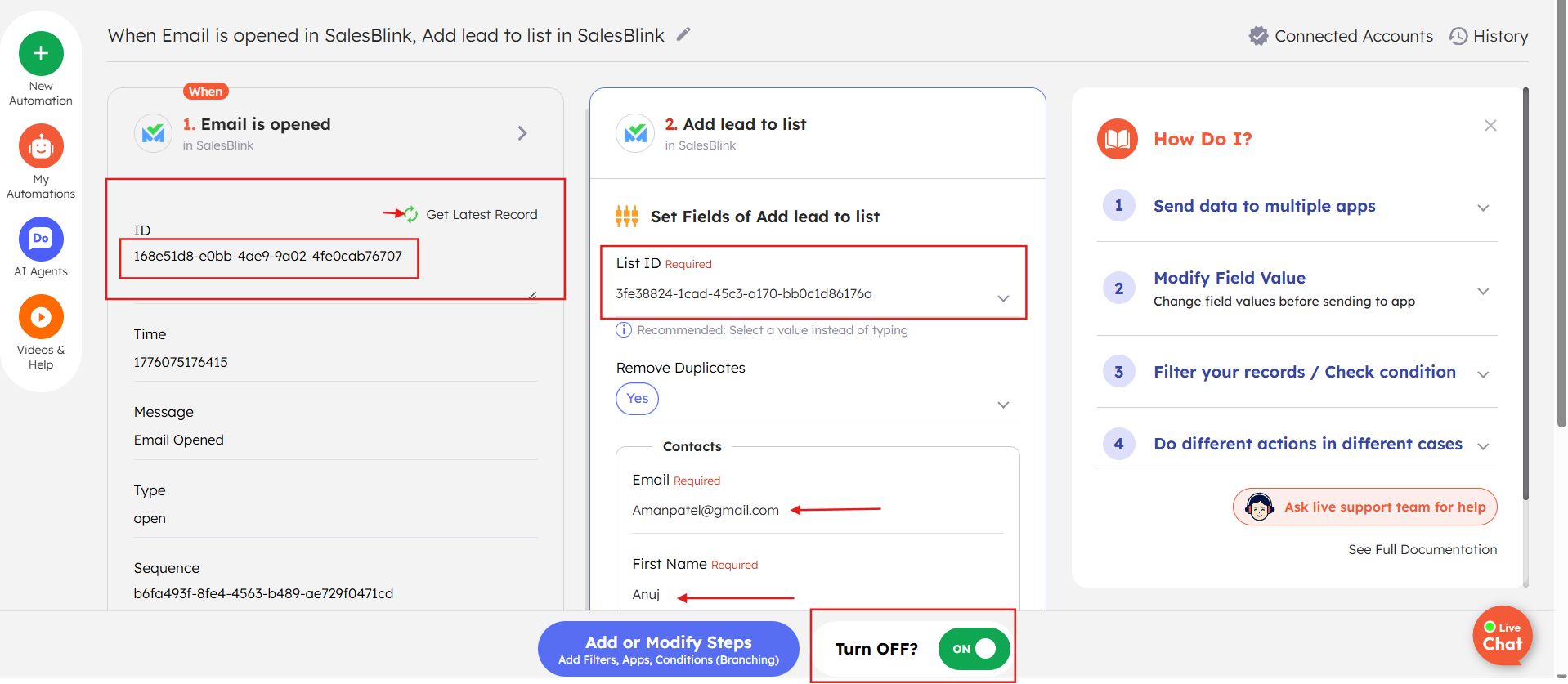
Step 6: Turn ON Automation
- Click the ON toggle to activate the automation
Final Workflow
Automation Flow
When a trigger event occurs in SalesBlink → Integrately captures the data → Performs the configured action.
Check Results
Step 7: Verify in SalesBlink
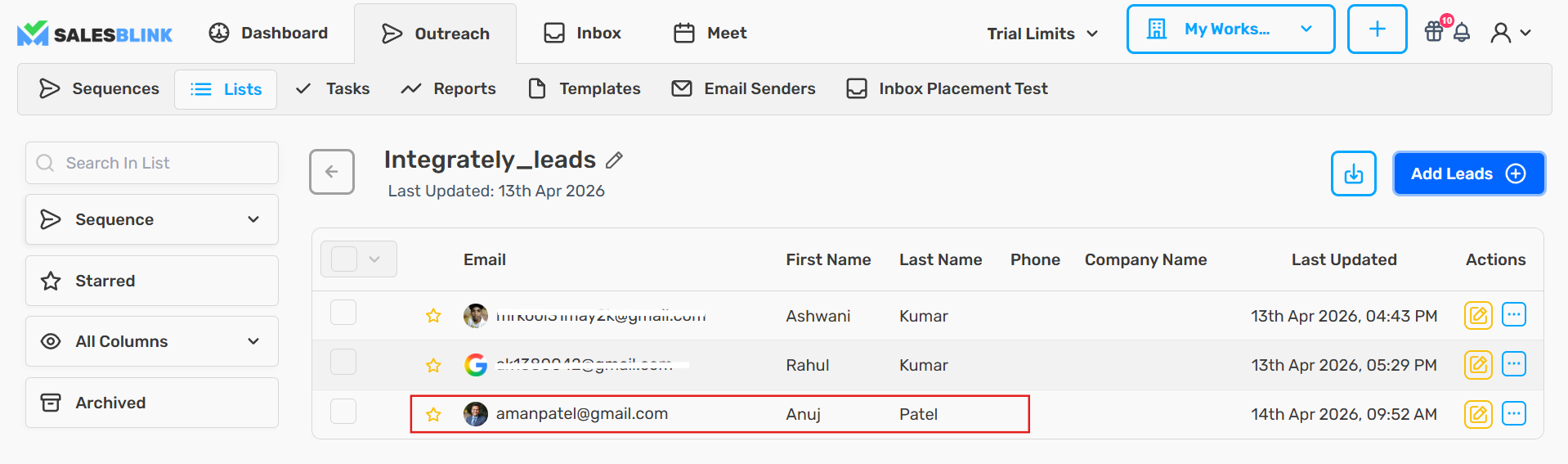
Go to Outreach → Lists
Open the list to verify the lead was added
Step 8: View Task Usage Integrately
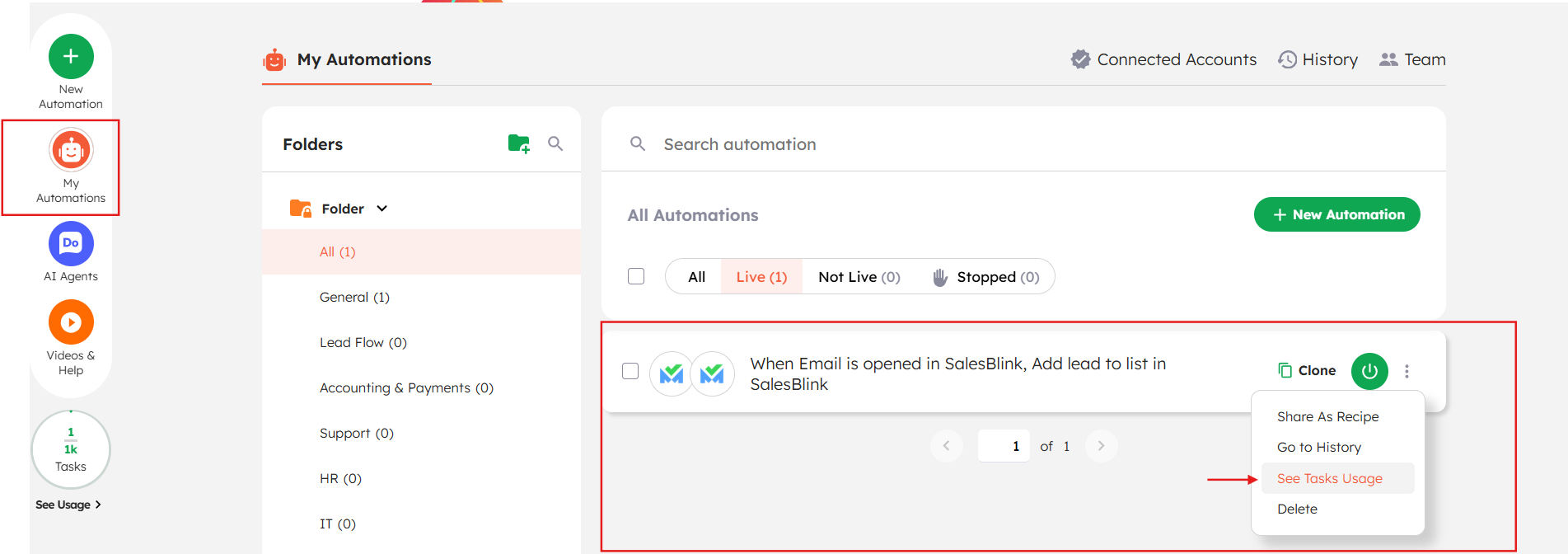
In Integrately, go to your Dashboard
View Task Usage to see how many tasks have been consumed
Step 9: View Execution Logs
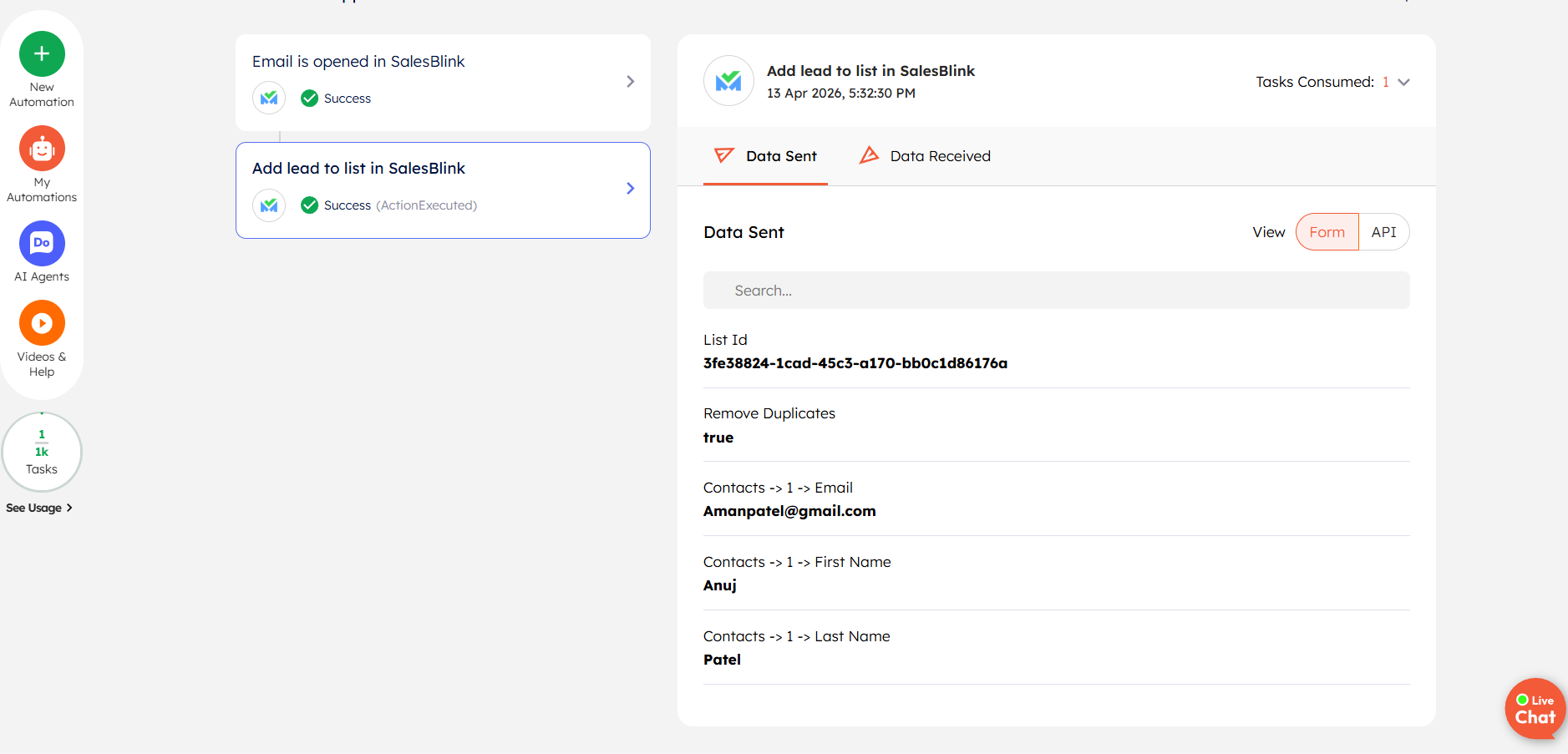
Click on Execution Logs for your automation
Review the logs to verify successful executions
Frequently Asked Questions
Q: How to find your Sequence or List ID?
In SalesBlink, go to Outreach → Sequences (or Lists). The ID is visible in the URL when you open a sequence or list.