Overview
Connect SalesBlink with Pabbly Connect to automate your sales outreach workflows. With this integration, you can trigger actions in other apps when events happen in SalesBlink, or add leads to SalesBlink from external sources. Pabbly Connect offers unlimited operations and does not charge for trigger steps.
Prerequisites
Pabbly Connect account
SalesBlink API key
Available Triggers
Triggers are events in SalesBlink that start your workflow:
New Link Click: When a link in an email is clicked
New Reply: When an email receives a reply
New Email Opened: When an email is opened
Available Actions
Actions are tasks that SalesBlink performs in response to a trigger:
- Add Lead to List: Add a new lead to a specific list
Step 1: Generate API Key in SalesBlink
- Click on your Profile icon and select My Profile
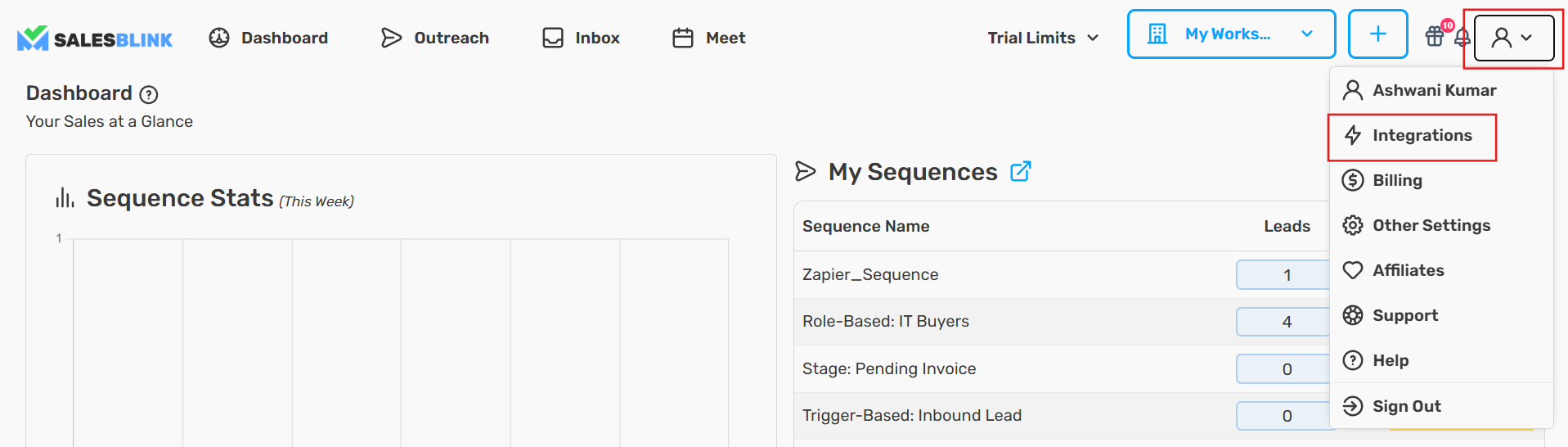
- Navigate to Integrations → API
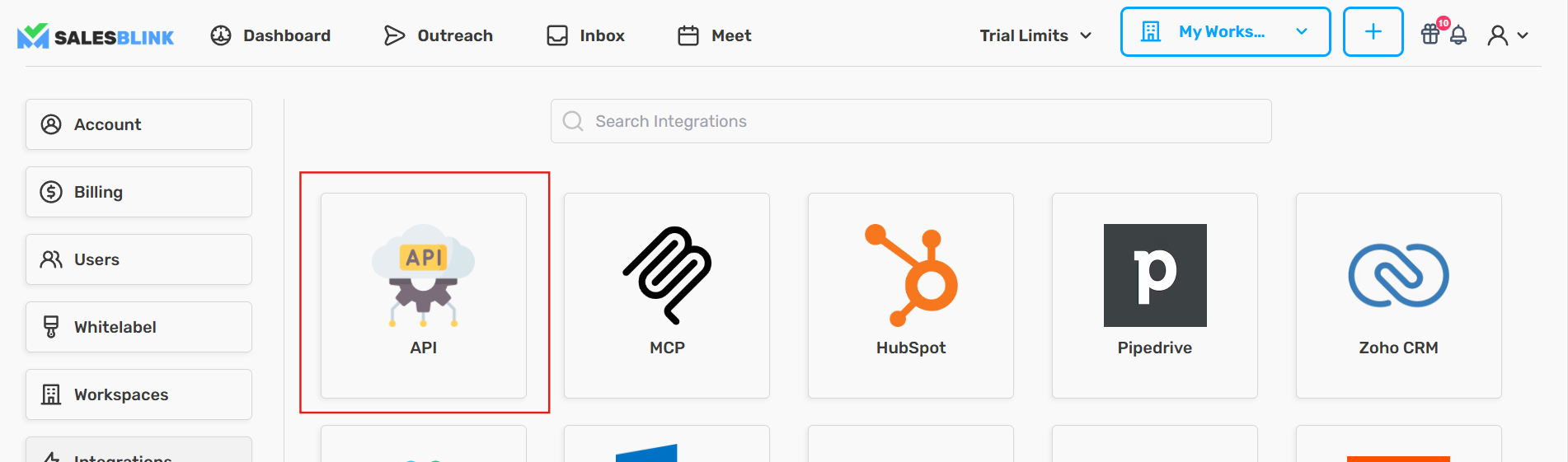
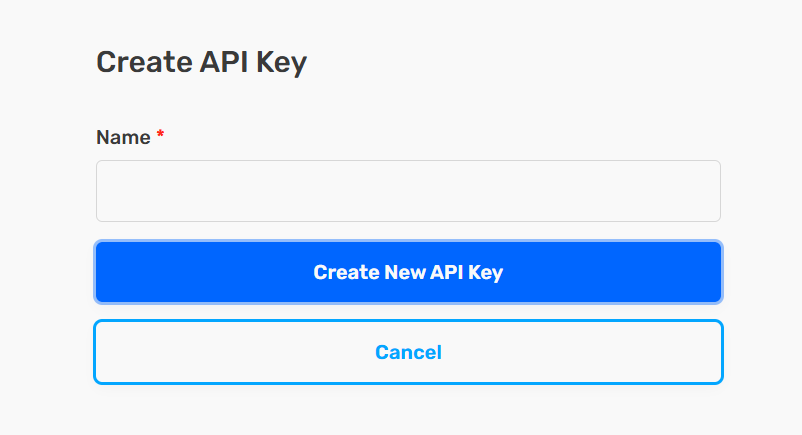
Click Create API Key
Enter a name for your API key (e.g., "Pabbly Connect Integration")
Click Create New API Key
Note: Copy and store this key somewhere safe. You can view it again later with the eye icon in the API keys list.
Create a SalesBlink Trigger-based Workflow
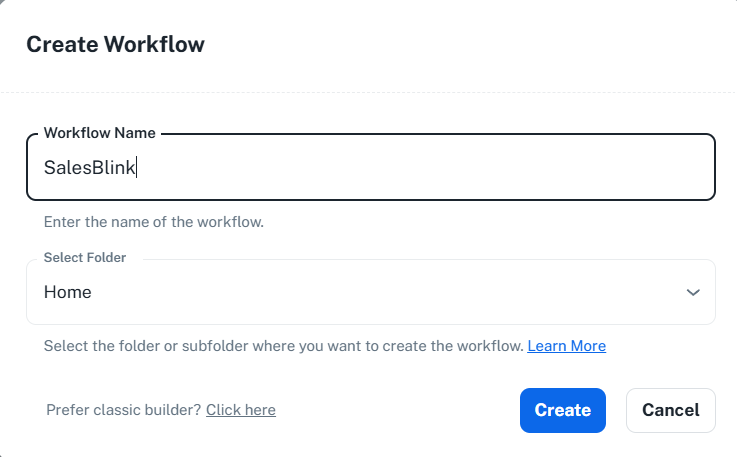
Step 1: Create Workflow
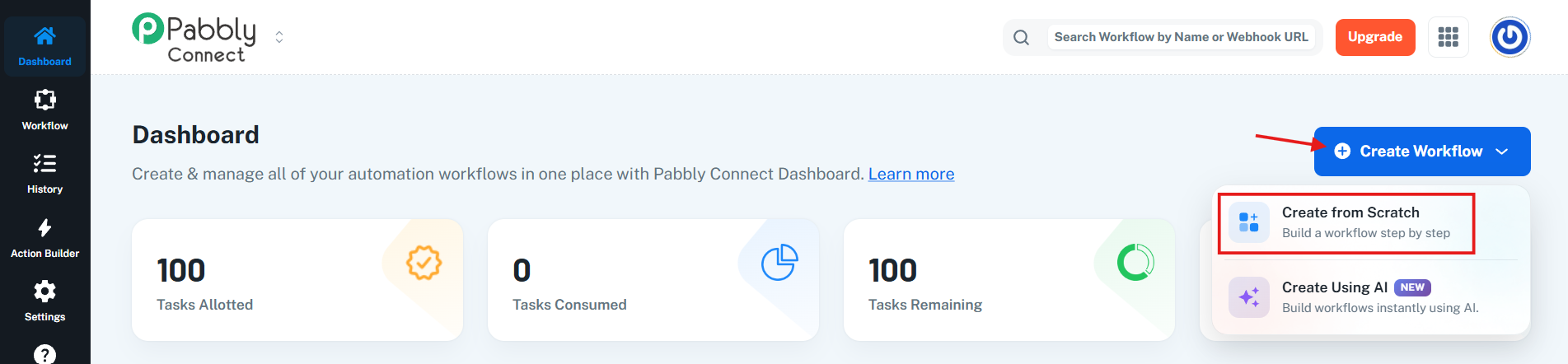
Log in to Pabbly Connect
Click Create Workflow
Enter a Workflow Name (e.g., "SalesBlink Email Opened")
Click Create
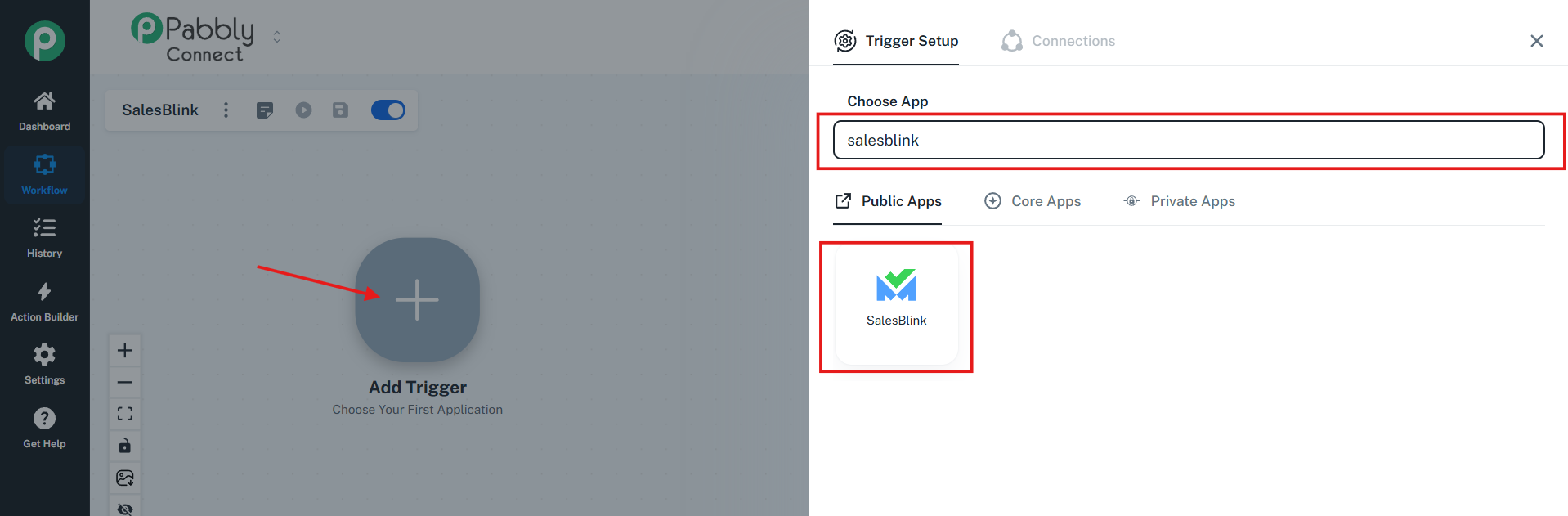
Step 2: Add Trigger (SalesBlink)
Click the + icon to add a trigger
Search for and select SalesBlink as the trigger app
Step 3: Choose Trigger Event
- Select the Trigger Event from the dropdown:
New Link Click
New Reply
New Email Opened
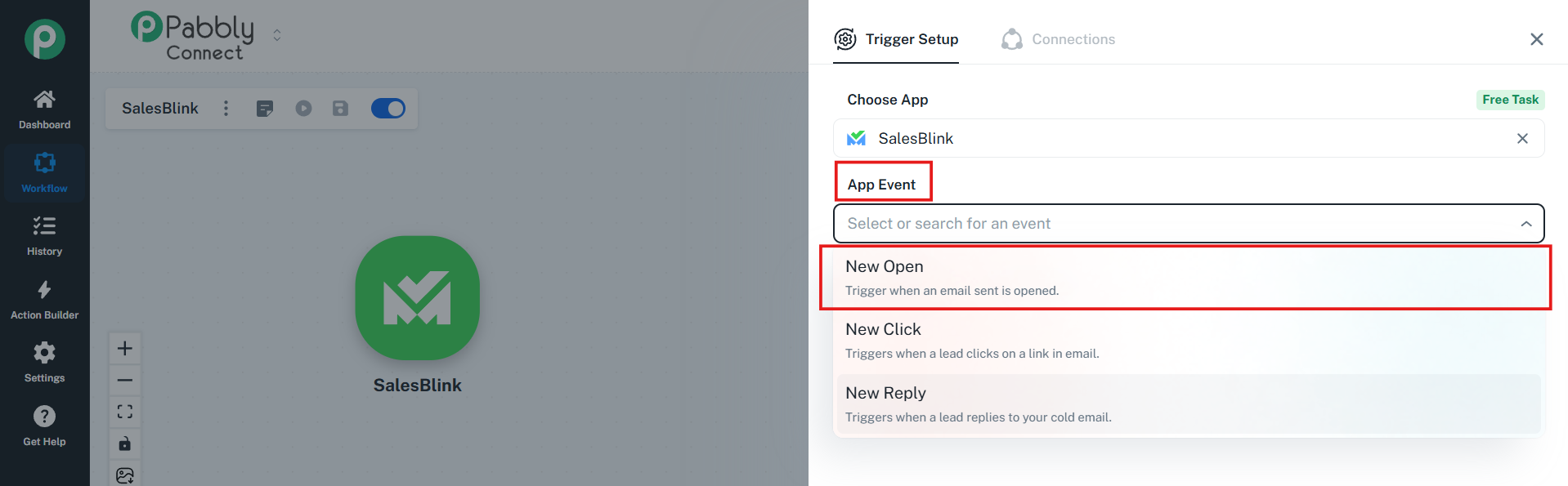
- Click Save
Step 4: Connect SalesBlink Account
Click Connect or Add New Connection
Enter your SalesBlink API Key in the field
Click Save to authorize
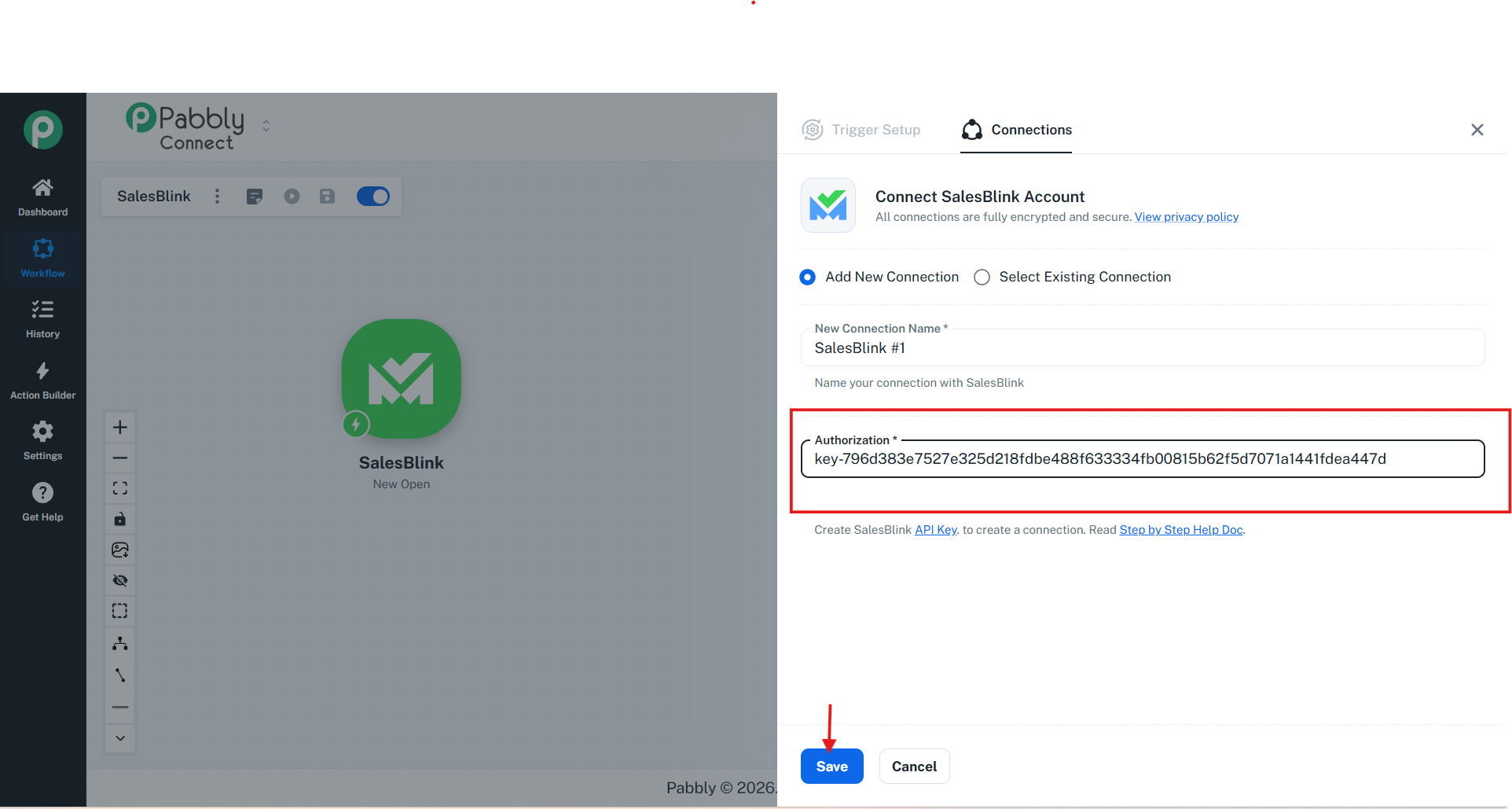
Your SalesBlink account is now connected to Pabbly Connect!
Step 5: Trigger Result
- Click Save & Send Test Request to verify the trigger What Happens: Pabbly Connect will capture sample data from SalesBlink when the trigger event occurs. This data can be used in subsequent actions.
Create a SalesBlink Action-based Workflow
Use this workflow to add leads to SalesBlink from external sources.
Step 6: Add Action (Add Leads to List)
Click the + icon to add an action
Search for and select SalesBlink as the action app
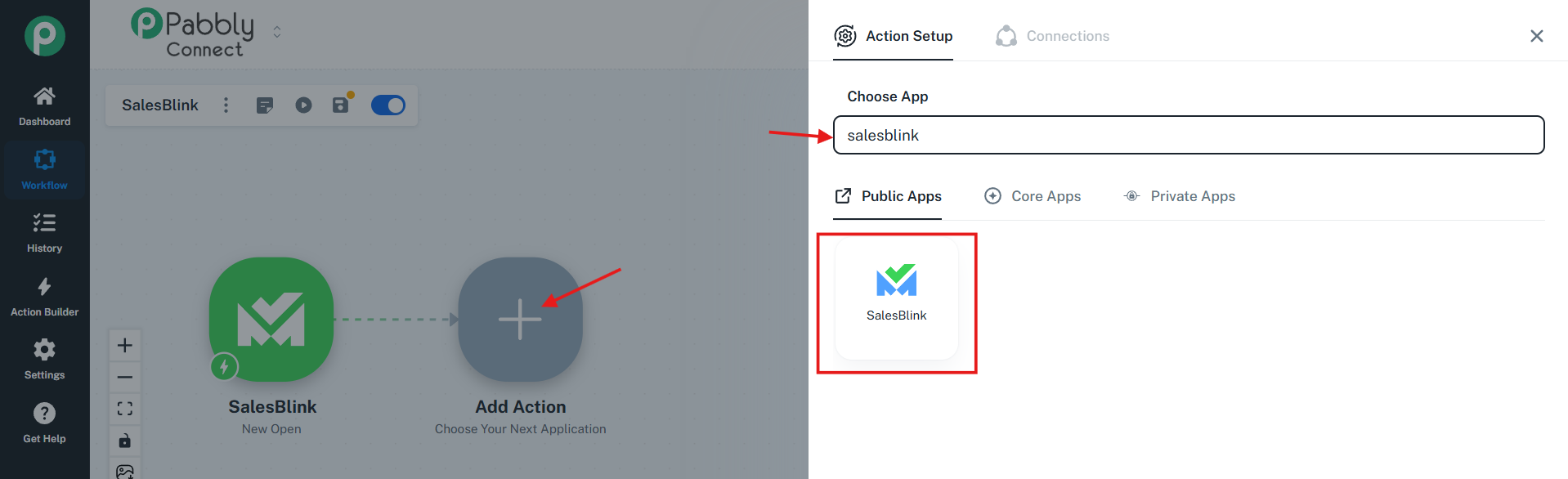
Step 7: Choose Action Event
- Select Add Lead to List as the action
Step 8: Configure Action
Select your connected SalesBlink Account
Enter the lead details:
List ID: The ID of the list to add the lead to
Email: Lead's email address (required)
First Name: Lead's first name
Last Name: Lead's last name
Phone: Lead's phone number
LinkedIn: Lead's LinkedIn profile URL
Job Title: Lead's job title
Website: Lead's company website
Company Name: Lead's company name
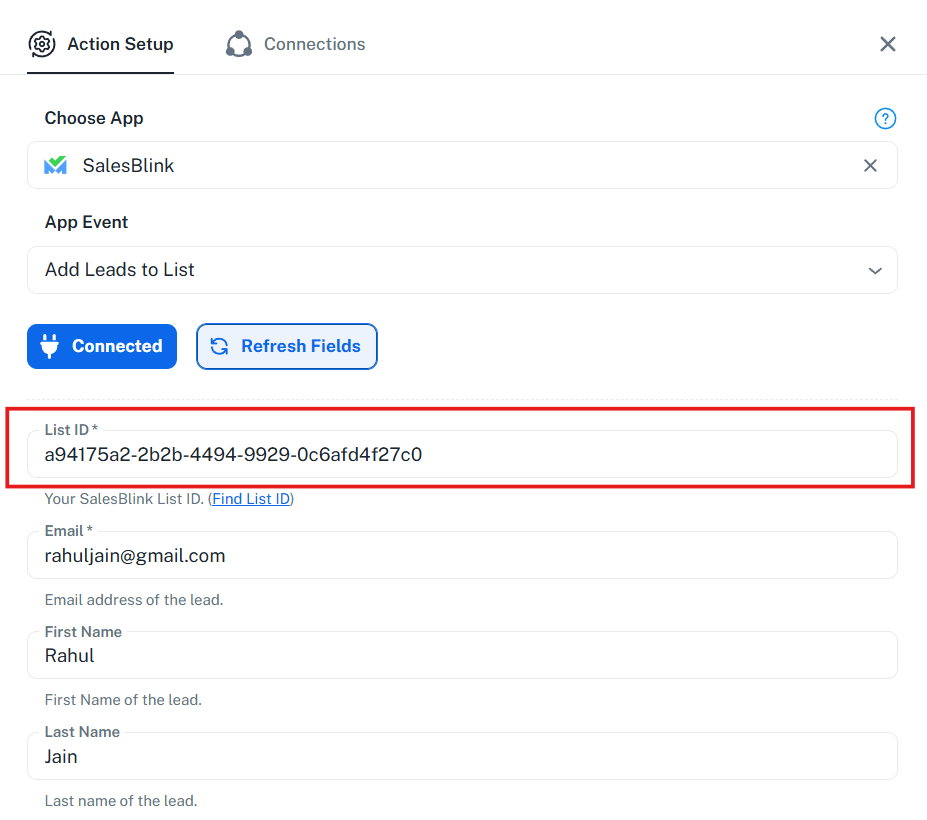
- Click Save & Send Test Request
Step 9: Action Result
What Happens: The lead will be added to your specified list in SalesBlink. You can verify this by going to Outreach → Lists in SalesBlink.
Examples
Example 1: Add Lead to List When Email is Opened
Workflow: When a recipient opens an email in SalesBlink → Add their details to a "Hot Leads" list for follow-up.
Example 2: Send Slack Notification on Email Reply
Workflow: When a recipient replies to an email in SalesBlink → Send a notification to your sales team's Slack channel.
Example 3: Add Lead from Google Sheets
Workflow: When a new row is added to Google Sheets → Add the contact as a lead in SalesBlink.
Frequently Asked Questions
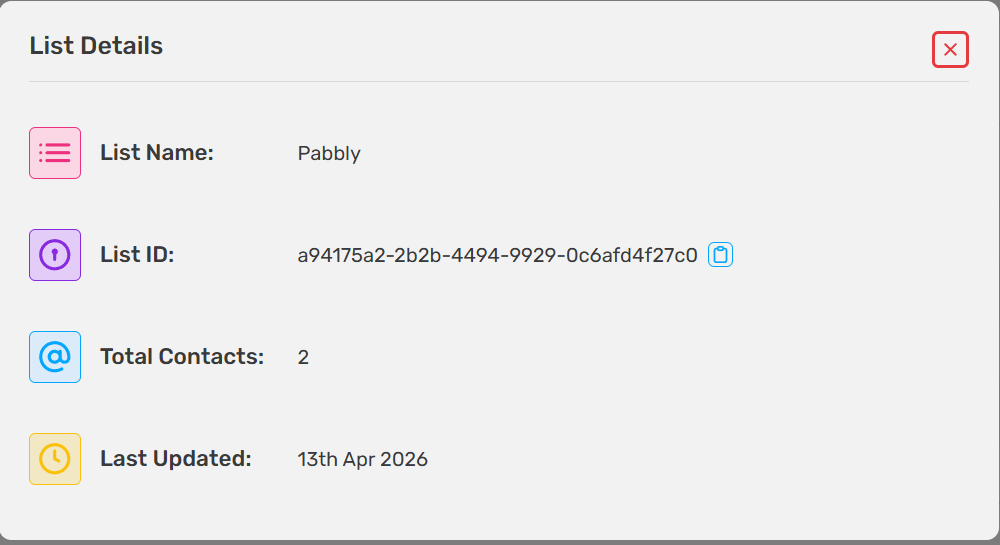
Q: How do I find my Sequence or List ID?
In SalesBlink, go to Outreach → Sequences (or Lists). The ID is visible in the URL when you open a sequence or list, or you can find it in the details section.
Q: Does Pabbly Connect charge for trigger steps?
No, Pabbly Connect does not charge for trigger steps or internal tasks like filters, routers, and formatters. Only action steps count toward your task limit.
Q: What apps can I connect with SalesBlink via Pabbly Connect?
You can connect SalesBlink with 2,000+ apps on Pabbly Connect, including Google Sheets, Slack, HubSpot, Pipedrive, Salesforce, WhatsApp, and many more.
Q: Can I create multi-step workflows?
Yes, Pabbly Connect supports unlimited multi-step workflows. You can add multiple actions, filters, routers, and delays to create complex automation.