Overview
Connect any email address using SMTP/IMAP details as an email sender with SalesBlink.
Prerequisites
- SMTP/IMAP credentials from your email provider
- IMAP and SMTP access enabled on your email account
Connect SMTP/IMAP Email to SalesBlink
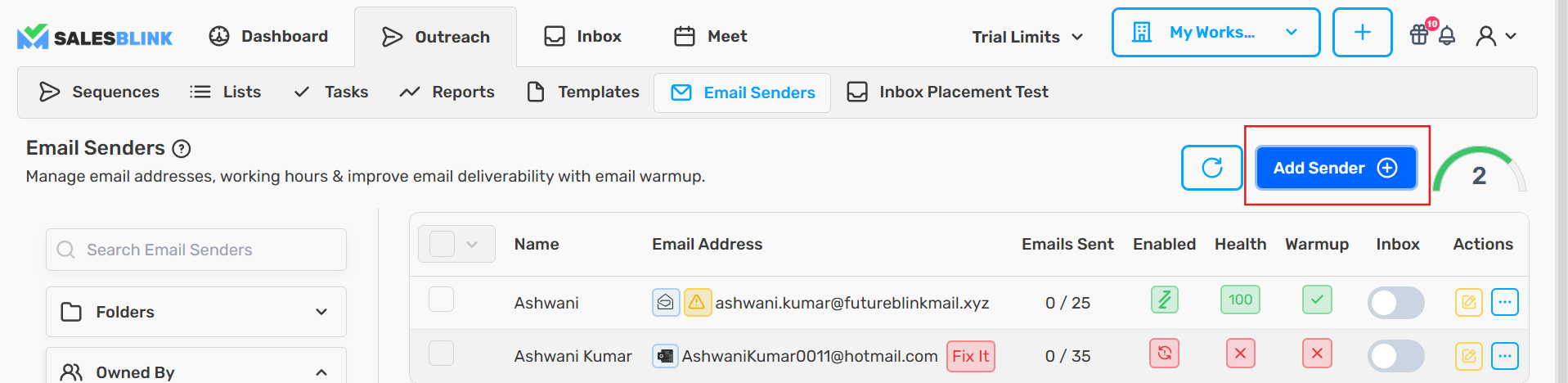
Click Outreach → Email Senders.
Click the Add Sender button.
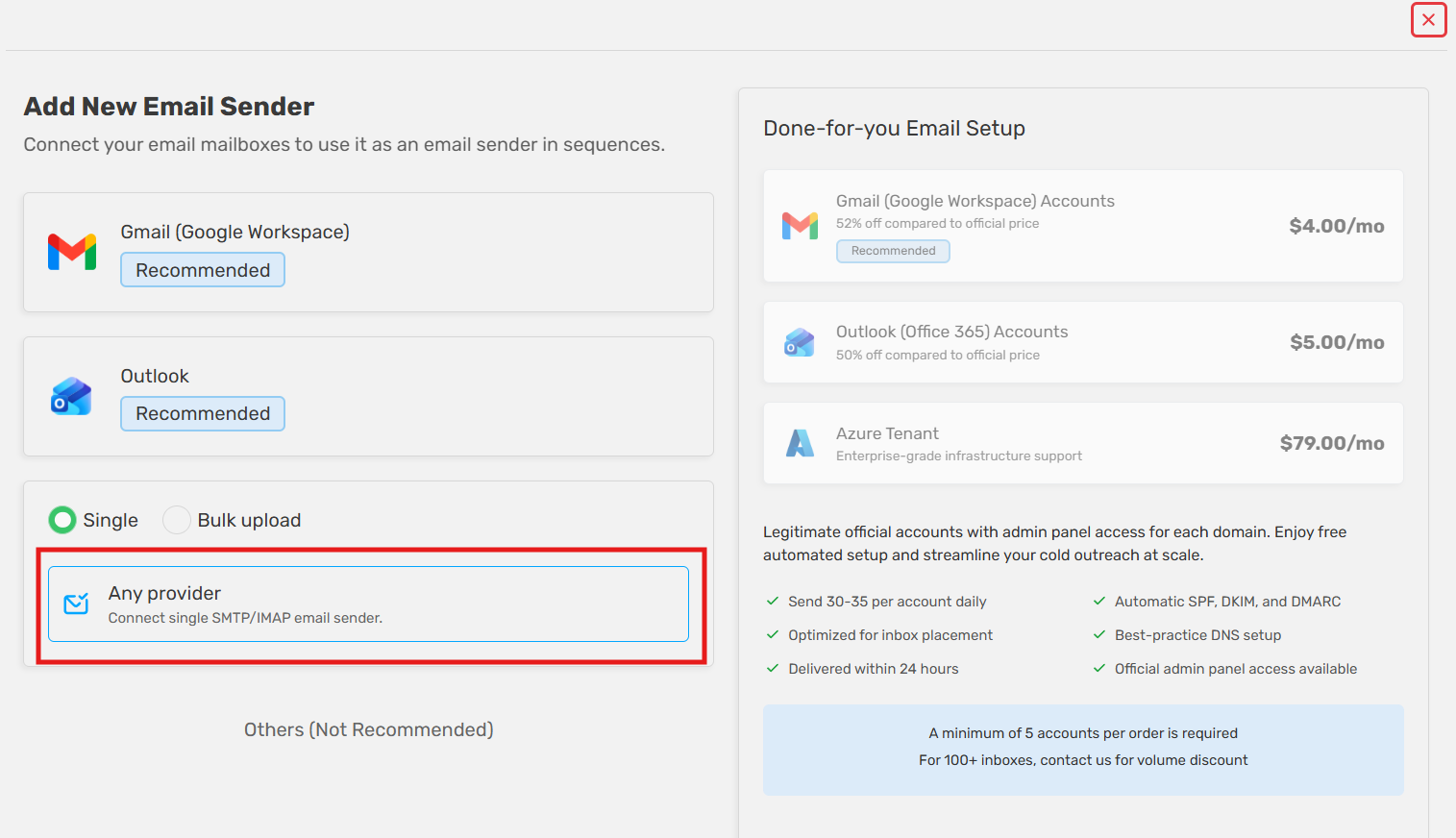
Select Any Provider (SMTP/IMAP).
Select Single and click Next.
- Select Service (SMTP and IMAP).
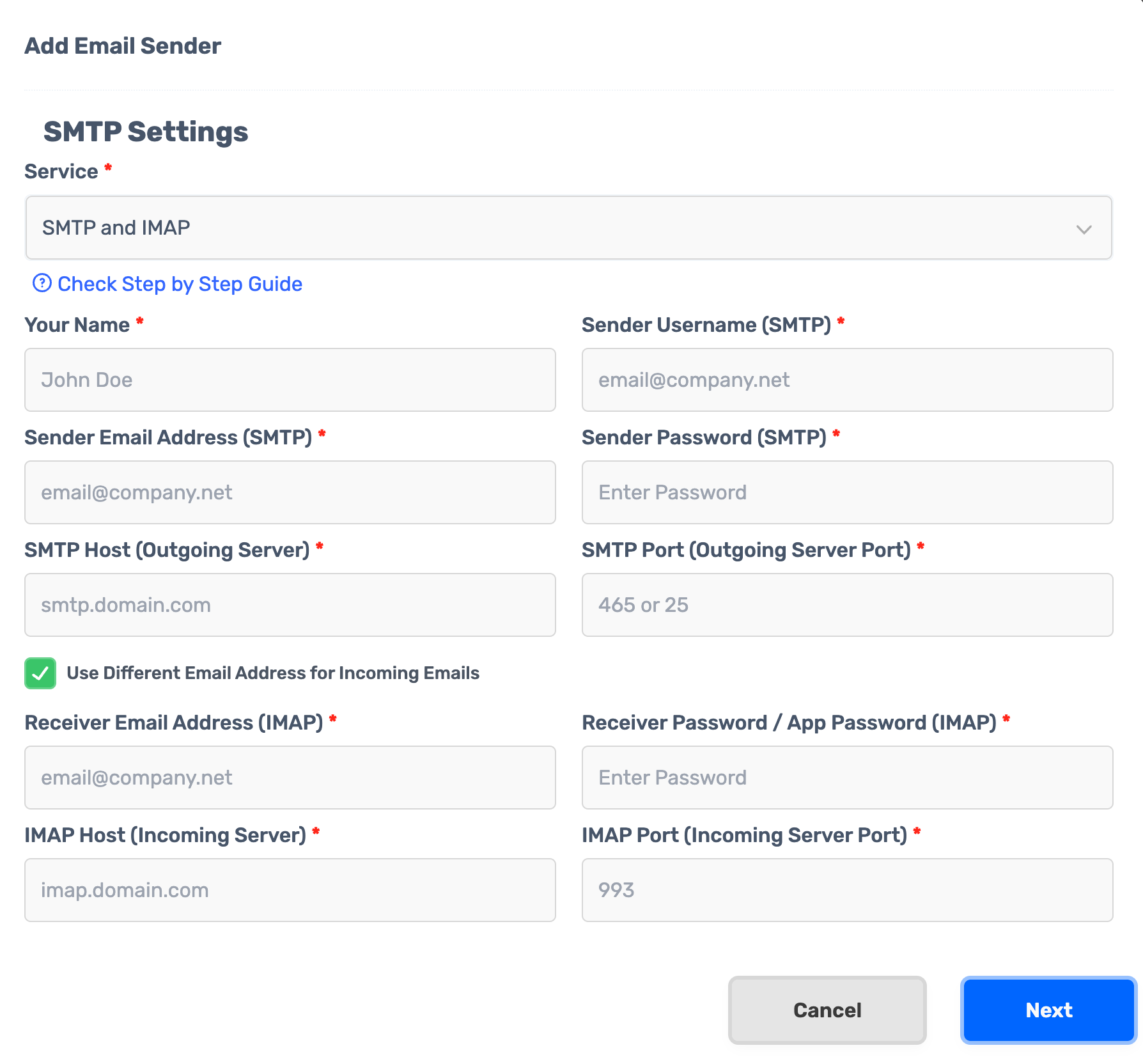
- Enter your SMTP and IMAP details:
| Field | Value |
|---|---|
| Your Name | Your name as displayed to recipients |
| Sender Username | Your SMTP/IMAP username |
| Sender Email Address | Your SMTP/IMAP email address |
| Sender Password | Your SMTP/IMAP password |
| SMTP Host | SMTP Host from your SMTP/IMAP Configuration |
| SMTP Port | SMTP Port from your SMTP/IMAP Configuration |
| IMAP Host | IMAP Host from your SMTP/IMAP Configuration |
| IMAP Port | IMAP Port from your SMTP/IMAP Configuration |
Ports and encryption
Use the port that matches the encryption your provider expects. SalesBlink has no separate encryption setting, so the port you enter must be the one your provider uses for that encryption. A wrong port is one of the most common reasons an SMTP/IMAP sender fails to connect.
| Server | Port | Encryption |
|---|---|---|
| SMTP | 465 | SSL/TLS |
| SMTP | 587 | STARTTLS |
| IMAP | 993 | SSL/TLS |
Common host and port mistakes
- Using the domain instead of the server name. Enter the full host, for example
smtp.gmail.comandimap.gmail.com, notgmail.com. - Swapping the SMTP and IMAP details. The SMTP host and port go in the SMTP fields, and the IMAP host and port go in the IMAP fields. Some providers, such as Hostinger, list them close together, so they are easy to swap.
- Using an IMAP port for SMTP, or the reverse.
993is an IMAP port. SMTP uses465or587. - Using your regular password when the provider requires an app password.
Optional: Use a Different Inbox for Replies
To receive replies in a different inbox, check Use Different Email Address for Incoming Emails and enter:
- Receiver Email Address: Where replies should be sent
- Receiver Password / App Password: Password for the receiver email
- Click Next to connect your email.
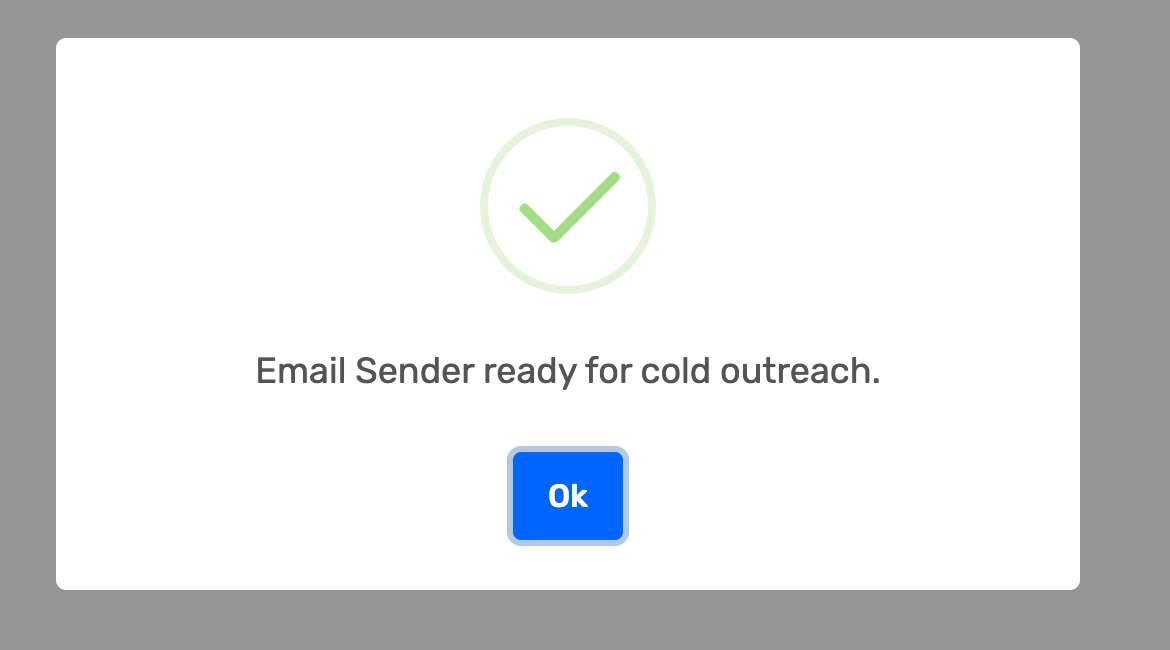
Next Steps (Optional)
Complete these optional steps to maximize email deliverability:
- Set your email signature
- Enable Email Warmup for better deliverability
- Enable email sender in Unified Inbox
- Set up your custom domain
- Check your domain setup
Launch Your Cold Email Sequence
Your SMTP/IMAP email is ready. Create a sequence using one of these methods:
- AI Assisted Sequences
- Cold Email Sequences using Templates
- Cold Email Sequences from Scratch (Advanced)
Common Errors
- Ensure that IMAP & SMTP are enabled on your email account
- Use an app password if your email provider requires it
- Double-check that IMAP & SMTP host/port are correct
Common error messages
SMTP Error: ESOCKET EPROTOCOL wrong version number
SMTP Error: ESOCKET EPROTOCOL wrong version number
The SMTP port and the encryption the server expects don't match, so the secure connection can't be set up.
To fix it:
- Check your provider's SMTP settings for the correct port and encryption.
- In Outreach → Email Senders, click the Edit (pencil) icon next to the sender and enter the matching port in SMTP Port (Outgoing Server Port):
465for SSL/TLS or587for STARTTLS. See Ports and encryption. - If you are already on
465, try587, or the other way round. - Click Next and wait for the sender to reconnect.
If the error keeps coming back on a provider whose settings are correct, the mail server itself is rejecting the connection. This is common with cPanel and shared hosting mailboxes. Contact your email provider, or move to a provider that works well with cold email.
Failed to establish connection in required time
Failed to establish connection in required time
The mail server didn't respond before the connection timed out. This usually means:
- The host or port is wrong, so SalesBlink is trying to reach a server that doesn't answer.
- The provider blocks connections from outside tools, or the server is slow or overloaded.
Check the host and port first. If you use SMTP port 465, try 587. Then test the credentials with the testers below. If the testers also time out, the problem is on the provider's side. SalesBlink support can't debug self-hosted or custom mail servers, so contact your email provider. See also Why Am I Getting a Connection Timed Out Error.
Choose a provider that works with cold email
Many shared hosting and self-hosted mailboxes disconnect often or block bulk sending. For the most reliable connection and deliverability, use Google Workspace or Microsoft 365. See Which Email Service Provider Should I Use as Email Mailbox for Cold Email.
Frequently Asked Questions
My credentials are correct but it won't connect.
Test your credentials with a free IMAP Tester and SMTP Tester. If they work but you still can't connect, contact SalesBlink support. See also Unable to Connect to SMTP/IMAP.
My sender has been on Connecting... for a long time. What should I do?