Overview
Connect any email address using SMTP only as an email sender with SalesBlink.
Important: SMTP only allows sending emails. The following features will not work:
Reply tracking
Unified Inbox
Email WarmUp
Prerequisites
SMTP credentials from your email provider
SMTP access enabled on your email account
Connect SMTP Only Email to SalesBlink
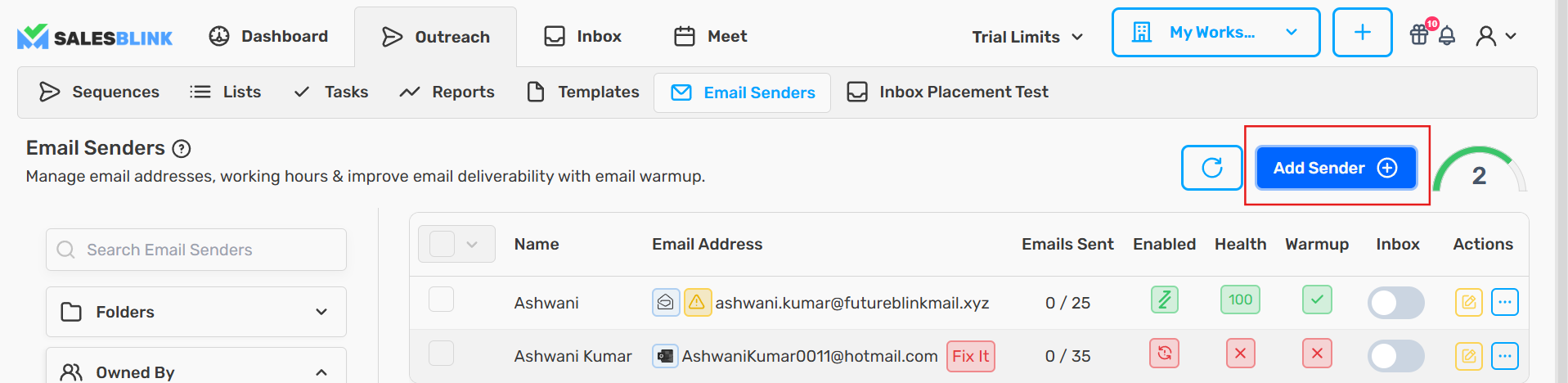
Click Outreach → Email Senders
Click the Add Sender button
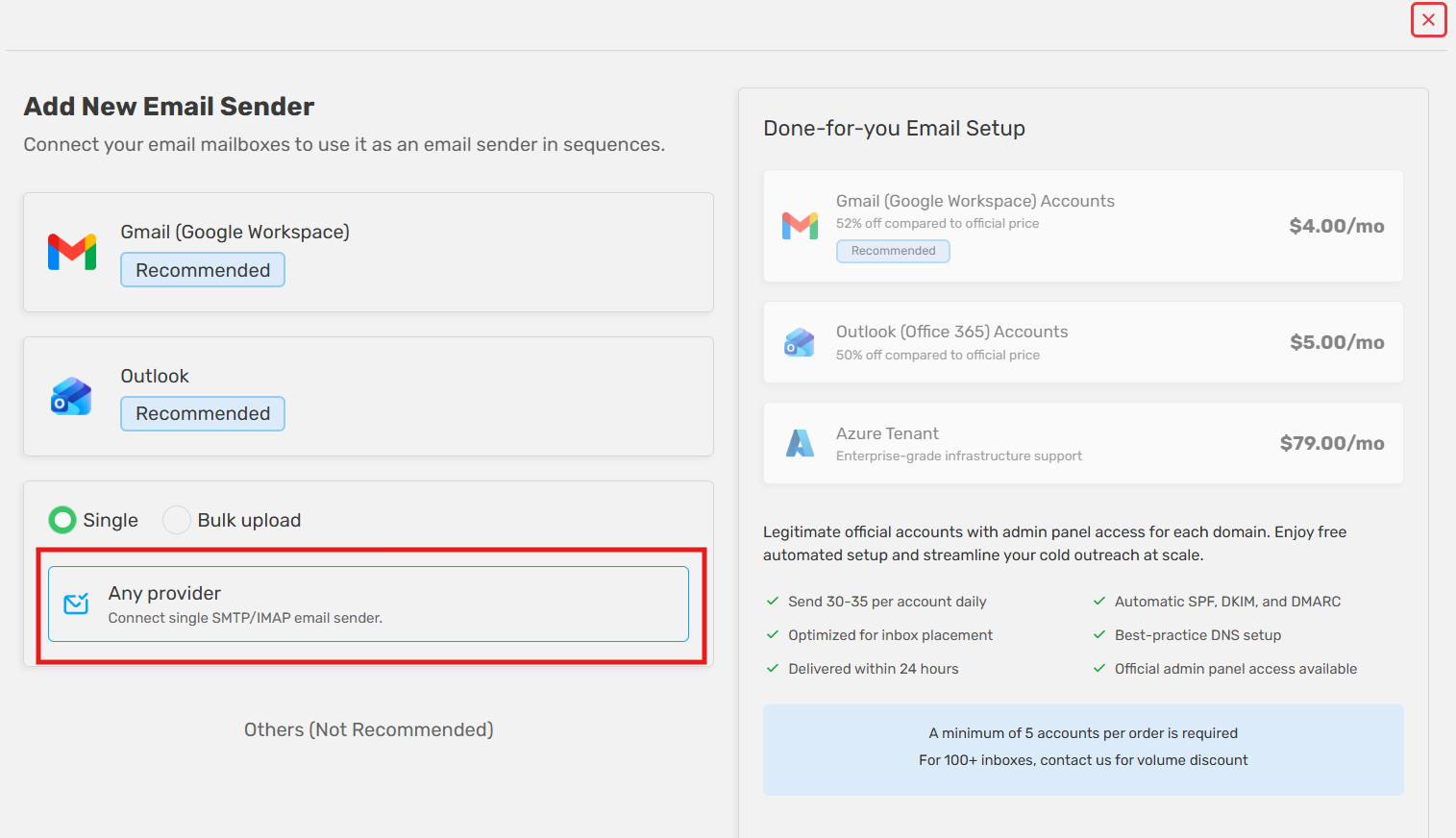
Select Any Provider (SMTP/IMAP)
Select Single and click Next
- Select Service (SMTP Only)
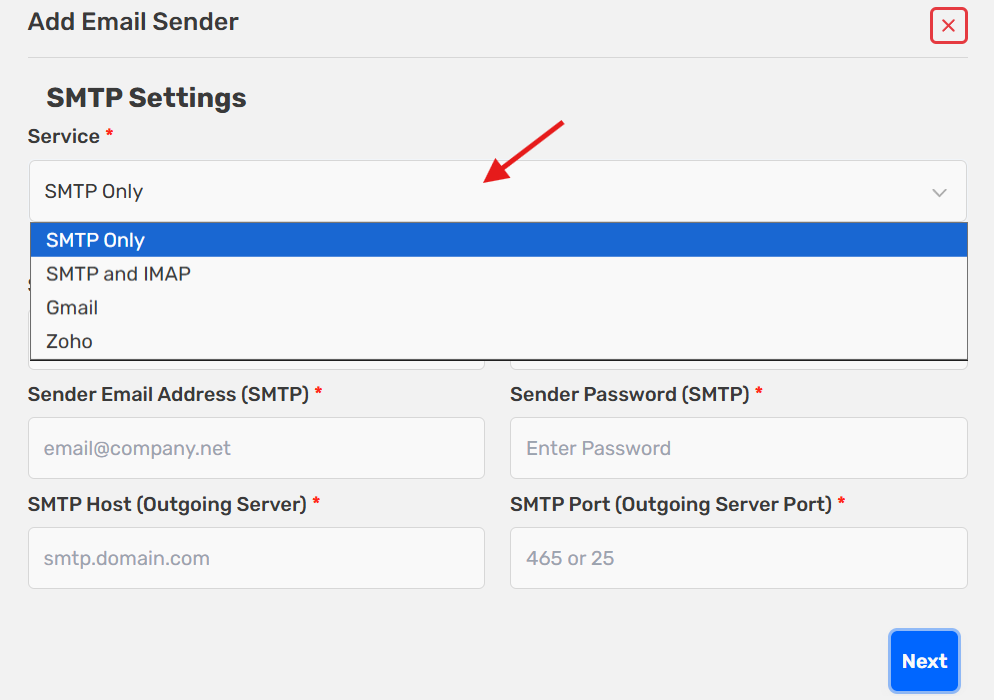
- Enter your SMTP details:
| Field | Value |
|---|---|
| Your Name | Your name as displayed to recipients |
| Sender Username | Your SMTP username |
| Sender Email Address | Your SMTP email address |
| Sender Password | Your SMTP password |
| SMTP Host | SMTP Host from your SMTP Configuration |
| SMTP Port | SMTP Port from your SMTP Configuration |
- Click Next to connect your email
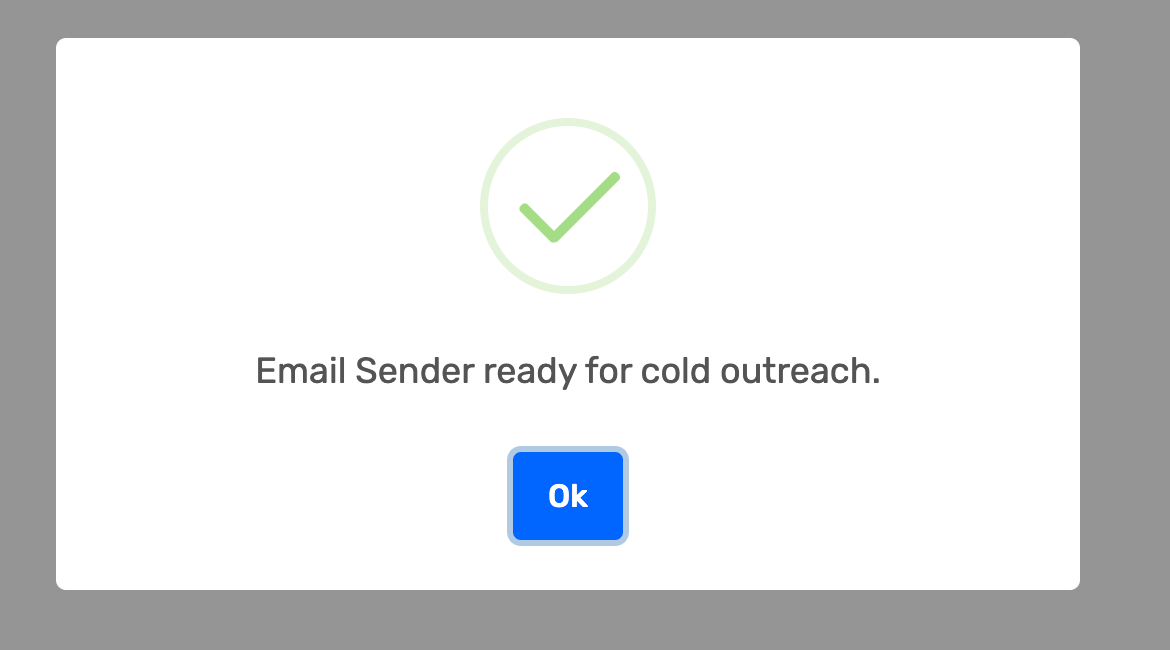
Next Steps (Optional)
Complete these optional steps to maximize email deliverability:
Enable email sender in Unified Inbox
Launch Your Cold Email Sequence
Your SMTP email is ready. Create a sequence using one of these methods:
Common Errors
Ensure that SMTP is enabled on your email account
Use an app password if your email provider requires it
Double-check that SMTP host/port is correct
Frequently Asked Questions
Q: My credentials are correct, but it won't connect. A: Test your credentials with a free SMTP Tester. If they work but you still can't connect, contact SalesBlink support.