Overview
Create and manage email signatures for your email senders. Use the {{email_signature_of_sender}} variable to append signatures in email templates.
Prerequisites
- At least one email sender connected
Create Signature While Adding Email Sender
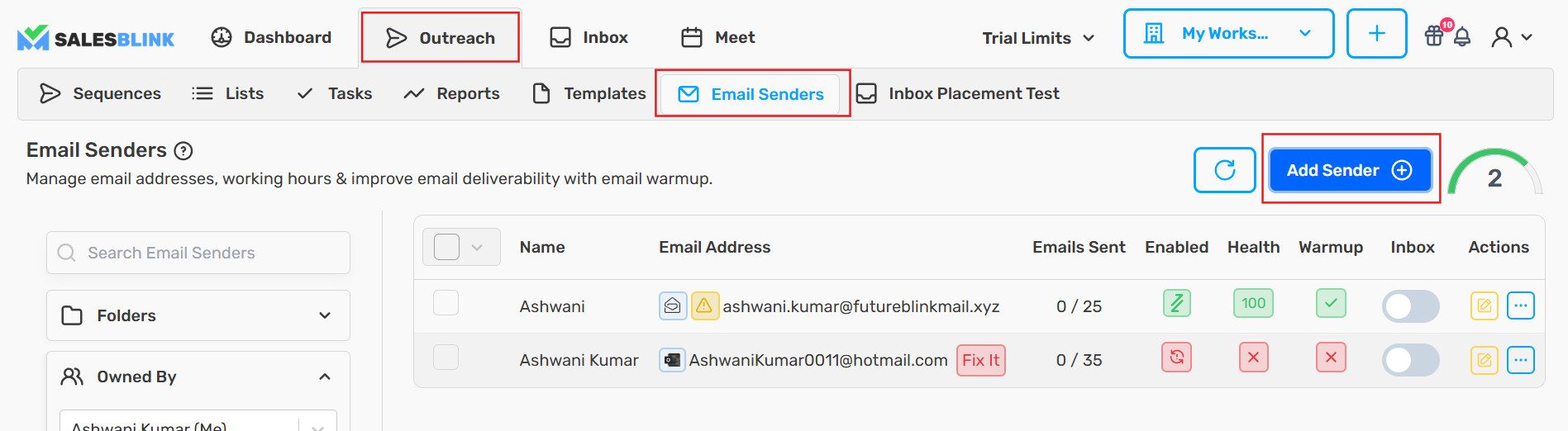
Click Outreach → Email Senders
Click the Add Sender button
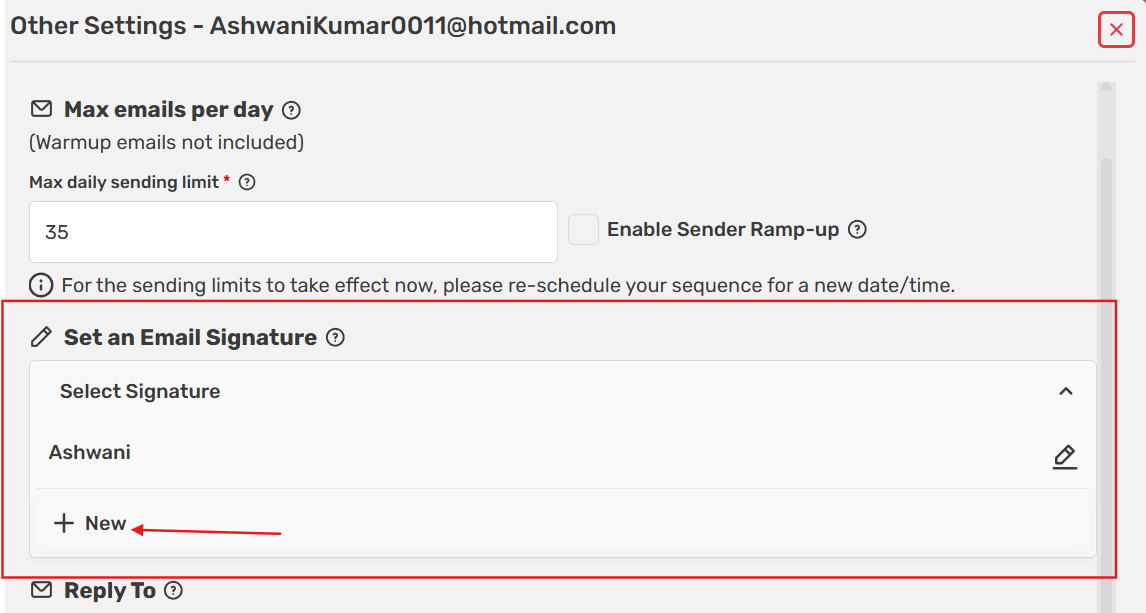
- Click the Email Signature dropdown
- Select New to create a new signature
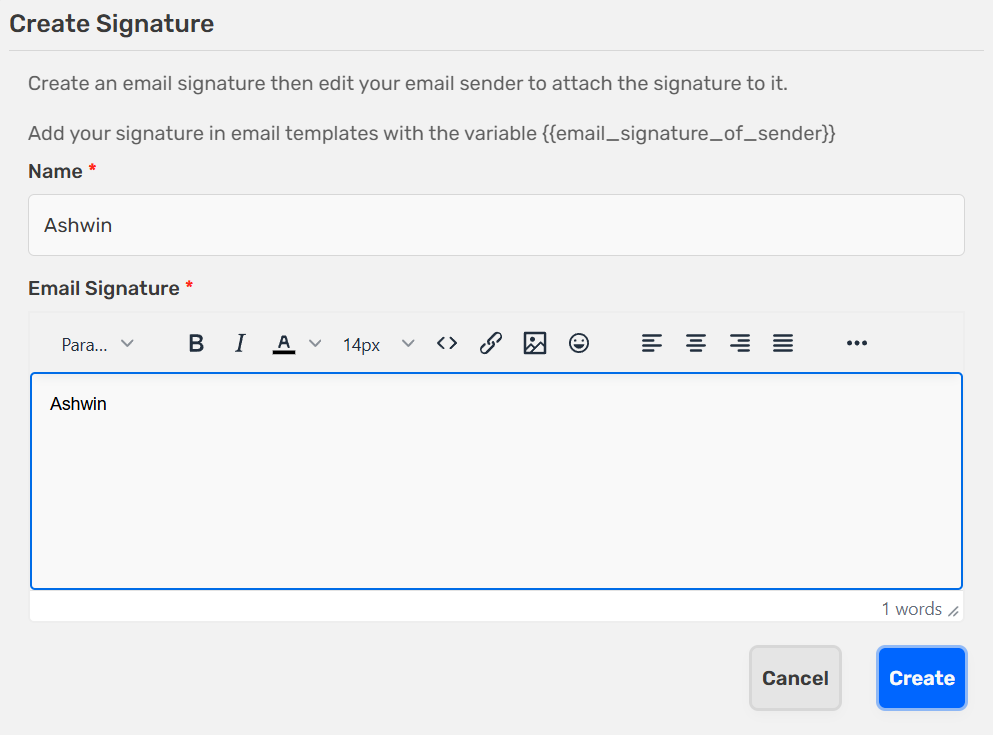
- Enter a Name for the signature (internal use)
- Enter your Signature text
- Click Create
Create Signature via Other Settings
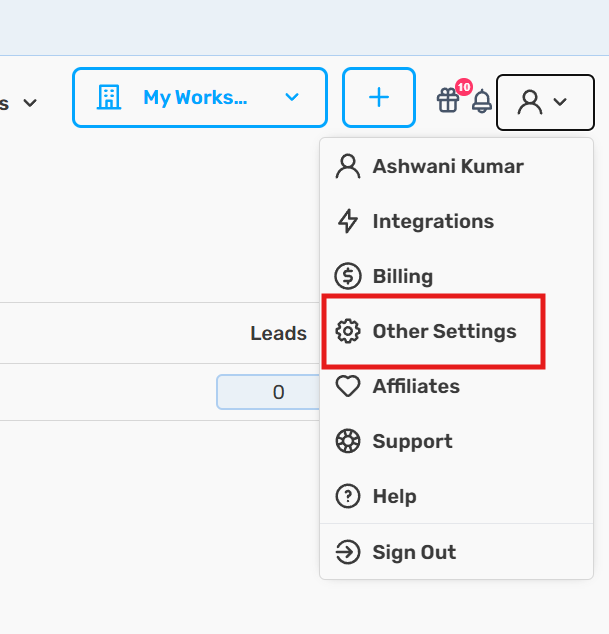
- Click your Profile icon (top right)
- Select Other Settings
Inside Signatures
Click the Add (+) button
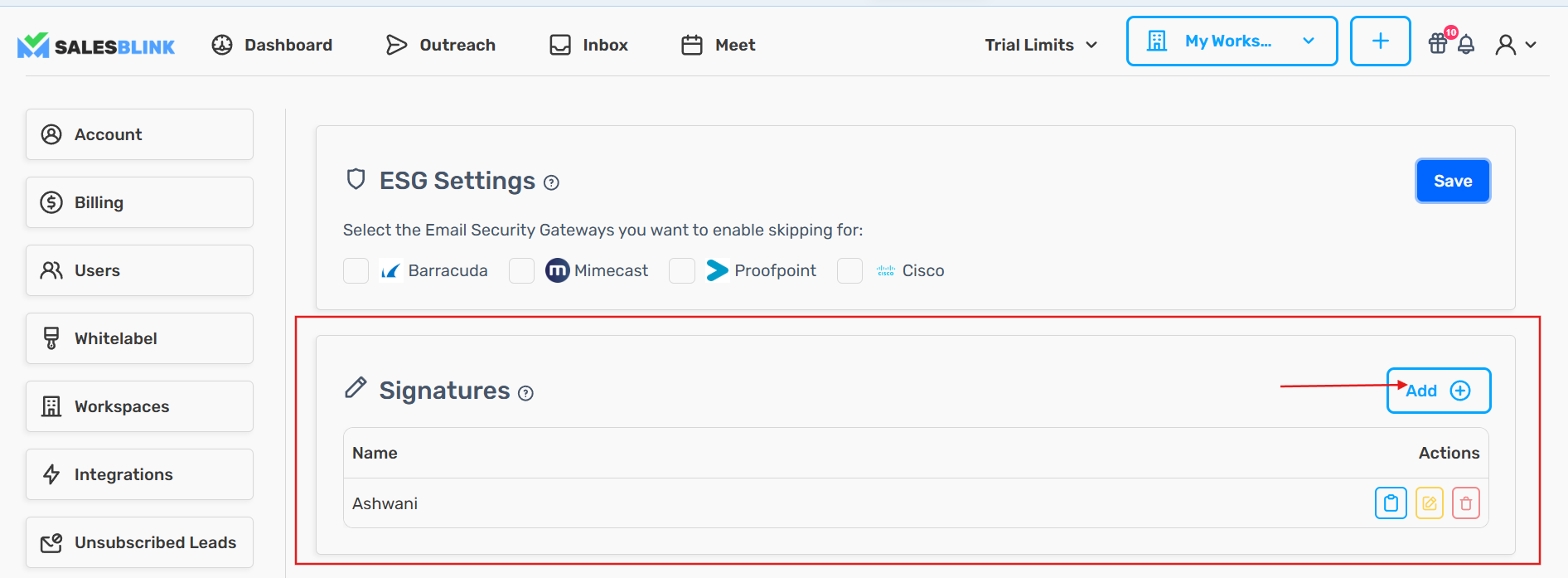
- Enter a Name for the signature (internal use)
- Enter your Signature text
- Click Create to save
Set Signature for Existing Email Sender
Click Outreach → Email Senders
Click the Actions menu (three dots) for the sender
Select Settings
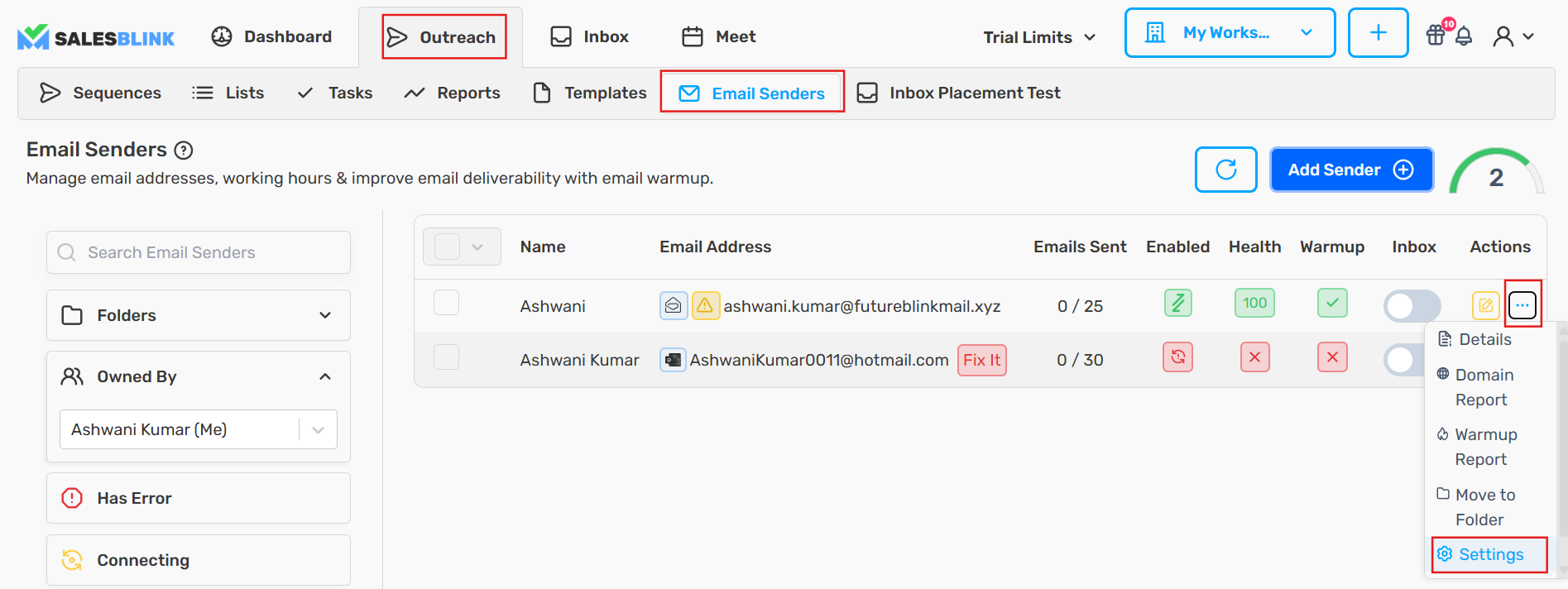
Scroll to Set an Email Signature
Select your signature from the dropdown
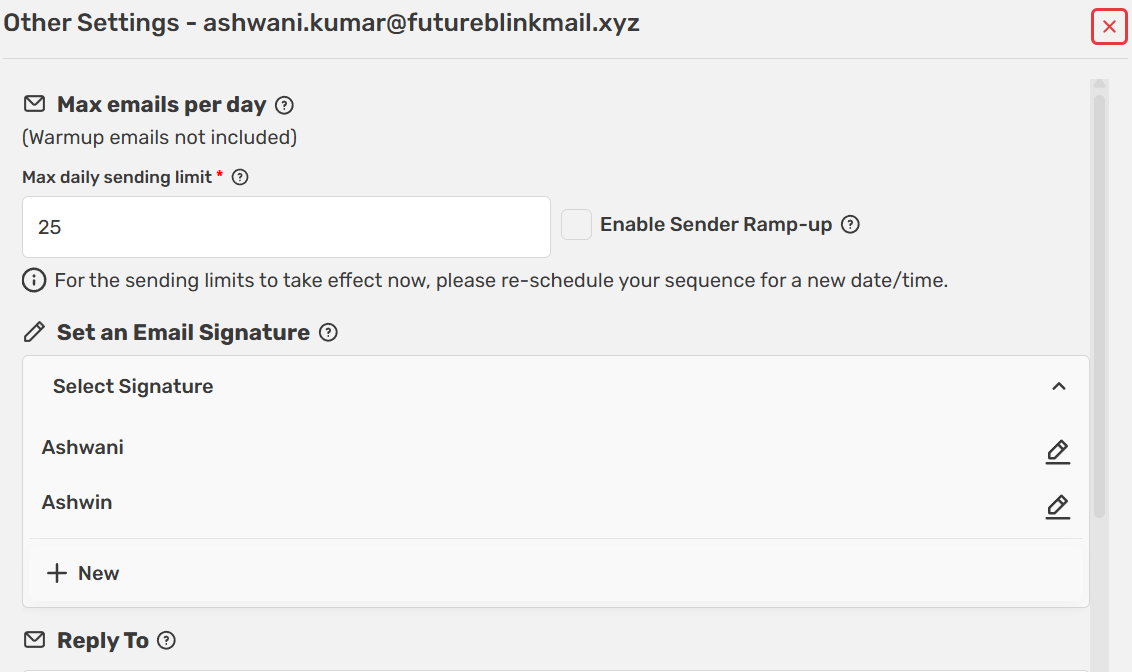
- Click Finish
Frequently Asked Questions
Q: Can I re-use an Email Signature? A: Yes. Create one signature and use it with multiple Email Senders.
Q: How can I add an HTML Email Signature? A: Click the Source Code <> icon in the toolbar to edit or add your HTML signature.