Overview
Use folders to organize your email senders and add multiple senders to a sequence in one go.
Prerequisites
- At least one email sender connected
Create a Folder
- Click Outreach → Email Senders
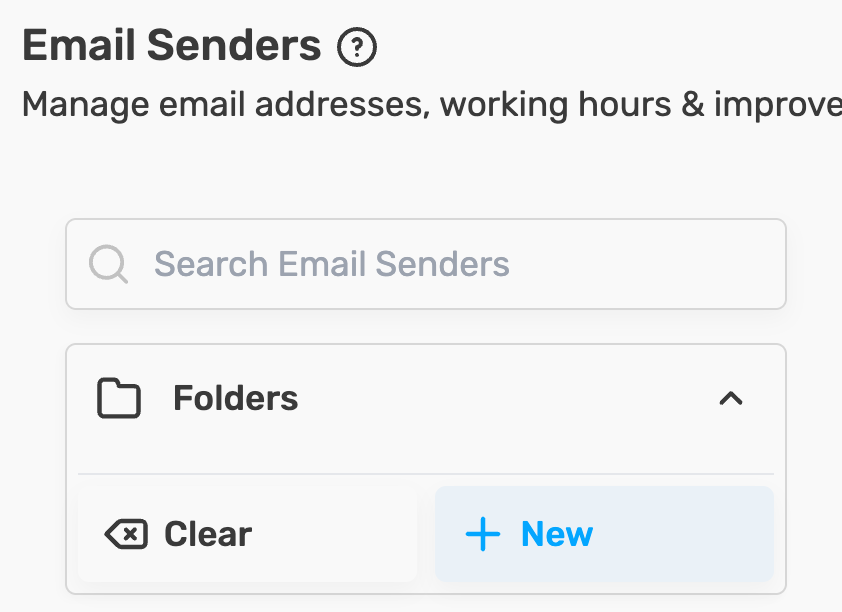
- Click Folders in the Left Sidebar, then click New
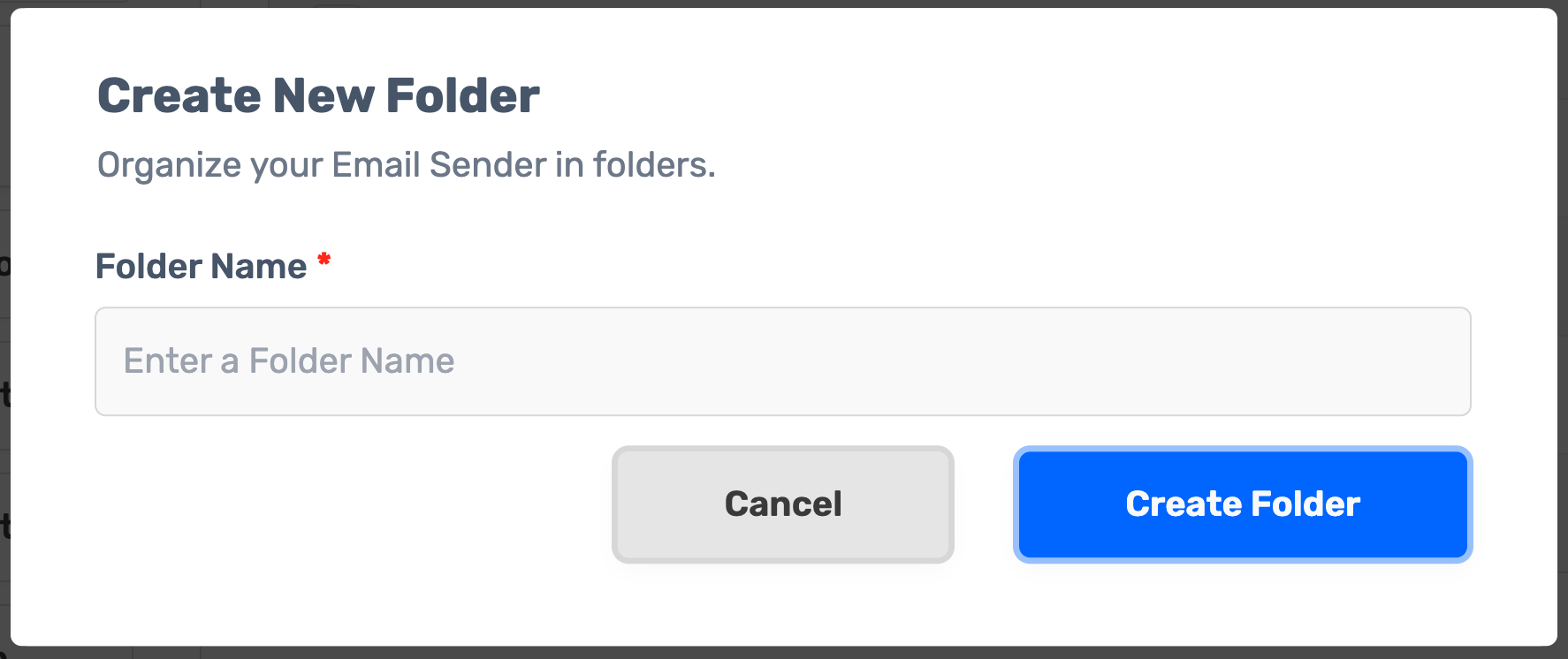
- Enter a folder name and click Create Folder
Add Email Senders to a Folder
Click Outreach → Email Senders
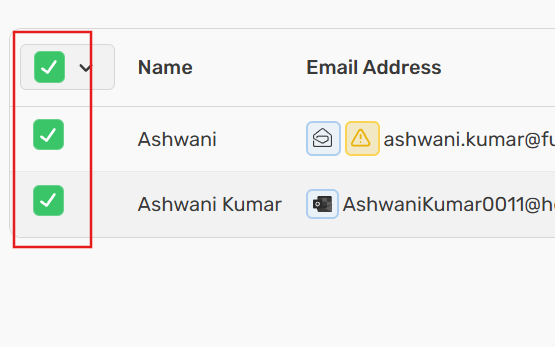
Select the email senders you want to move
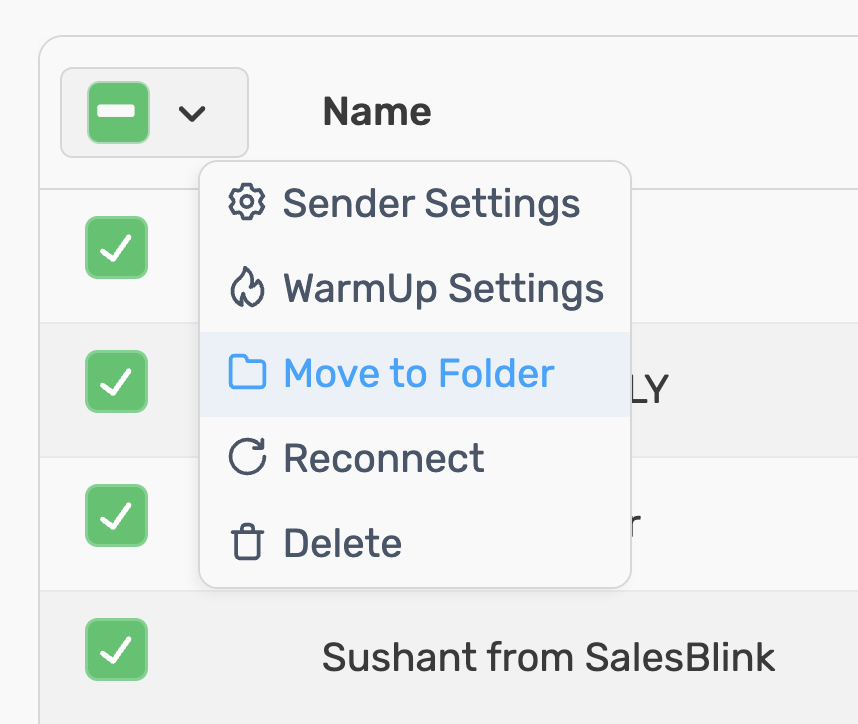
- Click the Select dropdown, then click Move to Folder
- Select the destination folder and click Move
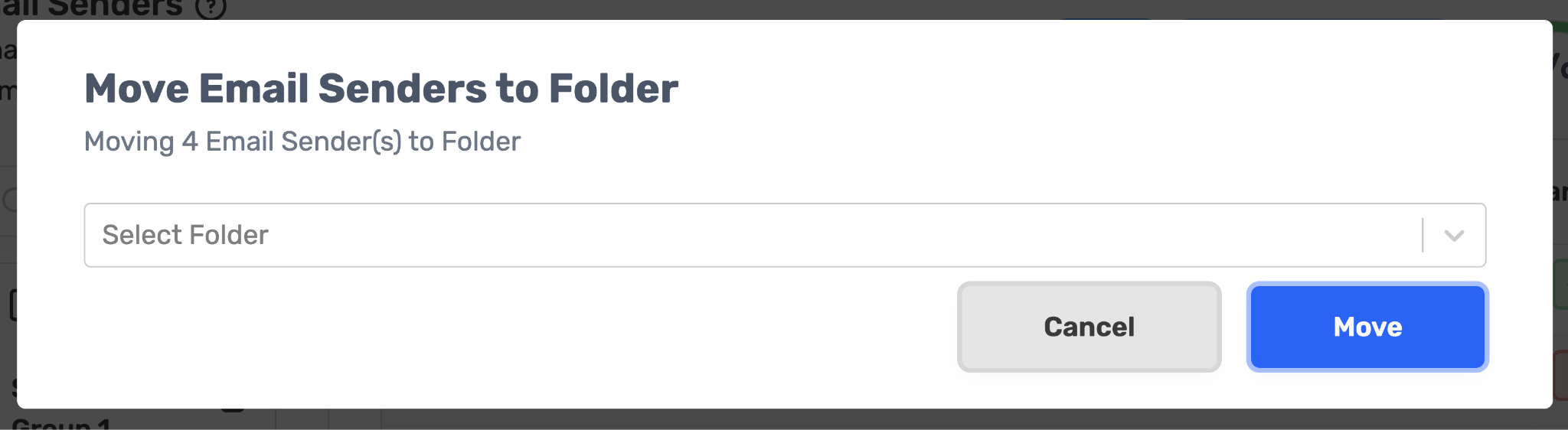
The folder name will now appear under each email sender in the list.
View Email Senders in a Folder
Click Outreach → Email Senders
Click Folders in the Left Sidebar
Click your folder name to view all email senders in that folder
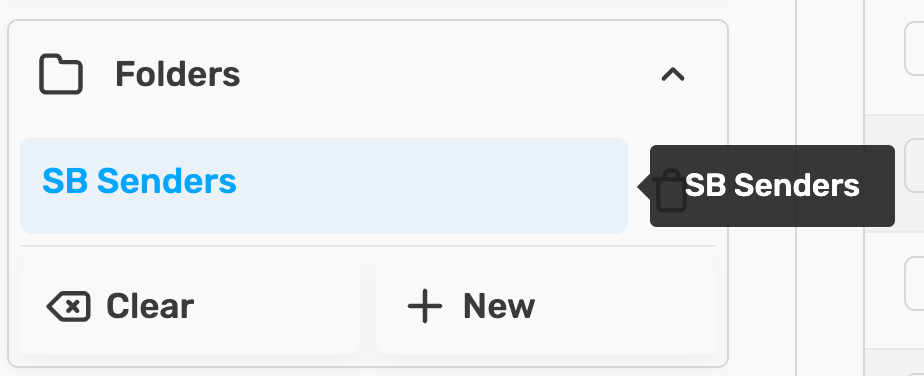
The folder shows under Active filters, below the search box. Click × on the folder, or click Clear all, to see all email senders again. Other filters, such as Has Error or Owned By, show there too.
Add Folder to a Sequence
Using folders to add email senders to a sequence is the fastest way to add multiple senders at once.
Note: Any new email senders added to a folder will automatically be added to the sequence if the folder is connected to a running or evergreen sequence.
- Ensure email senders are added to a folder
- While scheduling a sequence, go to Sequence Settings
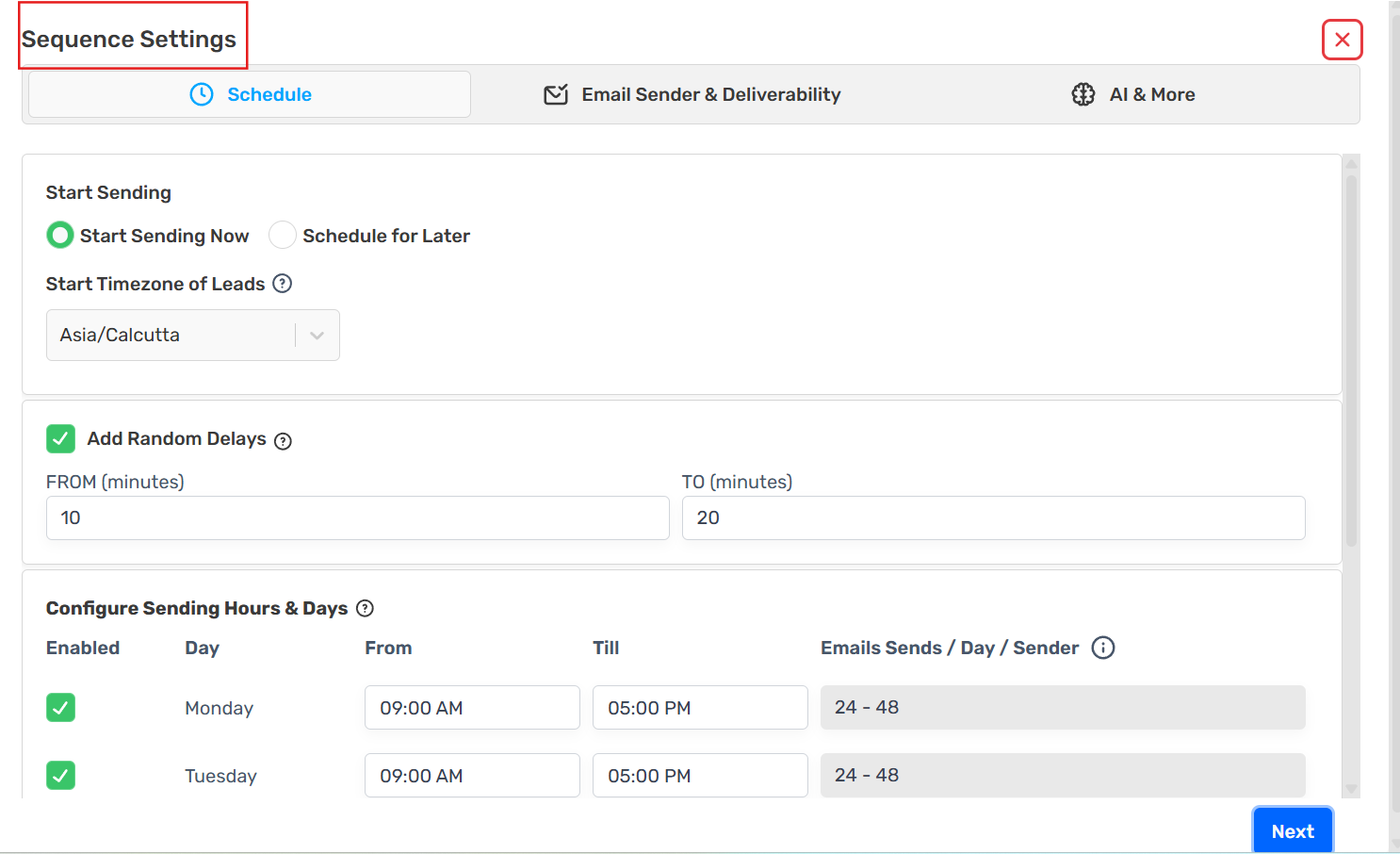
- Search for your folder name in the Email Senders field
- Select your folder from the dropdown
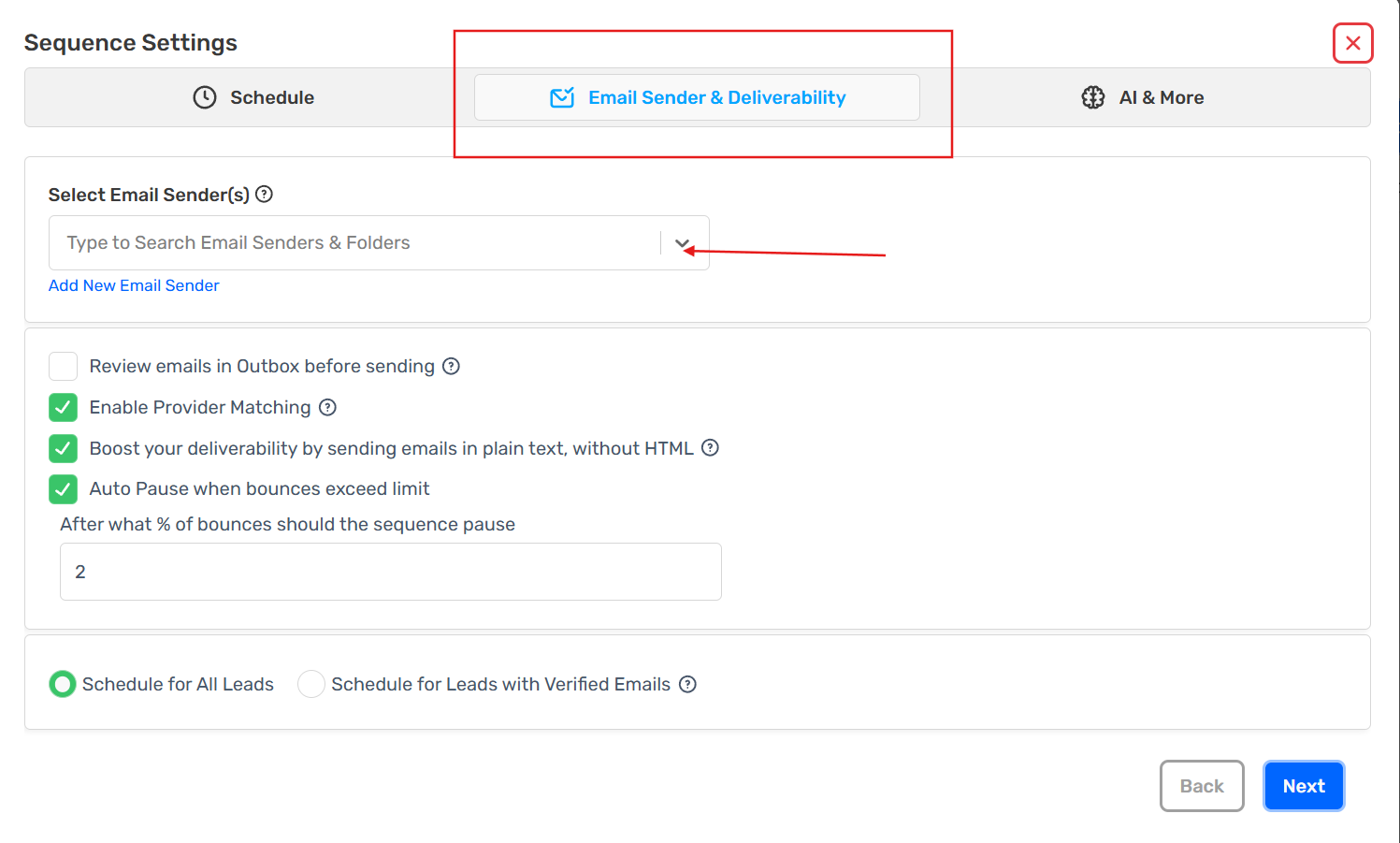
That's all you need to do. All email senders in the folder will be added to the sequence.
Tip: Use one sender, or one sender folder, per sequence to avoid confusion over daily limits and scheduling.