Overview
Random delays and sending hours help you send emails at irregular intervals and during preferred time windows, mimicking human behavior to improve deliverability and protect your domain reputation.
Prerequisites
- A sequence ready to schedule
What Are Random Delays?
A random delay is the wait time between two emails sent from the same email sender. Before each email, SalesBlink picks a new wait time at random (in whole minutes) from the range you set. Each sender follows its own timer, so if a sequence uses several senders, they send in parallel and each one waits its own random gap between emails.
How It Works:
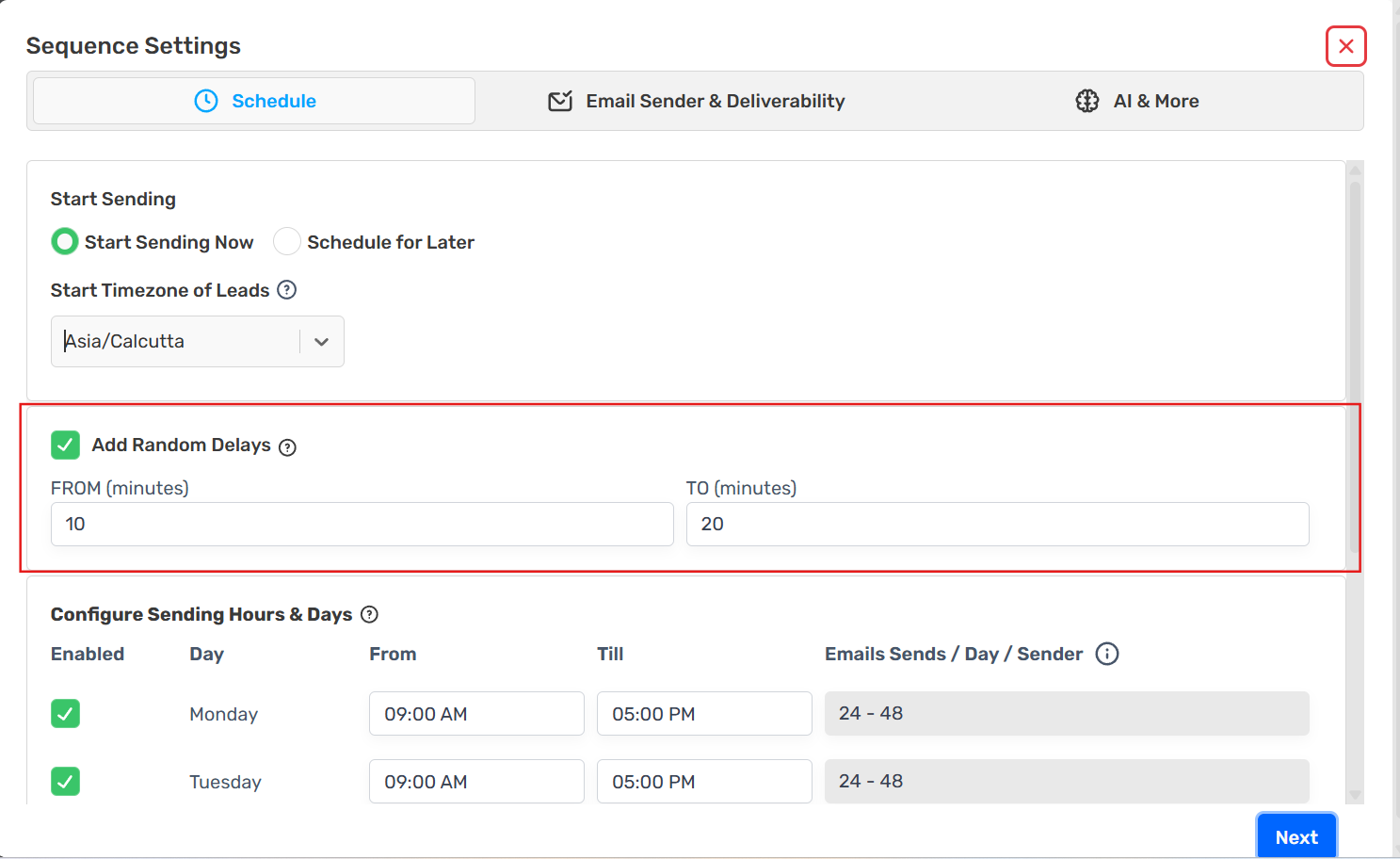
You set a range in minutes using the FROM and TO fields (e.g., 10–20 minutes)
Before each email from a sender, a new wait time is picked at random from that range
The next email from that sender is scheduled after that wait Example (one sender, range 2–7 minutes):
1st email → 4 minutes after the sending window opens
2nd email → 3 minutes after the 1st
3rd email → 6 minutes after the 2nd
4th email → 2 minutes after the 3rd This uneven pattern looks like a person sending emails by hand, which helps deliverability.
Default Behavior:
- New sequences have random delays enabled with a range of 10–20 minutes.
- If you turn random delays off, SalesBlink still leaves a short random gap of a few seconds between emails from the same sender. This keeps a sender from sending everything at once.
- Outlook senders: the gap is always at least 5 minutes. If random delays are on and FROM is below 5, SalesBlink uses 5 minutes as the minimum. If random delays are off, Outlook senders wait 5–6 minutes between emails.
- AI personalized sequences: random delays are always on and can't be turned off. The minimum value is 1 minute.

What Are Sending Hours?
Sending hours control which days and times your emails go out. They are set for each day of the week, in the timezone selected under Start Timezone of Leads.
What You Can Set:
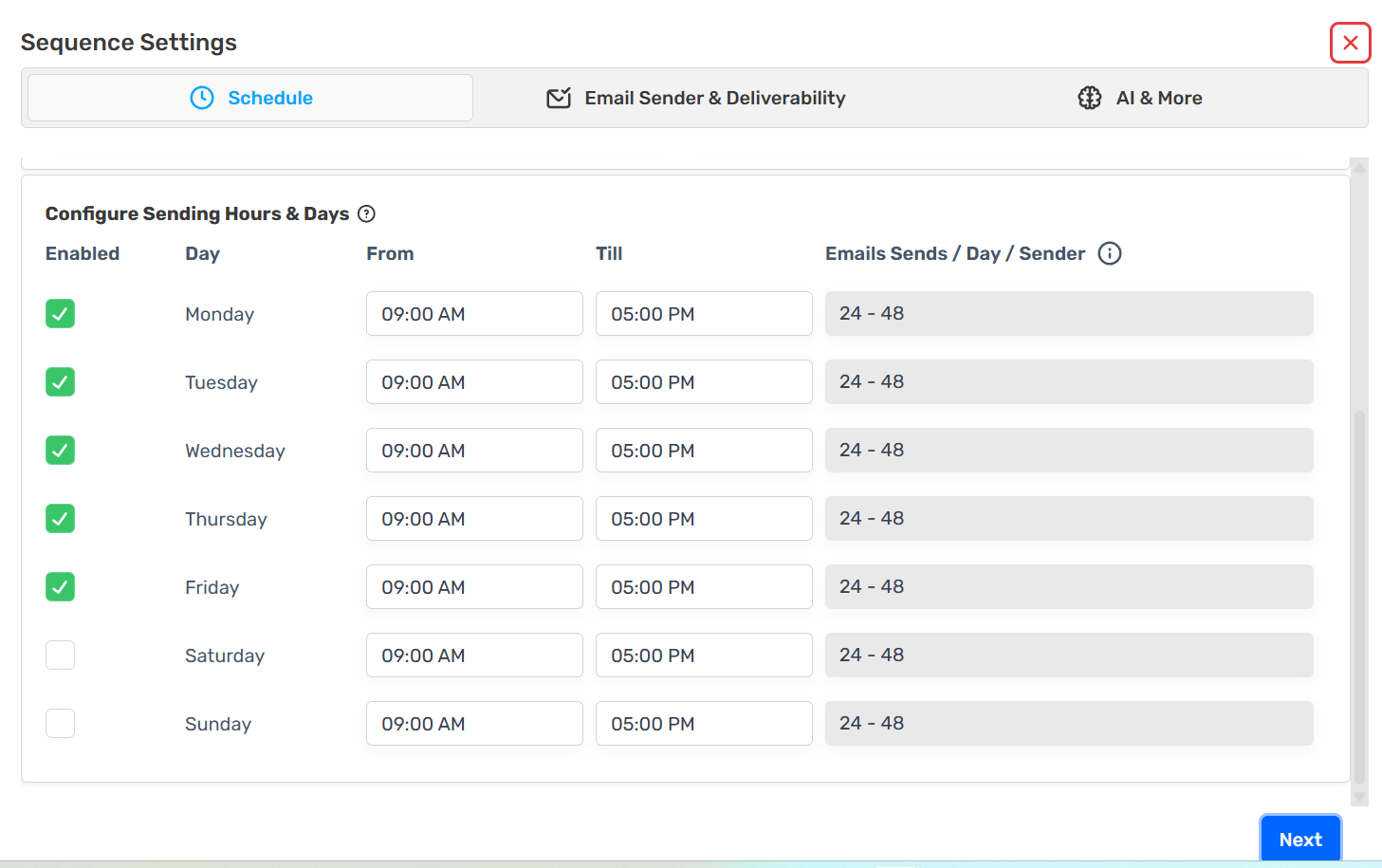
- Which days are enabled (by default Monday–Friday are on, Saturday and Sunday are off)
- A From and Till time for each enabled day (default 9:00 AM – 5:00 PM) Emails are only scheduled inside these windows. If the next random delay would push an email past the end of the day's window, the email moves to the start of the next enabled day. Each sender's daily sending limit is also respected.
The Emails Sends / Day / Sender column shows about how many emails each sender can send that day: the length of the window divided by your delay range. For example, an 8-hour window (480 minutes) with a 10–20 minute delay gives about 24–48 emails per sender per day.
- Days that aren't ticked show 0.
- If the low and high estimates are the same, the column shows a single number instead of a range.
- The column only appears when Add Random Delays is on.
How to Configure
While Scheduling a Sequence
Click Save & Schedule.
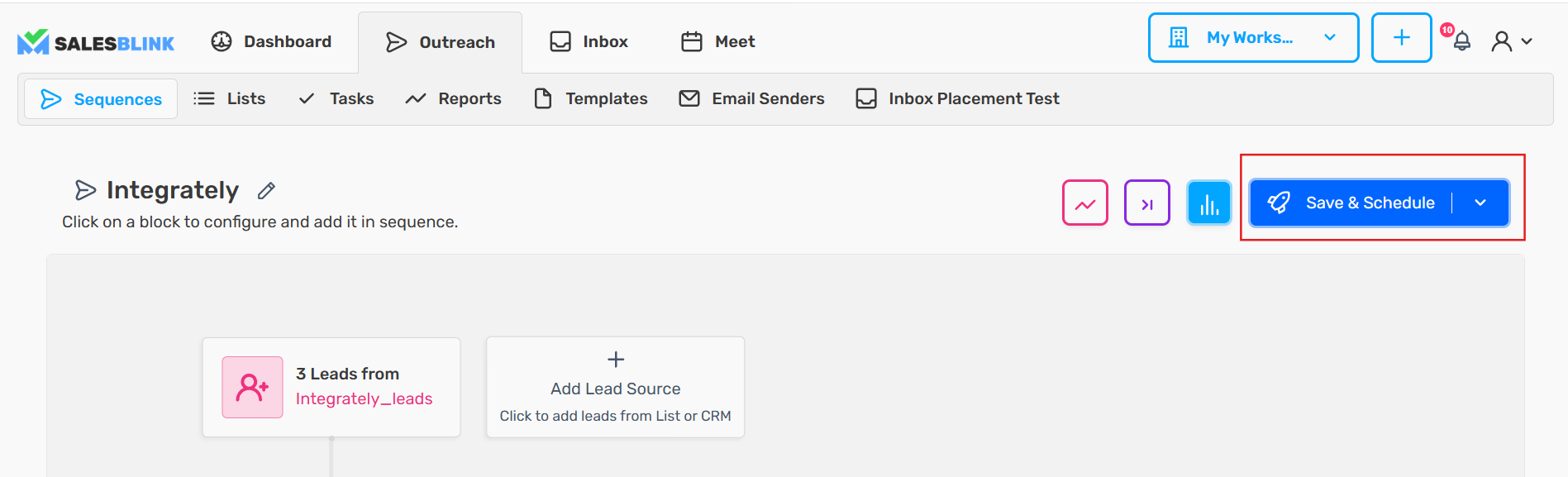
- Set the following:
- Start time & timezone
- Random delays (enable and set the FROM and TO range in minutes)
- Sending hours & days
Click Save to apply your preferences
Your emails will now follow the defined schedule automatically.
Frequently Asked Questions
Q: Where can I set random delays and sending hours for an email sender?
You don't set these at the sender level. You set them on each sequence when scheduling it. The delay is applied separately to each sender used in that sequence.
Results
Using random delays and proper sending hours helps you:
- Avoid spam detection
- Maintain sender reputation
- Improve email engagement